Our lowest prices of the year Annual & lifetime plans Up to 87% off
00days
:
00hrs
:
00min
:
00sec
Get the deal

Campaigns

Set up the Booknetic Campaigns add-on: email, SMS and WhatsApp campaigns, audience filters, scheduling, the unsubscribe page and campaign reports.

Version:
Categories

The Campaigns add-on sends one email, SMS or WhatsApp message to a group of your customers, right away or at a time you choose. You pick the customers with filters, see how many the campaign will reach, and follow every message in the campaign's report.

Requirements

  • Booknetic and Booknetic Pro 6.2 or later, with an active licence.
  • Campaigns add-on, installed and activated from the Booknetic Boostore.
  • At least one channel add-on: Email (Workflow Email), Twilio SMS, Amazon SNS or Twilio WhatsApp, set up and working. Campaigns sends through their settings.
  • A working Booknetic cron job. Campaign messages are sent by the cron in the background.

Installation

  1. In your Booknetic Admin Panel, go to Boostore.
  2. Find the Campaigns add-on and click Install.
  3. Once installed, click Activate.

The add-on adds the Campaigns menu with two tabs: Campaigns and Settings. In the new admin interface, Campaigns is in the Automation group of the sidebar.
Step 1: Settings

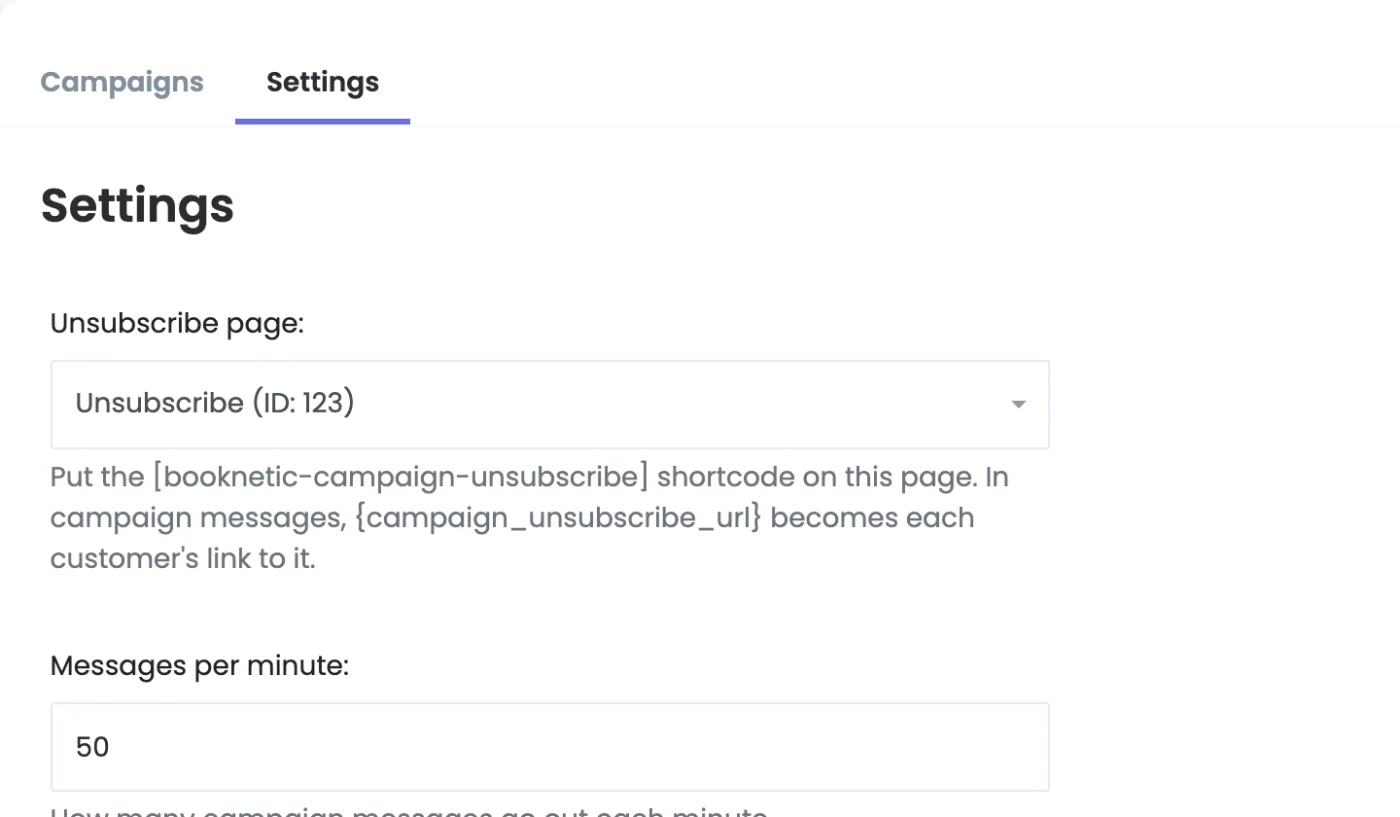
Campaigns settings tab with Unsubscribe page and Messages per minute
The Settings tab of Campaigns.
  • Unsubscribe page: the page customers land on when they click the unsubscribe link of a campaign. Create a WordPress page, add the [booknetic-campaign-unsubscribe] shortcode (or the Campaign Unsubscribe block), publish it and choose it here. Without a page, the {campaign_unsubscribe_url} shortcode stays empty.
  • Messages per minute: how many campaign messages go out each minute. The default is 50. Above 100 a warning appears: most mail servers and SMS providers limit how fast you can send, and a refused message is not retried. A higher number also needs a server cron and a fast mail relay.

Step 2: Write the Message

  1. On the Campaigns tab, click New campaign.
  2. Enter the Campaign name. Only you see it, in the list and in the report.
  3. In Send by, choose the channel. A channel whose add-on isn't active is shown as not available.
  4. Write the message:
    • Email: a Subject and a Message in the editor.
    • SMS: a Message; the counter below it shows the number of characters.
    • WhatsApp: choose the Messaging service and the Template, then fill each variable of the template with text or customer shortcodes. WhatsApp sends only templates Meta has approved.
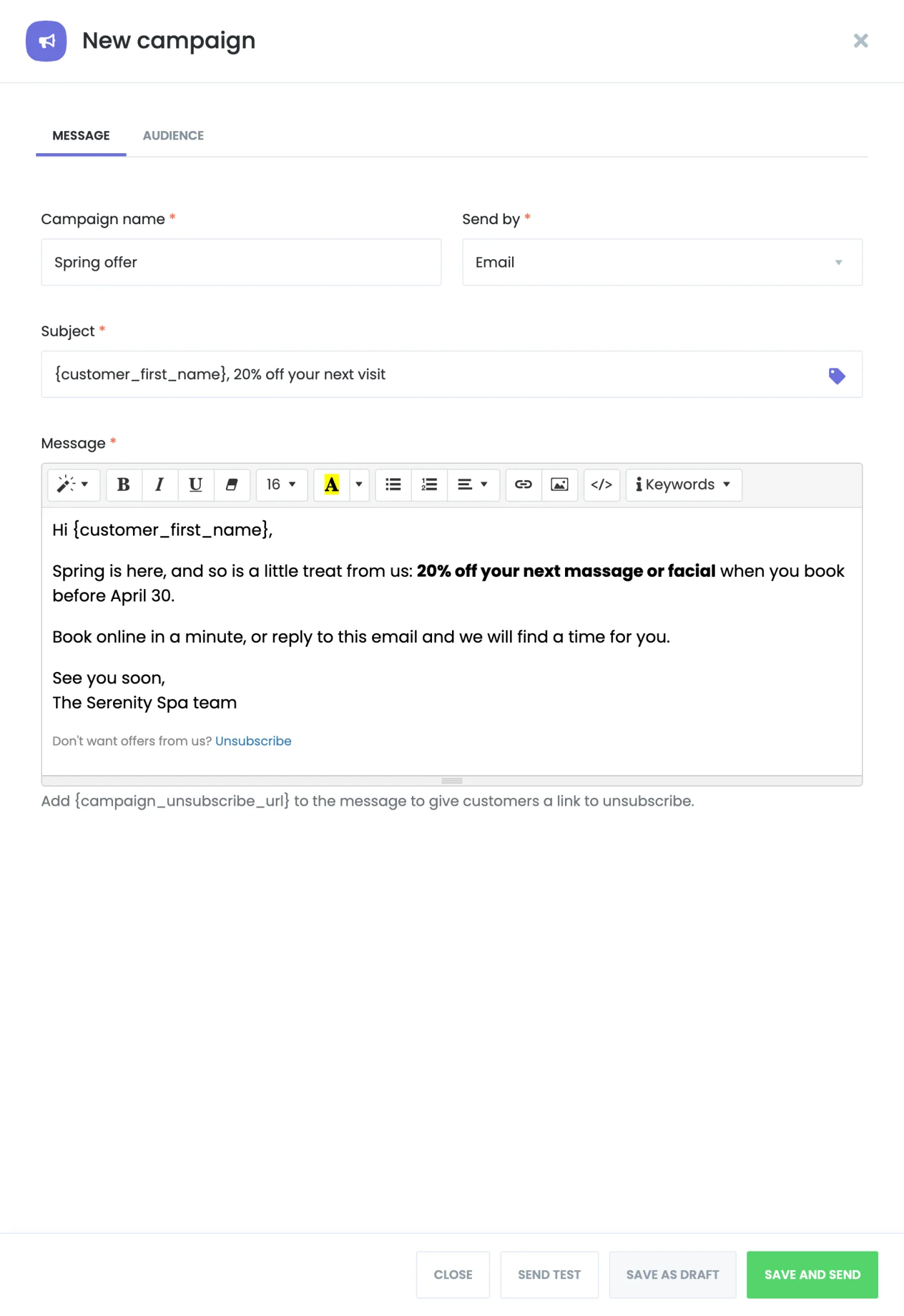
Message tab of a new email campaign with name, channel, subject and message
The Message tab of an email campaign.

Use the Keywords list (or the tag icon of the subject) to insert customer shortcodes, such as {customer_first_name}, {customer_full_name} or {customer_email}, and your company details. Appointment shortcodes don't apply to a campaign and are removed from the message.

To let customers unsubscribe, add {campaign_unsubscribe_url} to the message, for example as the link of an "Unsubscribe" text. Each customer gets a personal link to your unsubscribe page. Nothing is added to a message automatically.

Step 3: Choose the Audience

On the Audience tab, turn on the filters you need. With no filter on, the campaign goes to all customers. Every filter you turn on narrows the list further.

FilterSelects customers
Customer categoriesIn the chosen categories.
GenderFemale or male.
Last visitIn the last… or Not in the last… number of days, or Never visited.
Visited forWho visited for one of the chosen services.
With staffWho visited one of the chosen staff members.
At locationWho visited one of the chosen locations.
Birthday inBorn in one of the chosen months.
Customer since / Customer untilWho became a customer on or after, or on or before, a date.

A visit is a past appointment in a status that keeps its time busy, such as Approved. The service, staff and location filters choose which visits count. For example, Visited for a massage service with Not in the last… 60 days selects customers who had a massage, but not in the last 60 days.
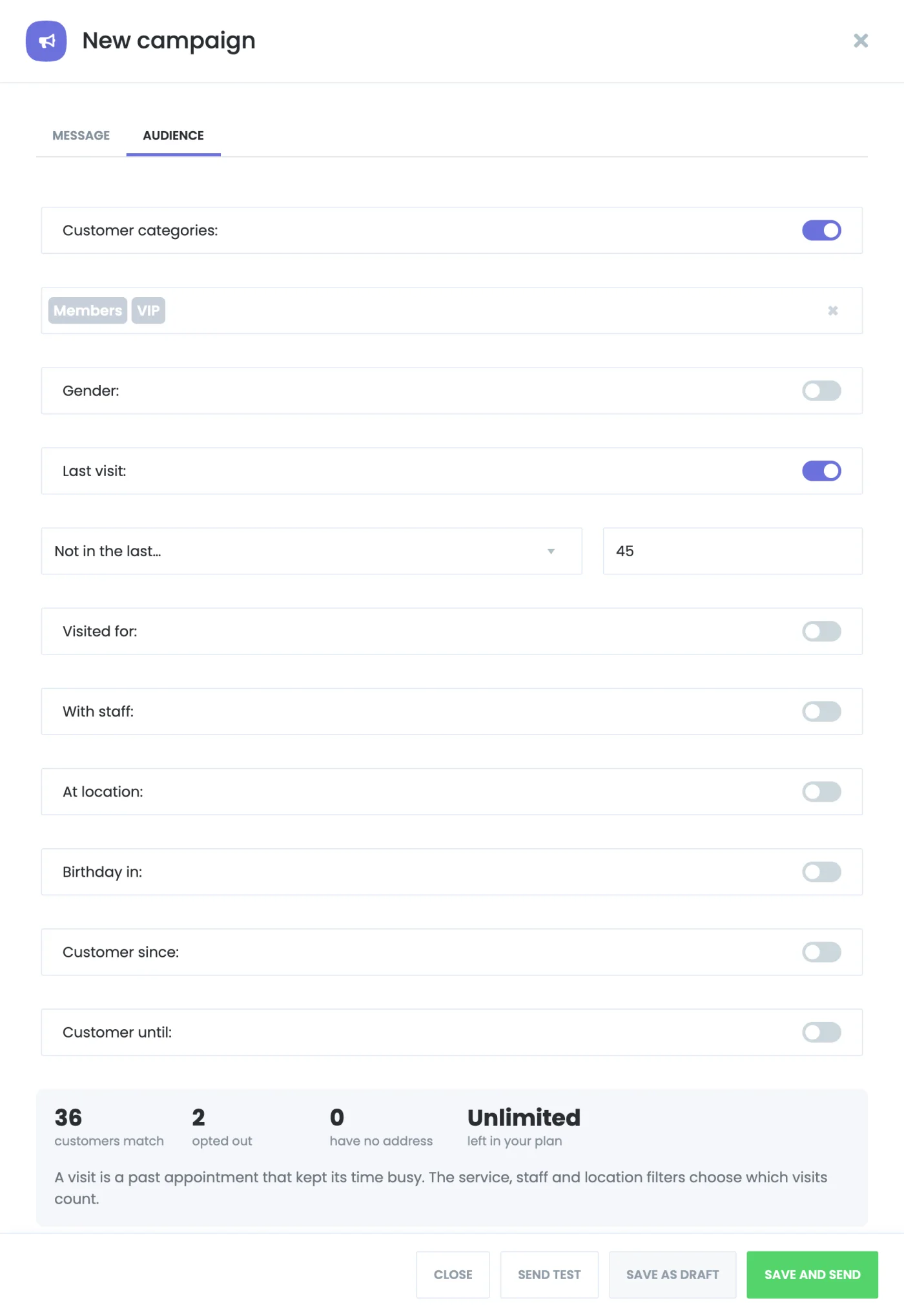
Audience tab with customer categories and last visit filters and the audience summary
The summary at the bottom updates as you change the filters.

The summary shows:

  • customers match: the customers the filters select;
  • opted out: how many of them unsubscribed from this channel and will be skipped;
  • have no address: customers without an email address or phone number for this channel;
  • left in your plan: how many messages of this channel you can still send. On a regular site it is Unlimited.

Step 4: Test, Save and Send

  • Send test sends the message to an address or number you enter. It is filled in with one of the customers the campaign selects, so you see the shortcodes with real values.
  • Save as draft keeps the campaign without sending it. Only a draft can be edited.
  • Save and send saves the campaign and opens the send window.
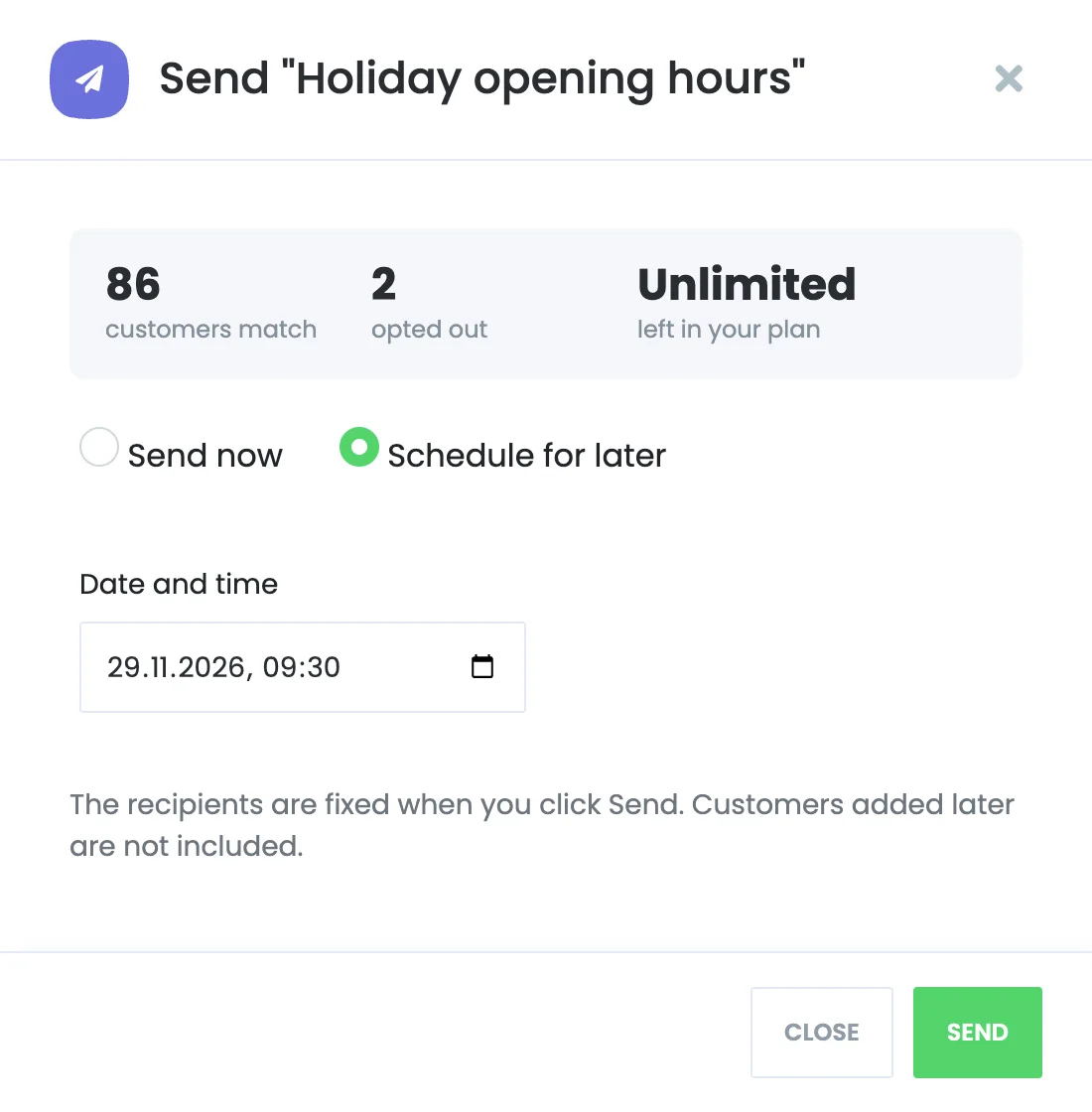
Send campaign window with Send now and Schedule for later options and a date and time field
Send now, or schedule the campaign for a date and time.

Choose Send now or Schedule for later with a Date and time, and click Send. The recipients are fixed when you click Send: customers added later are not included, and a customer who opts out before their message goes out is still skipped.
Step 5: Follow the Campaign

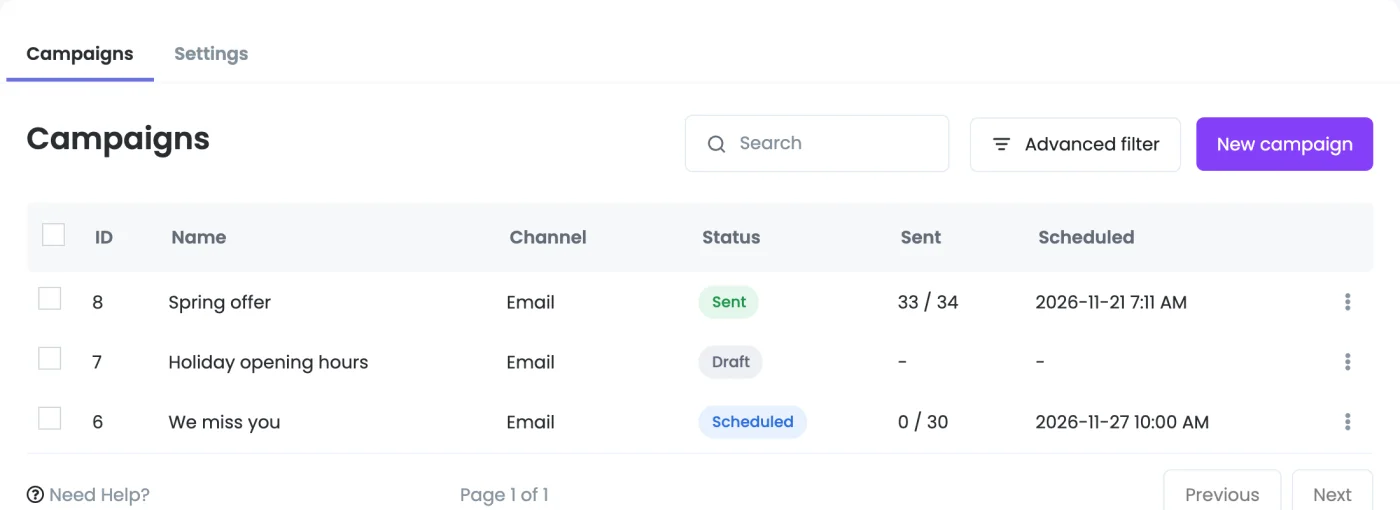
Campaigns list with a draft, a scheduled and a sent campaign
The list shows each campaign's channel, status, sent count and scheduled time.
StatusMeaning
DraftSaved, not sent. You can edit, send or delete it.
ScheduledWaiting for its time. Cancel the schedule in the report to turn it back into a draft.
SendingMessages are going out. Stop sending in the report to skip the rest.
SentEvery message has been tried.
CanceledStopped while sending. The messages that were left are skipped.

Open the ⋮ menu of a campaign and choose Report to see every address with its status. Click a total at the top to show only those messages.
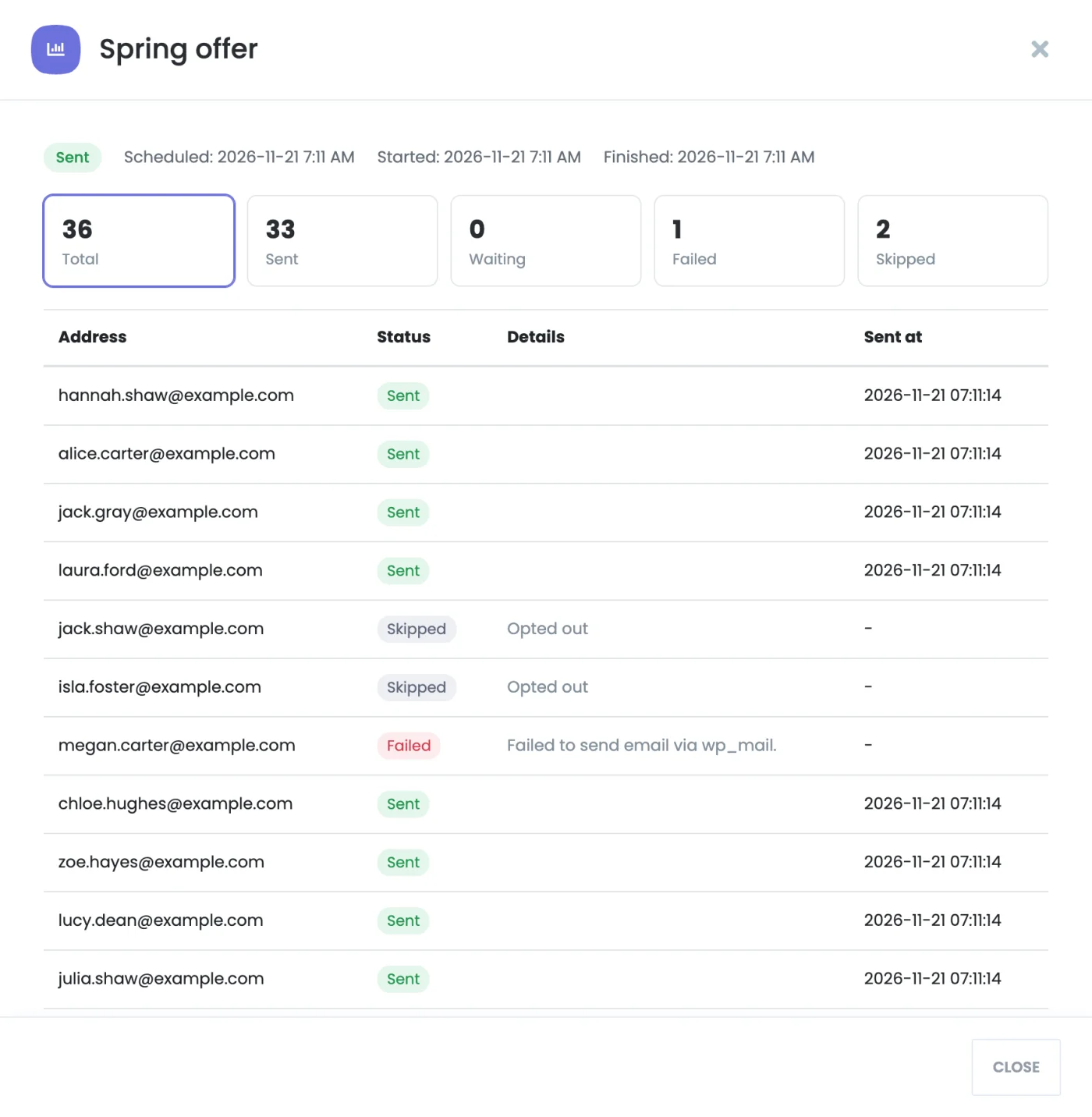
Campaign report with totals and the status and details of each address
Skipped messages show the reason, such as Opted out; failed ones show the provider's error.

A message is tried once. A failed message is not retried, because the provider may charge for it. A sending campaign can't be deleted; stop it first.

Unsubscribe

When a customer clicks the unsubscribe link, your unsubscribe page asks them to confirm. Only the button records the opt-out, because some mail scanners open every link in an email.
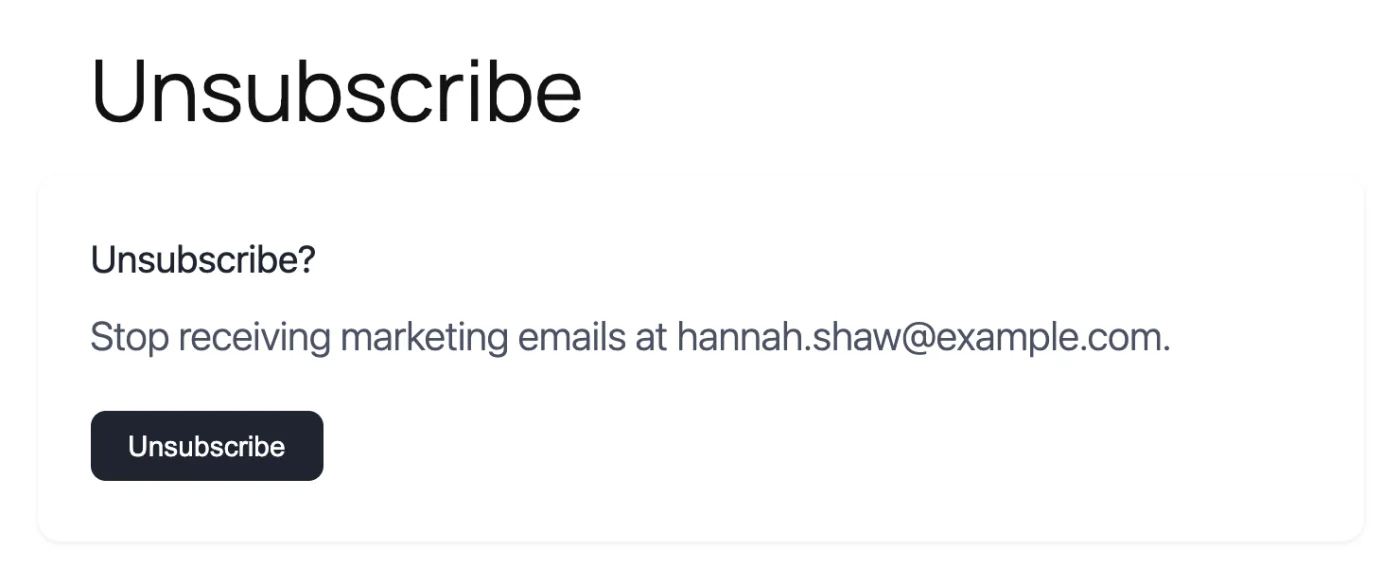
Unsubscribe page asking the customer to confirm stopping marketing emails
The unsubscribe page made with the [booknetic-campaign-unsubscribe] shortcode.
  • An opt-out applies to one channel: email, SMS or WhatsApp. A customer who unsubscribes from email can still get your SMS campaigns.
  • An SMS sent with Twilio to a number that replied STOP is recorded as an SMS opt-out, and the message is skipped.
  • Opt-outs apply to campaigns only. Appointment notifications from your workflows are still sent.

Staff Access

With the User Role Manager add-on, you can give a role access to Campaigns and separately to adding, editing, deleting and sending campaigns and to the settings. A staff user's campaigns reach only the customers that user can see.

Booknetic SaaS

  • A tenant's plan needs the Campaigns permission and the permission of the channel's add-on.
  • Campaign messages, and test messages, count against the tenant's plan limits for that channel, together with workflow messages. With the Usage-Based Billing add-on, messages over the limit can be charged from the tenant's balance.
  • The SaaS admin chooses the unsubscribe page and the messages per minute in SaaS Settings > General > Campaigns. Tenants don't see these settings. The messages per minute are shared by all tenants.

Troubleshooting

  • A campaign stays Scheduled or Sending: the Booknetic cron job isn't running. See Cron Job Configuration.
  • A channel is not available in Send by: activate and set up its add-on. In SaaS, check that the tenant's plan allows it.
  • The unsubscribe link is empty: choose a published unsubscribe page in the Settings tab.
  • Many messages failed: read the error in the report. A provider that limits sending speed refuses messages above its rate; lower Messages per minute.
  • Send is refused: nobody in the audience can receive the message, or the plan has fewer messages left than the campaign needs.