Resources

Set up the Booknetic Resources add-on: create rooms and equipment with units per location, link them to services, block units, and see which unit each booking got.

Version:
Categories

The Resources add-on stops two bookings from using the same room, chair, table or piece of equipment at the same time. Each resource has units at each location, such as Room 1 and Room 2. Services state which resources they need, and a time is offered only while enough units are free for the whole booking, buffers included.

Units are assigned automatically. Customers never see or choose them; admins see which unit a booking got in the appointment details.

Requirements

  • Booknetic and Booknetic Pro 6.0 or later, with an active licence.
  • Resources add-on, installed and activated from the Booknetic Boostore.
  • WordPress 5.6 or later, PHP 7.4 or later.

Installation

  1. In your Booknetic Admin Panel, go to Boostore.
  2. Find the Resources add-on and click Install.
  3. Once installed, click Activate.
  4. The Resources menu item appears under Locations (under Business in the new admin interface).

Step 1: Create a Resource

Open Resources and click to add a new resource. The resource form has four tabs.

Details

  • Name: required, up to 255 characters, and translatable.
  • Color: optional.

Locations

Add one card per location with Add location, and set how many units the location has.
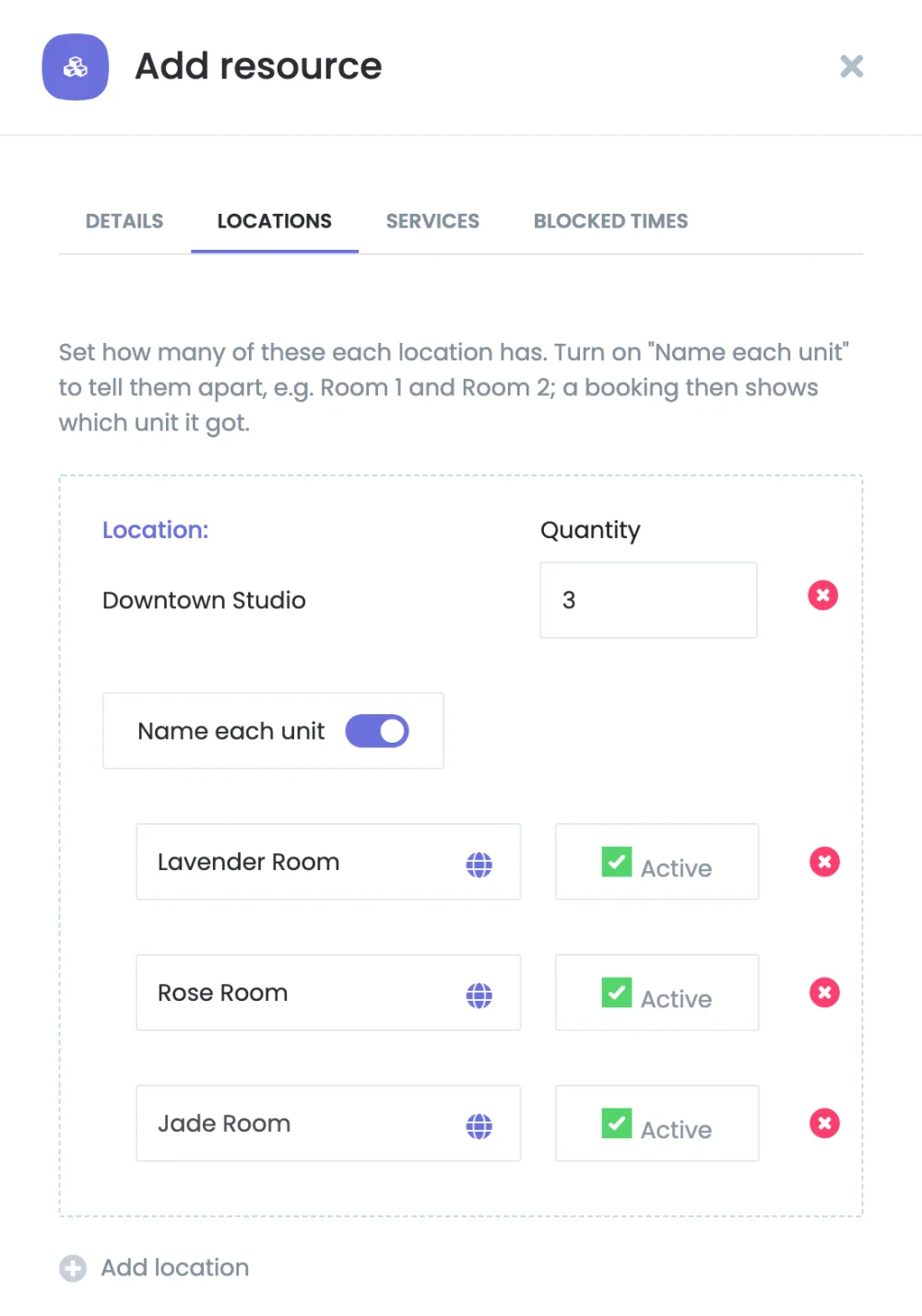
  • Quantity creates that many units, named after the resource: Treatment room 1, Treatment room 2 and so on.
  • Name each unit appears from two units up. Turn it on to give every unit its own name and an Active switch. An inactive unit takes no bookings.
  • A unit stays at its location. To move it, remove it and add a new unit at the other location.
Resource Locations tab with Name each unit turned on
The Locations tab with three named units.

Step 2: Tell Services What They Need

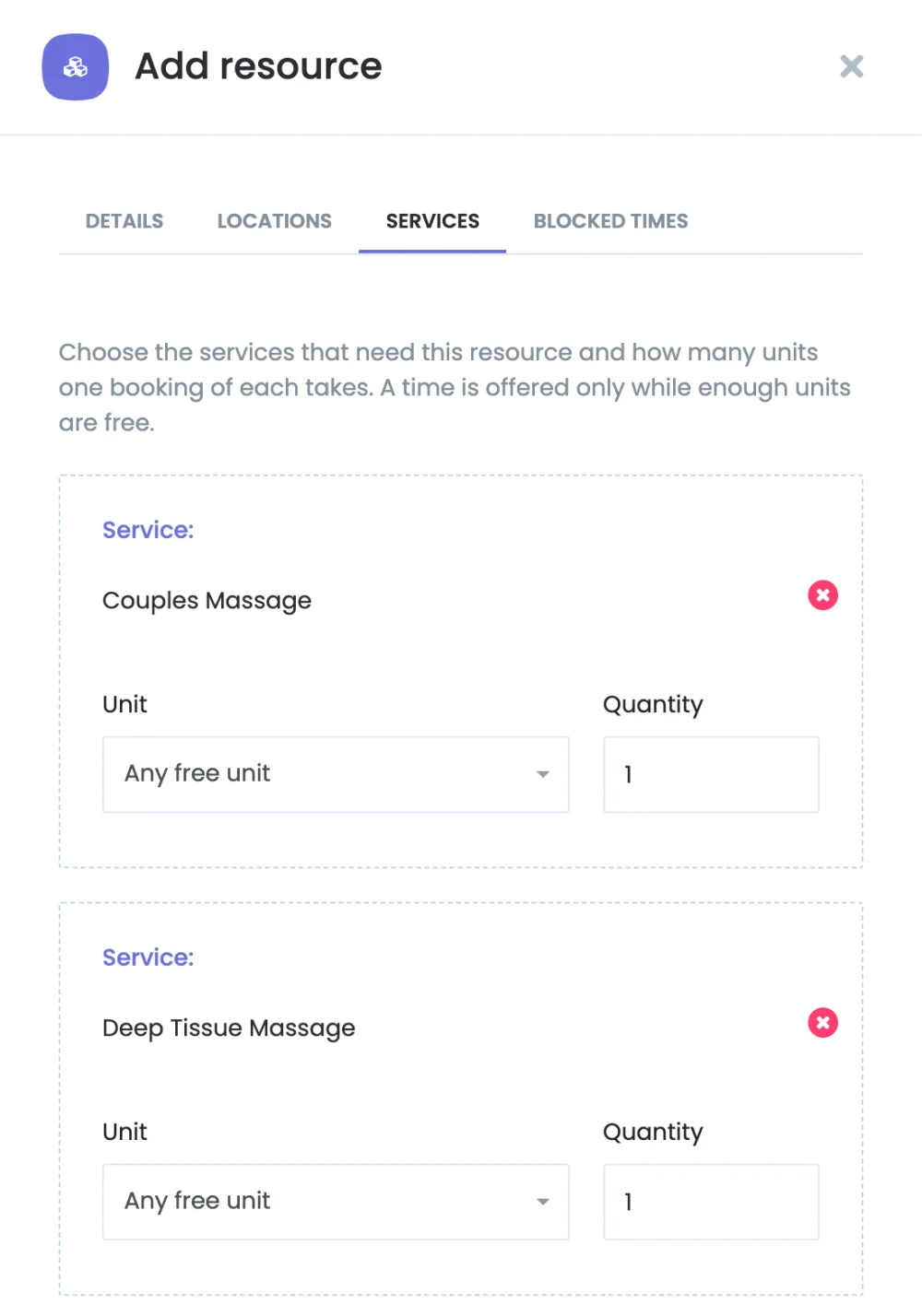
On the resource's Services tab, add one card per service that needs this resource with Add service.

FieldDescription
ServiceThe service that needs the resource.
UnitAny free unit, or one specific unit of this resource. Hidden while the resource has a single unit and Any free unit is chosen.
QuantityHow many units one booking takes, from 1 to 999. Fixed to 1 for a specific unit.
Quantity is forShown for group services (capacity above 1) with Any free unit. Each person: every person in the party needs that many units. The whole group: everyone booked at the same time with the same staff member shares them.
Resource Services tab with two services and their quantities
The Services tab, where each service takes one unit of any free treatment room.
  • Requirements of one service are combined: a service that needs a room and a table gets a time only when both are free.
  • Within one resource, any free unit will do unless the service asks for a specific unit.
  • A specific unit is always one unit that the whole party shares.
  • Each person is the default.

Step 3: Block a Unit for a Period (Optional)

The Blocked times tab takes a unit out of use for a period, for example for repairs or cleaning. Choose the unit, the start and end date and time, and add an optional note.

  • Units added in the same save can be blocked and pinned to services right away.
  • When a unit is removed or the quantity is lowered, its blocked times turn grey with a warning and are deleted on save.
  • A service pinned to a removed unit must get another unit before you can save.

How Bookings Get Units

  • A booking is checked over its whole busy period, from its start minus the buffer before to its end plus extras and the buffer after.
  • Booknetic first keeps the units the booking already holds, then uses units no service asks for by name, then the unit whose free gap fits most closely.
  • Group sessions: with The whole group, the first person takes the units and everyone who joins the same staff member, service, location and time shares them. With Each person, every person takes their own.
  • Cart: items in one cart are checked together, so two items can't take the last unit.
  • Admin panel: admins are blocked too. When no unit is left, creating, editing or rescheduling is refused with "Timeslot is busy. Please try again later." A status change that needs units again, such as bringing a cancelled booking back, fails with "No {resource} is free at this time. Please choose another time."
  • Customers never see resource names. A full resource shows as "Timeslot is busy. Please try again later."
  • Payments: a late payment confirmation never fails. If no unit is free by then, the booking keeps the units it had.
  • Existing bookings keep the units and terms they were made with. Changing a service's resources affects new bookings only. A booking is assigned again only when its service, location or party size changes.
  • Cancelled and rejected bookings free their units. The unit stays in the appointment details as history.

Changing Units That Have Bookings

Removing a unit, switching it off or blocking it moves its upcoming bookings to other free units of the same resource. A group session moves together. A booking that asked for that unit by name can't be moved.

If any booking can't be moved, nothing is saved, and the error lists the bookings, for example:

These bookings hold the unit and no other unit is free for them. Move or cancel them first: #47, #48, #51 2026-10-20 09:00

Deleting a resource works the same way for all of its units.

Where the Assigned Unit Shows

  • Appointment details: a Resources line under the note.
  • Notifications: the {appointment_resources} shortcode prints the unit names, comma-separated.
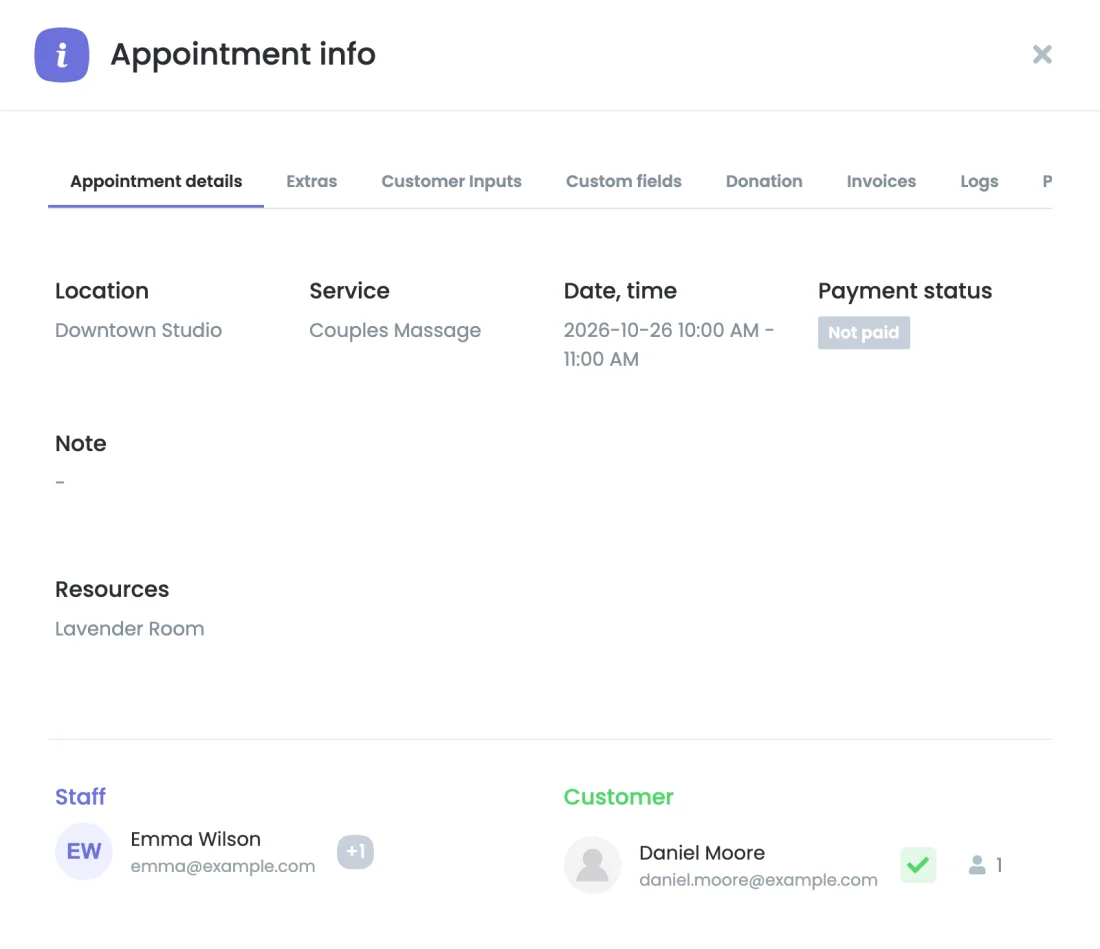
Resources line in the appointment details
The Resources line in the appointment details.

Waiting List

With the Waiting List add-on active, slots that are full because of a resource show as busy and customers can join the waiting list. When a booking frees a unit, waiting-list bookings of other staff members that need the same resource at that time are offered the slot too.

Permissions

With the User Role Manager add-on, four permissions control the module: open Resources, add, edit and delete a resource.

Troubleshooting

  • A service shows no times: check that the location of the booking has enough active units of every resource the service needs, and that they are not blocked at that time.
  • "No {resource} is free at this time.": every unit of that resource is in use. Choose another time or free a unit.
  • A unit can't be removed or switched off: some of its upcoming bookings can't move to another unit. Move or cancel the bookings listed in the error first.