Set up the Booknetic MS Teams add-on to automatically create Microsoft Teams meetings for every appointment — with per-staff OAuth, meeting shortcodes, and zero manual scheduling.
The Microsoft Teams add-on for Booknetic automatically creates a Microsoft Teams meeting for every confirmed appointment. Your staff never have to create meeting links manually — Booknetic handles it at the moment a booking is made.
Requirements
Booknetic Pro — active licence required.
MS Teams add-on — installed and activated from the Booknetic Boostore.
Microsoft 365 account — each staff member who will host Teams meetings needs an active Microsoft 365 account (Business Basic or higher recommended, as it includes Teams).
WordPress 5.6 or later, PHP 7.4 or later.
Installation
In your Booknetic Admin Panel, go to Boostore.
Find the Microsoft Teams add-on and click Install.
Once installed, click Activate.
The MS Teams integration settings will now be available in Booknetic Settings.
Configuration
Step 1 — Enable MS Teams and configure meeting templates
In the Booknetic Admin Panel, go to Settings in the left sidebar.
Select the Integrations tab.
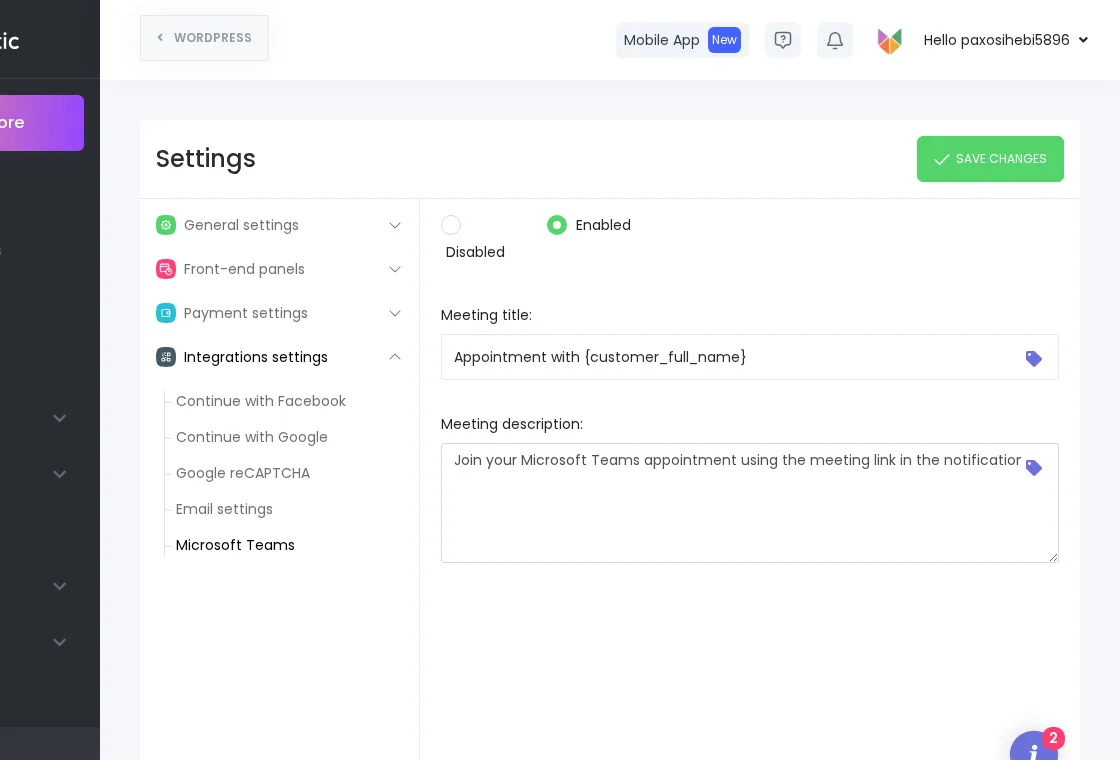
Locate the Microsoft Teams section and set the toggle to Enabled.
In the Meeting title field, enter a title template for your Teams meetings. You can use Booknetic shortcodes here — for example: Appointment with {full_name}.
In the Meeting description field, enter a description template (optional). Shortcodes are supported here too.
Click Save.
Step 2 — Enable MS Teams for each service
Go to Services in the Booknetic Admin Panel and open the service you want to enable Teams meetings for.
Find the Microsoft Teams section in the service settings.
Enable the Activate Microsoft Teams Meetings for this service toggle.
Save the service.
Teams meetings will only be created automatically for services where this toggle is active.
Step 3 — Connect staff Microsoft accounts
Each staff member must connect their own Microsoft 365 account so that Teams meetings are created under their account for their appointments.
Go to Staff in the Booknetic Admin Panel and open the staff member's profile (or create a new staff member and save first).
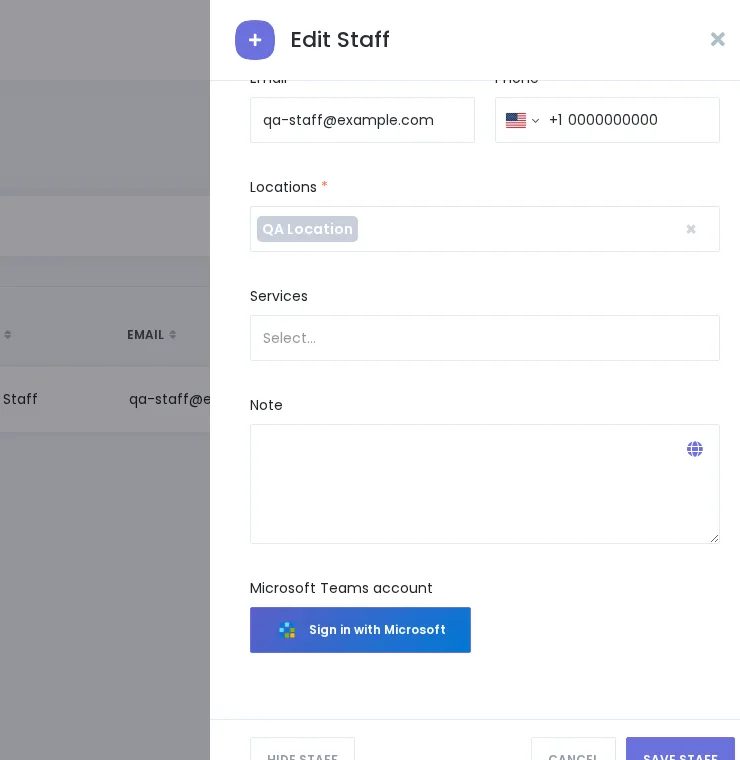
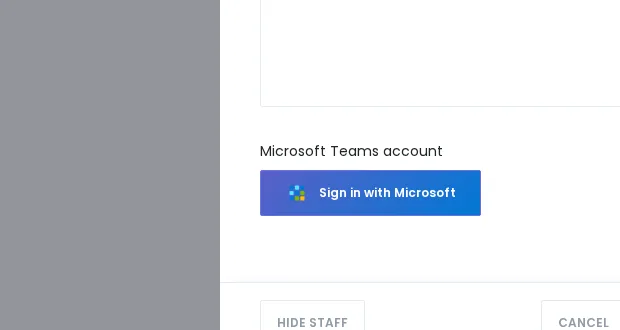
Find the Microsoft Teams account section.
Click Sign in with Microsoft.
Complete the Microsoft sign-in in the pop-up window.
Once connected, the staff member's Microsoft email address is displayed alongside a Sign out button confirming the connection is active.
Staff members who have not connected their Microsoft account will not have Teams meetings auto-created for their appointments, even if the service has MS Teams enabled.
How It Works After Setup
Automatic meeting generation: Every confirmed appointment for a connected staff member on a MS Teams-enabled service automatically creates a dedicated Microsoft Teams meeting.
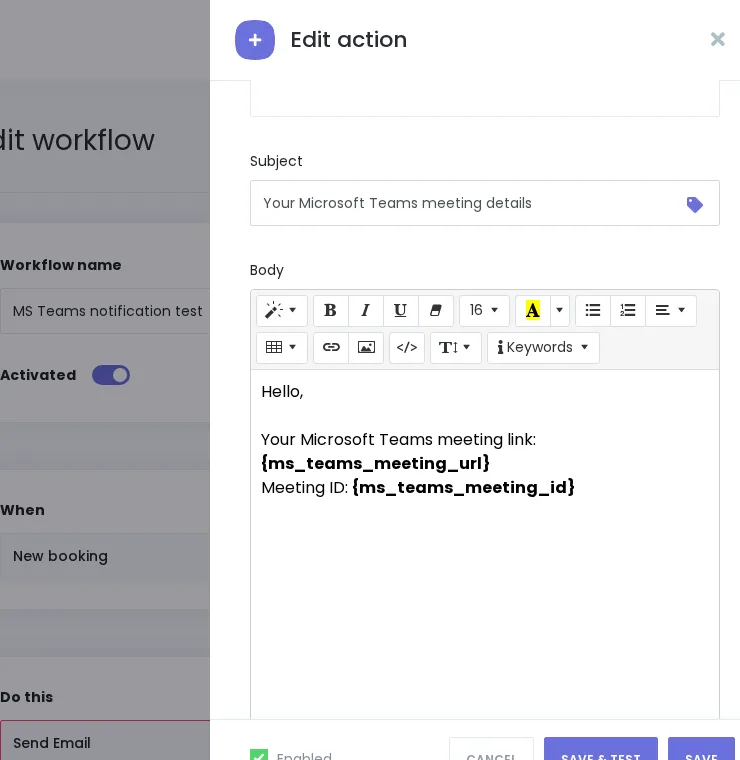
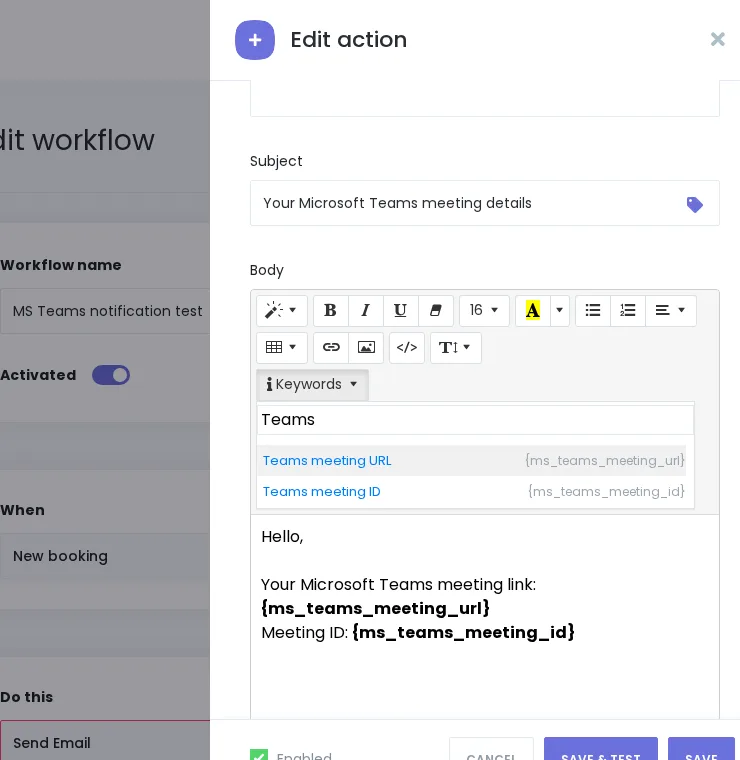
Meeting details in notifications: Add the {ms_teams_meeting_url} and {ms_teams_meeting_id} shortcodes to your Booknetic Workflow notifications (email confirmations, reminders, or any other workflow trigger). Booknetic will replace these placeholders with the actual Teams meeting join link and ID when the notification is sent.
Reschedule and cancellation sync: When an appointment is rescheduled or cancelled in Booknetic, the Teams meeting is updated or cancelled automatically.
Using Meeting Shortcodes in Workflows
Booknetic Workflows let you send automated notifications on any booking event. To include the Teams meeting link and ID in your notifications:
Go to Booknetic Admin Panel → Workflows.
Open an existing workflow or create a new one (for example, "Appointment Confirmed" → "Send Email").
In the notification body, use the following shortcodes:
{ms_teams_meeting_url} — inserts the Teams meeting join link.
{ms_teams_meeting_id} — inserts the Teams meeting ID.
Save the workflow. The shortcodes are replaced with real meeting details when the notification is sent.
Troubleshooting
Teams meeting not created after booking: Check that the staff member's Microsoft account is connected. Go to their Staff Profile and verify the Microsoft Teams connection status. Click Sign in with Microsoft again if the connection has expired.
Teams meeting not created for a specific service: Ensure MS Teams meetings are activated for that service. Go to Services, open the service, and verify the Activate Microsoft Teams Meetings for this service toggle is enabled.
Notifications not including the meeting link: Ensure the {ms_teams_meeting_url} shortcode is used in the notification body within the Workflow editor. The shortcode only populates when a Teams meeting has been created for the appointment.
Staff sees no Sign in with Microsoft button: Ensure the MS Teams add-on is activated and that the integration is set to Enabled in Settings → Integrations → Microsoft Teams. If the add-on is not activated or the toggle is Disabled, the staff-level connect option will not appear.