
As soon as possible booking
Turn on Booknetic's As soon as possible option: the earliest free time on a one-click card, or the Date & Time step skipped and the first free time booked.

By using this site, you agree to our Cookie Policy

Turn on Booknetic's As soon as possible option: the earliest free time on a one-click card, or the Date & Time step skipped and the first free time booked.
The As soon as possible option adds a card to the Date & Time step of the booking panel. The card shows the earliest free time, and one click books it. You can also turn the Date & Time step off, and Booknetic then books the earliest free time without showing the step.
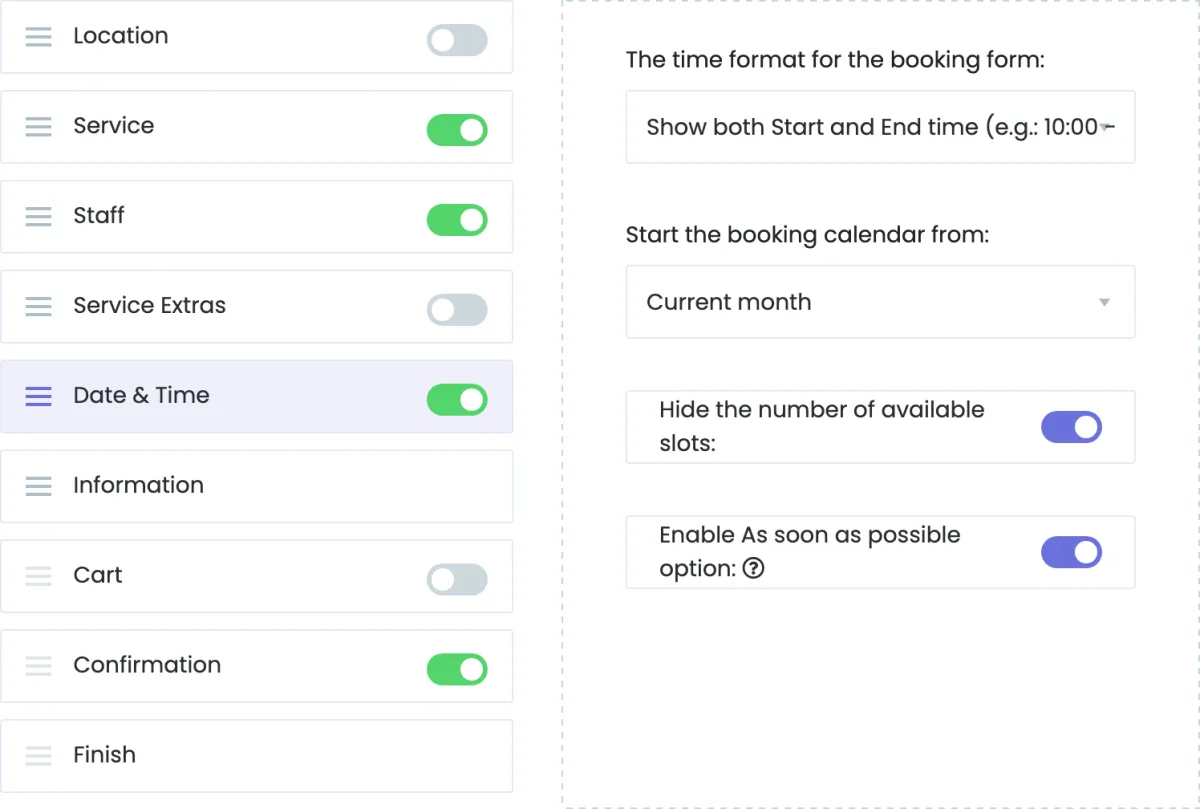
The same switch is in the booking steps settings of the new admin interface.
On the Date & Time step, the As soon as possible card sits above the calendar and shows the earliest available time.
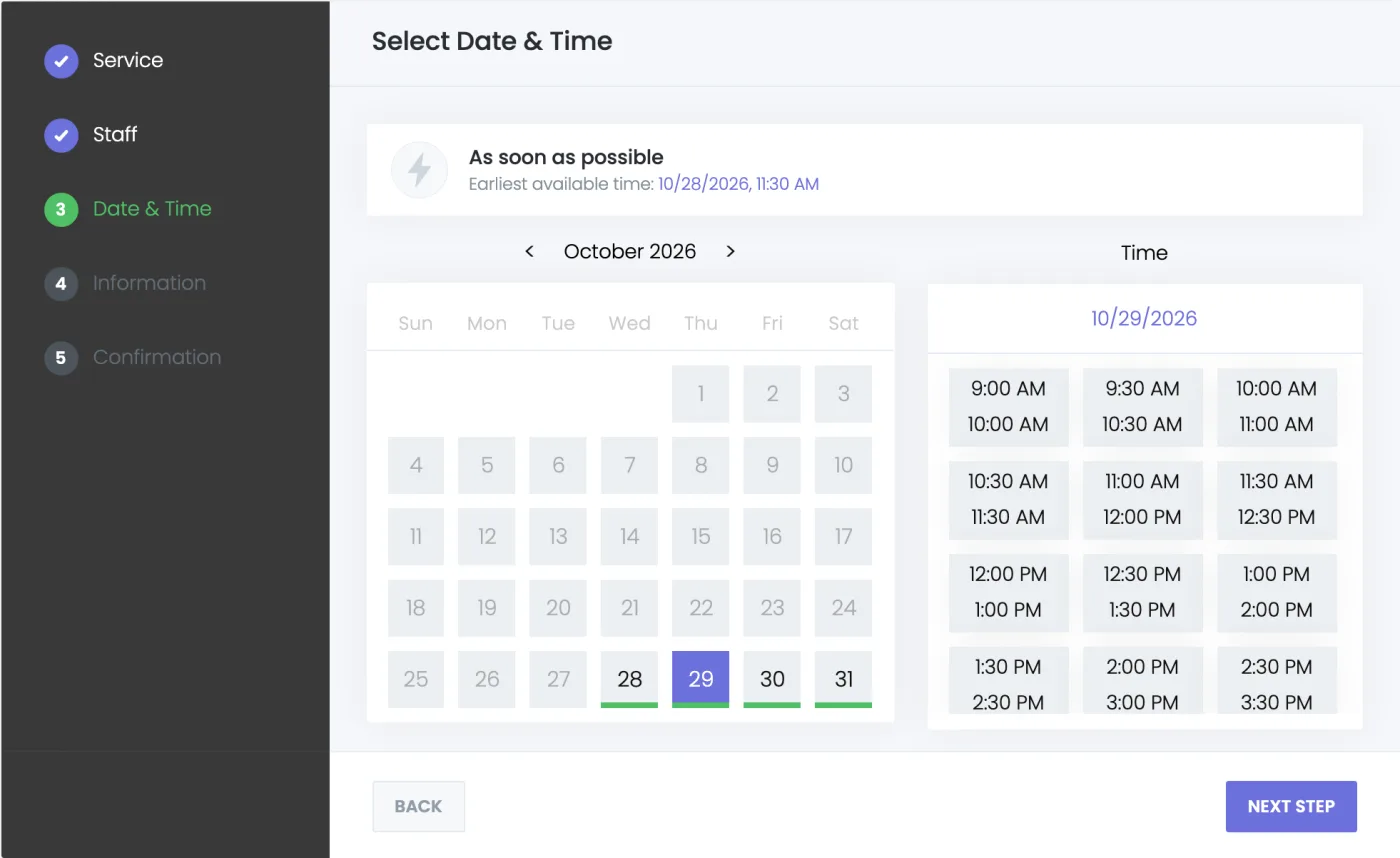
| Situation | What happens |
|---|---|
| The current month has a free time | The card shows the earliest one. |
| The current month is full | The calendar moves to the next month, and the card shows the earliest free time there. |
| Neither month has a free time | The card is not shown. Customers pick a time from the calendar as usual. |
| The customer clicks the card | Booknetic loads the month again, books its earliest free time and moves on to the next step. A time taken by someone else in the meantime is never booked. |
| The customer picks a date and time instead | The booking works as without the option. |
| Full-day services | The card shows the earliest free date. |
When your customers never need to choose, turn the Date & Time step off in the same list and save. The As soon as possible option turns on with it and can't be turned off while the step is hidden. Hovering the locked switch says: "To turn this off, show the Date & Time step."
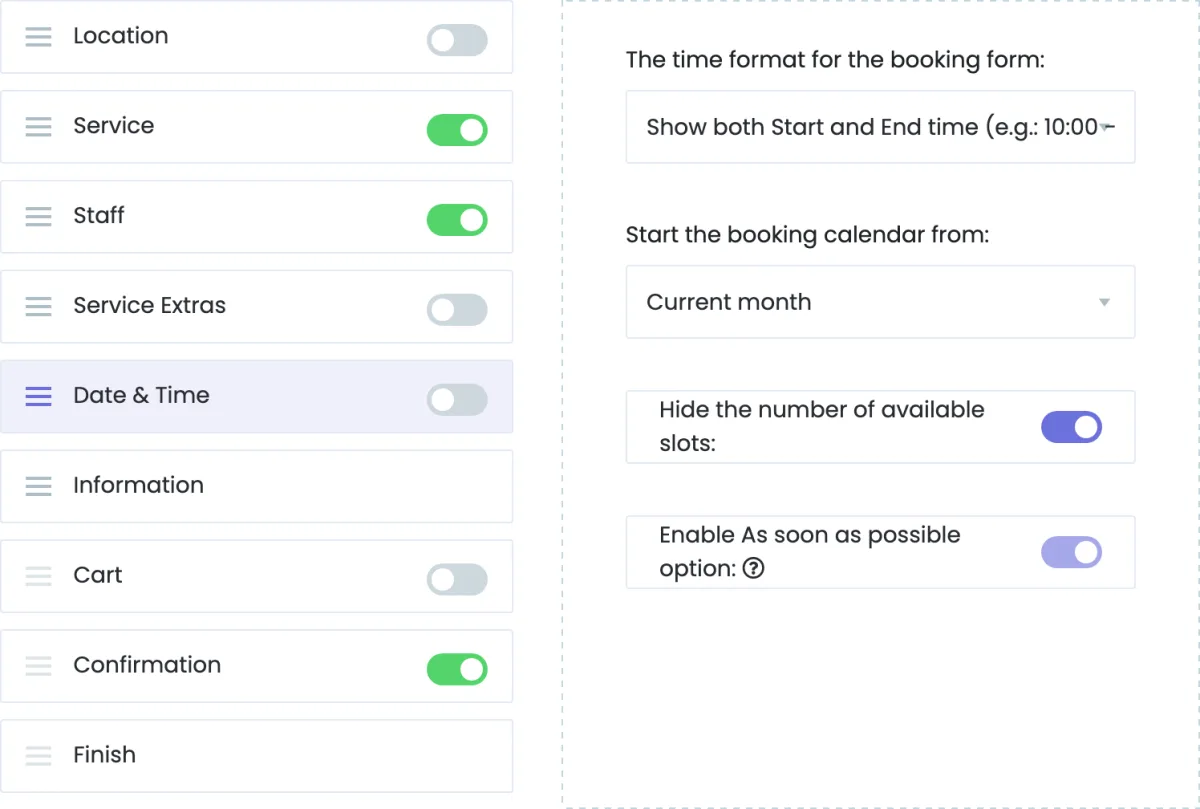
Customers then don't see the Date & Time step in the step list. When they reach its place, Booknetic picks the earliest free time of the current or next month and goes on. The cart and the confirmation step show the time that was booked.
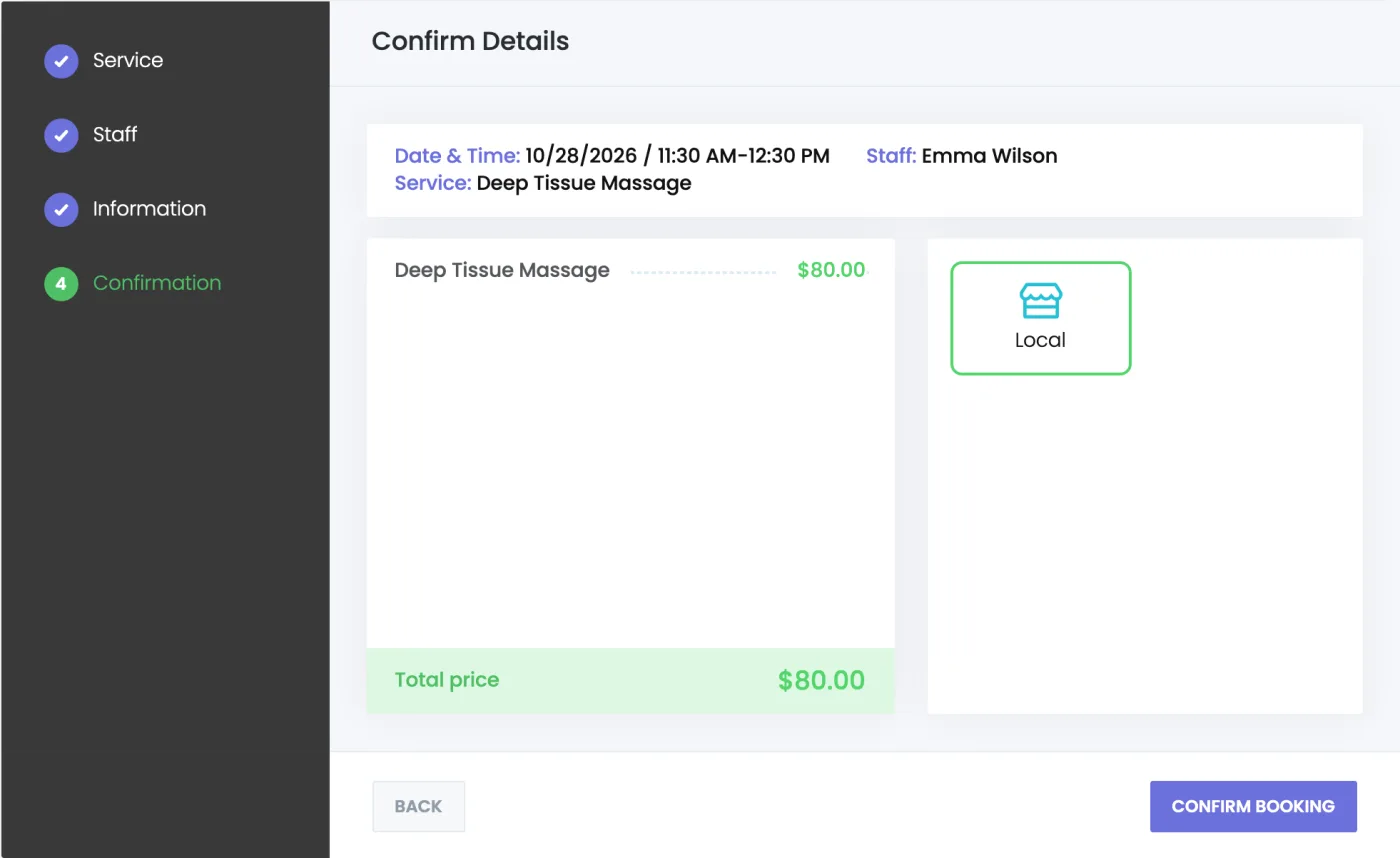
Booknetic looks for the time again every time the customer passes that point, for example after going back to change the staff, so the booked time is always free.
| Case | Why |
|---|---|
| Neither the current nor the next month has a free time | The customer picks a later date. |
| The service is recurring | Recurring bookings need the customer's choice of days and times. |
| Date & Time would be the last step of the panel | The customer confirms the booking there, so they see the time first. Service Extras after it don't count. |