Multi-staff
Set up the Booknetic Multi-staff add-on: staff per booking, team selection on the booking panel, additional staff in the admin panel, and team notifications.

By using this site, you agree to our Cookie Policy

Set up the Booknetic Multi-staff add-on: staff per booking, team selection on the booking panel, additional staff in the admin panel, and team notifications.
The Multi-staff add-on lets one appointment take several staff members at the same time, such as two therapists for a couples massage. A service states how many staff members a booking takes, and a time is offered only while that many of the service's staff are free together, buffers included.
The first staff member of a booking is its lead, and the appointment belongs to them. The others are its additional staff.
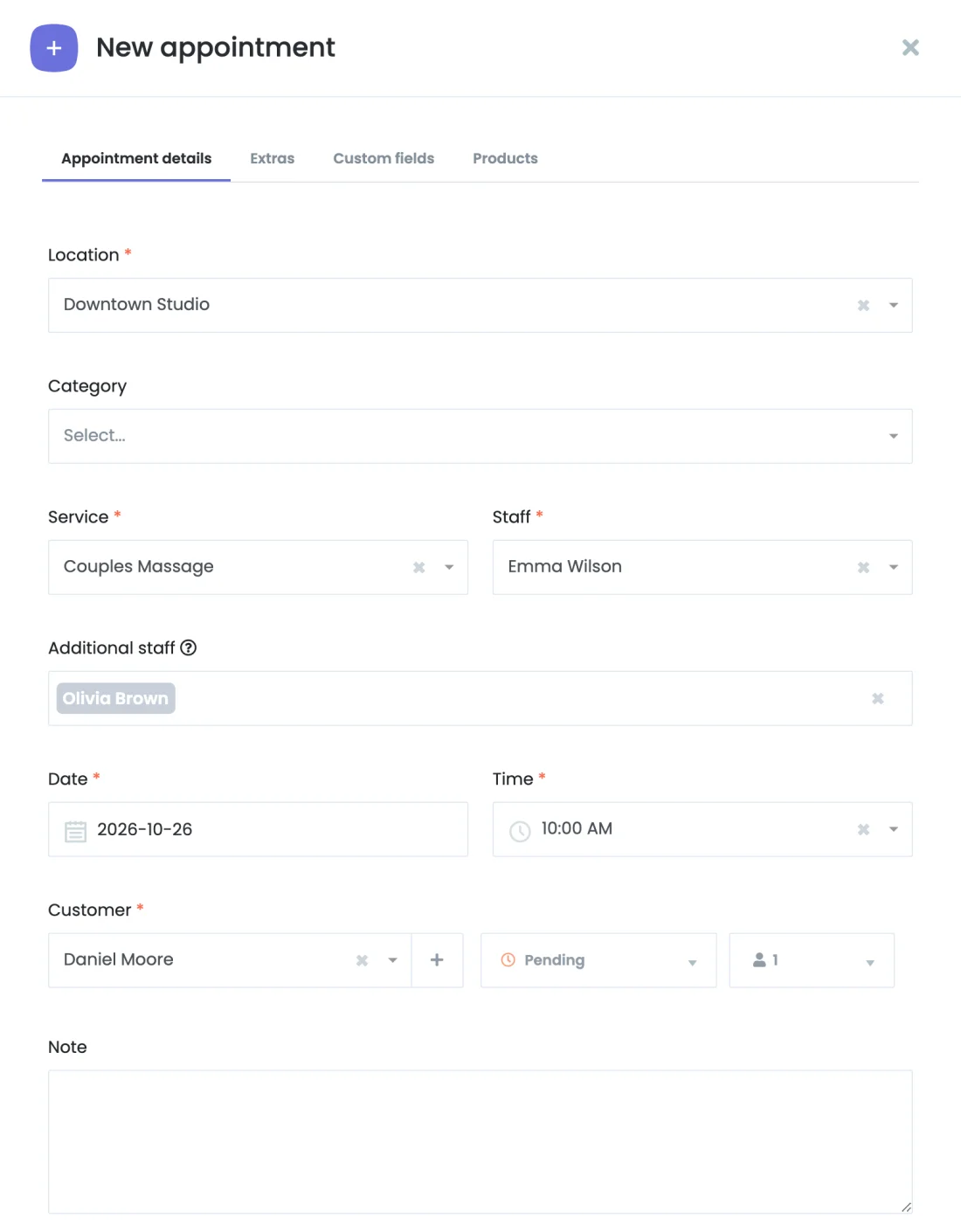
The add-on has no menu of its own. It adds a setting to the service form, a field to the appointment form, and team selection to the booking panel.
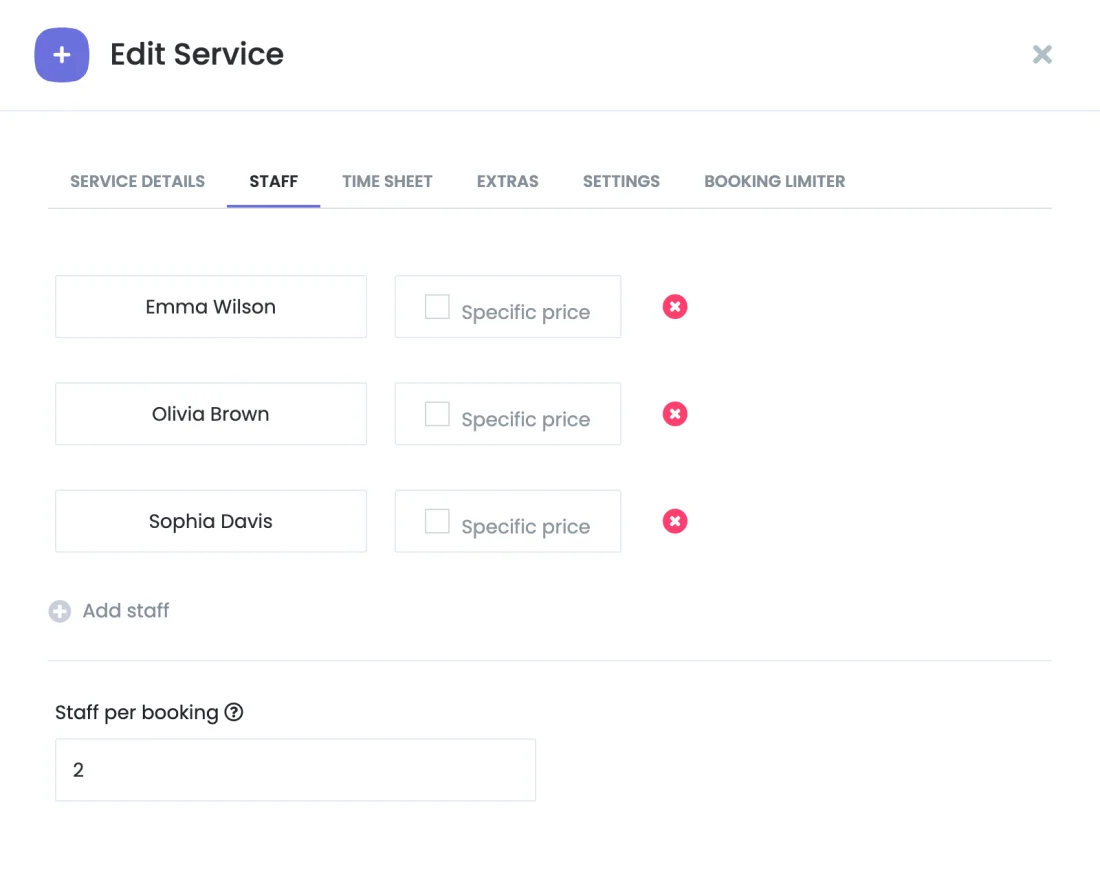
The team is always picked from the service's staff who work at the booking's location. Setting Staff per booking back to 1 turns the service into a normal one; bookings already made keep their teams.
Pricing: a booking that takes more than one staff member always costs the service price, deposit included. Staff-specific prices for the service do not apply to it, and the service form shows a note when a staff member has one.
| Situation | What happens |
|---|---|
| Staff step shown | The customer selects exactly as many staff members as the service takes, or Any staff. Once a staff member is selected, Any staff is unavailable and the panel shows "Please select N staff members." It moves on when the team is complete. |
| Any staff | Free staff members are picked when the booking is saved. |
| Staff step hidden | Works as Any staff. |
| Staff step before the service step | With one staff member picked, services that take a team are not listed. Any staff keeps them. |
| Location step after the date and time | A time is offered only while some location still has a whole team free. A location without a free team is refused at confirmation with "Timeslot is busy. Please try again later." |
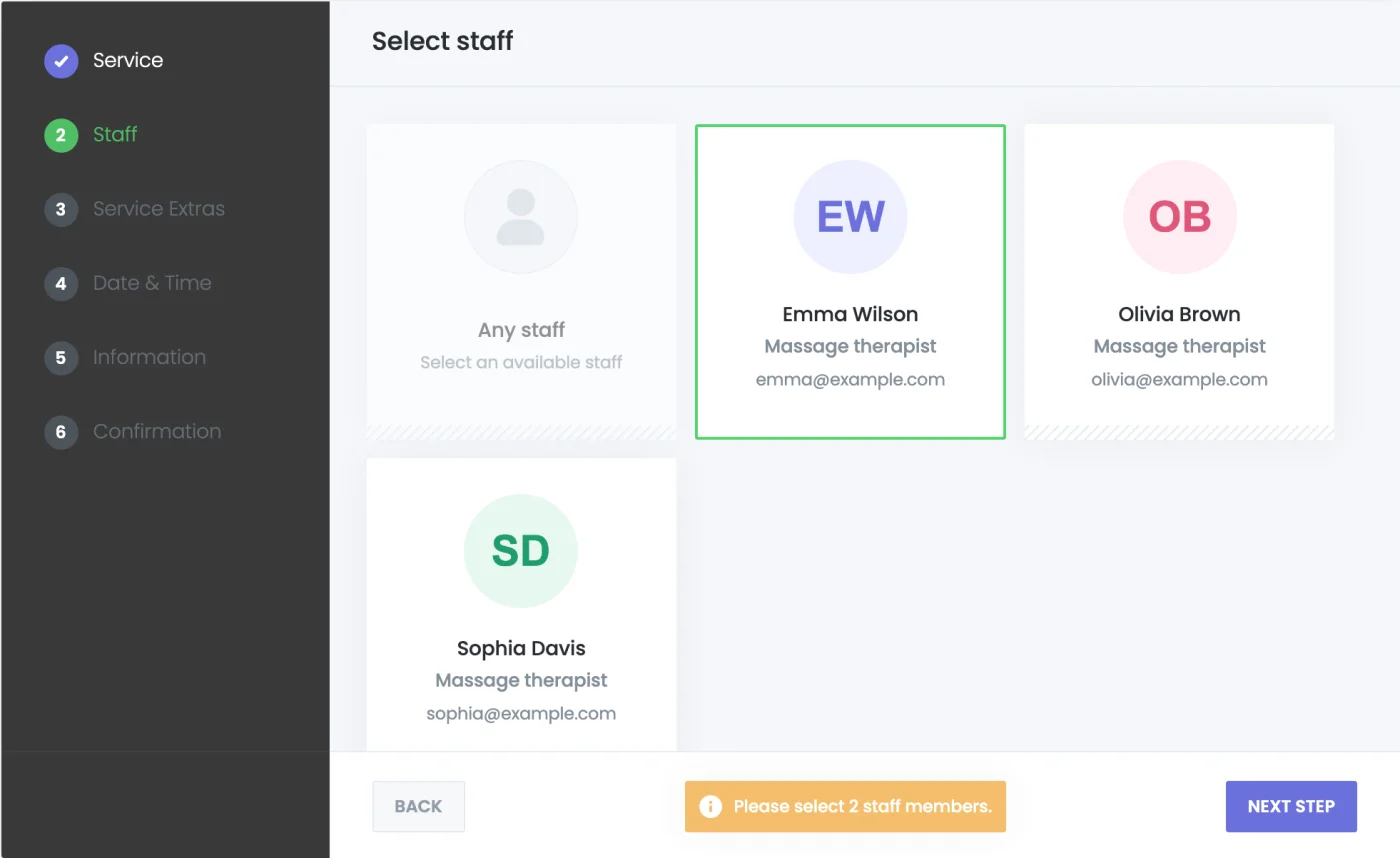
The cart and the confirmation step name every staff member of the booking. A cart with several bookings at the same time never gives one staff member to two of them.
| Place | What you see |
|---|---|
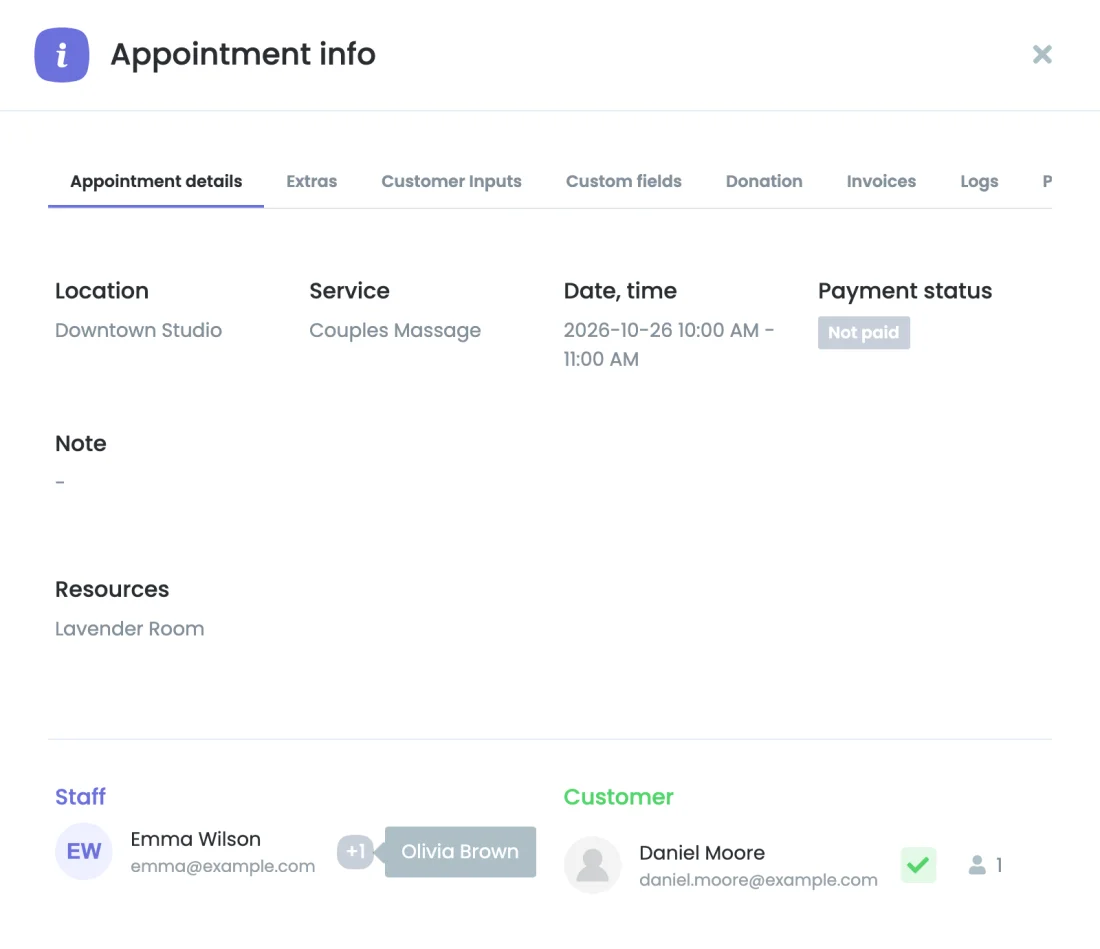
| Appointment details | Under Staff, the first staff member with "+N". Hover it to see the others. |
| Appointment list | The same "+N" in the Staff column. |
| Calendar | The appointment in the column of every staff member on it. |
| CSV export | Every staff member in the Staff column, comma-separated. |
| Customer panel | Every staff member, comma-separated. |
A staff user sees the appointments they work on as additional staff in their appointment list, calendar and payments, and in the mobile app. They can change the status or delete them as their role allows. Editing and rescheduling are left to the first staff member and to users whose role has full access to Staff.
A staff member who works on other staff members' appointments can't be deleted until those appointments are changed.
A team booking notifies the whole team with your existing workflows. The staff shortcodes change as follows:
| Shortcode | In a team booking |
|---|---|
{staff_ | Every staff member, comma-separated, for example "Anna, Leyla". |
{staff_, {staff_, {staff_ | Every staff member's, comma-separated, so an email, SMS, WhatsApp, Telegram, in-app or mobile notification reaches each of them separately. |
{staff_, {staff_, {staff_ | The first staff member's only. |
Everyone receives the same text, so "Hi {staff_name}" reads "Hi Anna, Leyla". A workflow limited to some staff members runs when the first staff member is one of them, and then reaches the whole team.
With the Waiting List add-on, when a booking is cancelled, waiting-list bookings of team services at the same location and time are offered the freed staff too.