Set up Booknetic's Booking Recovery add-on to automatically follow up with customers who didn't complete their booking — configure delays, workflows, and track conversion rates.
The Booking Recovery add-on for Booknetic detects when a customer starts the booking process but does not complete it, then automatically sends a follow-up message after a configurable delay. Recovered sessions are tracked as conversions, giving you a clear view of how much business the add-on brings back.
Requirements
Booknetic Pro — active licence required.
Booking Recovery add-on — installed and activated from the Booknetic Boostore.
Email Notifications add-on — recommended for sending recovery messages via email. Recovery messages are powered by Booknetic Workflows. Other notification channels may also work if the related notification add-ons are active.
WordPress 5.6 or later, PHP 7.4 or later.
Installation
In your Booknetic Admin Panel, go to Boostore.
Find the Booking Recovery add-on and click Install.
Once installed, click Activate.
The Booking Recovery menu item will now be available in the Booknetic Admin Panel.
How Booking Recovery Works
When a customer opens the Booknetic booking widget and starts entering their details — selecting a service, a date, a staff member — but leaves before confirming the appointment, Booknetic records that session as incomplete.
After the delay you configure, the Booking Recovery add-on triggers a recovery workflow. The workflow sends the customer a follow-up message — typically an email reminding them to complete their booking, including a link back to the booking page.
If the customer returns and completes the booking after receiving the recovery message, Booknetic records this as a recovered conversion, tied to the correct appointment date.
Configuration
Step 1 — Access Booking Recovery Settings
In the Booknetic Admin Panel, open the Booking Recovery menu item in the left sidebar.
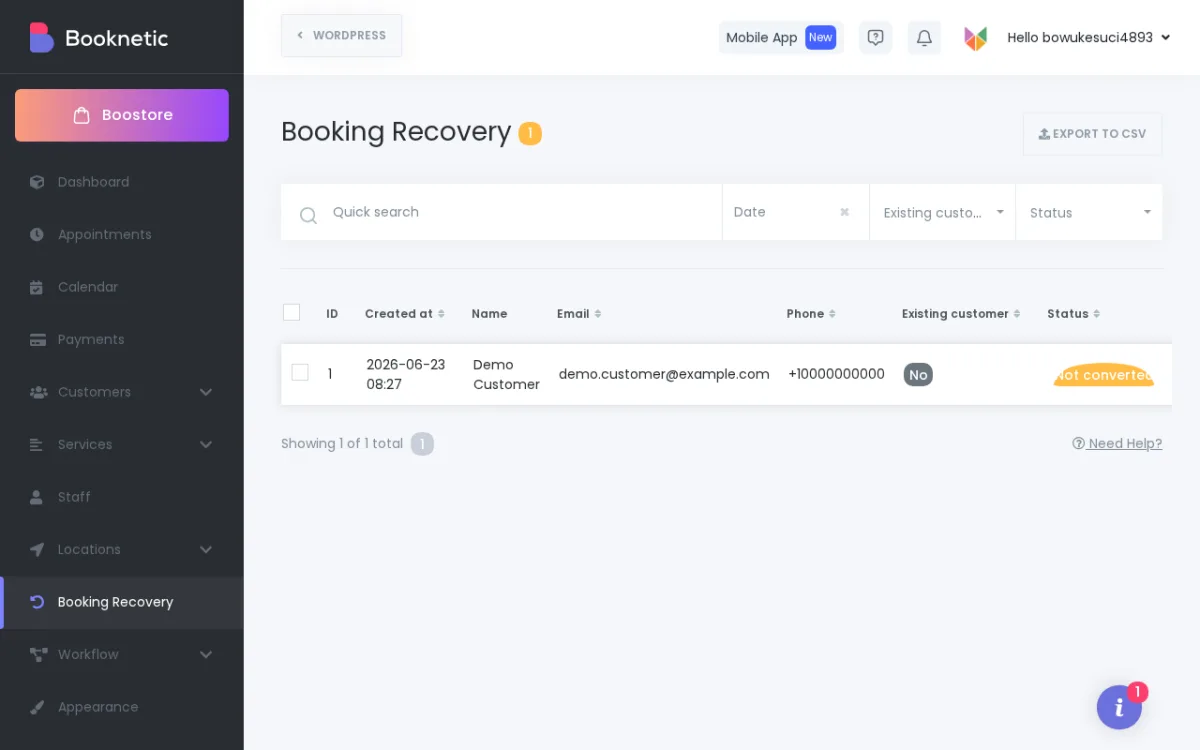
You will see the Booking Recovery panel, where recovery entries are listed when data is available.
The Booking Recovery panel lists sessions where customers started but did not complete a booking.
Step 2 — Set Up a Recovery Workflow
Booking Recovery messages are sent through Booknetic's Workflow engine.
Go to Booknetic Admin Panel → Workflows.
Click New Workflow (or Add Workflow).
Set the Event (trigger) to Booking Recovery.
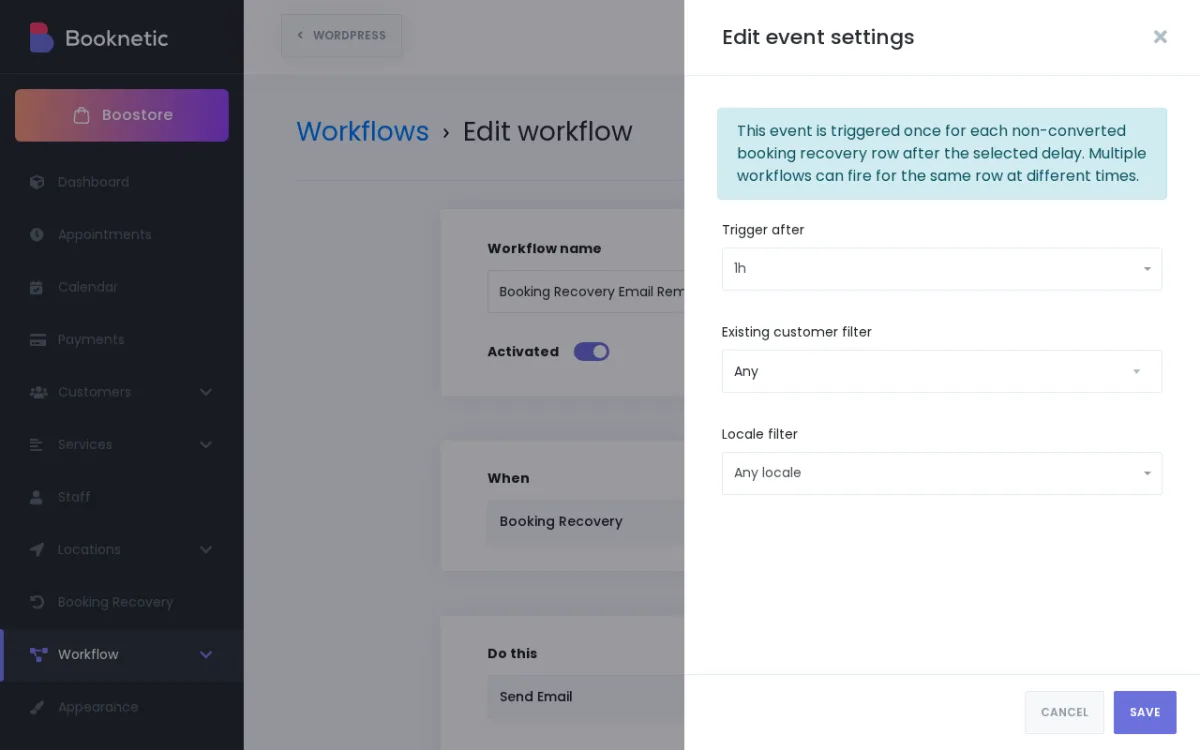
Set the recovery delay in the event settings. For example, configure Trigger after 1 hour, 4 hours, or 24 hours.
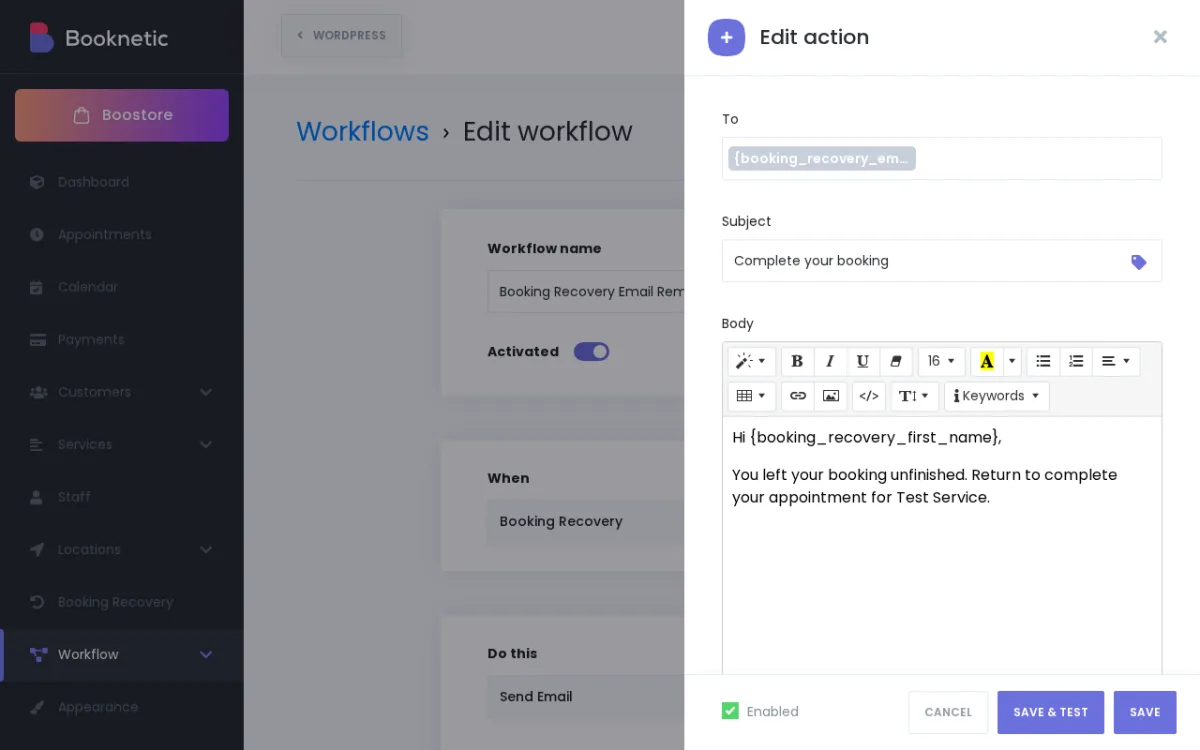
Set the Action — choose the notification channel. Send Email is recommended for recovery messages (requires Email Notifications add-on).
Write the recovery message in the notification body. Include a clear call to action, such as a direct link back to the booking page. You can use Booknetic shortcodes to personalise the message (for example, {customer_name}, {service_name}).
Save the workflow.
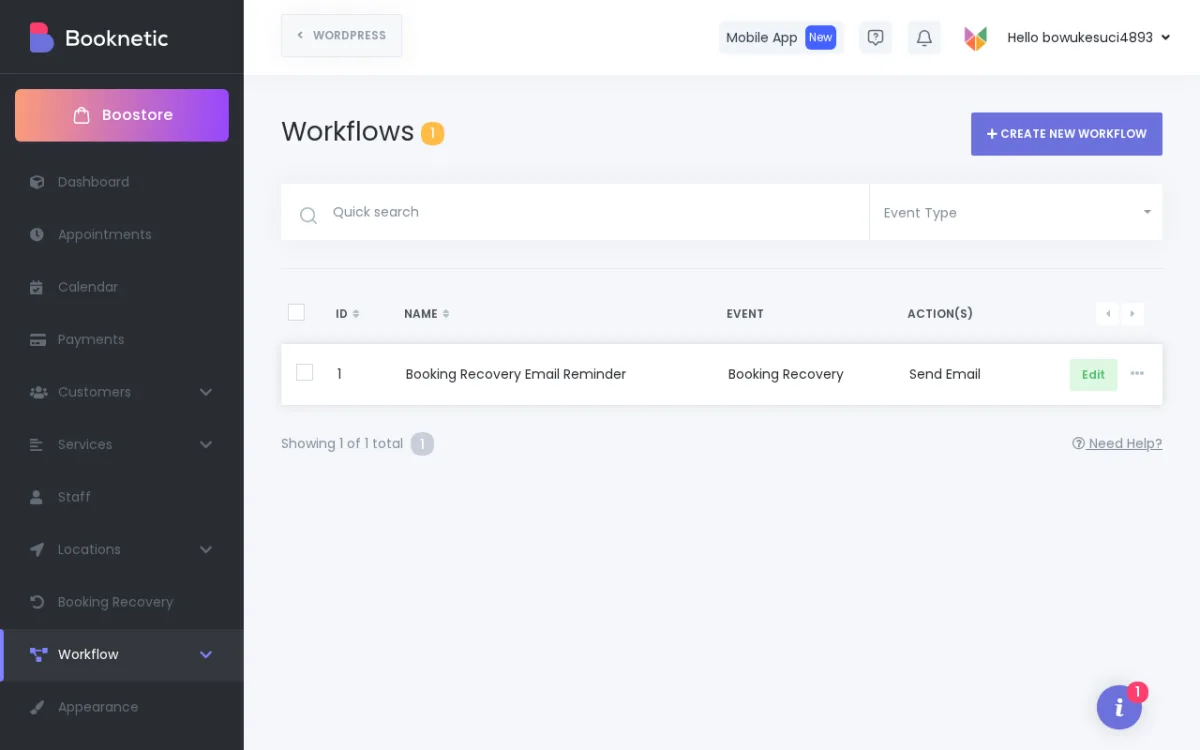
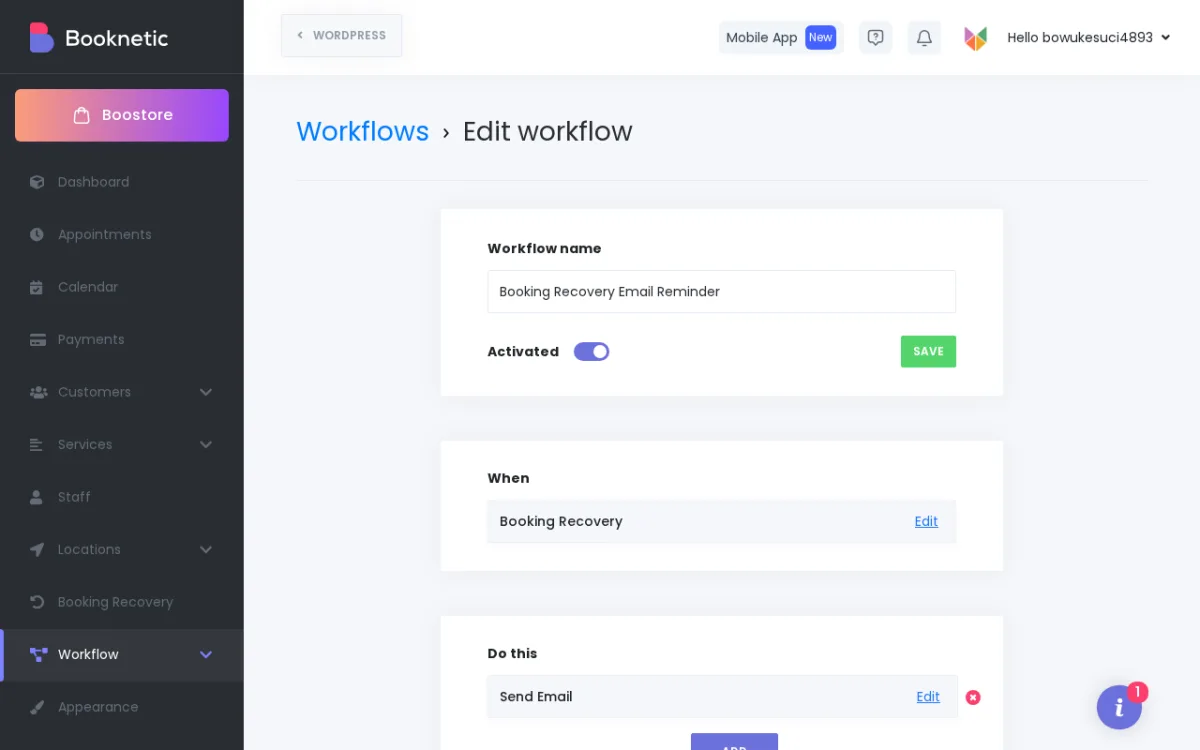
A Booking Recovery workflow in the Workflows list, showing the Booking Recovery event and Send Email action configured.Inside the workflow editor: the Booking Recovery event block and the Send Email action block.Use the event settings modal to configure the recovery trigger delay — how long Booknetic waits after an abandoned session before sending the recovery message.The Send Email action modal lets you compose the recovery message and configure delivery options.
Step 3 — Verify the Configuration
Start a test booking session on the front-end booking widget and leave without completing it.
Wait for the configured delay to pass.
Check whether the recovery message was sent to the test customer email.
Complete the booking using the link in the recovery message and verify the recovery entry in the Booking Recovery panel or related workflow logs.
Conversion Tracking
When a customer completes their booking after receiving a recovery message, Booknetic records the recovered appointment as a conversion. Conversions are tied to the correct appointment date — so the reporting reflects when the appointment was booked, not when the recovery message was sent.
No separate recovery statistics dashboard was visible in the tested admin screen. Use the Booking Recovery panel and Workflow Logs to review recovery activity and troubleshoot message delivery.
Troubleshooting
Recovery messages are not being sent:
Confirm the Booking Recovery workflow is active and the trigger event is set correctly.
Verify that the Email Notifications add-on (or your chosen notification channel) is installed and active.
Check Booknetic's Workflow Logs (Admin Panel → Workflows → Logs) to see if the workflow was triggered and whether any error is recorded.
Conversions not being recorded:
Ensure you are running Booknetic v5.7.7 or later. A conversion tracking bug was fixed in v5.7.7 where recovered sessions were not being tied to the correct appointment date.
Confirm that the customer completed the booking from the recovery message link, not from a separate new session.
Customers are not receiving the recovery email:
Check your WordPress email delivery settings. If standard WordPress mail is unreliable, configure SMTP via a third-party provider (Settings → Email Settings in Booknetic).
Check the customer's spam/junk folder.
Verify that the customer's email address was captured earlier in the booking flow. Recovery requires that the customer's email address was captured before they abandoned the session.
Delay is not working as expected:
Booknetic's Workflow Queue processes delayed actions in the background. Ensure that WordPress cron is running correctly on your server. Contact your hosting provider if cron jobs are unreliable.