
Workflow Logs
When you build a SaaS workflow — "send a welcome email when a tenant signs up", "fire a webhook when a tenant pays", "notify the platform on cancellation" —...

By using this site, you agree to our Cookie Policy
When you build a SaaS workflow — "send a welcome email when a tenant signs up", "fire a webhook when a tenant pays", "notify the platform on cancellation" —...
This page describes Workflow Logs inside Booknetic SaaS — a record of what happened each time one of your SaaS workflows fired (whether the email/SMS/webhook actually went out, and what went wrong if it didn't).
This is not the Logs add-on, which is a separate Regular Booknetic feature that records appointment and customer edits. Two different surfaces, two different jobs.
BETA notice. Workflow Logs is currently on the Booknetic SaaS BETA channel (introduced with v3.11.0). The behaviour described below is what's live today, but small details — field names, defaults, retention behaviour — may still shift as we stabilise the feature. If something on your install looks different from what's written here, please let support know.
When you build a SaaS workflow — "send a welcome email when a tenant signs up", "fire a webhook when a tenant pays", "notify the platform on cancellation" — you eventually ask one of these:
Workflow Logs is where those questions are answered. Every time one of your SaaS workflows runs an action, Booknetic writes a row to Workflow Logs. The row tells you which workflow ran, which event triggered it, what action was taken (Send Email, Webhook, Telegram, SMS, etc.), and whether it succeeded or failed.
In your Booknetic SaaS admin, open Workflows in the left sidebar. Underneath, you'll see a sub-menu called Workflow Logs.
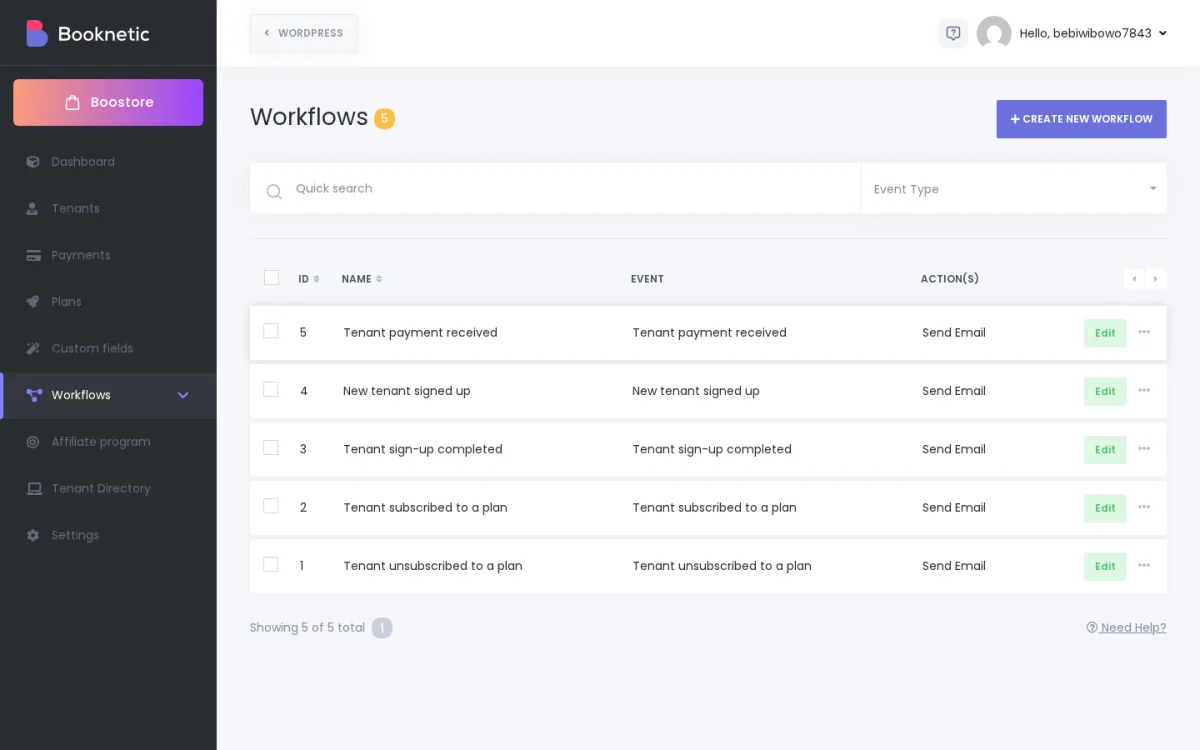
If you don't see Workflow Logs, two things to check:
Open Workflow Logs and you get a table of every action your SaaS workflows have run, newest first.
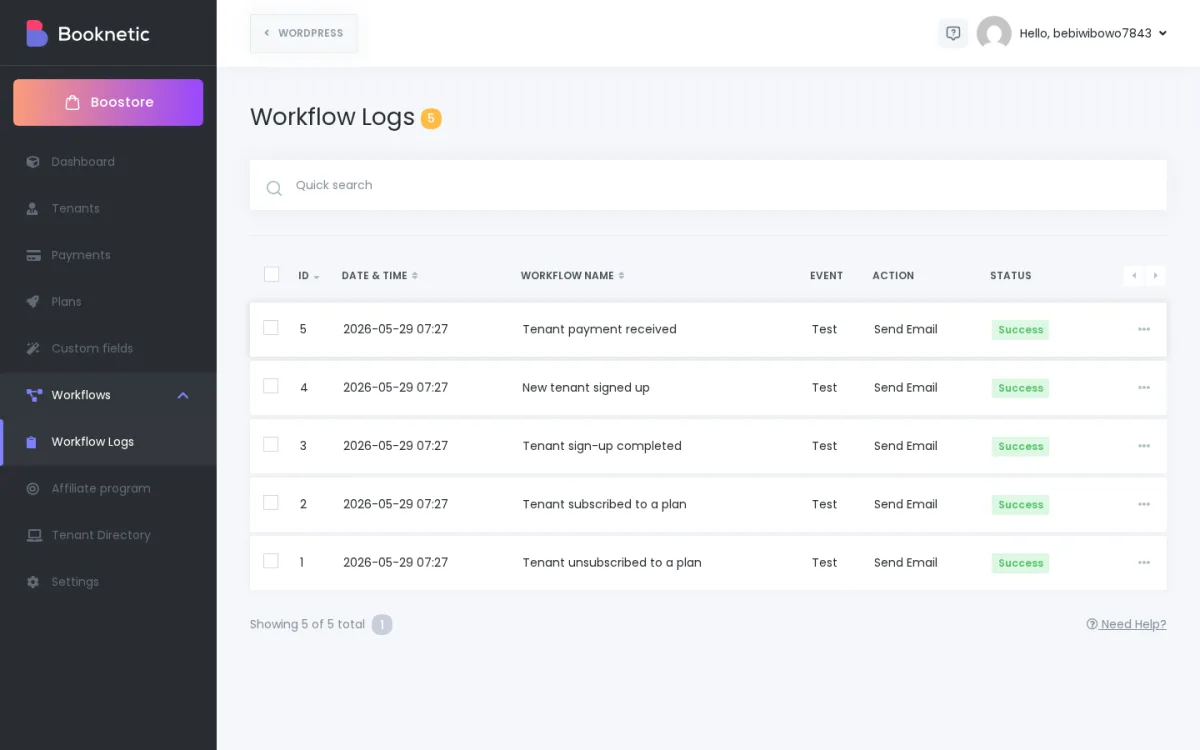
Each row shows:
| Column | What it means |
|---|---|
| ID | The log row's number. Useful when you want to reference a specific run in a support ticket. |
| Date & Time | When the action ran, in your SaaS site's timezone. |
| Workflow name | The workflow that triggered this run. Links you back mentally to your Workflows list. |
| Event | Which SaaS lifecycle event fired the workflow — for example Tenant subscribed to a plan, Tenant payment received, or Test if you triggered it from the workflow editor's Save & Test button. |
| Action | The channel/ |
| Status | A green Success badge if Booknetic handed the message to the channel cleanly, or a red Failed badge if something stopped it before or at hand-off. Open Details to see the error. |
A search box at the top lets you filter by ID or workflow name.
What this view shows on the SaaS side. When you open Workflow Logs from the Booknetic SaaS admin (the super-admin panel), the list shows the actions run by your SaaS-level workflows — the ones you built under SaaS → Workflows, for tenant lifecycle events like signup, subscribe, pay, cancel. It does not show every tenant's own appointment-workflow runs. A tenant's own per-tenant workflow logs live inside that tenant's own Booknetic admin and are scoped to that tenant.
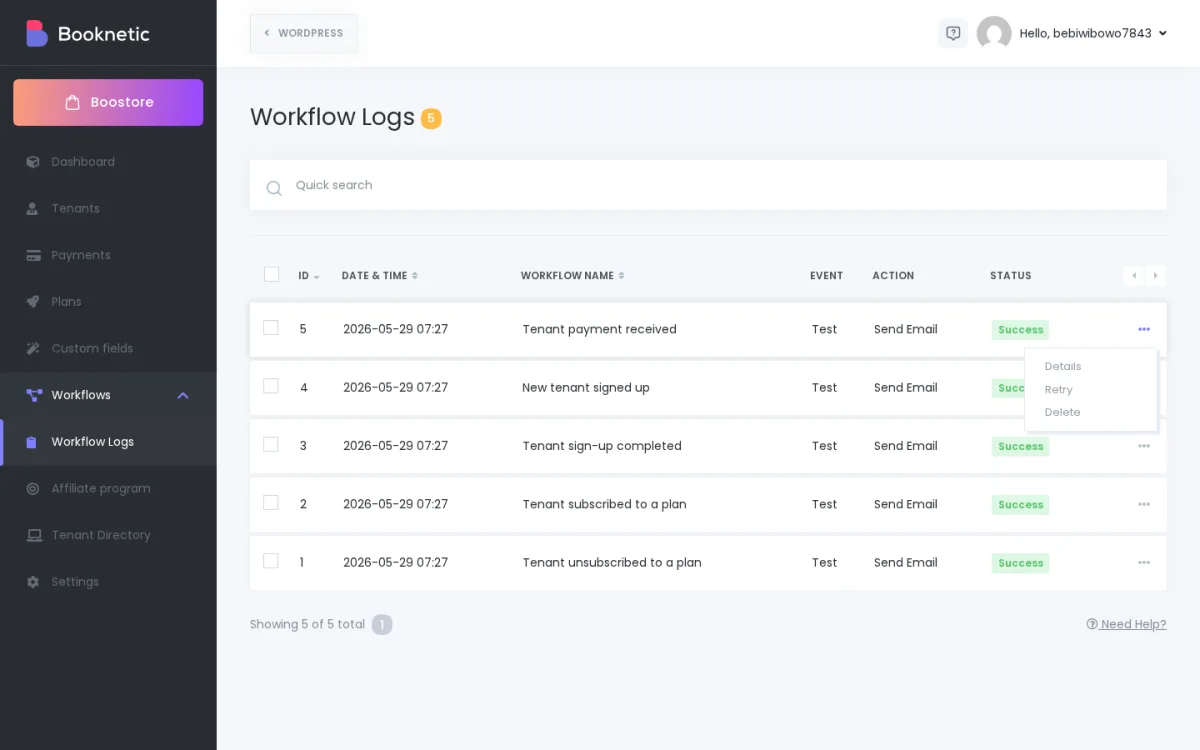
Each row has a small kebab menu at the right with three actions:
Click Details to open the log entry.
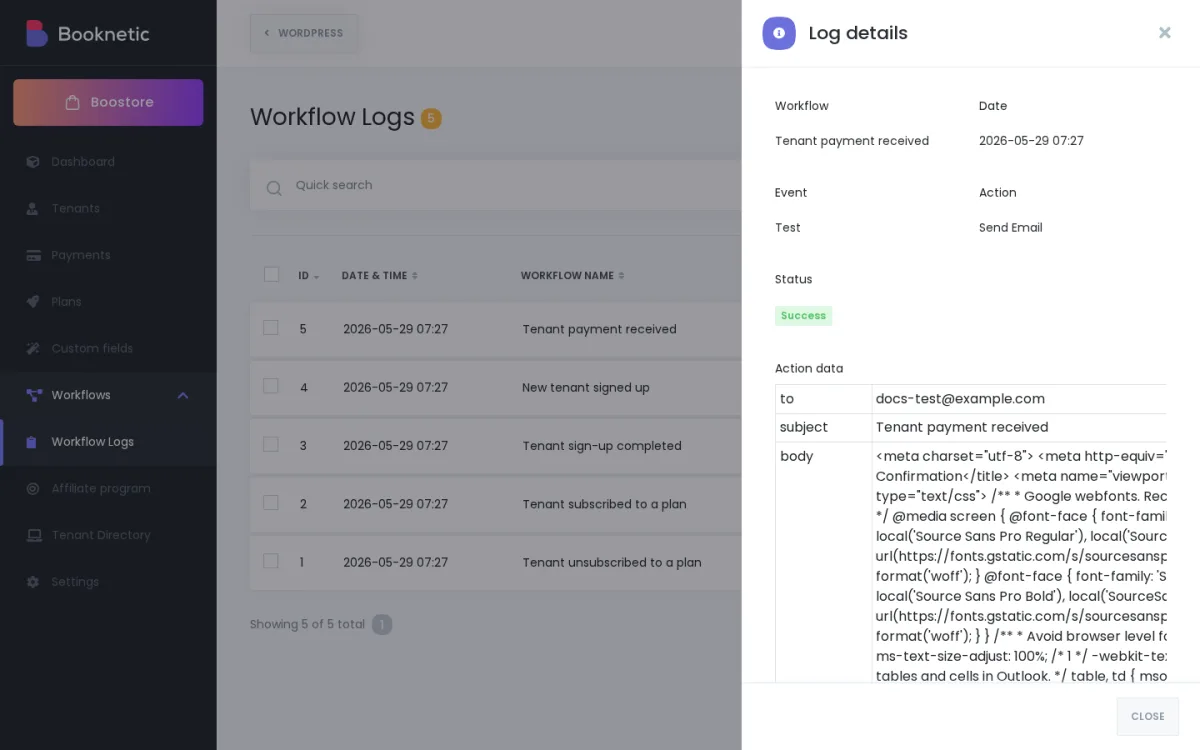
The panel pulls together everything we recorded for that single run:
A Retry button appears at the bottom of the panel when the original run captured enough information to be replayed.
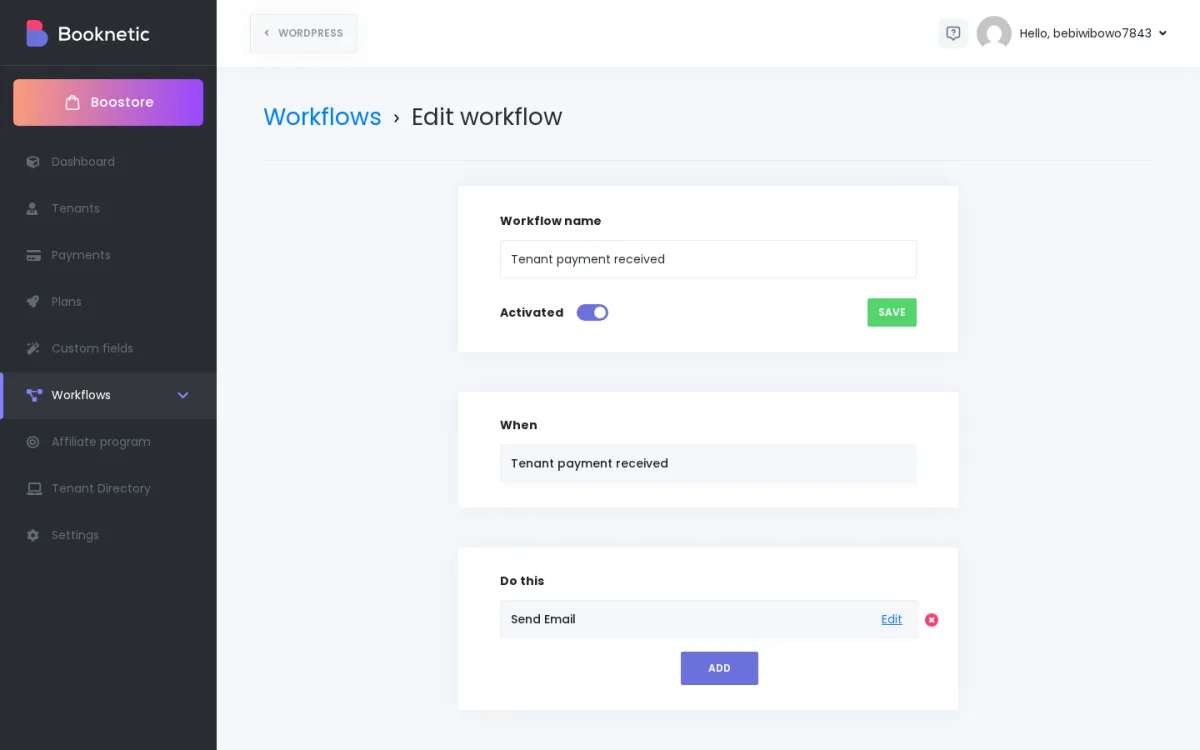
For reference, this is what a SaaS workflow looks like in its editor. Each time the When event fires and each Do this action runs, Workflow Logs gets a new row.
In the current release, Workflow Logs are kept until you delete them yourself. There is no built-in time-based auto-deletion, and no row-count cap.
Use the row's Delete action, or tick multiple rows and delete in bulk, when you want to prune older entries. The Workflow Logs feature is still on the BETA channel, so a future update may introduce an automatic retention policy — we'll add a note to this page when that happens.
"My workflow logged a Success row, but the customer says they never received the email. What happened?"
A Success status means Booknetic handed the message off to the channel (your email gateway, Twilio, your webhook endpoint, etc.) without an error. From the channel onwards, deliverability is in that provider's hands. Common reasons a Success row doesn't reach the recipient:
If Details shows the action data is correct and Status is Success, the next step is your provider's logs, not Booknetic's.
"My workflow logged a Failed row. Where do I look?"
Open Details on the failed row. The Error message line is the short text Booknetic captured when the action stopped. Common patterns:
Once you've fixed the underlying cause, click Retry to re-run the action with the same data.
"Can I delete old logs to free up space?"
You can delete log rows one at a time or in bulk. Whether deleting them reduces your storage usage depends on your install — please contact support if you're trying to plan a clean-up around plan limits, and we'll confirm the exact behaviour for your configuration.
"A retry isn't doing anything. Why?"
Two things gate Retry:
"I want a single place to see logs across all my tenants."
Workflow Logs in the SaaS admin shows your platform-level SaaS workflow runs (signup emails, billing notifications, the workflows you built under SaaS → Workflows). It does not aggregate every tenant's appointment-workflow runs into one view. Each tenant sees their own Workflow Logs inside their own Booknetic admin, scoped to their account.
"Are Test runs separate from real ones?"
Save & Test runs from the workflow editor also write to Workflow Logs — they show Test in the Event column. Treat them as legitimate log rows for the purpose of verifying your setup, and feel free to delete them once you're done testing.