
What each tenant can customise
Booknetic SaaS owner's guide to what each tenant can change in their own panel — services, payments, workflows, appearance — and what stays under your control.

By using this site, you agree to our Cookie Policy
Booknetic SaaS owner's guide to what each tenant can change in their own panel — services, payments, workflows, appearance — and what stays under your control.
Booknetic SaaS gives each of your tenants their own Booknetic workspace. They can configure a surprisingly large surface inside it — services, staff, locations, the booking widget's look, their workflows, their payment gateways for appointment payments, even the labels on the booking panel. This page is the customer-facing tour of what each tenant can change in their own panel, menu by menu.
A couple of nearby pages on the same topic — make sure you're reading the right one:
You're in the right place if you're trying to answer questions like:
Most "why can't my tenant do X?" and "why CAN my tenant do X?" questions trace back to this one boundary. Read it once, share it with your tenants on day one.
| What gets configured | Who controls it | Where it lives |
|---|---|---|
| Which plans exist, what they cost, which features they include, and how much volume they allow | You, the SaaS owner. | WP Admin → Booknetic SaaS → Plans. See Plans and plan capabilities. |
| Global platform behaviour — signup flow, default trial plan, expired-plan behaviour, branding of the SaaS admin panel, social login, languages your tenants can pick from | You, the SaaS owner. | WP Admin → Booknetic SaaS → Settings. See SaaS Settings reference. |
| The payment gateway your tenants use to pay you for their plan (your platform's Stripe / PayPal / WooCommerce) | You, the SaaS owner. | WP Admin → Booknetic SaaS → Settings → Payment Settings. |
| The provider credentials for SMS, WhatsApp, Telegram (your Twilio account, your Telegram bot) | You, the SaaS owner. | WP Admin → Booknetic SaaS → Settings → Integrations. See Notification channels for your tenants. |
| Their own services, staff, locations, customers, appointments | The tenant, inside their own Booknetic panel. | Tenant → the matching menu. |
| Their own payment gateway for appointment payments — their own Stripe, PayPal, Square, Razorpay, Mollie, and so on — so money from customer bookings lands in the tenant's bank account, not yours | The tenant. | Tenant → Settings → Payment Settings → Payment Methods. |
| Their booking widget's look — colours, theme, logo, Custom CSS | The tenant. | Tenant → Appearance. |
| Their automations — booking confirmation emails, 24-hour reminders, status-change notifications, and so on | The tenant. | Tenant → Workflow. |
| Their business hours, holidays, currency for customer payments, time-slot length, booking-step order, panel labels | The tenant. | Tenant → Settings. |
| Their booking link / QR code / iframe embed code | The tenant. | Tenant → Billing → Share Page. |
| Their plan choice (subscribe, upgrade, downgrade, cancel) | The tenant picks; you set the menu of plans available. | Tenant → Billing → plan cards. |
The headline: inside their plan, your tenants own their booking business end to end. You own the platform around them.
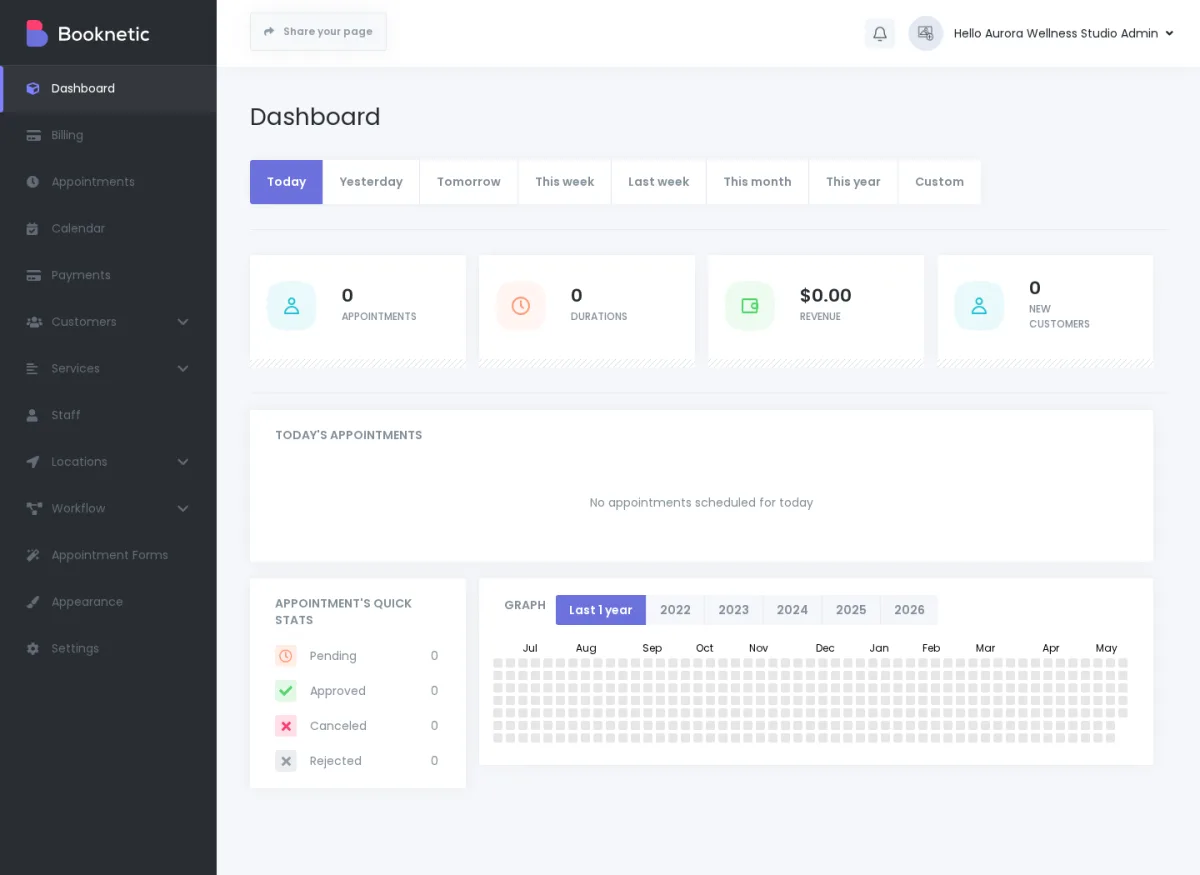
The next section walks through the tenant menus in the order a tenant sees them, and explains what each one lets them change. Cross-references to the sister docs are inline.
The Dashboard is read-only — your tenant doesn't customise anything here. It shows their appointment activity, revenue, new-customer count, and a date-range picker.
There's still one indirect tenant choice worth knowing about: if your tenant's plan doesn't include the Dashboard capability, the Dashboard menu doesn't appear and Booknetic sends them straight to Billing on every load. That's a plan-level decision you make in the plan editor, not something the tenant changes.
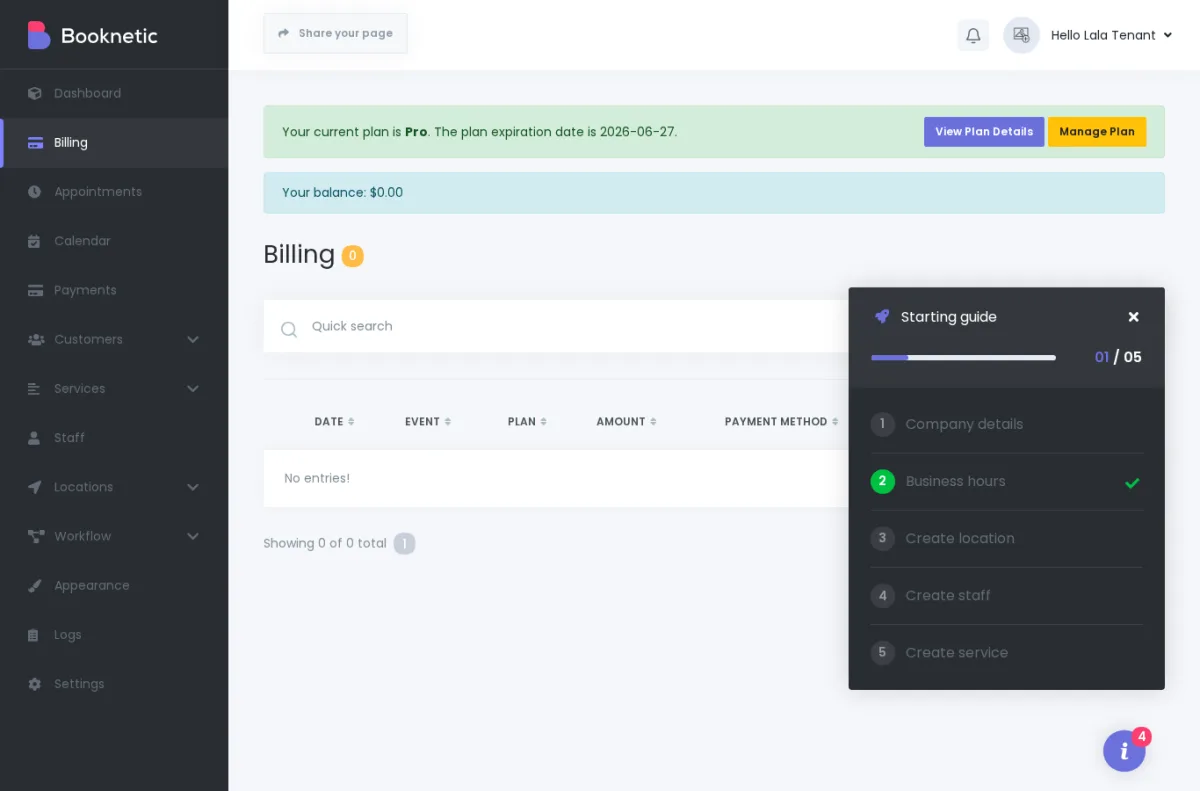
Billing is the SaaS-specific tab added to the tenant panel. From here, your tenant manages their own subscription:
Staff: 3 / 5, Services: 8 / 10.For the full subscription-state walkthrough, see Subscription states and billing history.
Your tenant manages their own bookings here — create, edit, reschedule, cancel, and mark statuses. They can also create appointments on behalf of their customers from this screen.
Your tenant's visual schedule view. They switch between Month / Week / Day / List, drag-to-reschedule, and filter by staff, service, or location. The Calendar's colour basis (event colour by service vs by status) is a tenant choice in Settings → General → Calendar.
Your tenant's own customer database. They add, edit, group into categories, and track per-customer notes. One person who books with two tenants on your platform is two separate customer records — there's no shared "customer of the platform" notion.
Your tenant sees appointment payments here — what their customers paid them. This is not the same as Billing. Billing is what your tenant pays you for their plan. Payments is what their customers pay them for bookings.
Your tenant builds their service catalogue here. Per service, they can customise:
Your tenant manages their team here. Per staff member, they can set:
The "Allow to log in" toggle creates a WordPress user for that staff member. They can then sign in to your platform and see a limited Booknetic panel — Dashboard, Appointments, Calendar, Customers, Payments — scoped to their own bookings. If your tenant's plan includes the User Role Manager addon, your tenant can build custom staff roles to control what each staff user can see inside the tenant's account.
Your tenant manages their branches, offices, studios, or clinics here. Per location: name, category, image, address, phone, description.
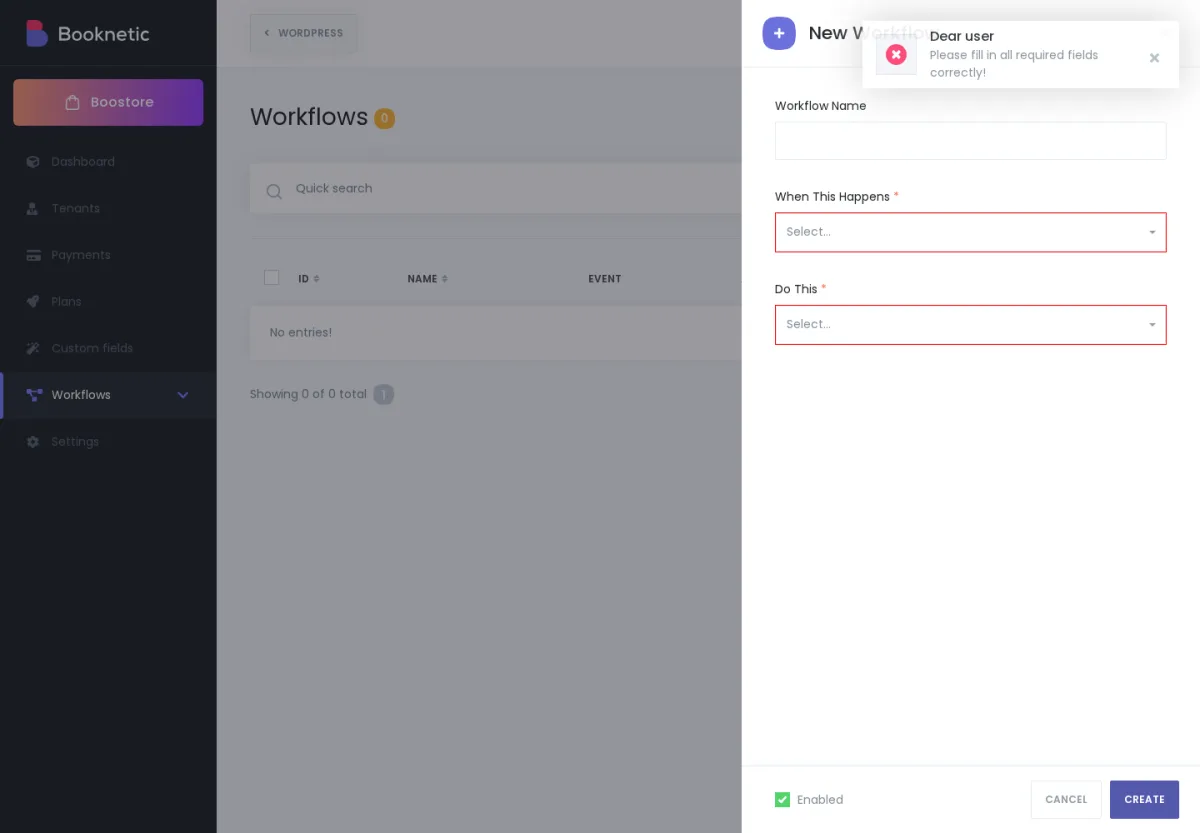
Your tenant builds their own automations here. A workflow has one event (the thing that triggers it — booking created, booking starts, status changed, customer birthday, payment received, and so on) plus one or more actions (what happens — send an email, send an SMS, change the booking status, send a Telegram message, fire a webhook).
A workflow is fully tenant-controlled inside the tenant's own panel:
{customer_first_name}, {appointment_date_time}, {service_name}, {staff_name} to fill in dynamic data.What your tenant doesn't control is the channel infrastructure underneath:
The full per-channel reference (who configures what, what tenants see, what to do when a channel limit is hit, how per-channel suppression works) is on its own page: Notification channels for your tenants — Email, SMS, WhatsApp, Telegram.
Note for SaaS owners — server cron required for all tenant workflow notifications: All tenant workflow actions — including notifications timed "immediately on creation" — are processed through Booknetic's workflow cron queue, which runs on WordPress Cron. The SaaS owner must configure a real server cron job running every 1 minute on the WordPress server. Without it, no tenant workflow notification (Email, SMS, WhatsApp, Telegram) will be sent — regardless of how correctly the channel credentials are configured. See Cron Job Configuration.
Appearance is where your tenant brands their booking widget. Booknetic ships with 7 default themes; your tenant can pick one, duplicate it, edit it, or build a brand-new theme.
Per theme, your tenant can adjust:
Each theme is published with a theme="<id>" parameter on the [booknetic] shortcode, so a tenant can run multiple themed booking pages on different WP pages of their site (one theme for their salon page, a different theme for their training page).
Two important details about Appearance:
For the plan-side capability that hides the footer, see Plans and plan capabilities.
Settings is the deepest customisation surface. It has four sub-tabs: General, Front-end Panels, Payment Settings, and Integration Settings. The next section walks each one.
General controls the tenant's basic booking and business configuration. The most common settings tenants change here:
{company_name}, {company_address}, and so on), so getting them right early avoids editing every email template later.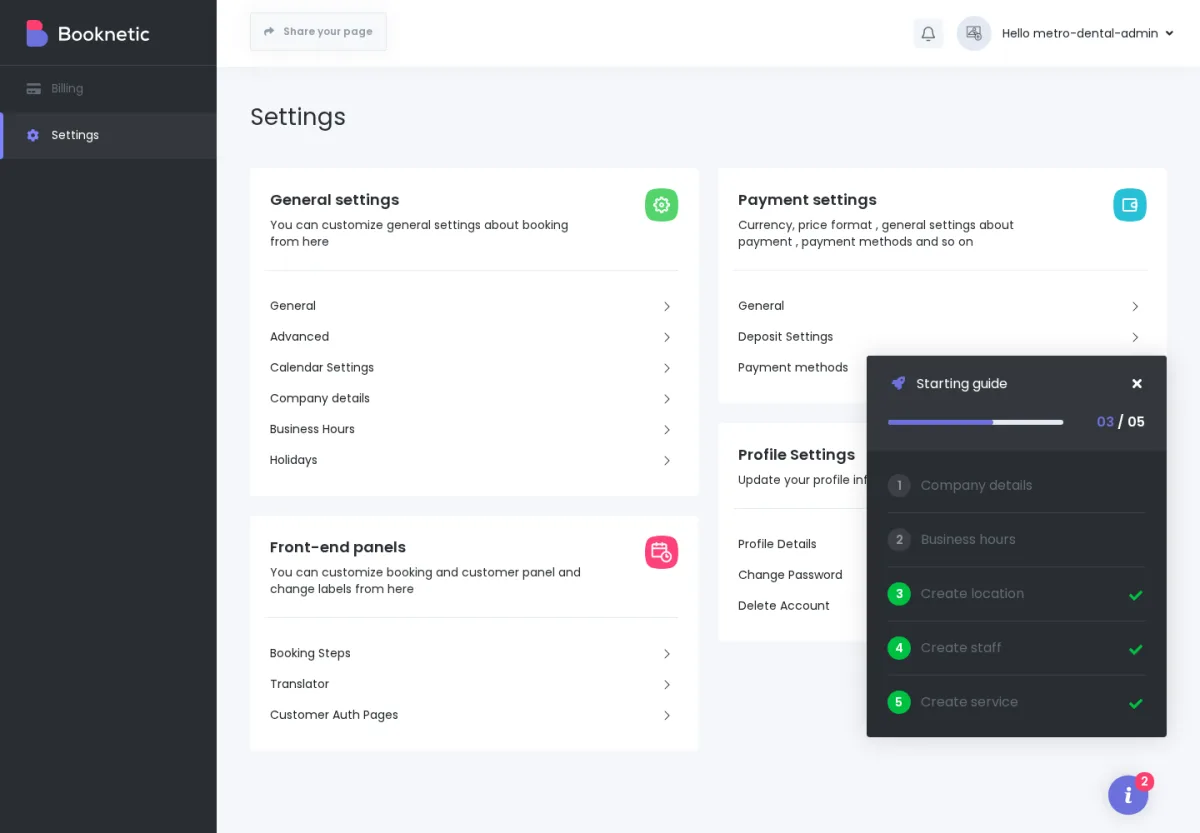
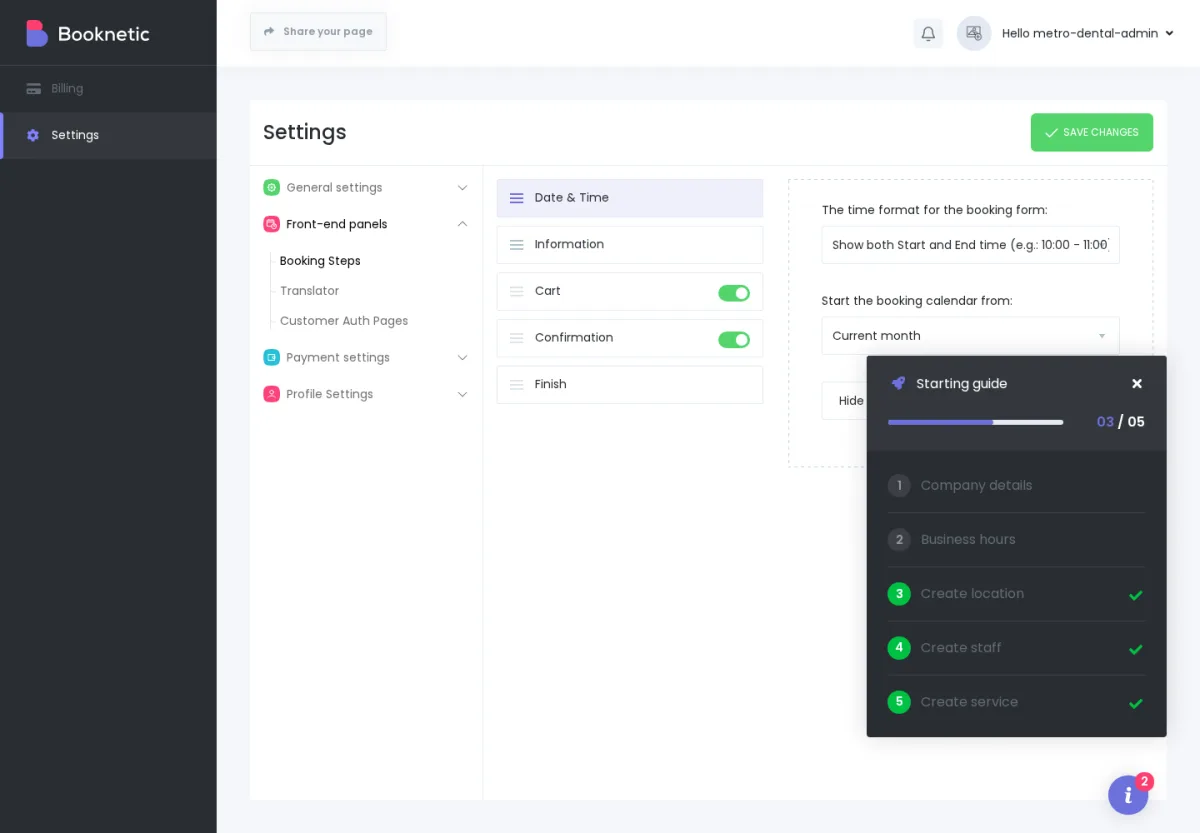
Front-end Panels controls the customer-facing booking widget itself — the booking-flow shape and labels.
[booknetic] shortcode), the Change Appointment Status page (used by Booknetic's per-status shortcodes in emails), and the Sign In / Sign Up / Forgot Password pages (Customer Panel addon).Two booking-step constraints to know about: the Service step must come before the Service Extras step (extras are per-service), and the Finish step must always be last. The drag-and-drop UI will reject a layout that breaks those rules.
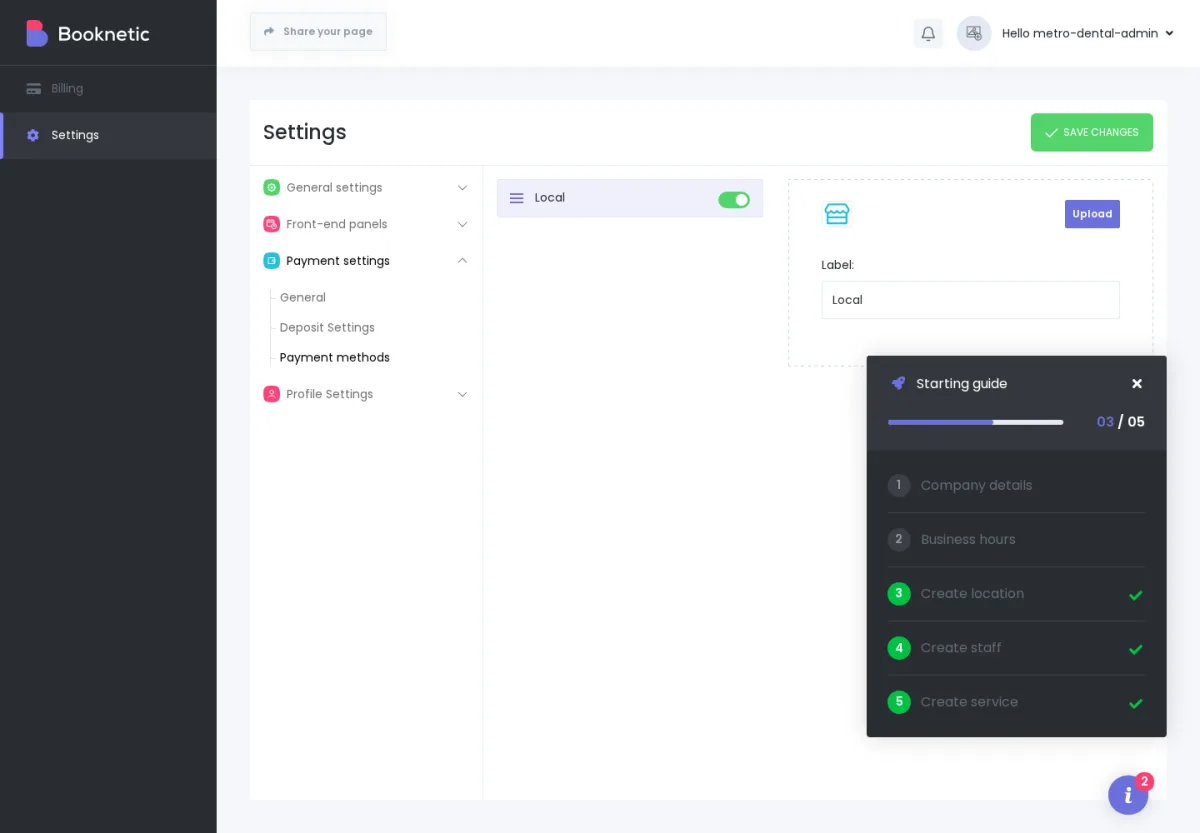
Payment Settings controls how the tenant accepts payments from their own appointment customers. This is the most-confused area of the tenant panel, so it's worth taking slowly.
There are two layers of payment gateways in a Booknetic SaaS install — they're separate, with different API keys, doing different jobs:
| Layer | Who configures it | Who pays whom | Where it lives |
|---|---|---|---|
SaaS billing gateways |
You, the SaaS owner. |
Your tenant pays you for their plan. |
WP Admin → Booknetic SaaS → Settings → Payment Settings. |
Tenant payment gateways |
Each tenant, in their own panel. |
The tenant's customer pays the tenant for an appointment. |
Tenant → Settings → Payment Settings → Payment Methods. |
Each tenant can plug in their own Stripe, PayPal, Square, Razorpay, Mollie, 2Checkout, MercadoPago, Netopia, Vipps, or local-payments gateway — whichever Booknetic addons you've installed on the platform. The tenant pastes their own Stripe Account ID, Publishable Key, Secret Key, and Webhook Secret. When a customer books and pays, the money lands in the tenant's own merchant account, not yours. You're not in the payment path.
This is the high-acquisition pitch for a Booknetic SaaS platform: "Sign up to my SaaS, plug in your own Stripe, get paid directly. I never touch your booking revenue."
Per-tenant Payment Settings also controls:
Integration Settings covers tenant-owned third-party integrations — for example, "Continue with Facebook" and "Continue with Google" social-login on the booking widget, plus calendar integrations (Google Calendar, Outlook Calendar), video-meeting integrations (Zoom, Google Meet, Vivomeetings), and others — whichever Booknetic integration addons are active on your platform AND included in the tenant's plan.
Each integration uses the tenant's own API credentials. For example, when your tenant enables Google Calendar two-way sync, they connect their own Google account; bookings sync into their own calendar, not yours.
If the tenant's plan doesn't include any integration addons, the Integration Settings sub-tab may not appear in their menu at all — the tenant just sees fewer Settings options, not a greyed-out tab.
The Share Page modal in Billing → Share Page is how your tenant publishes their public booking URL. The modal gives four ways to share:
your-platform.com/aurora-wellness for directory routing. See Tenant URLs and routing.<iframe> snippet your tenant pastes into their own website (a WordPress page outside of your platform, a Squarespace site, a Webflow site, etc.) so the booking widget loads in-page on their own domain.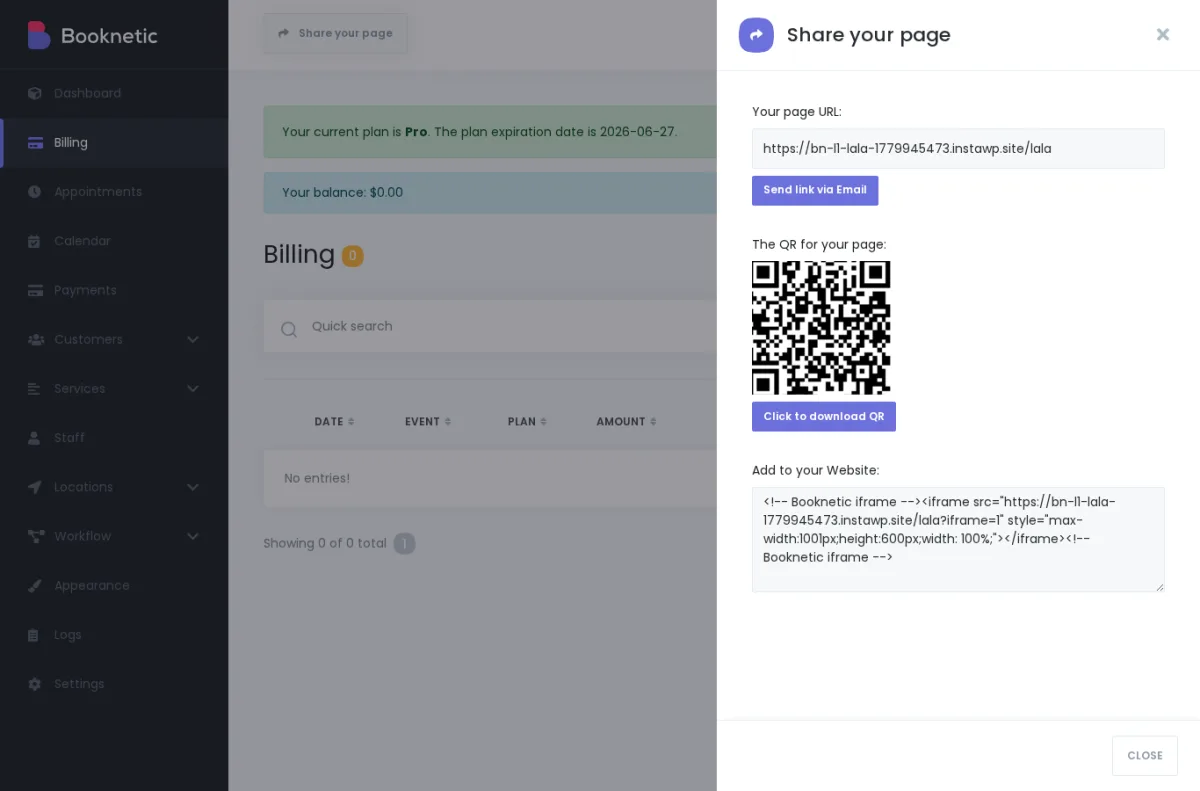
Heads-up on the iframe. If your tenant's site runs strict accessibility checks (or they're optimising for Lighthouse / Core Web Vitals), the iframe code Booknetic generates doesn't include a
titleattribute. Some accessibility tools flag that. The fix is for the tenant to paste the iframe code into their HTML editor and addtitle="<their business name>"before publishing.
This is the other half of the boundary table. Tenants do not see, edit, or override any of the following:
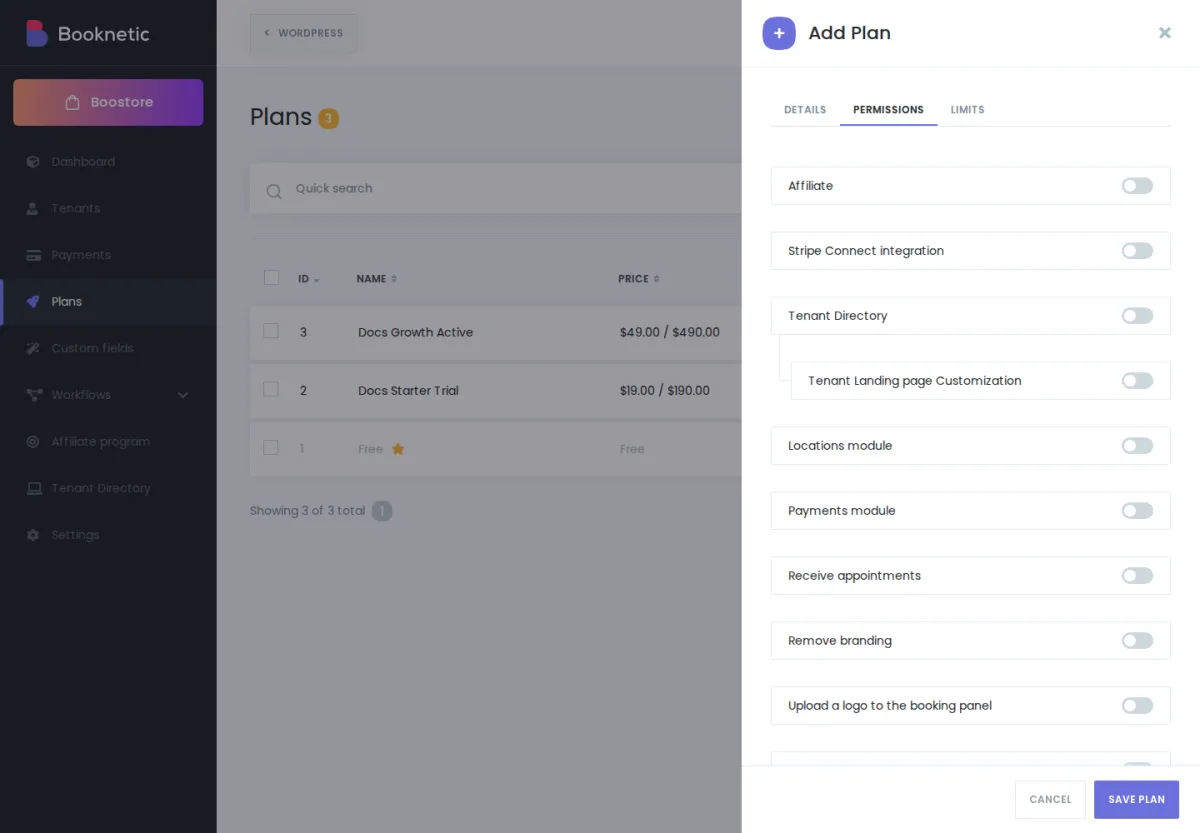
How much tenant customisation you allow is a product decision, not a fixed Booknetic behaviour. Here are three archetypes we see often. Each one is a workable starting point you can adapt for your own pricing.
You're running a tightly curated marketplace where you want every tenant's booking widget to look and feel the same. Tenants pick from your service catalogue and staff your business onto your platform; everything else stays under your control.
| What tenants can customise | What the SaaS owner controls |
|---|---|
| Services, Staff, Locations, Customers, Appointments. | Appearance (you set one theme, all tenants use it). Workflows (you set platform-wide workflows; the tenant Workflow capability is OFF on their plan). Payment Settings (you collect all payments centrally and pay tenants out of band). Front-end Panels (you set the booking-step order and labels). |
How you implement it: in the plan editor, turn OFF Appearance, Workflow, and Integration Settings capabilities. Leave only the core booking modules ON.
This is the right shape if your value-add to tenants is uniformity (every booking widget looks like your brand) rather than tenant autonomy.
The most common shape. Tenants own their booking workflows, branding, and payment gateways; you own plan billing and the platform infrastructure.
| What tenants can customise | What the SaaS owner controls |
|---|---|
| Services, Staff, Locations, Customers, Appointments. Appearance (their booking-widget theme — colours, fonts, logo, Custom CSS). Workflows (booking confirmation emails, reminders, status notifications). Payment Settings (their own Stripe / PayPal / etc. for customer payments). Front-end Panels (their booking-step order and labels). | Plans, plan capabilities, plan limits. Global SaaS Settings. Your SMS / WhatsApp / Telegram provider credentials. Your SMTP/ |
How you implement it: in the plan editor, leave the core modules and most of the customisation capabilities ON (Appearance, Workflow, Payment Settings, Front-end Panels). Adjust per-channel limits (Email, SMS, WhatsApp, Telegram) per plan tier. Use the Remove branding capability on higher plans to remove the Booknetic footer.
This is the default shape recommended by most Booknetic SaaS positioning — tenants feel like they're running their own Booknetic, and you collect plan revenue.
For platforms targeting power users — established small businesses who want maximum control. You sell the infrastructure; tenants build the experience.
| What tenants can customise | What the SaaS owner controls |
|---|---|
| Everything in Archetype 2, plus: their own staff-role permissions (User Role Manager addon), per-tenant integrations (Google Calendar, Zoom, etc.), Booknetic Logs audit access, Custom Forms per-service, Tenant Directory listing (if enabled). Plus higher / unlimited limits. | Plan, billing, the plan menu the tenant chooses from. |
How you implement it: turn ON every capability in the plan editor, including the addon-specific ones (User Role Manager, Logs, Custom Forms, Tenant Directory, Affiliate, Customer Panel). Set generous or unlimited limits.
This is the right shape if your platform's value is "we host and bill — you do everything else."
These three archetypes are starting points, not prescriptions. Most platforms end up somewhere between Standard and Full self-service, with different cuts at different plan tiers. See Plans and plan capabilities for the per-capability editor.
"Can my tenant use their own SMTP for their booking emails?"
Today, the SMTP gateway is platform-wide. WordPress's mail (and any SMTP plugin you've installed on your platform — WP Mail SMTP, FluentSMTP, Post SMTP) sends all booking emails for every tenant. Your tenant can still customise the sender name and Reply-To address that their customers see, so the emails feel like they're coming from the tenant's business, but the underlying gateway is yours.
If your tenant absolutely needs their own SMTP — typically for compliance, deliverability ownership, or independent bounce/complaint handling — that's not supported out of the box. Reach out to support; we'd like to hear the use case so we can weigh it against the roadmap.
For the full email/SMS/WhatsApp/Telegram setup, see Notification channels for your tenants.
"Can my tenant change the language of their admin?"
The languages your tenants can pick from are controlled at the platform level by you, the SaaS owner. In WP Admin → Booknetic SaaS → Settings → General, the "Enable the language switcher for tenants" toggle lets you offer multiple languages, and the "Select languages" list controls which ones. Each tenant then picks from your list inside their own admin.
For the booking-widget customer-facing language, your tenant uses Settings → Front-end Panels → Labels to edit the labels in each language they want to translate.
For the full SaaS Settings walkthrough, see SaaS Settings reference.
"Can my tenant disable a workflow channel that I set up?"
Not directly — your tenant doesn't have a per-channel "off" switch in their panel. What your tenant can do is edit their workflow to remove the channel action they don't want. For example, if you set up a tenant on a plan that includes SMS and the tenant doesn't want to send SMS reminders, they open the relevant workflow, remove the Send SMS via Twilio action, and save. Email keeps firing; SMS stops.
What only you can do is gate the channel at the plan level. If you turn the SMS capability OFF for the tenant's plan, the Send SMS via Twilio action disappears from the tenant's workflow editor entirely, and any workflows that referenced it stop firing on SMS (other channels in the same workflow keep firing).
"Can my tenant accept appointment payments to their own bank account?"
Yes — that's the central design of Booknetic SaaS. Each tenant plugs their own payment gateway credentials into Settings → Payment Settings → Payment Methods inside their panel. When a customer books and pays, the money flows through the tenant's Stripe (or PayPal, Square, Razorpay, Mollie, etc.) account into the tenant's bank, with no detour through your platform. You're not in the payment path for appointment payments.
The only money that flows through your platform's gateway is what your tenants pay you for their plan.
"Can I hide 'Powered by Booknetic' from my tenants' booking panel?"
Yes — this is a plan capability called Remove branding. Turn it ON for the plans where you want the footer hidden, OFF for the plans where you want it shown. See Plans and plan capabilities.
"Can my tenant invite their staff to log in?"
Yes. When the tenant creates or edits a staff record, the Allow to log in toggle creates a WordPress user with limited Booknetic access (Dashboard, Appointments, Calendar, Customers, Payments — their own bookings only). Staff sign in at your regular login URL. If your tenant's plan includes the User Role Manager addon, your tenant can build custom staff roles to fine-tune what each staff user can see.
A few customer-confusion points that come up regularly. Worth sharing with your tenants on day one.
Each tenant's Settings, Appearance, Workflows, Payment Methods, and so on are stored separately and only ever affect that one tenant's booking business. There is no "platform-wide Settings" that one tenant can accidentally edit and break for everyone else.
When a tenant edits a theme — changes a colour, swaps a logo, adds Custom CSS — it changes their own widget. It does not change yours (the SaaS owner's admin chrome), and it does not change any other tenant's widget. Themes are tenant-scoped.
You, the SaaS owner, have your own SaaS Workflows in WP Admin → Booknetic SaaS → Workflows. Those fire on tenant-lifecycle events ("a new tenant signed up", "a tenant paid", "a tenant's subscription is about to expire"). They send to you, with {tenant_*} shortcodes about the tenant.
Each tenant, separately, has their own Workflows inside their own panel. Those fire on appointment events ("a new booking was made", "a booking starts in 24 hours"). They send to the tenant's customer, with {customer_*} / {appointment_*} / {service_*} shortcodes.
They're two completely separate workflow surfaces. A tenant building workflows in their own panel will never see your {tenant_*} shortcodes, and you will never see appointment-event shortcodes in your SaaS Workflows.