
SaaS Admin settings
If you are setting up Booknetic SaaS for the first time, use this order: 1. Create your plans in Booknetic SaaS → Plans. 2. Set your trial and expired-plan...

By using this site, you agree to our Cookie Policy
If you are setting up Booknetic SaaS for the first time, use this order: 1. Create your plans in Booknetic SaaS → Plans. 2. Set your trial and expired-plan...
SaaS Settings are the main settings for your whole Booknetic SaaS platform. They are different from the settings inside one tenant account.
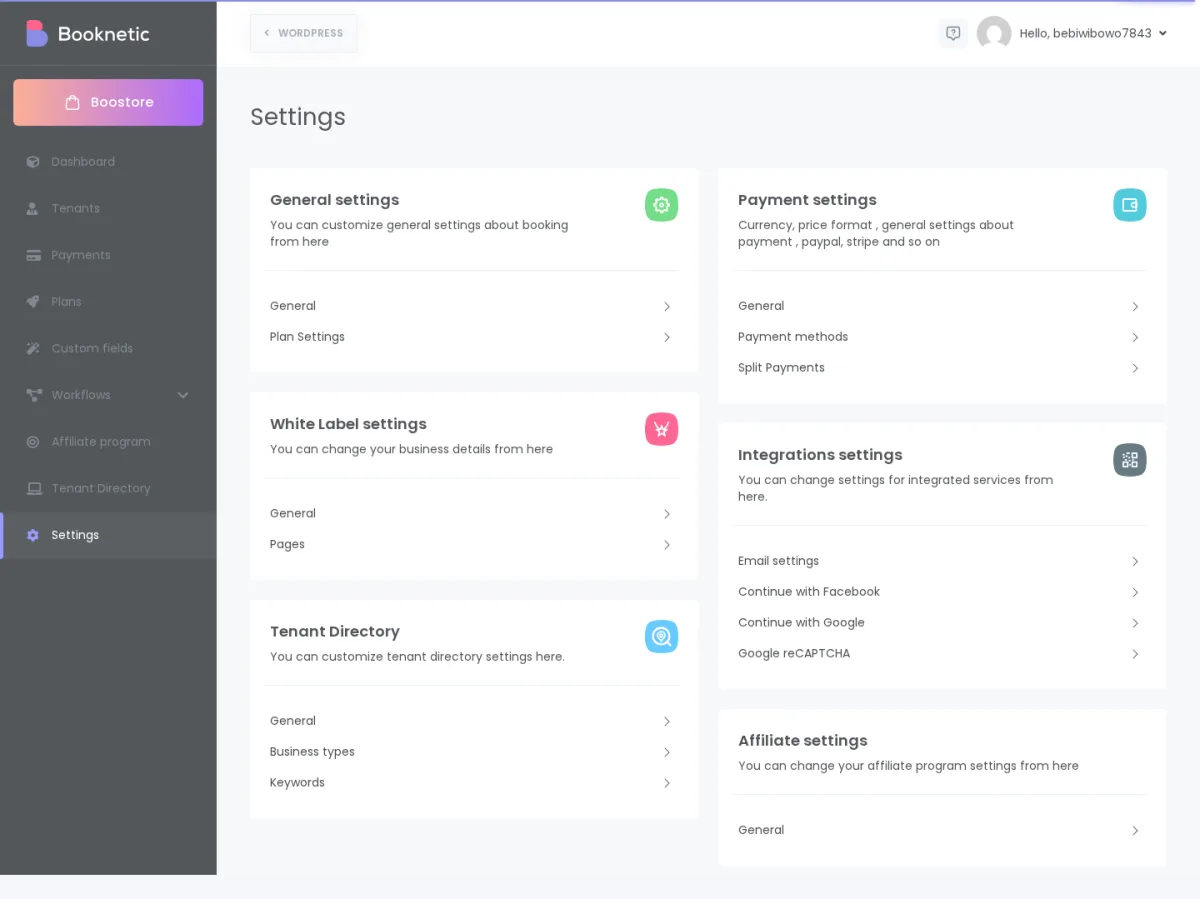
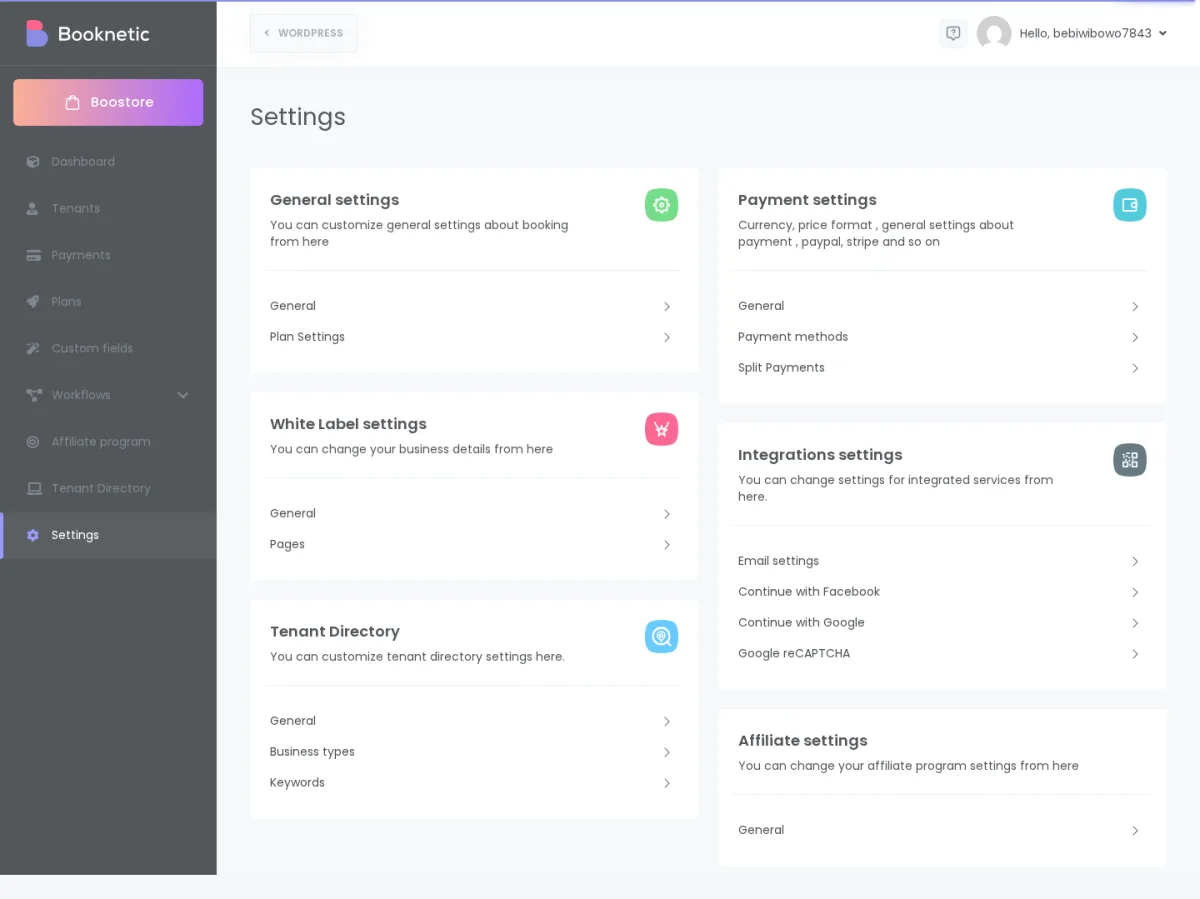
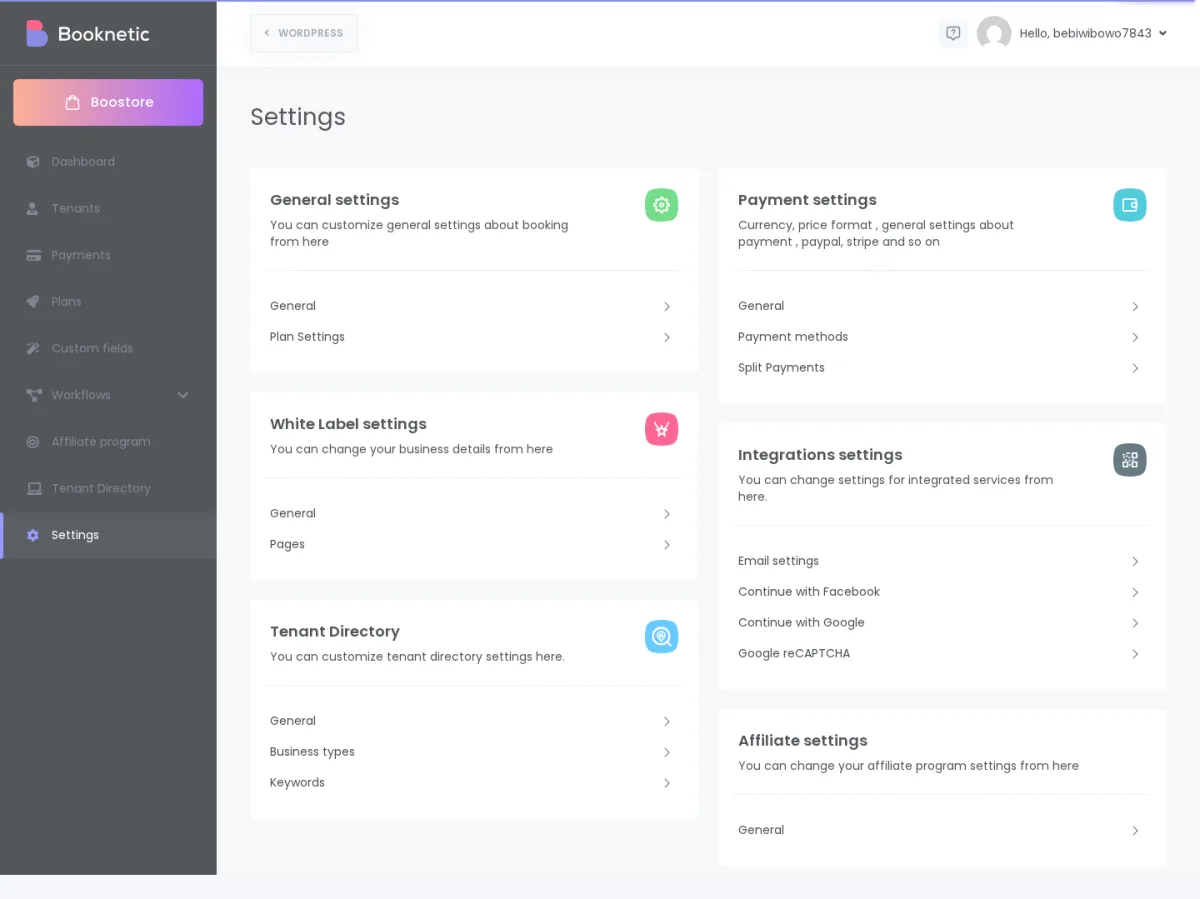
Use SaaS Settings to control things like the default trial plan, tenant signup pages, your platform branding, subscription payment gateways, email sending, social login, and the public booking page used by tenant links.
To open the page, go to Booknetic SaaS → Settings in your WordPress admin area.
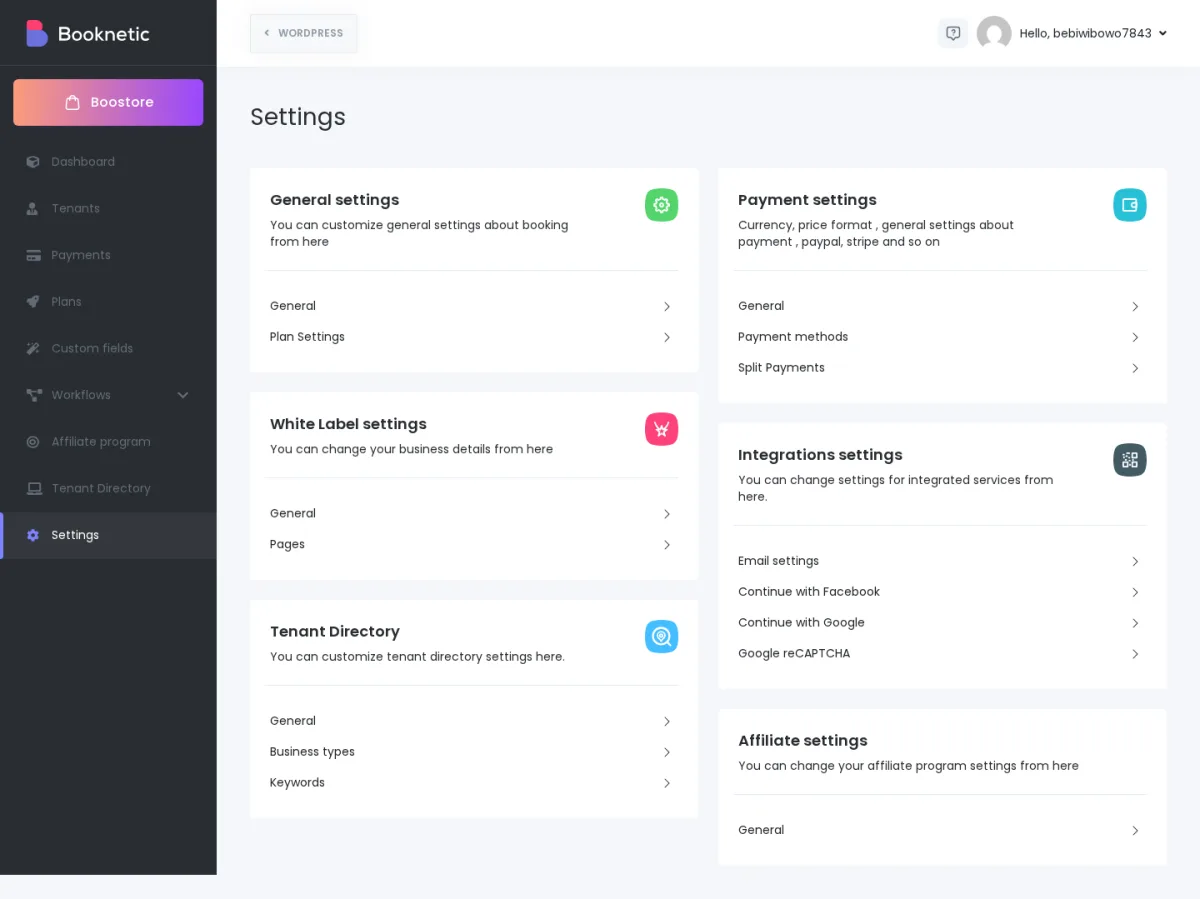
Before inviting tenants, review these settings carefully. A small missing setting, such as an email sender or signup page, can stop tenants from registering, receiving activation emails, or paying for plans.
If you are setting up Booknetic SaaS for the first time, use this order:
This order keeps the launch flow simple: tenants can sign up, receive emails, get the correct plan, and pay for subscriptions.
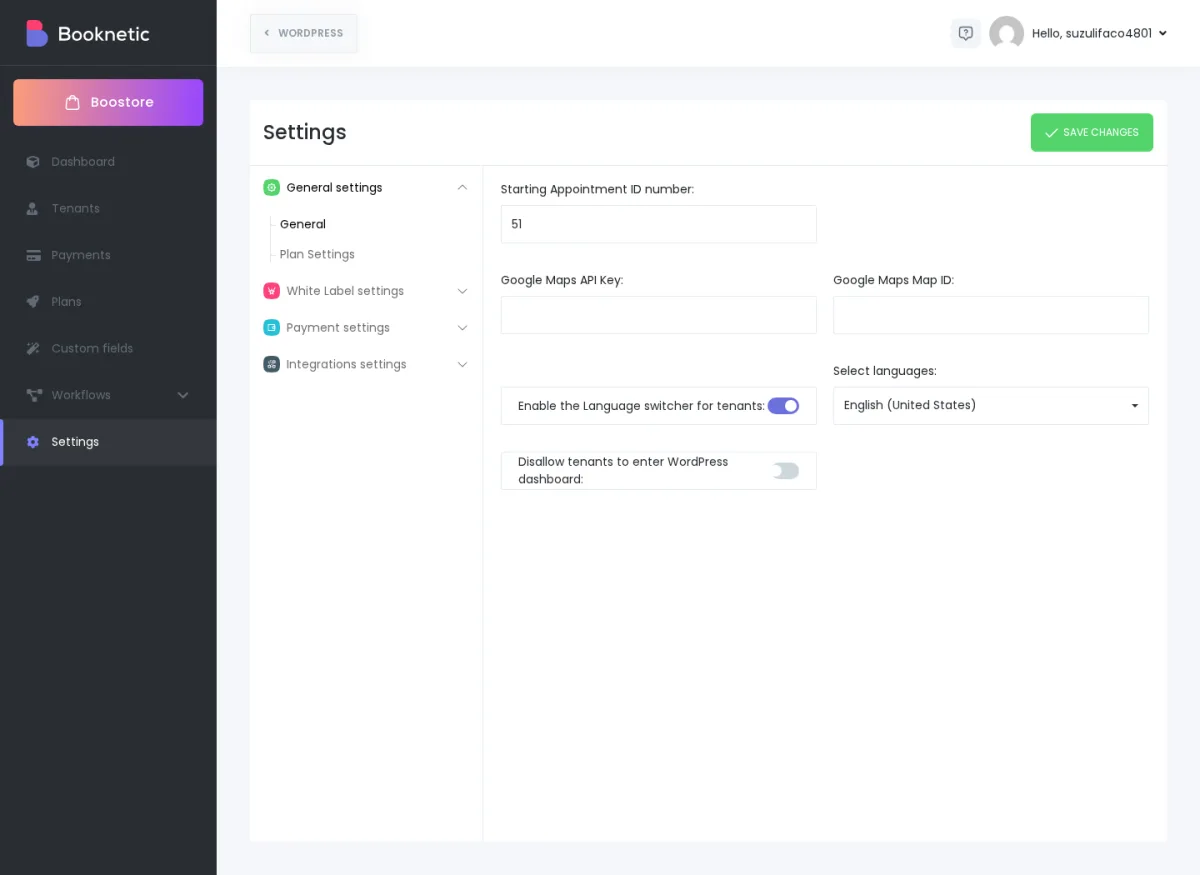
General settings control basic platform behavior for appointments, maps, languages, and tenant access.
| Setting | What it means | Default value | When to change it | Common mistakes / gotchas |
|---|---|---|---|---|
Starting Appointment ID number |
Sets the starting number for new appointment confirmation IDs. |
Usually starts from the current appointment sequence on your site. |
Change it when you want appointment IDs to start from a higher number, such as 1000, instead of small numbers. |
Do not enter a number lower than existing appointment IDs. Booknetic can reject it because it would conflict with existing records. |
Google Maps API Key |
Lets map-based features use your Google Maps account. |
Empty until you add your key. |
Change it if your platform uses map or location features that need Google Maps. |
Use a valid key from your own Google account. If the key is wrong, maps may not load. |
Google Maps Map ID |
Lets you use a Google Maps style or map configuration. |
Empty until you add it. |
Change it only if you use a custom Google Maps style. |
Do not fill this with the API key. It is a different value. |
Enable the Language switcher for tenants |
Allows tenants to choose from the languages you make available. |
Off unless you enable it. |
Enable it when you serve tenants in more than one language. |
If you turn it off, the selected tenant languages may be cleared when you save. Recheck the language list before turning it off on a live multilingual platform. |
Select languages |
The languages tenants can choose from when the language switcher is enabled. |
Empty until selected. |
Add the languages you want tenants to use in their panel. |
Selecting many languages does not automatically translate your own custom text. Review translations before launch. |
Disallow tenants to enter WordPress dashboard |
Keeps tenant users inside the Booknetic panel instead of regular WordPress admin pages. |
Off unless you enable it. |
Enable it when you want tenants to see only the Booknetic experience. |
Do not confuse this with blocking your own administrator account. It is meant for tenant users, not for the platform owner. |
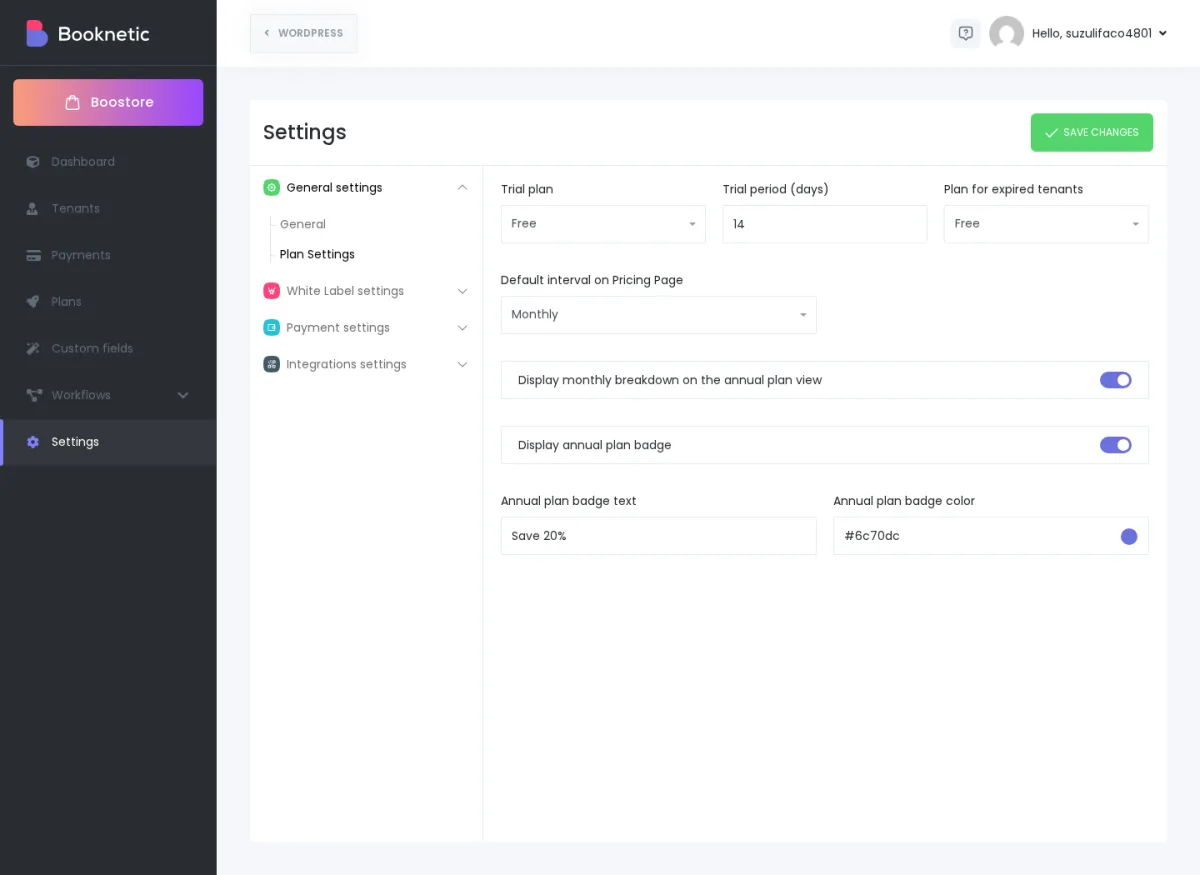
Plan Settings decide what happens when a new tenant starts a trial, what plan an expired tenant receives, and how your pricing page is shown.
| Setting | What it means | Default value | When to change it | Common mistakes / gotchas |
|---|---|---|---|---|
Trial plan |
The plan assigned to new tenants when they start from your signup or trial flow. |
Usually the first/ |
Change it after you create a plan that has the exact features and limits you want trial tenants to use. |
Create the plan first. If the selected plan is too limited, new tenants may think the product is missing features. |
Trial period (days) |
How many days a new trial tenant can use the platform before the trial expires. |
Commonly 30 in the sandbox setup. Your site can differ. |
Change it to match your sales policy, such as 7, 14, or 30 days. |
Do not promise a trial length on your pricing page unless this setting matches it. |
Plan for expired tenants |
The plan used when a tenant expires or fails to continue on an active paid plan. |
Usually a free or restricted plan. |
Change it when you want expired tenants to keep limited access instead of full access. |
Check that the expired plan has safe limits. Moving an expired tenant to a very limited plan can hide or restrict features. |
Default interval on Pricing Page |
The first billing interval shown on your pricing page, such as Monthly or Annual. |
Monthly in the sandbox setup. |
Change it if you prefer to show annual pricing first. |
If you promote monthly pricing in your marketing but show annual first, customers may feel confused. |
Display monthly breakdown on the annual plan view |
Shows the monthly equivalent for annual prices. |
Off unless enabled. |
Enable it when you want annual plans to look easier to compare with monthly plans. |
Make sure the displayed monthly breakdown matches your actual annual pricing. |
Display annual plan badge |
Shows a badge on annual plans, such as "Best value". |
Off unless enabled. |
Enable it when you want to highlight annual subscriptions. |
If you enable the badge, also review the badge text and color so it fits your brand. |
Annual plan badge text |
The text shown on the annual plan badge. |
Empty until configured. |
Change it to a short label like "Save more" or "Best value". |
Keep it short. Long badge text can look crowded on pricing cards. |
Annual plan badge color |
The color of the annual plan badge. |
Uses the default style until changed. |
Change it to match your brand colors. |
Check contrast so the text is readable. |
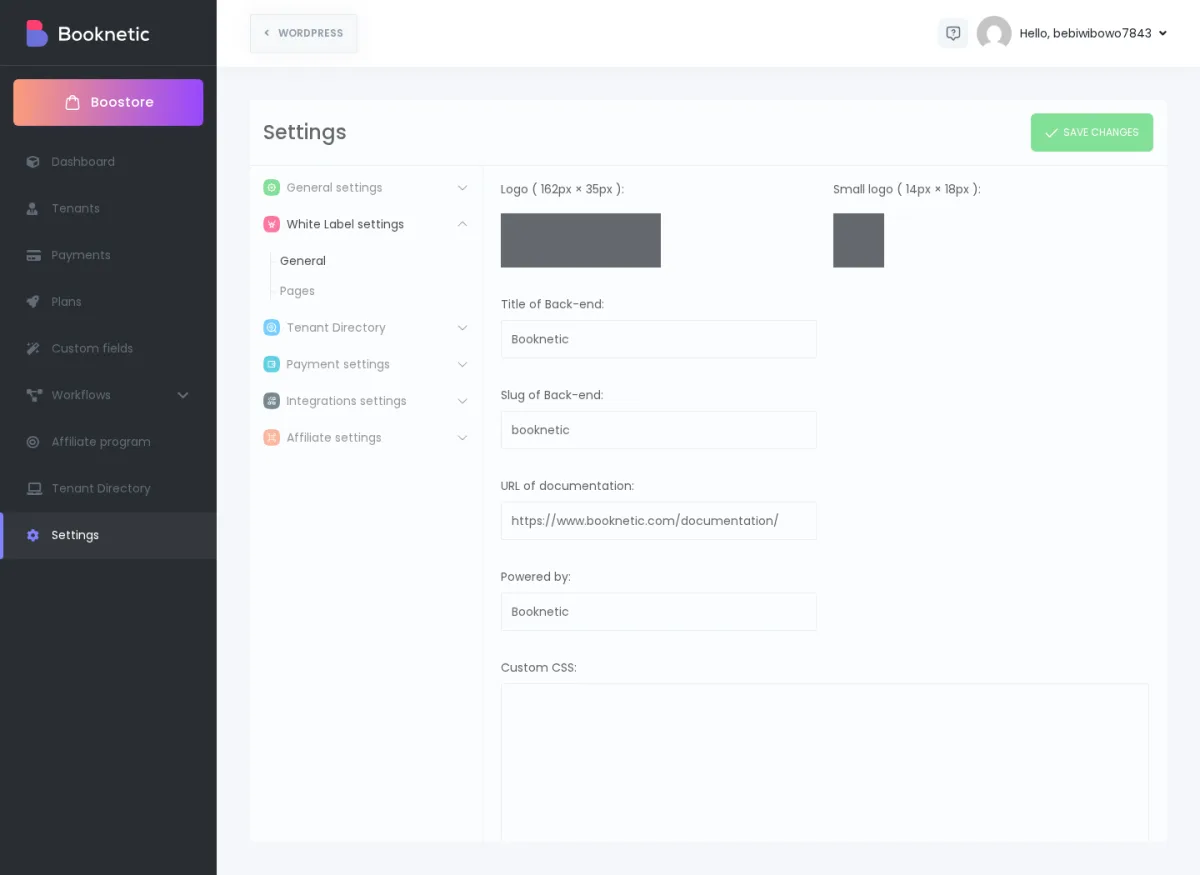
White Label settings let you make the SaaS admin experience look more like your own platform.
| Setting | What it means | Default value | When to change it | Common mistakes / gotchas |
|---|---|---|---|---|
Logo |
The main logo shown in the SaaS admin area. |
Booknetic logo or current installed branding. |
Change it before launch so tenants see your brand. |
Use a clean image file. JPG, JPEG, PNG, and SVG are the safe formats. |
Small logo |
A compact version of your logo. |
Booknetic small logo or current installed branding. |
Change it when the sidebar or compact view needs a smaller icon. |
A wide logo may look bad in the small-logo area. Use a simple mark. |
Title of Back-end |
The title shown for the backend/ |
Current product or site title. |
Change it when you want tenants to see your platform name. |
Use a plain name customers recognize. Avoid internal project names. |
Slug of Back-end |
The URL name used for the backend area. |
Current configured backend slug. |
Change it before launch if you want a branded admin URL. |
Do not leave it empty. Changing it after launch can confuse tenants who bookmarked the old URL. |
URL of documentation |
The help/ |
Empty or current documentation URL. |
Change it when you have your own help center or onboarding docs. |
Make sure the link opens a page your tenants can access. |
Powered by |
The small "powered by" text shown in the interface. |
Current installed value. |
Change it if you want custom footer/ |
Keep it short and professional. |
Custom CSS |
Extra styling for the admin panel. |
Empty until you add custom CSS. |
Use it only when you need small visual adjustments. |
Bad CSS can make the admin area hard to use. Test changes before applying them on a live platform. |
Pages settings connect your SaaS flows to WordPress pages. These pages are important because tenants and customers use them to sign in, sign up, reset passwords, and open booking links.
| Setting | What it means | Default value | When to change it | Common mistakes / gotchas |
|---|---|---|---|---|
Sign-in page |
The page tenants use to sign in to your SaaS platform. |
Not selected until you choose a page. |
Select it after creating your tenant sign-in page. |
Do not use a normal WordPress login page if you want the SaaS tenant sign-in flow. |
Sign-Up page |
The page new tenants use to create an account. |
Not selected until you choose a page. |
Select it before you advertise public tenant signup. |
If this is missing, your signup link may not work as expected. |
Forgot Password page |
The page tenants use to reset their password. |
Not selected until you choose a page. |
Select it before launch so tenants can recover access without contacting you. |
Password reset also depends on email delivery. Configure Email settings too. |
Change Appointment Status Page |
The page used when an appointment status is changed from a customer-facing link. |
Not selected until you choose a page. |
Select it if your workflows send appointment status links. |
If the page is wrong or missing, customers may land on a broken page. |
Booking page |
The shared booking page used for tenant booking URLs. |
Not selected until you choose a page. |
Select it before sharing tenant booking links. |
This is one of the most important SaaS pages. If it is wrong, tenant URLs may not show the booking panel correctly. |
Sign-in page for customers |
The page booking customers use to sign in, if customer account features are used. |
Not selected until you choose a page. |
Select it when tenants use customer accounts. |
Do not confuse this with the tenant sign-in page. Tenants and booking customers are different users. |
Sign-Up page for customers |
The page booking customers use to create customer accounts. |
Not selected until you choose a page. |
Select it when customer registration is part of your booking flow. |
If tenants do not use customer accounts, this may not be part of their everyday flow. |
Forgot Password page for customers |
The page booking customers use to reset customer-account passwords. |
Not selected until you choose a page. |
Select it when customer accounts are enabled. |
Password reset will not feel reliable unless email settings are also configured. |
Payment general settings control the currency and number format for SaaS billing and tenant defaults.
| Setting | What it means | Default value | When to change it | Common mistakes / gotchas |
|---|---|---|---|---|
Currency |
The currency used for your platform's SaaS billing. |
Site default or the saved currency. |
Change it before you start charging tenants. |
Do not change billing currency casually after tenants have active subscriptions. |
Currency symbol |
The symbol shown with prices, such as $ or €. |
Based on the selected currency or saved value. |
Change it if the symbol shown to tenants is wrong. |
Make sure the symbol matches the currency. |
Currency format |
Controls where the symbol appears, such as $100 or 100 $. |
Site default or saved format. |
Change it to match local pricing style. |
Keep pricing consistent across pricing pages and invoices. |
Tenant default currency |
The default currency given to new tenants for their own booking setup. |
Site default or saved value. |
Change it when most tenants should start with a specific currency. |
This is not the same as the tenant's own customer-payment gateway setup. Tenants may still need their own payment settings. |
Tenant default currency symbol |
The default symbol given to new tenants. |
Based on tenant default currency or saved value. |
Change it if new tenants should start with a specific symbol. |
If it does not match the tenant default currency, tenant pricing can look confusing. |
Tenant default currency format |
The default price display format for new tenants. |
Site default or saved value. |
Change it when your tenant market uses a specific format. |
This affects how prices look, not whether payment gateways are connected. |
Price number format |
Controls separators for large numbers and decimals. |
Site default or saved format. |
Change it for your country or audience. |
A format familiar in one country can look wrong in another. |
Price number of decimals |
Controls how many decimal places prices show. |
Usually 2, but your site can differ. |
Change it if your currency normally uses no decimals or a different style. |
Using too many decimals can make pricing look messy. |
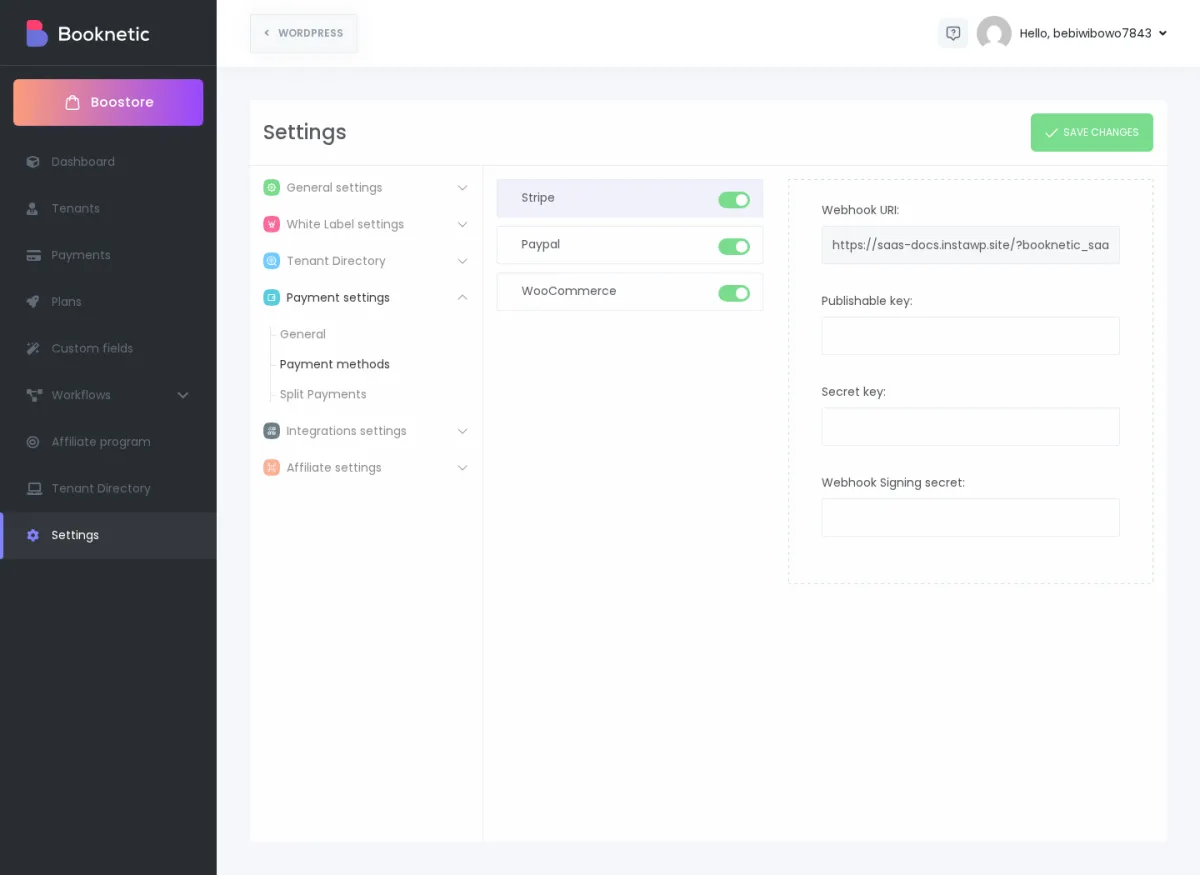
Payment methods are used to charge tenants for SaaS plans and subscriptions. They are not the same as the payment settings a tenant uses to charge their own booking customers.
| Setting | What it means | Default value | When to change it | Common mistakes / gotchas |
|---|---|---|---|---|
Stripe |
Enables Stripe as a SaaS billing method for tenant plans. |
Off or empty until configured; sandbox shows Stripe enabled for docs testing. |
Enable it when you want tenants to pay for plans through Stripe. |
The Stripe keys here charge tenants for SaaS plans. Tenants still configure their own customer-payment Stripe separately if they take booking payments. |
Stripe Webhook URI |
The URL you copy into Stripe so Stripe can tell Booknetic when subscription events happen. |
Generated by Booknetic. |
Use it when setting up Stripe webhooks. |
Do not edit the generated URL manually unless your domain has changed and you know what you are doing. |
Stripe Publishable key / Secret key / Webhook Signing secret |
The Stripe credentials needed for SaaS billing and webhook verification. |
Empty until you add them. |
Fill them from your Stripe Dashboard. |
Use the matching live or test keys together. Do not mix test and live credentials. |
PayPal |
Enables PayPal for SaaS plan payments. |
Off or empty until configured; sandbox shows PayPal enabled for docs testing. |
Enable it when you want tenants to pay through PayPal. |
Choose the correct mode, such as sandbox for testing and live for real payments. |
PayPal Client ID / Client Secret / Webhook ID |
PayPal credentials needed for SaaS billing. |
Empty until you add them. |
Fill them from your PayPal app setup. |
If webhook details are missing or wrong, subscription changes may not sync correctly. |
WooCommerce |
Lets tenants use WooCommerce balance/ |
Off unless configured; sandbox shows it enabled for docs testing. |
Use it only if your SaaS billing flow is designed around WooCommerce. |
WooCommerce must be installed and configured. If it is missing, this method cannot work properly. |
Payment gateway order |
Controls the order payment methods appear in. |
Saved order from your site. |
Change it when you want one method to appear before another. |
Keep enabled methods in a clear order so tenants do not choose the wrong option by mistake. |
Email settings control how your SaaS platform sends important emails, such as activation, signup, password, and workflow messages.
| Setting | What it means | Default value | When to change it | Common mistakes / gotchas |
|---|---|---|---|---|
Mail Gateway |
Chooses how Booknetic sends emails: WordPress Mail, SMTP, or Gmail SMTP. |
WordPress Mail unless changed. |
Use SMTP or Gmail SMTP when you want more reliable email delivery. |
WordPress Mail can work on some sites, but it is often less reliable for important SaaS emails. |
SMTP Hostname |
The mail server address from your email provider. |
Empty until SMTP is configured. |
Fill it when using SMTP. |
Copy it exactly from your email provider. A small typo can stop all emails. |
SMTP Port |
The port number your email provider uses. |
Empty until SMTP is configured. |
Fill it when using SMTP. |
The port must match the selected security type. |
SMTP Secure |
The security type, such as TLS, SSL, or disabled. |
Empty or provider default until configured. |
Choose the option your email provider requires. |
Do not guess. Wrong security settings commonly cause failed email sending. |
SMTP Username / Password |
The login details for your sending mailbox or email service. |
Empty until SMTP is configured. |
Fill them when using SMTP. |
Use the email provider's app password if the provider requires one. |
Gmail SMTP Client ID / Client secret / Redirect URI |
Google connection details for Gmail SMTP. |
Empty until Gmail SMTP is configured. |
Use these when you want Gmail to send platform emails. |
The redirect URI must be copied correctly into your Google app setup. |
Sender E-mail |
The email address recipients see as the sender. |
Empty until configured. |
Set it before launch. |
Missing or invalid sender email can stop settings from saving and can make activation emails fail. |
Sender Name |
The sender name recipients see. |
Empty until configured. |
Set it to your platform or company name. |
Use a name tenants recognize, such as your SaaS brand. |
Integration settings connect your SaaS signup and login experience to outside services such as Facebook, Google, and Google reCAPTCHA.
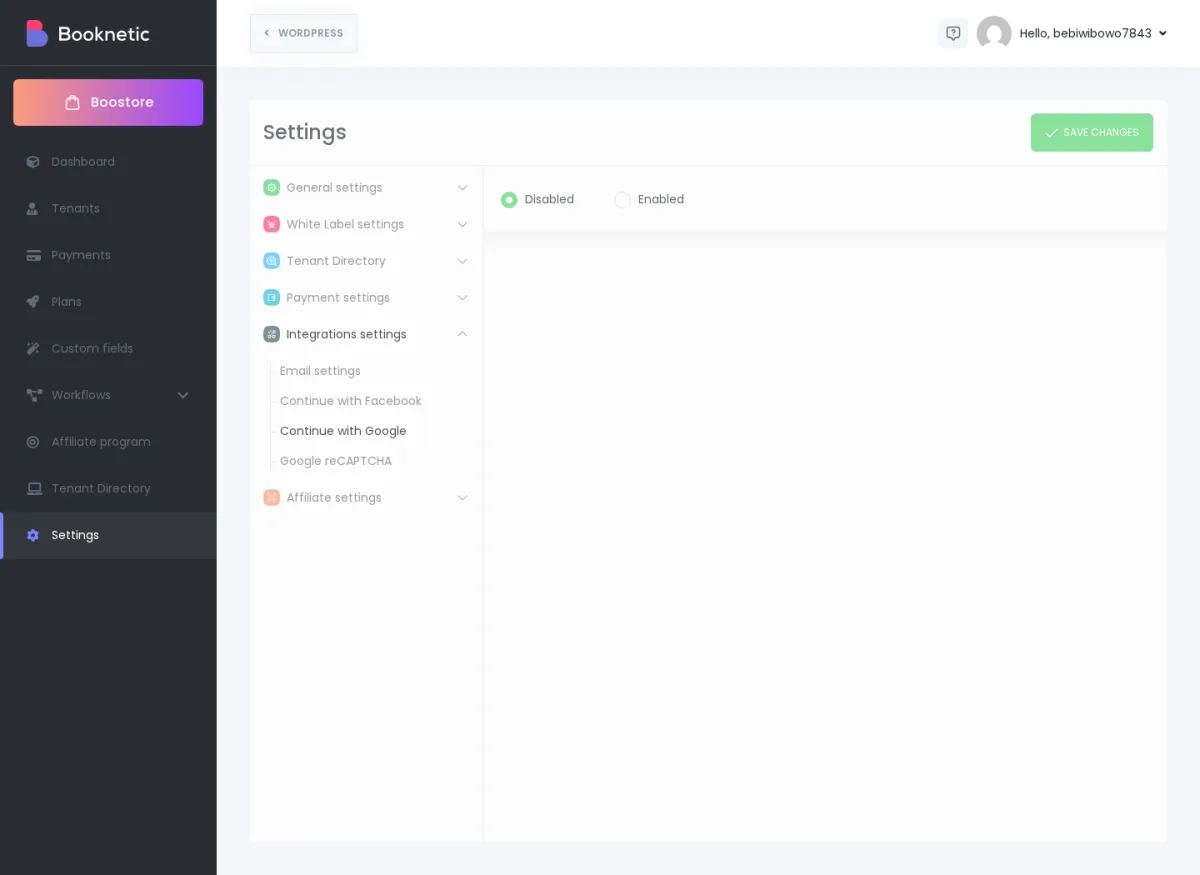
| Setting | What it means | Default value | When to change it | Common mistakes / gotchas |
|---|---|---|---|---|
Continue with Facebook |
Lets users sign in or continue using Facebook, if enabled and configured. |
Disabled until configured. |
Enable it when you want a Facebook login option. |
Copy the Redirect URI exactly into your Facebook app settings. Wrong redirect settings are a common reason login fails. |
Facebook App ID / App Secret |
Credentials from your Facebook app. |
Empty until configured. |
Fill them after creating the Facebook app. |
Do not use a personal testing app for a live platform. |
Continue with Google |
Lets users sign in or continue using Google, if enabled and configured. |
Disabled until configured. |
Enable it when you want a Google login option. |
Copy the Redirect URI exactly into your Google app settings. |
Google App ID / App Secret |
Credentials from your Google app setup. |
Empty until configured. |
Fill them after creating the Google app. |
Use the same domain in Google settings that tenants use to open your platform. |
Google reCAPTCHA |
Adds bot protection to public SaaS flows. |
Disabled until configured. |
Enable it when you want to reduce spam signups or automated form submissions. |
If the Site Key or Secret Key is wrong, users may not be able to complete the protected form. |
A tenant URL is the booking link your tenant shares with their customers. For example, a tenant could share a link like https://your-platform.com/aurora-wellness/.
In the standard verified SaaS flow, tenant links use a directory-style URL. That means the tenant name appears after your main domain, like this:
https://your-platform.com/tenant-name/
Some SaaS platforms discuss subdomain-style URLs, where the tenant name appears before the domain, like this:
tenant-name.your-platform.com
Use directory-style URLs unless your installation and hosting are specifically configured and tested for subdomain-style routing. Subdomain-style routing usually needs extra hosting and DNS setup, so it is easier to get wrong.
| URL style | Example | Best for | Common mistakes / gotchas |
|---|---|---|---|
Directory style |
your-platform. |
Most new SaaS platforms, simpler setup, fewer DNS issues. |
WordPress permalinks and the selected Booking page must be correct. The tenant slug must also be correct. |
Subdomain style |
aurora-wellness. |
Platforms that specifically need tenant-branded subdomains and have hosting/ |
Wildcard DNS and hosting must route every tenant subdomain to the same WordPress site. Do not choose this unless it has been tested on your domain. |
The most important related setting in SaaS Settings is White Label settings → Pages → Booking page. This page is used when Booknetic loads tenant booking links.
If tenant booking links do not work, first check the Booking page setting, the tenant slug, and your WordPress permalink settings.
Your Settings page may show extra sections when add-ons are installed. For example, the shared sandbox shows Tenant Directory and Affiliate settings.
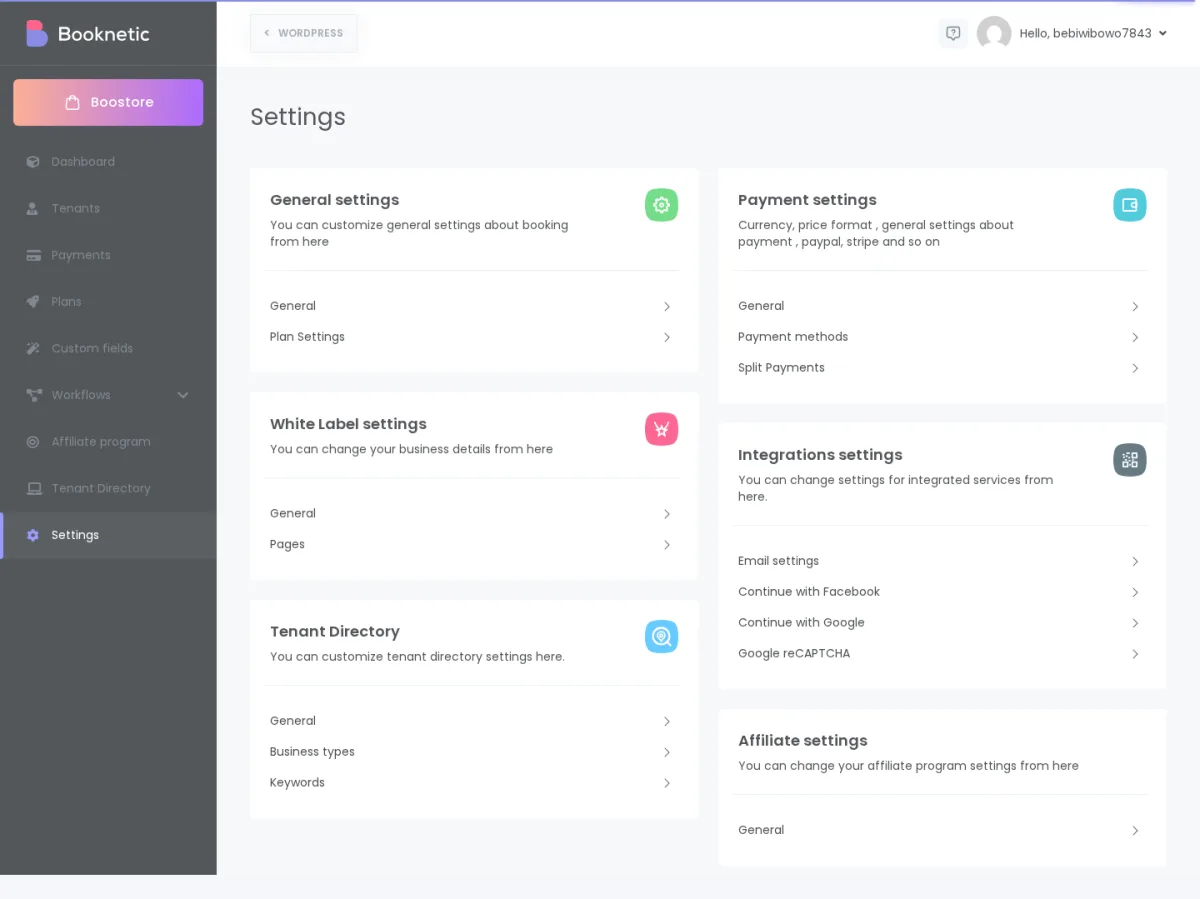
These extra settings depend on which add-ons are active on your site. If you do not see the same section, it usually means the related add-on is not installed or not active.
Check Settings → Integrations settings → Email settings first. Make sure the sender email, sender name, and mail gateway are configured correctly.
If you use SMTP, confirm the hostname, port, security type, username, and password with your email provider.
Check Settings → General settings → Plan Settings. Make sure the Trial plan and Trial period match what you advertised.
Also check the Plan for expired tenants, especially if tenants lose access after their trial ends.
Check Settings → Payment settings → General. Review the currency, symbol, currency format, number format, and decimal setting.
Also remember that SaaS billing settings are for charging tenants for plans. Tenant customer-payment settings are configured separately inside each tenant's own Booknetic panel.
The Stripe settings in SaaS Settings are for SaaS billing, meaning they charge tenants for your plans.
If a tenant wants to charge their own booking customers through Stripe, that tenant must configure their own payment gateway settings inside their own Booknetic panel.
Check White Label settings → Pages → Booking page. Then check the tenant's URL name and your WordPress permalink settings.
For most setups, use directory-style links such as your-platform.com/tenant-name/. Only use subdomain-style links if your domain and hosting have been prepared for that setup.
Before you invite real tenants, confirm these items: