
Tenant management
You can add tenants in two ways: - Let tenants sign themselves up from your public signup page. - Create the tenant manually from your SaaS admin panel. Use...

By using this site, you agree to our Cookie Policy
You can add tenants in two ways: - Let tenants sign themselves up from your public signup page. - Create the tenant manually from your SaaS admin panel. Use...
A tenant is a business account inside your Booknetic SaaS platform. If you run a booking platform for salons, clinics, trainers, or agencies, each business that signs up to use your platform becomes a tenant.
Each tenant gets its own login, its own booking setup, and its own public booking URL. For example, one tenant might be your-platform.com/aurora-wellness, while another tenant might be your-platform.com/metro-dental.
As the SaaS owner, you manage tenants from Booknetic SaaS → Tenants. From there, you can see tenant accounts, create a tenant manually, edit tenant details, change the assigned plan, review payment history, or delete a tenant when you are sure the account should be removed.
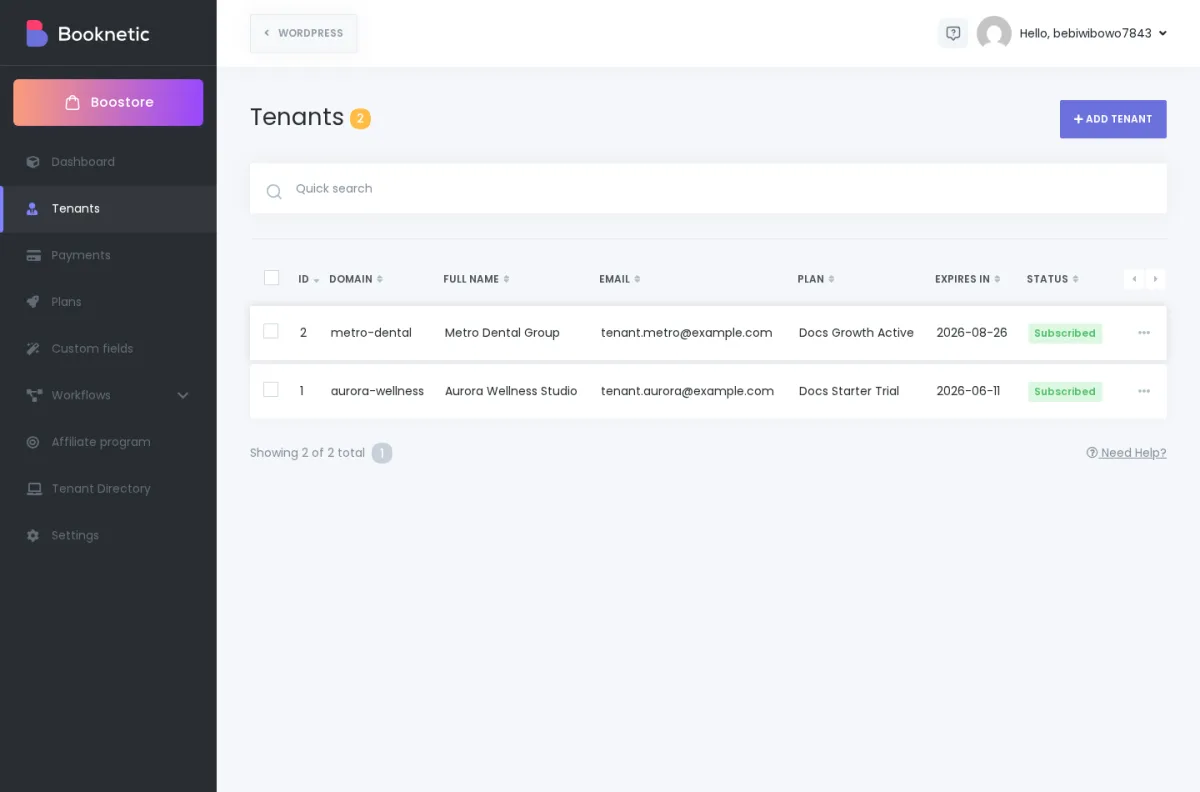
You can add tenants in two ways:
Use self-signup when you want a normal public registration flow. Use manual creation when you already know the business, they paid offline, or your team is onboarding them directly.
With the signup page enabled, a business can create its own account without you adding it manually.
The usual flow is:
aurora-wellness.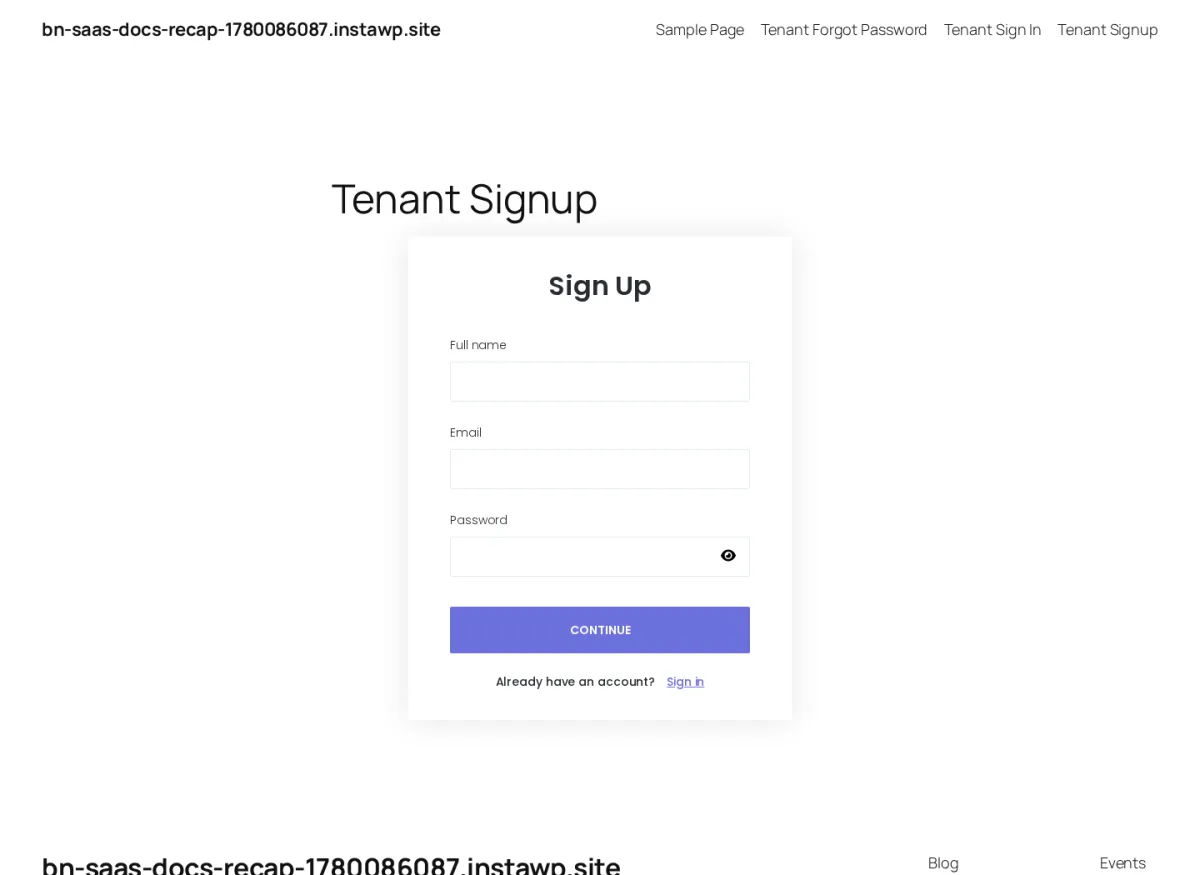
New signup tenants are placed on the trial/default plan you configured in your SaaS settings. Their starting expiration date is based on your trial-period setting.
The tenant's URL name must be unique. If a tenant sees a message that the name is already taken, ask them to choose another short name using letters, numbers, hyphen, or underscore.
To create a tenant yourself:
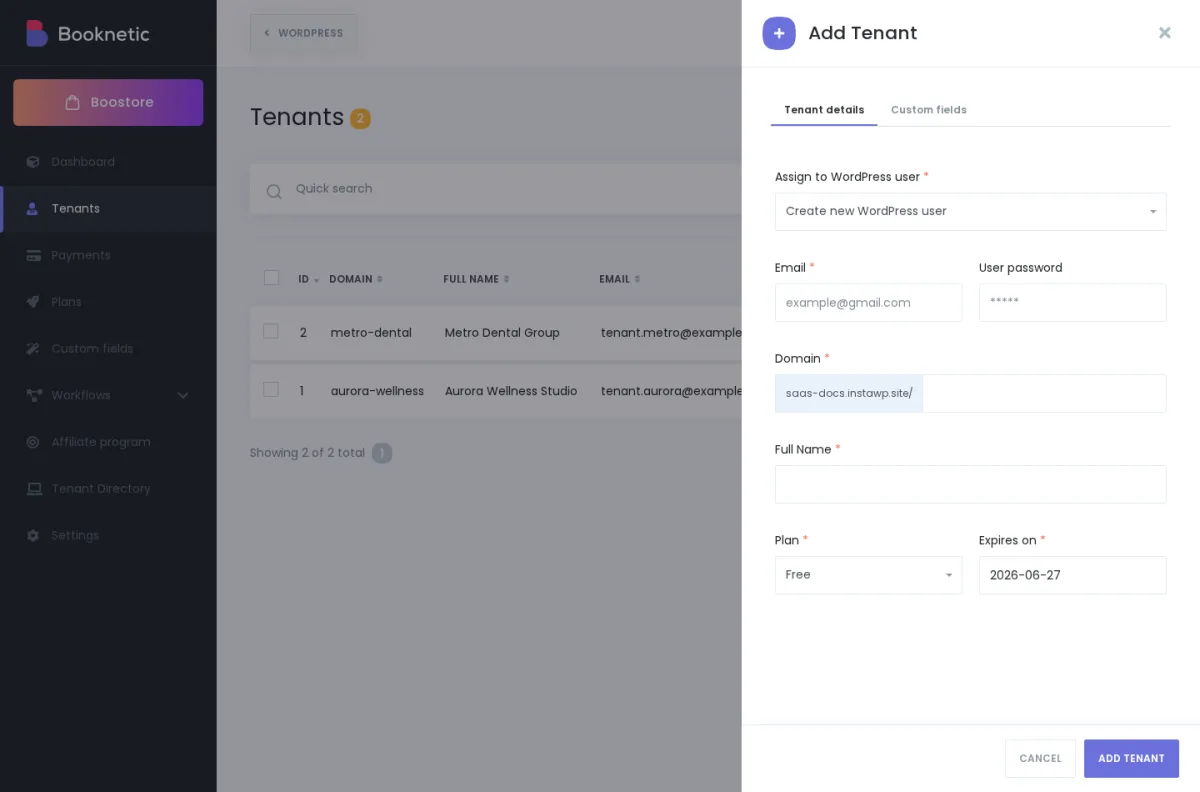
A manually created tenant is useful when you want to onboard a business yourself. For example, you might create a tenant after a sales call, assign the correct plan, and send the business their login details.
Every tenant is connected to a WordPress user. This user is the account holder who signs in to manage that tenant's Booknetic panel.
You have two choices when creating a tenant:
One WordPress user should not be used for multiple tenants. Also, do not use your own administrator account as a tenant account. Keep your platform-owner account separate from tenant accounts.
To edit a tenant:
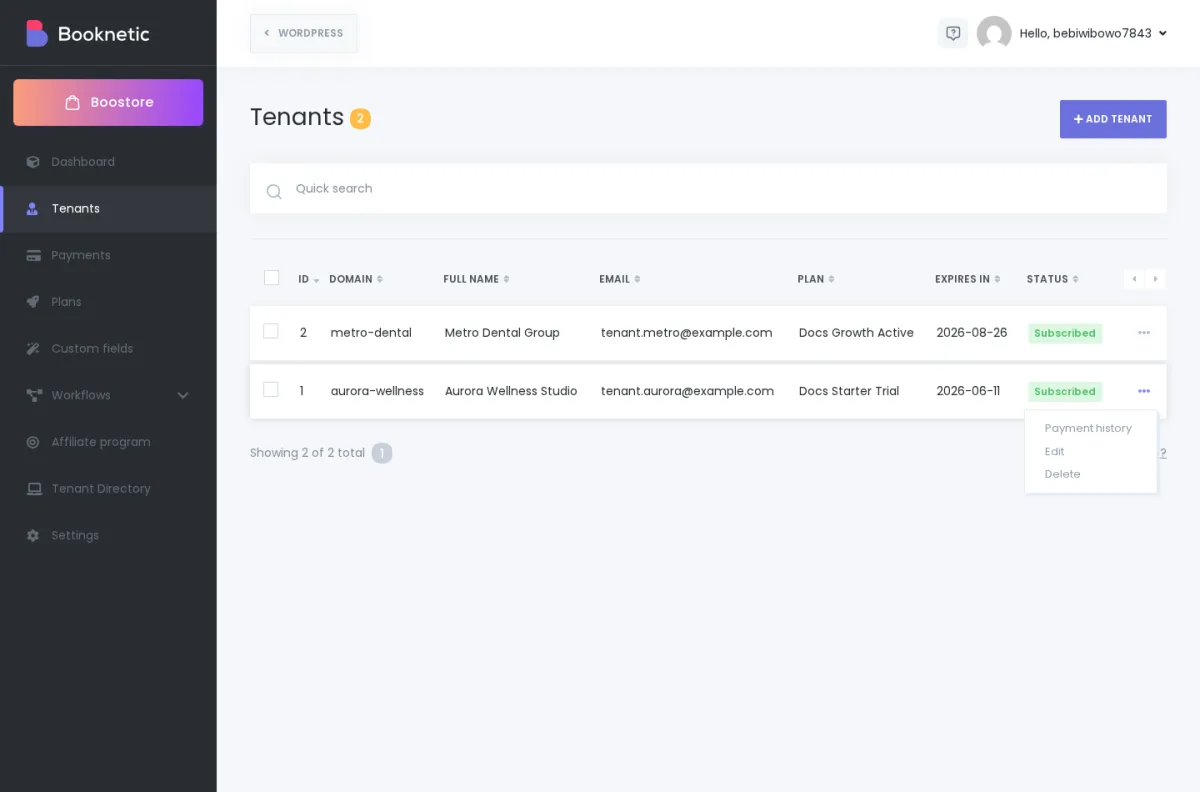
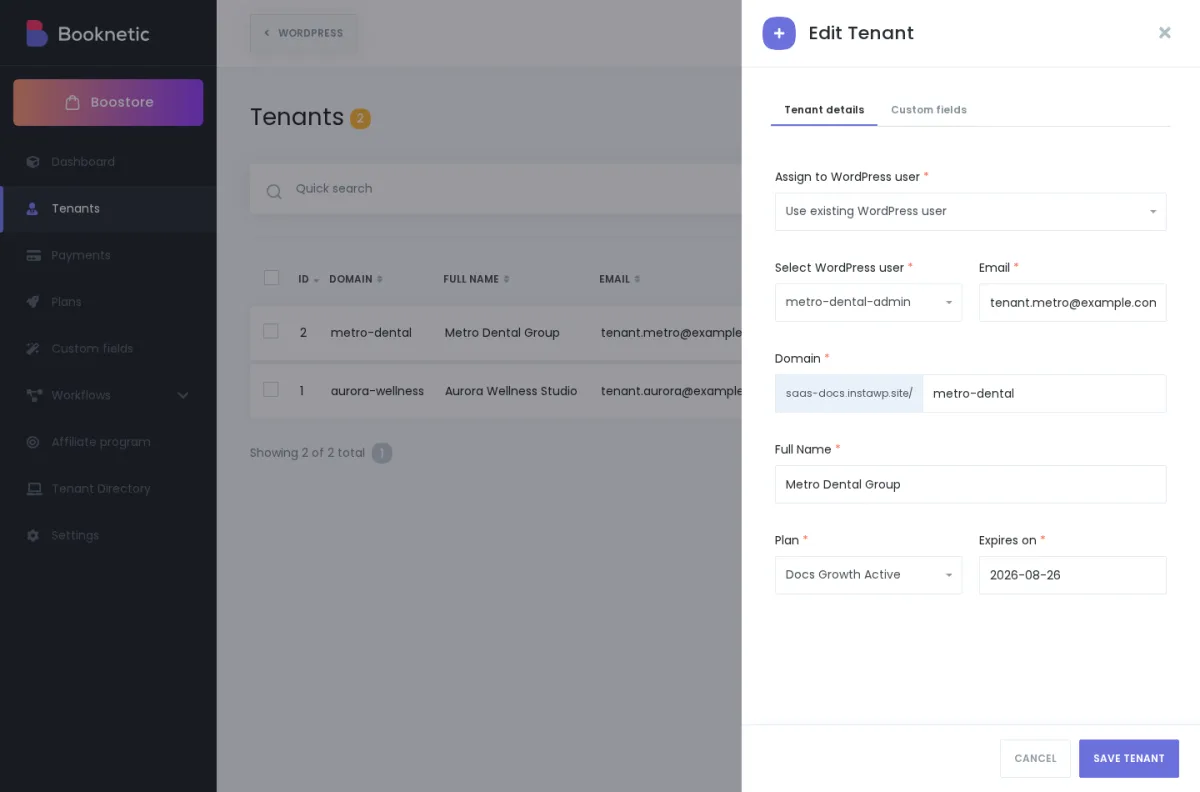
You can update basic tenant information such as email, URL name, full name, plan, expiration date, and custom-field answers.
The most important edit is often the Plan field. When you move a tenant to another plan, Booknetic applies that plan's feature access and limits after you save.
Editing a tenant does not create a second tenant account. It updates the existing tenant.
Customers often use the words “cancel” and “delete” as if they mean the same thing. In Booknetic SaaS, they are very different.
Cancel means stop recurring billing.
When a tenant cancels a subscription:
Use cancellation when the tenant wants to stop paying but may still need their account, data, or access until the end of the paid period.
Delete means remove the tenant account from your platform.
When a tenant is deleted:
Always cancel the subscription first if the tenant is still actively billed. Then delete only when you are sure the account should be removed.
Deletion is permanent. If the tenant may come back, if you may need their booking history, or if you are not completely sure, do not delete yet.
Plans control what tenants can use. A plan can include or exclude features such as locations, payments, workflows, coupons, custom forms, affiliate access, tenant directory access, and other modules.
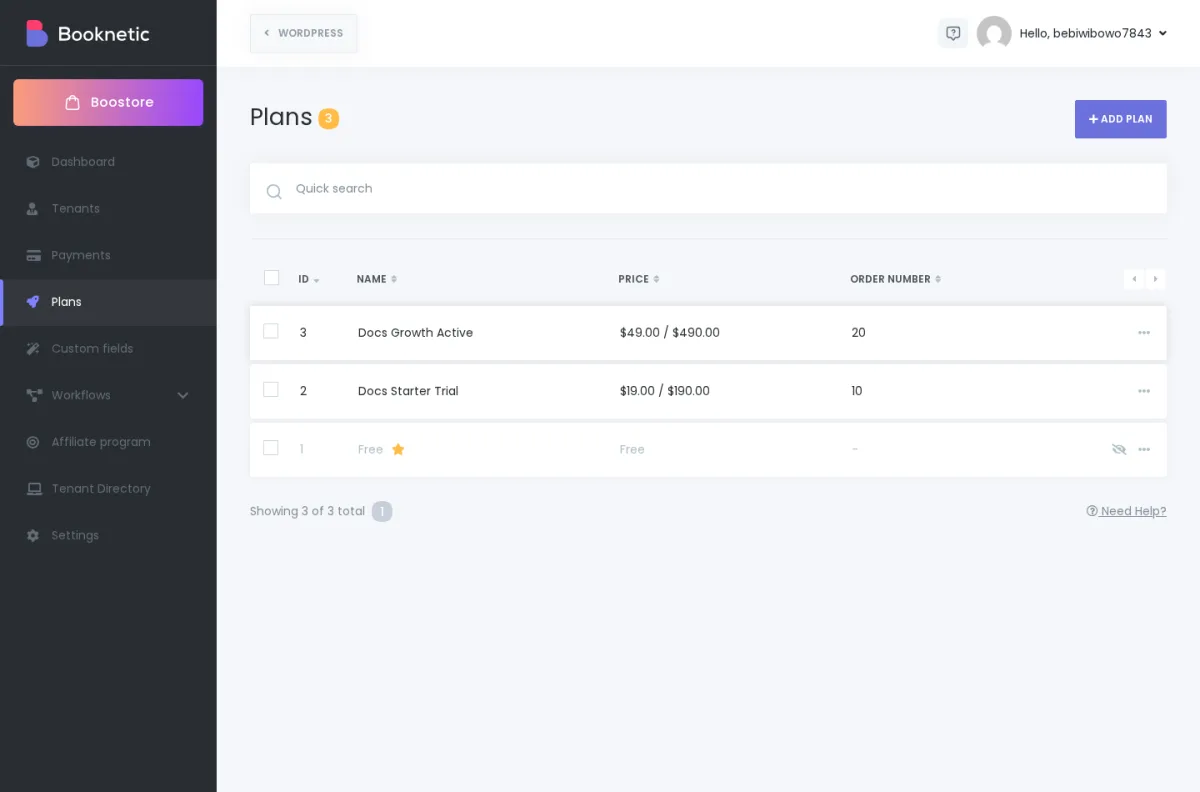
When a capability is OFF for a tenant's plan, the tenant usually experiences it in a simple way: the feature is not available in their panel. The menu item may disappear, or the tenant may not be able to use that feature.
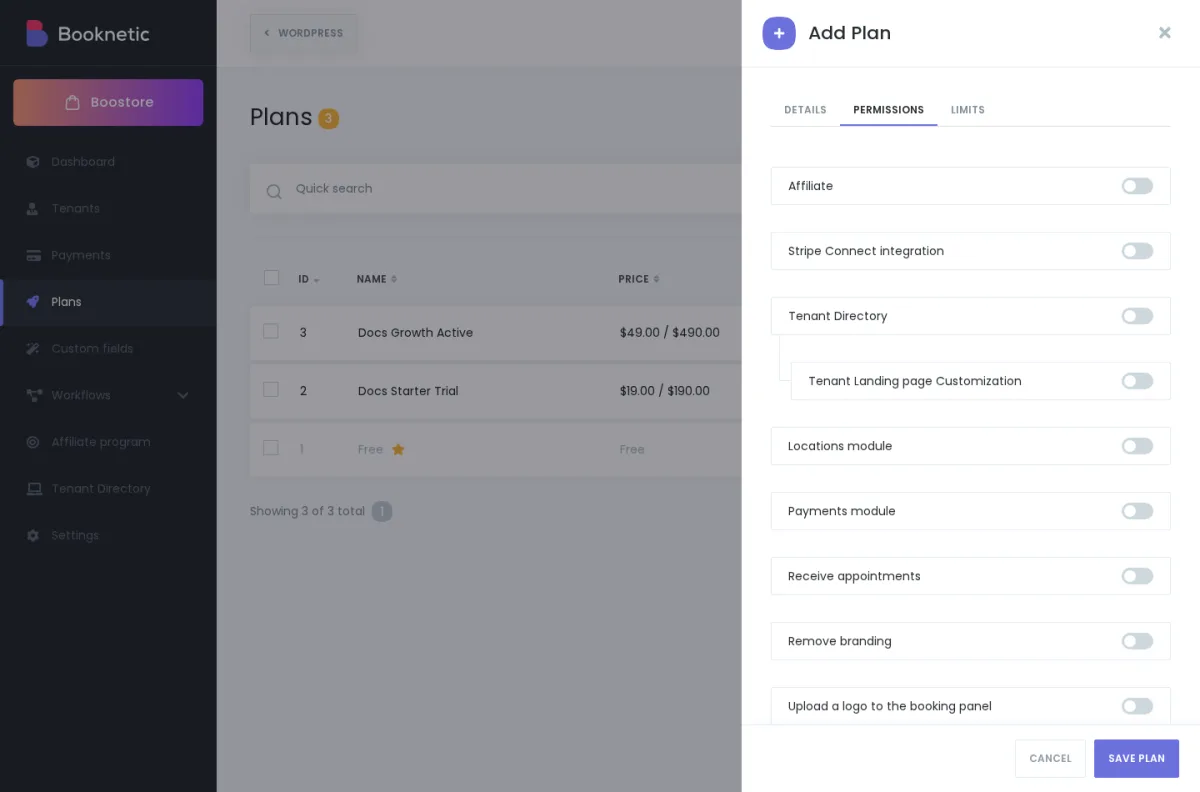
Turning a capability OFF does not mean the tenant's whole account is deleted. It only limits access to that feature.
For plan limits, the effect can be stronger. If a tenant is moved to a lower plan or an expired plan, items over the allowed limit may be deactivated so the tenant fits the new plan. For example, a lower plan may allow fewer services, staff members, or locations.
In plain language: the tenant's data is usually restricted, not treated like a deleted account. If you later move the tenant to a plan that allows the feature or limit again, Booknetic can make the feature available again according to the new plan.
No automatic customer-facing deletion email is confirmed by default. If you want tenants to receive a message, configure your SaaS workflows for the tenant-deleted event before relying on email notification.
Booknetic tries to cancel the active Stripe or PayPal subscription during tenant deletion. However, if the payment provider cancellation fails, the local tenant deletion can still continue.
For safety, cancel the subscription first, confirm billing is stopped, and only then delete the tenant.
No. Cancellation stops recurring billing. The tenant account and tenant data stay in place, and access continues until the current paid period ends.
No. Deleting a tenant is permanent. Do not delete a tenant unless you are sure the tenant account and its booking data should be removed.
No. A WordPress user should be connected to only one tenant. If you need to create another tenant, use a different user account.
First check the tenant's assigned plan. If the feature is OFF in that plan, the tenant will not see or use that feature. If the tenant recently expired, also check your Expired plan settings.
Use this checklist: