Plans and plan capabilities
Open WP Admin → Booknetic SaaS → Plans → Add plan (or edit an existing one) and you'll see a modal with three tabs: Details, Capabilities, and Limits. Each tab...

By using this site, you agree to our Cookie Policy
Open WP Admin → Booknetic SaaS → Plans → Add plan (or edit an existing one) and you'll see a modal with three tabs: Details, Capabilities, and Limits. Each tab...
In Booknetic SaaS, every business you sign up onto your platform is called a tenant. Every tenant runs on exactly one plan — the plan is what your tenant is paying for, and it's the single place you control three things at once:
You build your plans inside WP Admin → Booknetic SaaS → Plans. Each plan is one row. The same plan record holds the price, the feature toggles, and the resource limits — so you don't need to wire pricing, permissions, and quotas in three different places.
This is the conceptual backbone of every Booknetic SaaS conversation you'll have with your tenants: "what's included in my plan?", "why can't I do X?", "what happens if I downgrade?" — every answer comes back to this one screen.
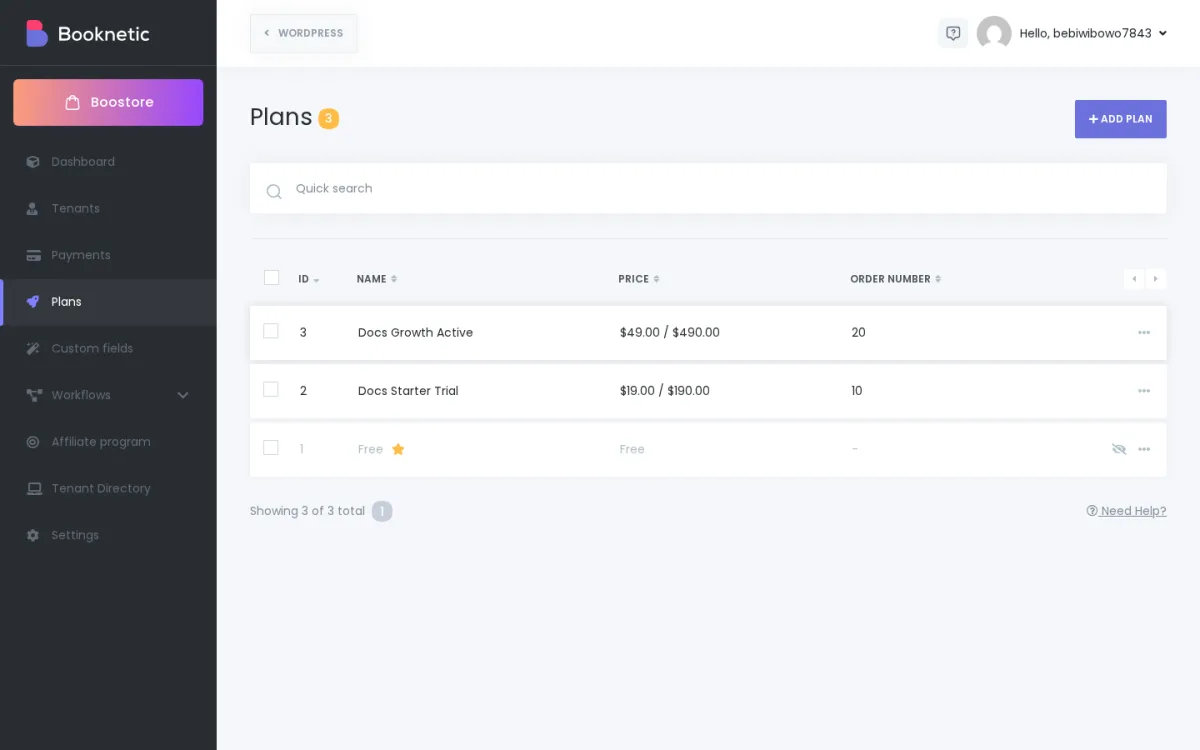
Open WP Admin → Booknetic SaaS → Plans → Add plan (or edit an existing one) and you'll see a modal with three tabs: Details, Capabilities, and Limits. Each tab does one job.
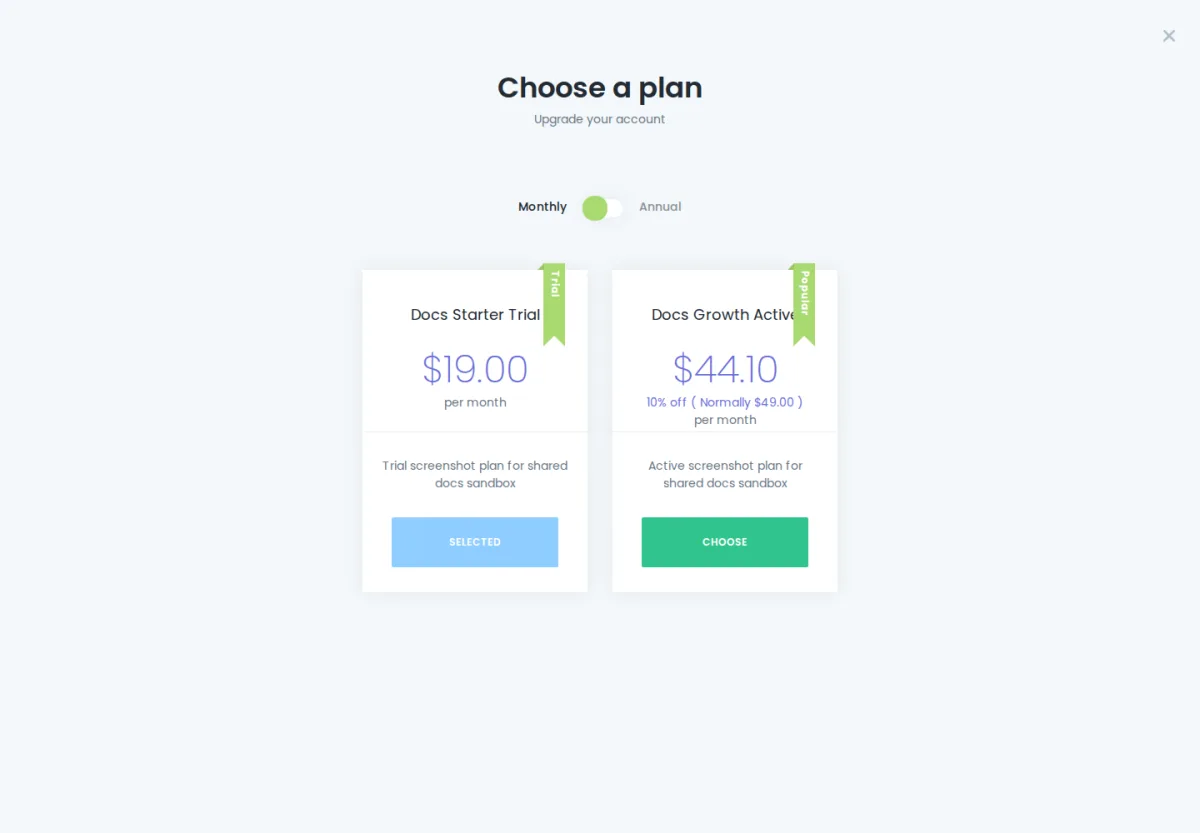
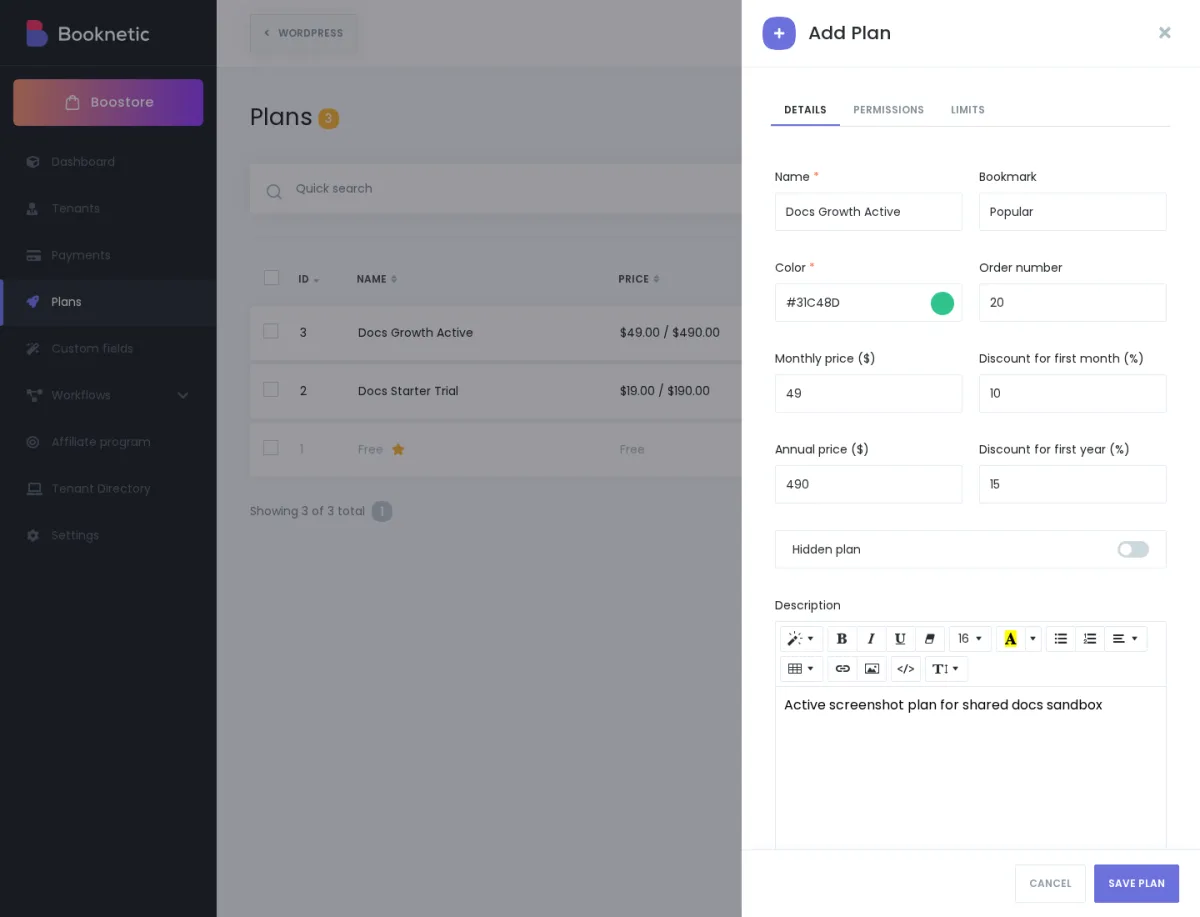
This tab is what your tenants will see on the plan card when they open their Billing page.
| Field | What it does |
|---|---|
| Name | The plan title shown on the plan card. |
| Bookmark text | A short ribbon or badge — for example, "POPULAR" or "BEST VALUE". Optional. |
| Color | A hex color used for the card border and the badge accent. |
| Order number | Where the card appears in the plan grid. Lower numbers appear leftmost. |
| Monthly price | What the tenant pays each month on the monthly cycle. |
| Annual price | What the tenant pays once per year on the annual cycle. |
| Annual discount | A percentage badge displayed on the card. It's a visual badge only — set whatever number you want your tenants to see. |
| Hidden | A toggle. If on, the plan does not appear in the tenant's plan picker. You can still assign it manually from the Tenants page. |
| Description | A rich text editor — bullets, bold, and links. Rendered under the price on the plan card. |
The Capabilities tab is a tree of on/off toggles. Each toggle controls whether a Booknetic module or addon is available at all to tenants on this plan.
Capabilities cover Booknetic's core modules (Services, Staff, Locations, Workflow, Reports, and so on), every installed addon (Google Calendar, Custom Forms, Coupons, Tenant Directory, Affiliate program, and others), and a small group of SaaS-specific toggles such as:
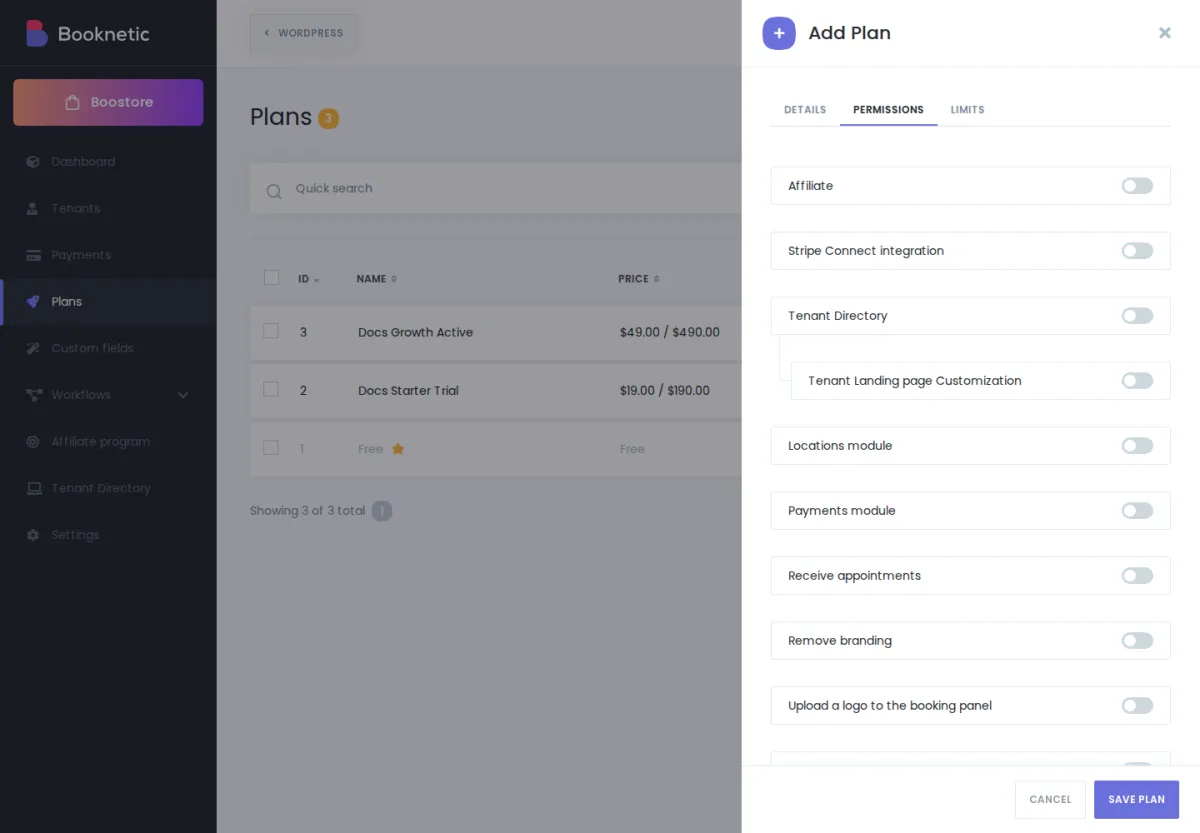
The full list of capabilities depends on which Booknetic addons you've installed. A fresh install shows fewer toggles than an install with every addon active. Whatever appears in the Capabilities tab on your SaaS is the canonical list for your platform.
The Limits tab is a list of numeric ceilings. Each row is a resource (appointments, customers, services, staff, locations, and any addon-specific limits like maximum emails or maximum SMS per period).
-1 means unlimited. Use it whenever a plan should have no cap on that resource.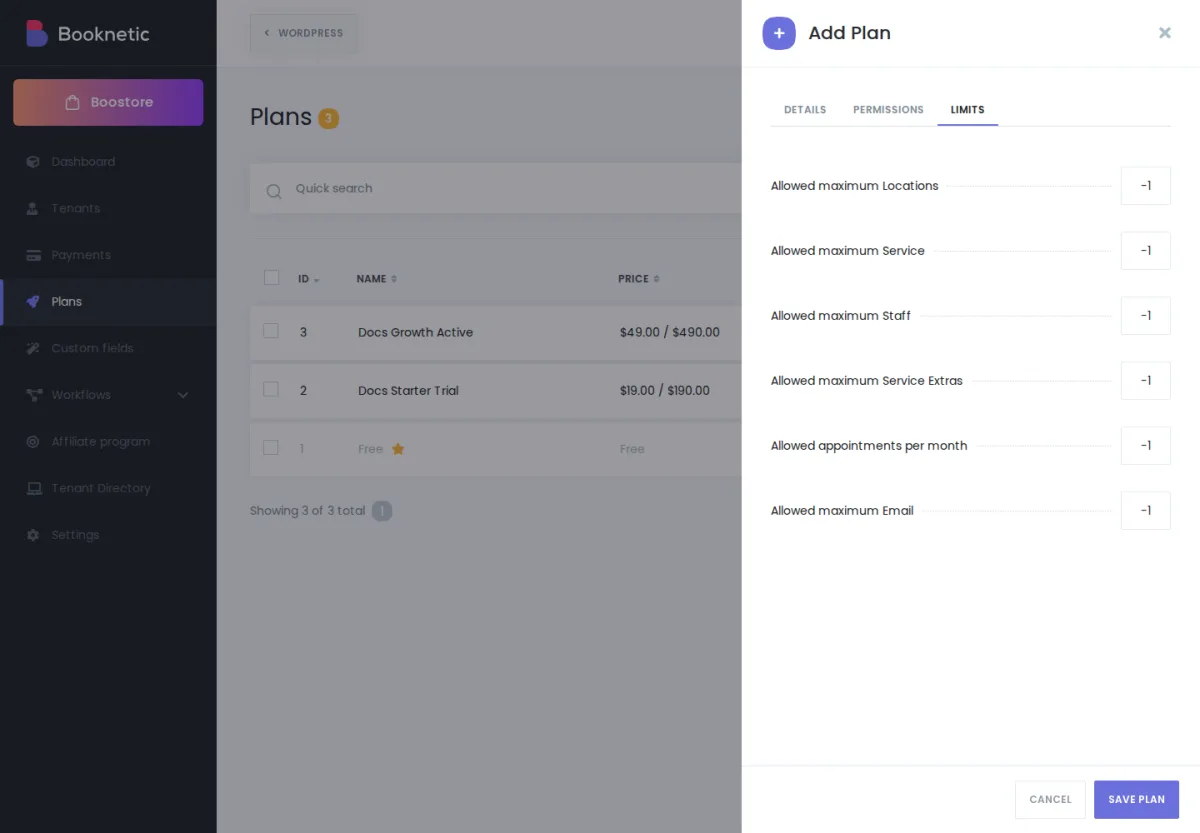
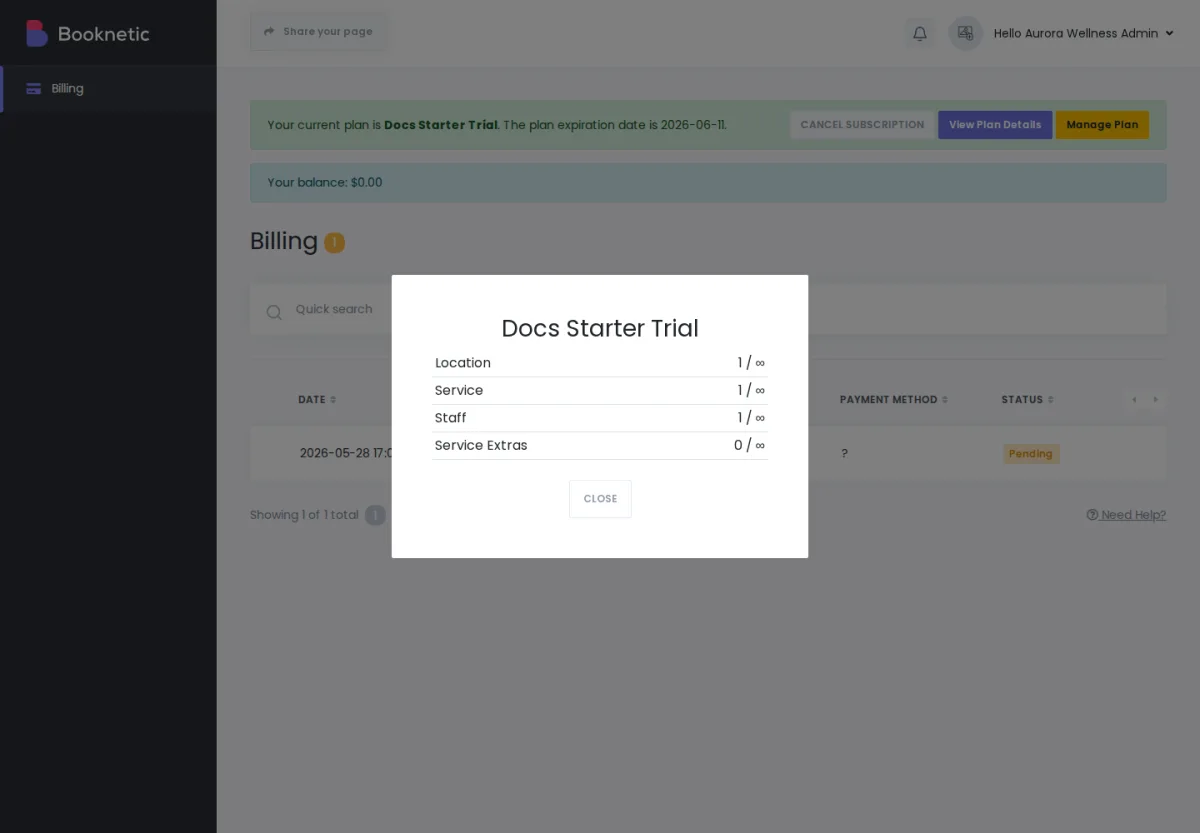
When a tenant hits a limit, Booknetic blocks the next "add" action and shows the limit reason. The tenant can see their current usage against each limit inside their Billing → Current plan modal — for example, Staff: 3 / 5, Services: 8 / 10.
These two tabs answer two different questions. This is the single most common point of confusion when you first set up plans, so it's worth keeping the distinction sharp:
| Capabilities | Limits | |
|---|---|---|
| Question it answers | Which features does my tenant get? | How much of each can they have? |
| Type of value | On / off toggle. | A number (or -1 for unlimited). |
| Example | "Reports module is ON." | "Up to 500 appointments per billing cycle." |
| What happens when the toggle is OFF or the limit is hit | The module is hidden from the tenant's menu. | The tenant can still see and use everything they've already created; new "add" actions are blocked once the count reaches the limit. |
| Customer-facing wording we recommend | "Your plan includes this feature" / "this feature isn't included in your current plan." | "You've reached your plan's limit — upgrade to a plan with more headroom." |
Two short worked examples to make it concrete:
Example 1 — Reports on Pro, off on Free. Your Free plan has the Reports capability OFF. Your Pro plan has Reports ON. A tenant on Free does not see a Reports item in their menu at all. The day they upgrade to Pro, Reports appears in their menu.
Example 2 — Staff limit of 5 on Pro. Your Pro plan has the Staff capability ON and the Staff limit set to 5. A tenant on Pro can use the Staff module and create up to 5 staff. When they try to create a 6th, Booknetic blocks the action and tells them they've reached their plan's limit. If they upgrade to a plan with a higher staff limit, the 6th staff can be created immediately.
Three plan settings sound similar at first but each does a different job. Here's when you'd use each.
Every new tenant created by self-serve signup is automatically assigned to whichever plan is currently flagged as default. You set the default by going to the Plans DataTable and clicking the Set as default row action on the plan you want.
Important — "Set as default" only affects new signups going forward. Existing tenants stay on whichever plan they're already on. If you change the default plan today, none of your current tenants move. To move an existing tenant, edit them in Tenants → Edit and pick the new plan from the dropdown.
You'd typically use a Free or Trial plan as the default — the place new tenants land before they pick a paid plan.
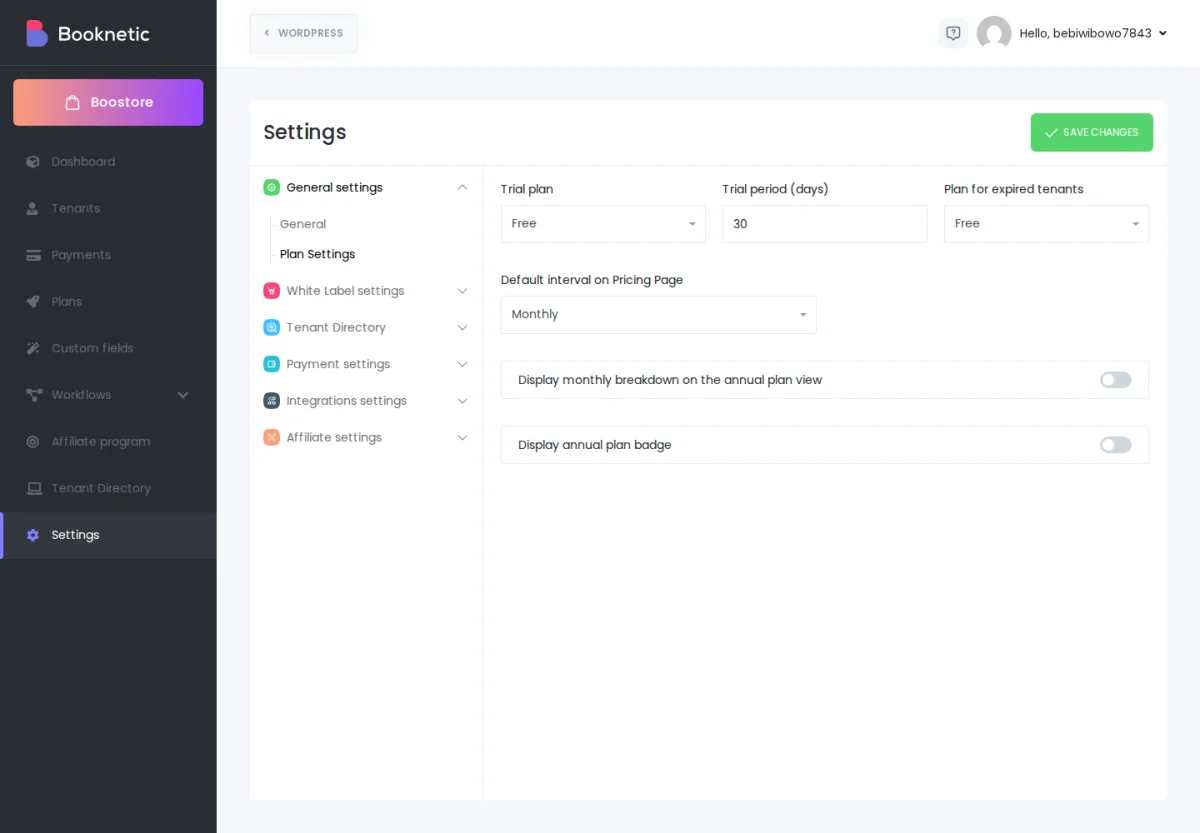
You can designate one plan as the Expired plan in WP Admin → Booknetic SaaS → Settings → General → Plan Settings → Expired plan.
When a tenant's subscription expires and they don't have enough balance to auto-renew, Booknetic silently switches them onto the Expired plan you've chosen. The tenant doesn't see an "expired" label anywhere — they simply see fewer features and tighter limits in their panel, which is exactly the prompt to re-subscribe.
The Expired plan is just a regular plan record. You'd typically configure it to be intentionally restrictive — for example, a copy of your Free plan with all limits set to 0 and most capabilities OFF — so the tenant has a clear, visible reason to come back and pay.
If you don't designate an Expired plan, expired tenants stay on their old (now-expired) plan with whatever limits it had. Their plan won't actually shrink. We recommend always setting one.
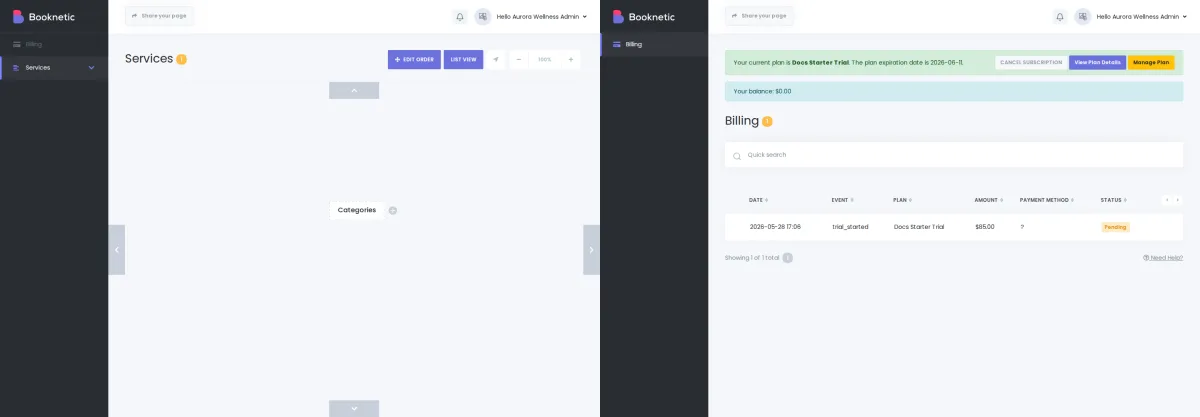
A plan with the Hidden toggle on still works exactly like any other plan, but it does not appear on the tenant's Billing page. Hidden plans never show up in the plan-card grid your tenants see.
You'd use a Hidden plan for:
You assign a Hidden plan by going to Tenants → Edit → Plan dropdown and picking it manually.
Note for support flow — a tenant who has been put on a Hidden plan won't see a card matching their current plan when they open Billing, so they have no obvious "switch to a different plan" option in their own panel. If you want them to be able to self-upgrade from a Hidden plan, make sure at least one visible plan is available for them to move to.
Plan changes happen in three situations: a tenant upgrades, a tenant downgrades, or a tenant's plan expires (and gets switched to the Expired plan).
When a tenant completes payment for a new plan, Booknetic updates their plan immediately:
The new plan's capabilities and limits take effect on the tenant's very next page load.
If a tenant moves to a plan with lower limits than their current usage — for example, they downgrade from a 10-staff plan to a 3-staff plan — Booknetic doesn't delete anything. It pauses the over-limit rows:
When the tenant re-subscribes (or upgrades to a plan with a higher limit), Booknetic automatically reactivates the paused rows, again starting with the oldest paused entries first, up to the new limit.
Customer-friendly framing — say "paused, not deleted." No customer data is lost when a plan tightens. The tenant's services, staff, locations, and customers stay in the database. The only thing that changes is which of them are flagged active.
If you want to control which staff or services stay active across a downgrade — rather than letting Booknetic pick the oldest — manually deactivate the rows you don't want before the plan change. Booknetic's pause logic will then only operate on whatever's still active.
If the new plan has a capability turned OFF that was ON before, the corresponding module disappears from the tenant's menu on their next page load. The data behind that module isn't deleted — it just becomes invisible until the capability is turned back on (either by upgrading to a plan that includes it or by you editing the current plan).
When a tenant's expiry date passes and they don't have enough balance to auto-renew, the Expired plan you've designated takes over silently. The tenant's panel reshapes itself around the Expired plan's capabilities and limits. The very moment they re-subscribe, the new plan replaces it and any paused entries come back.
When a tenant upgrades, any period-counted limits (like "appointments this month") reset to zero. The tenant doesn't carry forward the count from their old plan. They get a clean ledger on the new plan immediately.
When you save a plan with a monthly price > 0 or an annual price > 0, Booknetic creates or updates a matching product in your Stripe account so that Stripe checkout can reference it. This happens automatically — you don't have to create Stripe products by hand.
Free plans aren't synced to Stripe. A plan with both
monthly_price = 0andannual_price = 0is a free plan as far as Booknetic is concerned, and Booknetic doesn't push it to Stripe. This is intentional — Stripe doesn't need to know about a plan that never charges. If you don't see your Free plan in your Stripe dashboard, that's why.
These are three customer archetypes we see often. Each one shows a workable plan grid you can adapt for your own pricing.
You're selling Booknetic SaaS to single-operator businesses — a freelance trainer, a solo barber, a personal stylist. They want one staff member (themselves), one location, a handful of services.
| Plan | Monthly | Annual | Capabilities | Limits |
|---|---|---|---|---|
Free trial (default) |
0 |
0 |
Core only: Appointments, Customers, Services, Staff ON. Workflows OFF. Reports OFF. Integrations OFF. |
Staff: 1 · Services: 3 · Locations: 1 · Appointments/ |
Solo |
9 |
90 |
Core ON. Workflows ON. Email notifications ON. Google Calendar ON. |
Staff: 1 · Services: 10 · Locations: 1 · Appointments/ |
Solo+ |
19 |
190 |
Solo + Reports ON, Remove branding ON, Upload logo ON. |
Staff: 1 · Services: unlimited · Locations: 1 · Appointments/ |
Annual discount: roughly 17% on each paid plan. Expired plan: a copy of Free trial with appointments/mo set to 0 — gives the customer a visible nudge to re-subscribe.
You're selling to small teams — a 3-stylist salon, a small dental practice, a 2-location yoga studio. They want a real team with multiple staff, more than one location, and some workflow automation.
| Plan | Monthly | Annual | Capabilities | Limits |
|---|---|---|---|---|
Free trial (default) |
0 |
0 |
Core only. Workflows OFF. Reports OFF. |
Staff: 2 · Services: 5 · Locations: 1 · Appointments/ |
Team |
29 |
290 |
Core ON. Workflows ON. Reports ON. Google Calendar ON. Coupons ON. Custom Forms ON. |
Staff: 10 · Services: 50 · Locations: 3 · Appointments/ |
Team+ |
59 |
590 |
Team + Remove branding ON, Upload logo ON, Dynamic translations ON. |
Staff: 25 · Services: unlimited · Locations: 5 · Appointments/ |
Expired plan: a copy of Free trial with appointments/mo set to 0 and Workflows/Reports OFF — re-subscription brings everything back.
You're selling to multi-location operators — chains, franchises, regional groups. They want lots of locations, lots of staff, and addons like Tenant Directory and the mobile app.
| Plan | Monthly | Annual | Capabilities | Limits |
|---|---|---|---|---|
Free trial (default) |
0 |
0 |
Core ON. Workflows OFF. Reports OFF. Tenant Directory OFF. Mobile app OFF. |
Staff: 5 · Services: 10 · Locations: 2 · Appointments/ |
Growth |
79 |
790 |
Core ON. Workflows ON. Reports ON. Google Calendar ON. Custom Forms ON. Coupons ON. |
Staff: 50 · Services: unlimited · Locations: 10 · Appointments/ |
Scale |
149 |
1490 |
Growth + Tenant Directory ON, Mobile app ON, Remove branding ON, Upload logo ON, Dynamic translations ON. |
All unlimited (-1 everywhere). |
Enterprise (hidden) |
Custom |
Custom |
Everything ON, including any custom-negotiated addons. |
All unlimited. |
The Enterprise plan is hidden — you'd assign it manually from Tenants → Edit when you close a custom deal.
These three grids are starting points, not prescriptions. The actual customer goal — "do I sell on features, on volume, or on a mix?" — determines which shape works best for your platform.
"I changed the default plan, but my existing tenants didn't move. Is that a bug?" That's the expected behavior. "Set as default" only controls which plan brand-new signups land on. Existing tenants keep whatever plan they currently have. To move an existing tenant, edit them in Tenants → Edit and pick the new plan from the dropdown.
"My tenant can't add another staff member — what do I tell them?" They've reached the staff limit on their current plan. You have two options: upgrade them to a plan with a higher staff limit, or edit their current plan and raise the limit. Either change takes effect immediately.
"What happens to a tenant when their plan expires?" They're moved onto the plan you've designated as Expired in SaaS Settings → General. If you've configured that Expired plan to be tighter than their previous plan, some of their staff, services, or locations may be paused. When they re-subscribe, everything is automatically reactivated — no data is lost.
"Can I have a plan that's not visible to my tenants?" Yes. Turn on the Hidden toggle on the plan and assign it manually from Tenants → Edit. This is useful for one-off enterprise pricing or for plans you're still testing.
"Why isn't my Free plan showing up in Stripe?" Booknetic only syncs plans with a non-zero monthly or annual price to Stripe. Free plans (both prices at 0) are intentionally not pushed — Stripe doesn't need to know about a plan that never charges.
"Can I price an annual plan independently of the monthly price?" Yes. Enter both the Monthly price and the Annual price separately. The Annual discount field is a visual badge — it's whatever percentage you want to display to your tenants, independent of the actual arithmetic between the two prices.
"Can I safely delete a plan that has active tenants?" We recommend you don't — migrate any tenants on the plan to a different plan first (Tenants → Edit), then delete the empty plan. Deleting a plan that still has tenants assigned to it can leave those tenants in an inconsistent state.