
Tenant admin panel reference
Tenants usually sign in from the tenant signin page you created with the SaaS signin shortcode. After a successful signin, Booknetic sends them into the...

By using this site, you agree to our Cookie Policy
Tenants usually sign in from the tenant signin page you created with the SaaS signin shortcode. After a successful signin, Booknetic sends them into the...
The tenant admin panel is the Booknetic workspace your tenants use after they sign in. It is where each tenant manages their own appointments, customers, services, staff, locations, workflows, appearance, settings, and subscription billing.
As the SaaS owner, you still control the platform-level setup: plans, plan capabilities, tenant accounts, global SaaS settings, payment gateways for plan billing, and platform branding. Your tenant does not see those owner-only SaaS screens.
From the tenant's point of view, the panel feels like their own Booknetic account. They work with their own booking data only, and other tenants' data does not appear in their screens.
For the owner-side account management view, see Tenant management. For the login-page setup, see Tenant signin and forgot password.
Tenants usually sign in from the tenant signin page you created with the SaaS signin shortcode. After a successful signin, Booknetic sends them into the Booknetic admin panel in WordPress.
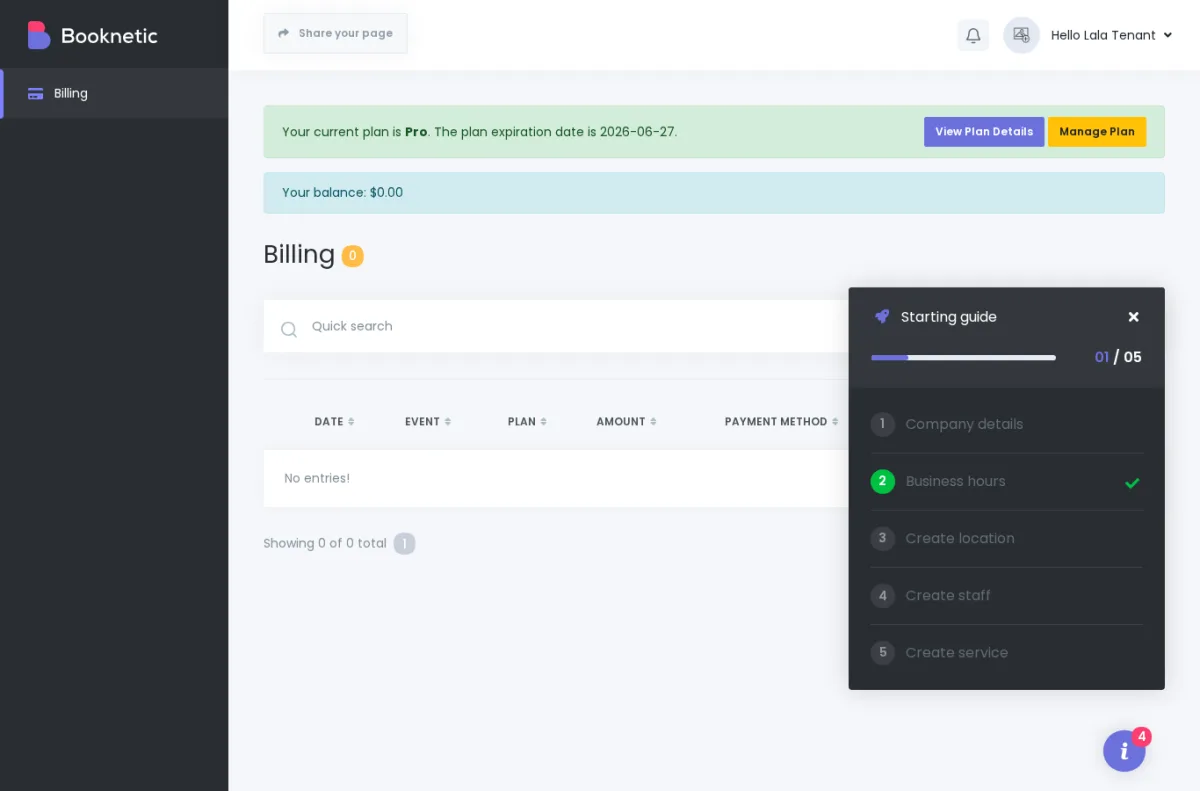
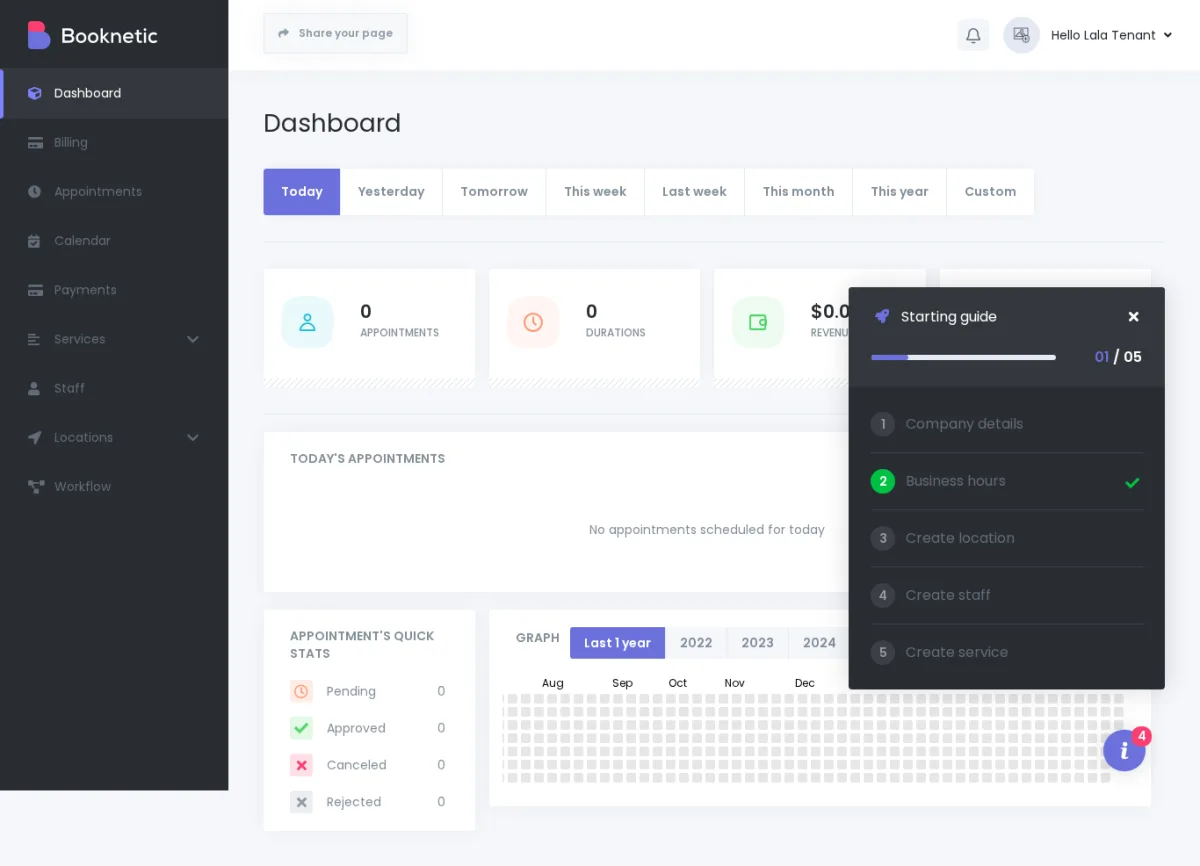
The first screen is normally the Dashboard, unless the tenant's plan does not include Dashboard access. In that case, Booknetic sends them to Billing so they can manage their plan.
On a full Pro-style plan, the tenant left menu includes the day-to-day Booknetic sections:
Depending on which addons are installed and enabled on the tenant's plan, additional items such as Reports or Logs may also appear.
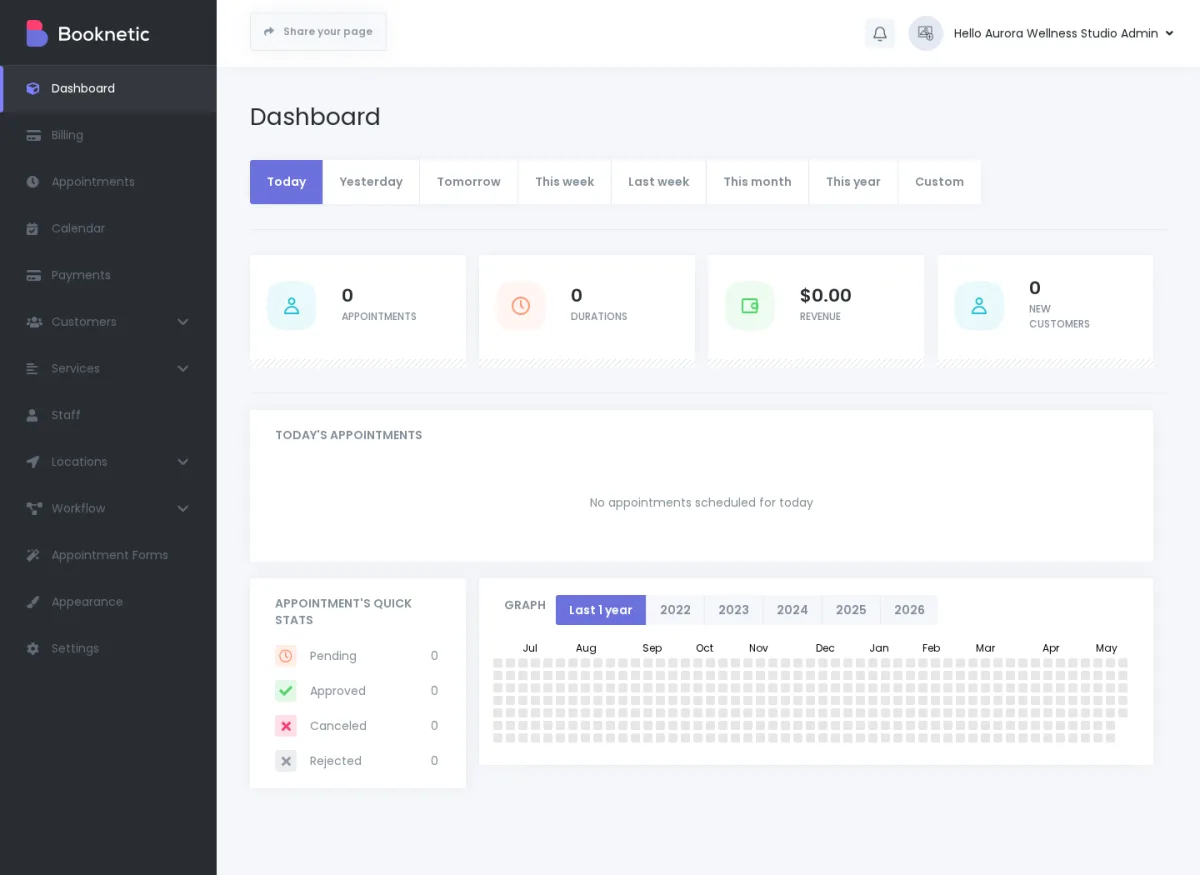
Important: Tenants do not see the owner-only SaaS management menus. They do not see your global Tenants, Plans, SaaS Settings, platform payment-gateway setup, or plan-capability editor.
Use this section as a quick reference when a tenant asks “where do I do this?” or when you want to understand what your tenants can manage on their own.
The Dashboard gives the tenant a daily summary of their booking business: appointment activity, customer activity, and other at-a-glance performance information.
Billing is the SaaS-specific tab added to the tenant panel. Tenants use it to view their current plan, check usage limits, change plan, pay, cancel a subscription, view billing history, and open the Share Page modal.
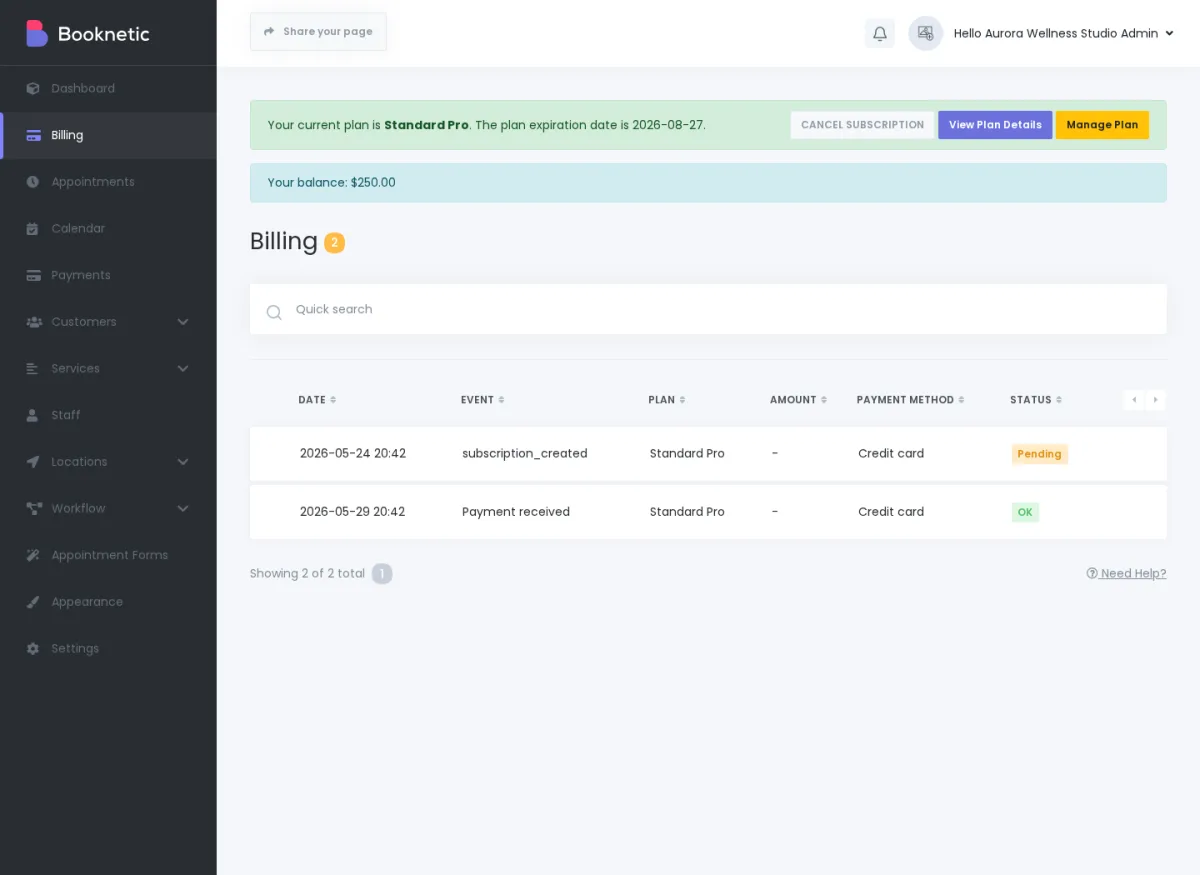
For subscription states, renewal dates, and billing-history behavior, see Subscription states and billing history.
Appointments is where tenants view, create, edit, reschedule, and manage bookings for their own business. Upcoming and past bookings are tenant-specific.
Calendar gives tenants a visual schedule view. It helps them see bookings by day, week, month, or list-style layout, depending on the active Booknetic calendar options.
Customers is the tenant's own customer database. A tenant can manage customer profiles for people who book appointments with that tenant.
Payments shows appointment-payment records for the tenant's own bookings. This is separate from SaaS plan billing, which lives in the Billing tab.
Services is where tenants define what they offer: service names, categories, duration, price, service details, and related service settings.
Staff is where tenants manage team members who deliver services. They can create staff profiles, connect staff to services and locations, and configure staff schedules.
Locations is where tenants manage branches, offices, studios, clinics, or other places where services are delivered.
Workflow is where tenants build their own automation rules, such as appointment emails, customer notifications, reminders, and other booking-related automations. The Workflow menu appears only when the tenant's plan includes it.
Appearance lets tenants customize the look of their customer-facing booking panel: theme, colors, step layout, buttons, and other visual options.
Settings contains the tenant's business and booking configuration. The main sub-areas are General, Front-end Panels, Payment Settings, and Integration Settings.
The Share Page modal gives the tenant a simple way to publish their public booking page.
From Billing → Share Page, the tenant can copy a booking URL, share it by email, generate a QR code, or copy iframe embed code for a website.
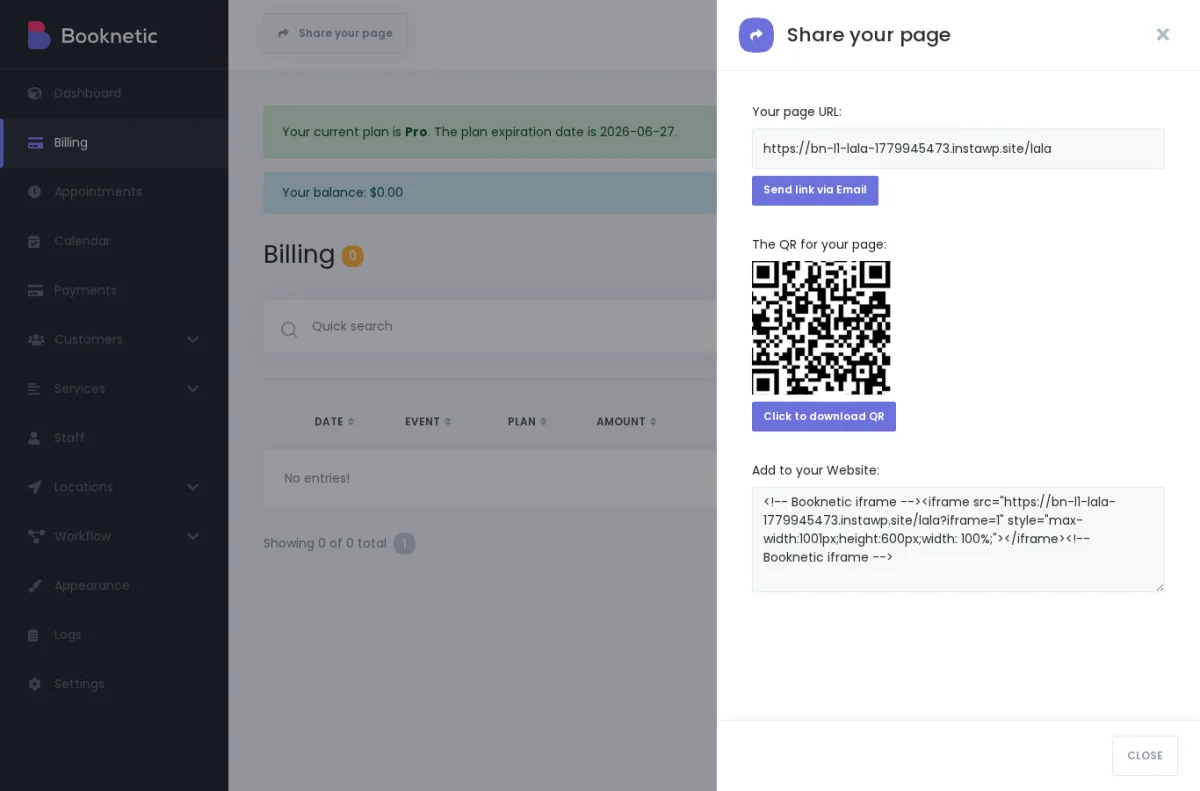
In customer-friendly terms: Share Page gives your tenant a link they can put on their website so their customers can book directly.
The exact URL format depends on your SaaS routing setup. For example, your tenant's public booking page may use a directory-style URL such as your-platform.com/aurora-wellness or another routing format configured for your site.
For tenant URL routing, see Tenant URLs and routing.
The tenant Settings area is where many “where do tenants change this?” questions are answered.
General settings cover the tenant's basic booking and business configuration. This is where tenants manage items such as time slot length, booking rules, date/time display, company details, logo, timezone-related behavior, business hours, holidays, and data export/import where available.
This is the section to check when a tenant asks:
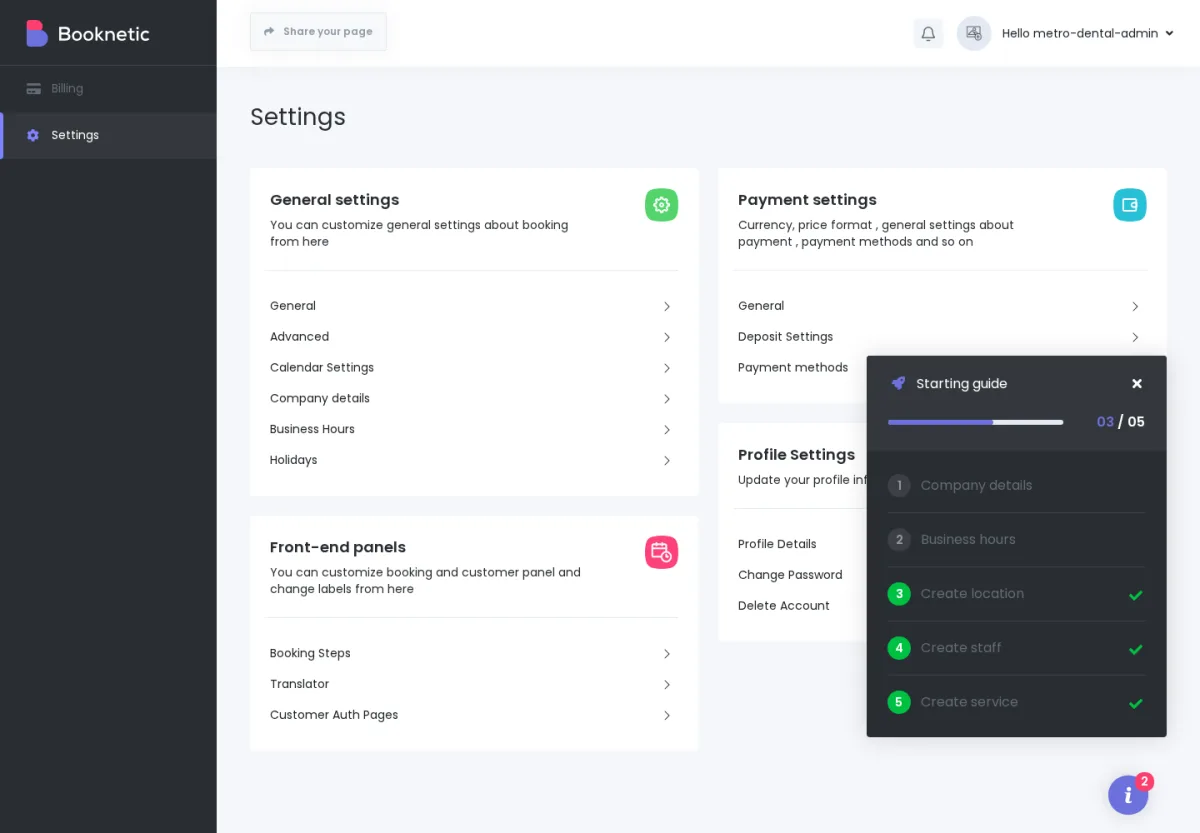
Front-end Panels controls the customer-facing booking widget. Tenants can adjust booking steps, labels, and pages used by customer-facing booking flows.
This is the section to check when a tenant asks:
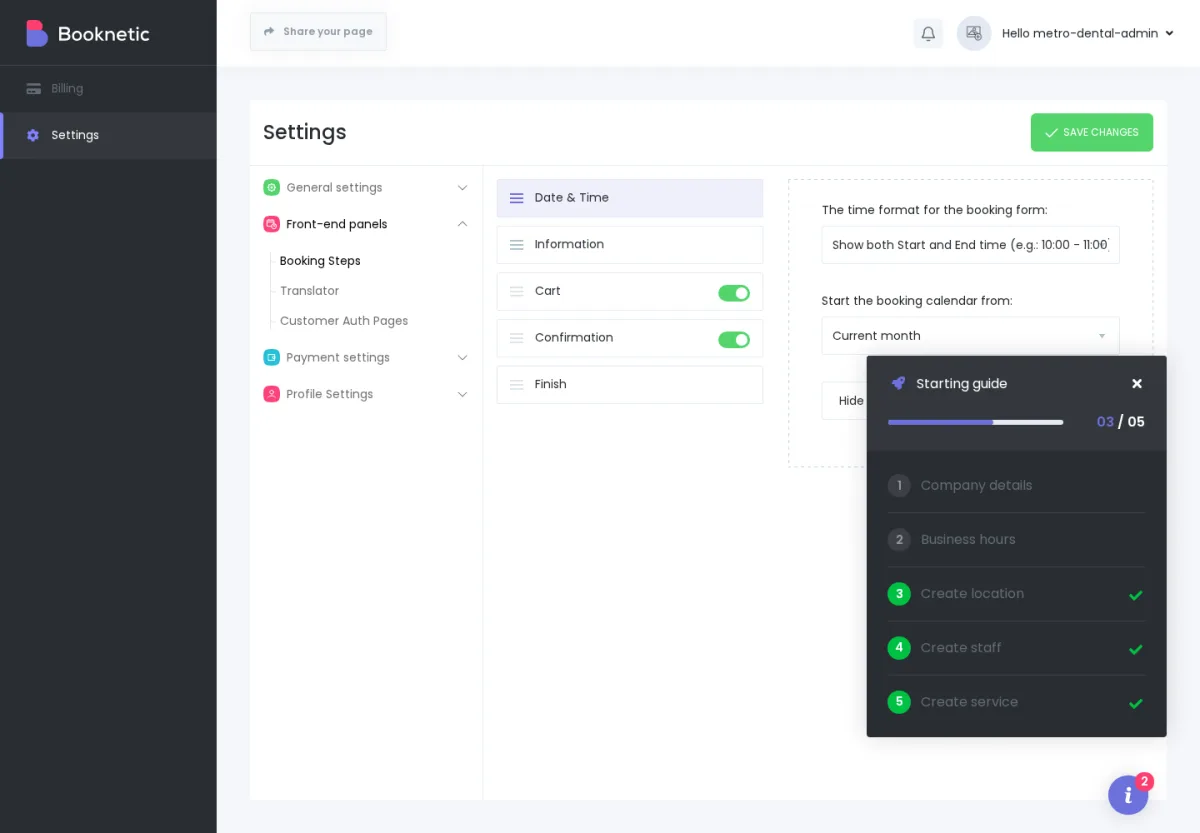
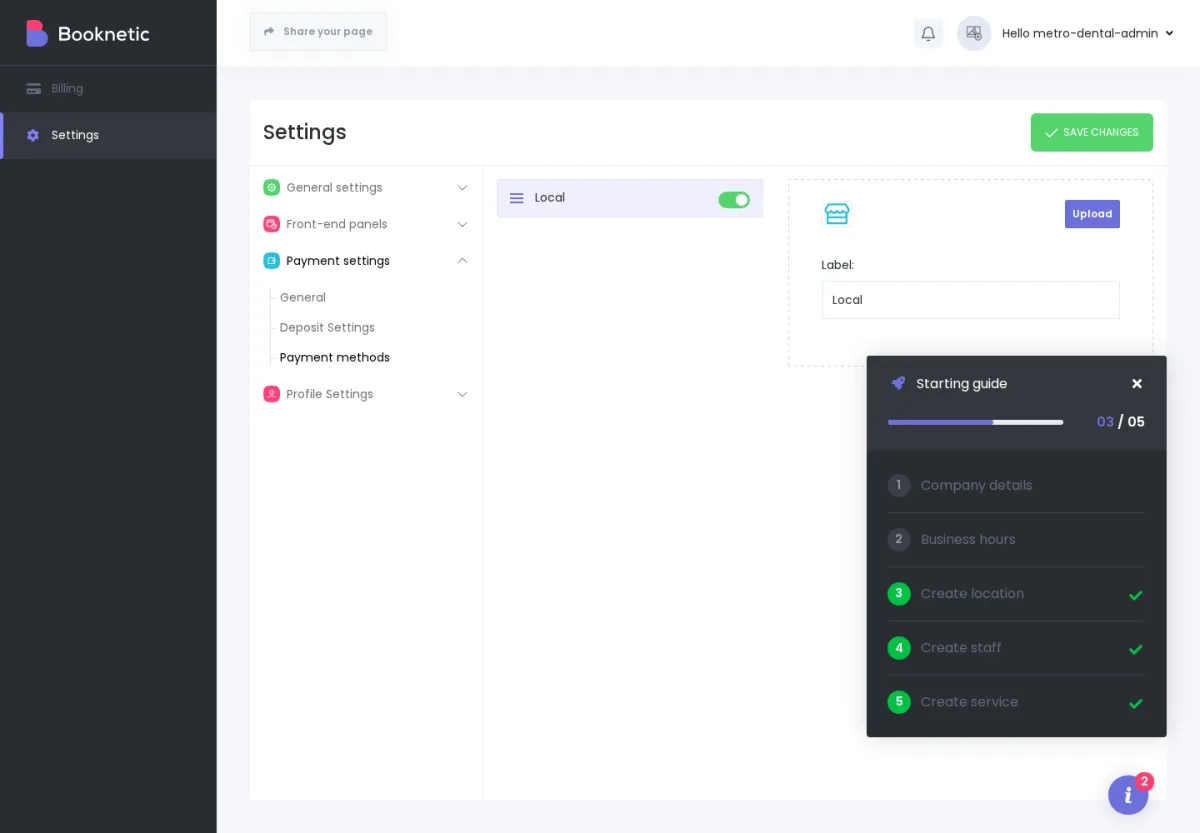
Payment Settings controls how the tenant accepts payments from their own appointment customers. This is not the same as the SaaS owner's Stripe, PayPal, or WooCommerce setup for plan billing.
For example, if a salon tenant wants their customers to pay the salon by Stripe, that tenant enters their own Stripe credentials under their tenant Payment Settings. The SaaS owner's Stripe credentials are for tenants paying the SaaS owner for plans.
This is the section to check when a tenant asks:
Integration Settings covers tenant-owned integrations such as calendar, video-meeting, and sign-in integrations when the related addons and plan capabilities are available. If those addons or capabilities are not available for the tenant, the separate Integration Settings view may not appear.
This is the section to check when a tenant asks:
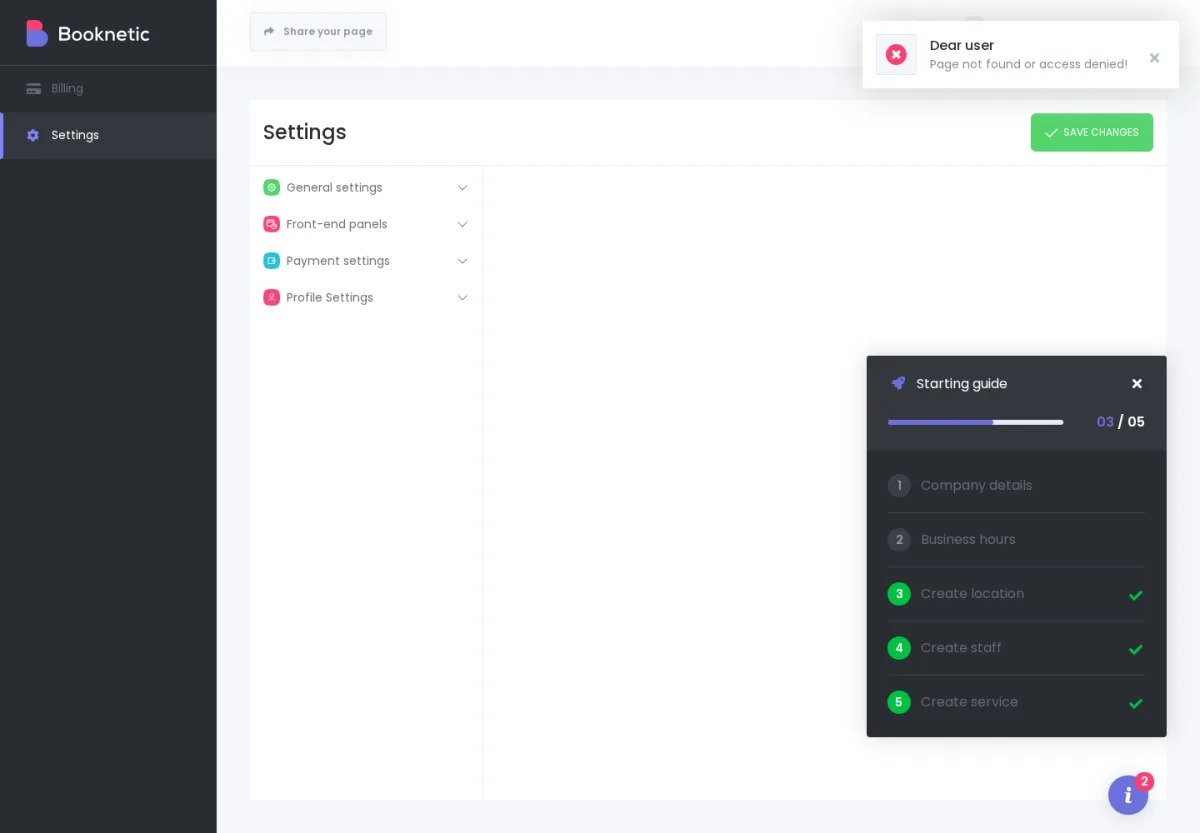
Plans control which features tenants can use. If a capability is turned OFF for a tenant's plan, the tenant normally does not see that menu item in their panel.
For example: if your tenant is on a plan without Workflow, the Workflow menu disappears from their admin. Their saved workflows are still preserved. If they upgrade later, or if you turn the Workflow capability back ON for their plan, the menu comes back and the saved workflows are available again.
The most important point for customer trust is this:
Turning a feature OFF hides or restricts access. It does not delete the tenant's data.
For the owner-side configuration of capabilities and limits, see Plans and plan capabilities.
When a tenant's subscription expires and they do not have enough balance or renewal payment to continue, Booknetic SaaS applies the Expired plan you configured in SaaS settings.
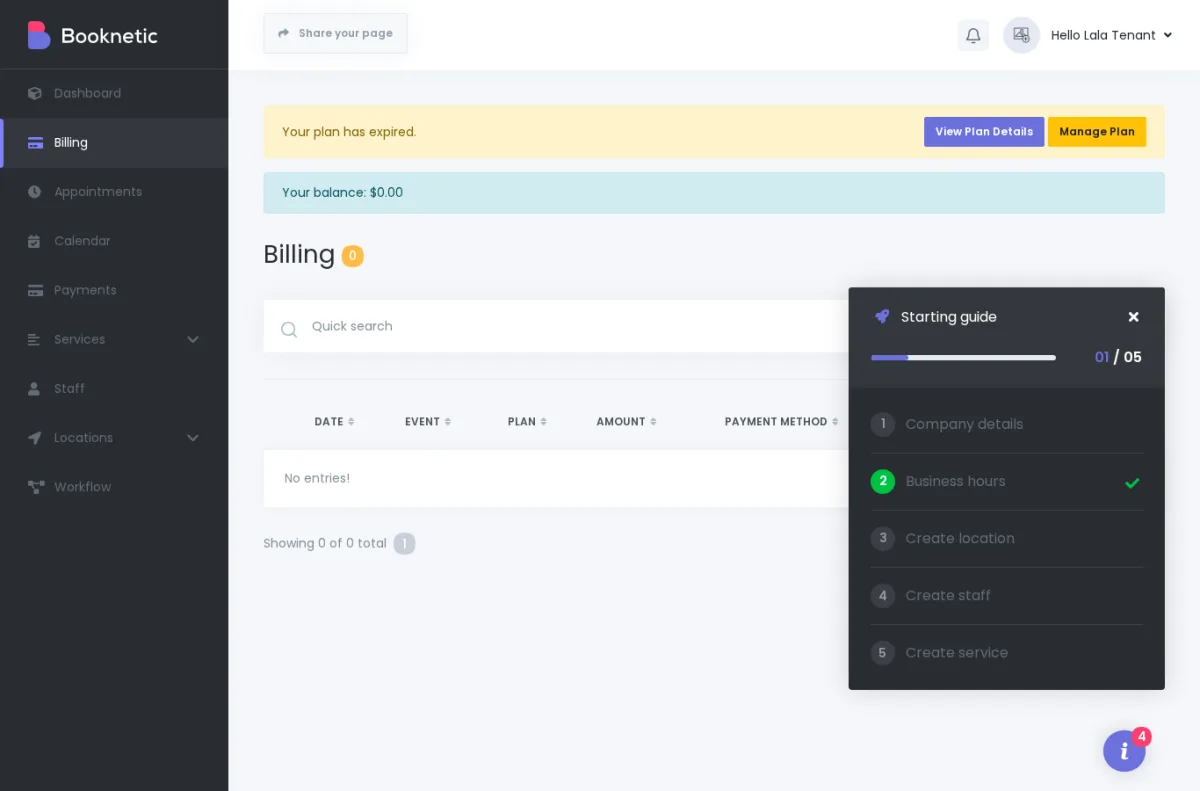
What the tenant sees depends on how restrictive your Expired plan is. In the source-confirmed test state, the tenant menu becomes much smaller, and the Billing tab remains available so the tenant can resubscribe.
The Billing tab remains the recovery path. The tenant can open Billing, choose a plan, and pay again.
Use this owner-facing explanation with tenants:
“Your subscription has expired, so your account is temporarily limited by the Expired plan. Your data has not been deleted. Open Billing, renew or choose a plan, and your normal plan features can return.”
For the detailed expired-state behavior, see Expired plan behaviour, Plans and plan capabilities, and Subscription states and billing history.
This boundary prevents many support questions. Tenants manage their own booking business. The SaaS owner manages the platform.
Within the features included in their plan, tenants can manage:
These changes affect only that tenant's account.
Tenants do not manage:
If a tenant cannot see a feature, the owner should first check the tenant's assigned plan and plan capabilities.
A tenant can create staff members in Staff and, when staff login is available in your setup, allow staff members to log in with limited Booknetic access.
If the User Role Manager addon is installed and the tenant's plan includes it, the tenant can create staff roles and control what staff users can do inside that tenant's Booknetic panel.
Because the exact “invite” wording and email flow are not fully documented yet, use “create staff login” rather than promising a separate staff-invitation workflow. A dedicated role-manager/staff-permissions doc should cover this in more detail.
Yes. Use the plan editor. Plans decide which features are available and what limits apply.
For example, you can create a starter plan without Workflow, a growth plan with Workflow, and a higher plan with more staff, services, locations, or addon access.
See Plans and plan capabilities.
First confirm that you edited the plan the tenant is actually assigned to. Then reload the tenant panel and check again.
For core tenant modules, capability OFF should remove the menu item from the tenant's admin. If the item still appears, check:
If the item remains visible after those checks, treat it as a product-behavior question and escalate with the tenant's plan name, the capability you disabled, and a screenshot.
The source documentation confirms a tenant-side Export & Import Data area under Settings → General. It is scoped to that tenant's own Booknetic data.
For full tenant deletion and data-lifecycle behavior, see Cancelling and deleting tenants.
Tenants change business hours inside their own admin panel under Settings → General → Business Hours. Staff can also have their own schedules under Staff.
If the tenant reports that no booking slots appear, check both the tenant's general business hours and the individual staff/service schedules.
Because there are two separate payment layers:
A tenant entering Stripe keys in their own Payment Settings does not change the Stripe account you use to charge them for their SaaS subscription.