
Tenant signin and forgot password
Learn how to sign in and restore tenant passwords in Booknetic SaaS Multi-Vendor Appointment Booking System

By using this site, you agree to our Cookie Policy
Learn how to sign in and restore tenant passwords in Booknetic SaaS Multi-Vendor Appointment Booking System
Booknetic SaaS gives your tenants two public account pages:
These pages are for tenants, not appointment customers. A tenant is the business or vendor using your SaaS platform. An appointment customer is the person booking an appointment with that tenant.
Important: Do not confuse the SaaS tenant shortcodes with the customer-panel shortcodes.Use [booknetic-saas-signin] and [booknetic-saas-forgot-password] for tenant accounts. The similar [booknetic-signin] and [booknetic-forgot-password] shortcodes are for appointment customers.
Use these shortcodes on normal WordPress pages:
| Page | Shortcode | Who uses it |
|---|---|---|
| Tenant signin page | [booknetic-saas-signin] | Tenants who need to log in to their dashboard |
| Tenant forgot password page | [booknetic-saas-forgot-password] | Tenants who need a reset link |
You can place each shortcode in a WordPress page, or insert the matching SaaS block/module if you use Gutenberg, Elementor, or Divi.
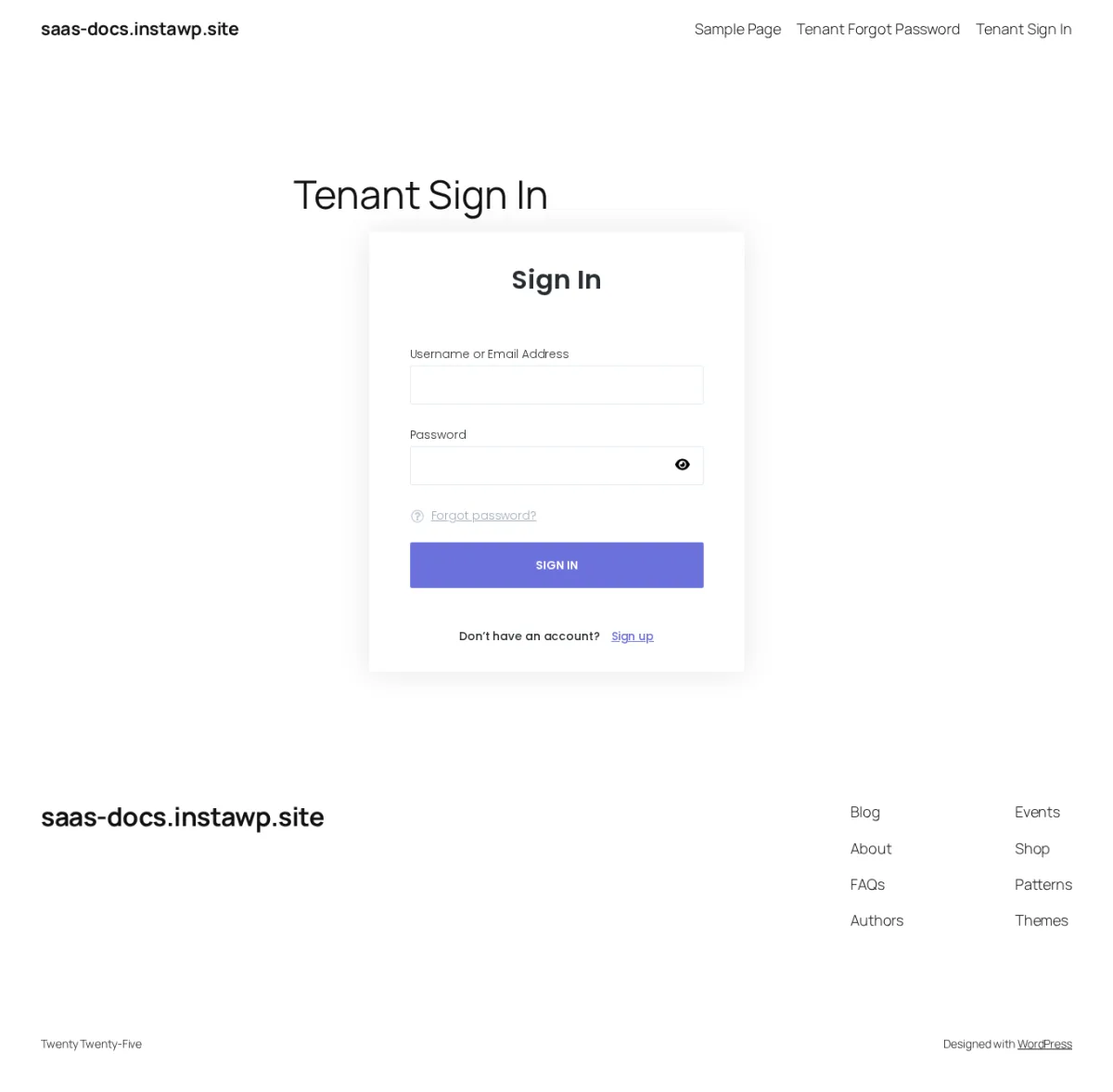
Add this shortcode to the page body:
[booknetic-saas-signin]Tenants can sign in with their email address or their WordPress username, plus their password. After successful signin, Booknetic SaaS sends the tenant to the Booknetic panel in WordPress admin.
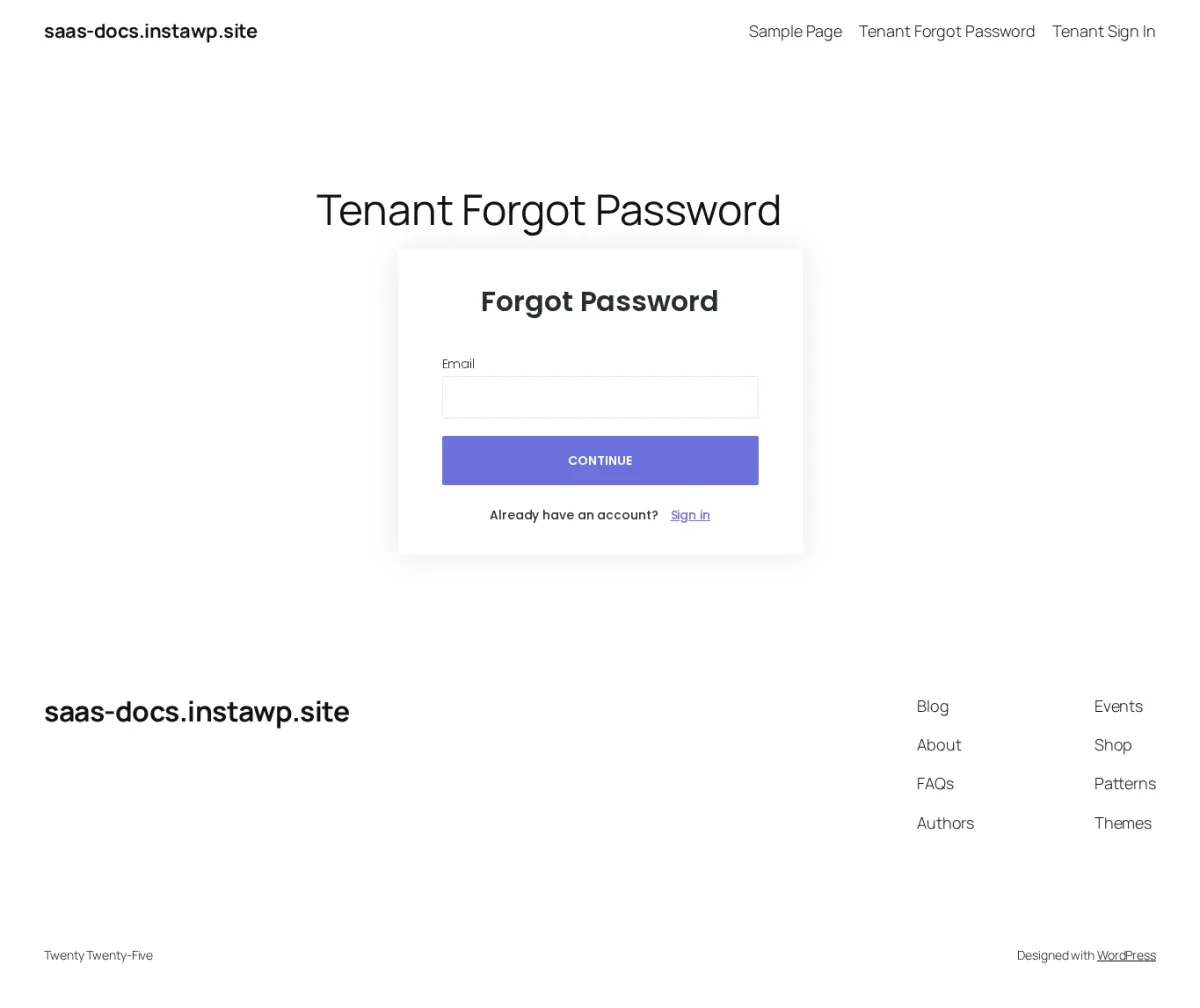
Add this shortcode to the page body:
[booknetic-saas-forgot-password]
Booknetic SaaS uses this page when it builds reset-password links for tenants.
When a tenant opens your signin page, they see a simple login form with:
If the tenant enters the wrong details, Booknetic SaaS shows this message:
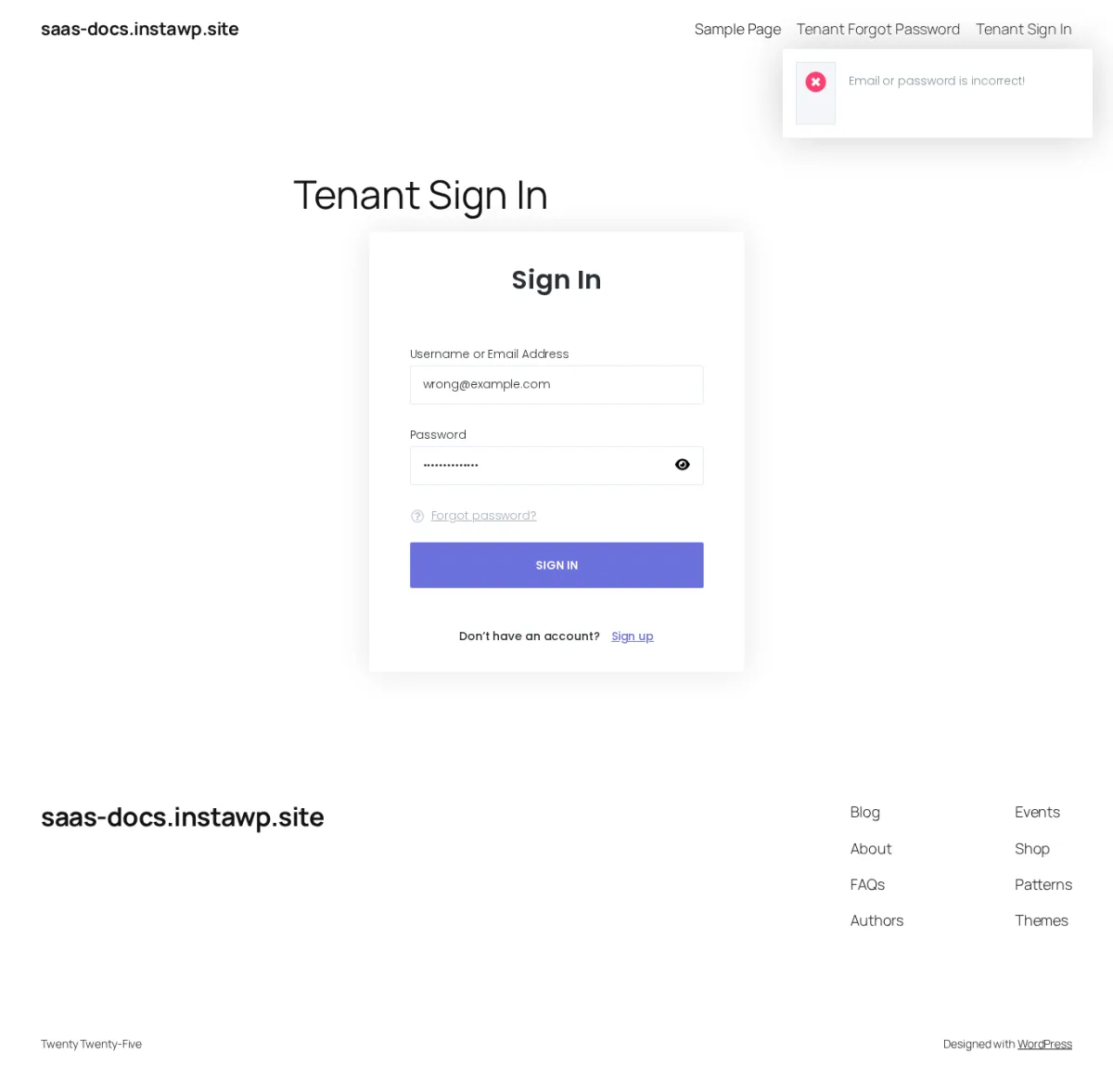
Email or password is incorrect!
If the tenant leaves required fields empty, the form can show:
Please enter your email and password correctly!
If a tenant account was created but the signup process was not completed, the tenant may see a message asking them to complete registration from their email.
Setup check: A tenant needs a connected WordPress user account to sign in. If your setup has a Create WP user option and it is turned off, the tenant may be created in SaaS but still be unable to sign in normally. If tenants report that signup worked but signin does not, check the tenant record and WordPress user assignment first.
The forgot-password flow has two steps.
The tenant opens the forgot-password page, enters their email address, and clicks CONTINUE.
If the email is not registered as a tenant email, Booknetic SaaS shows:
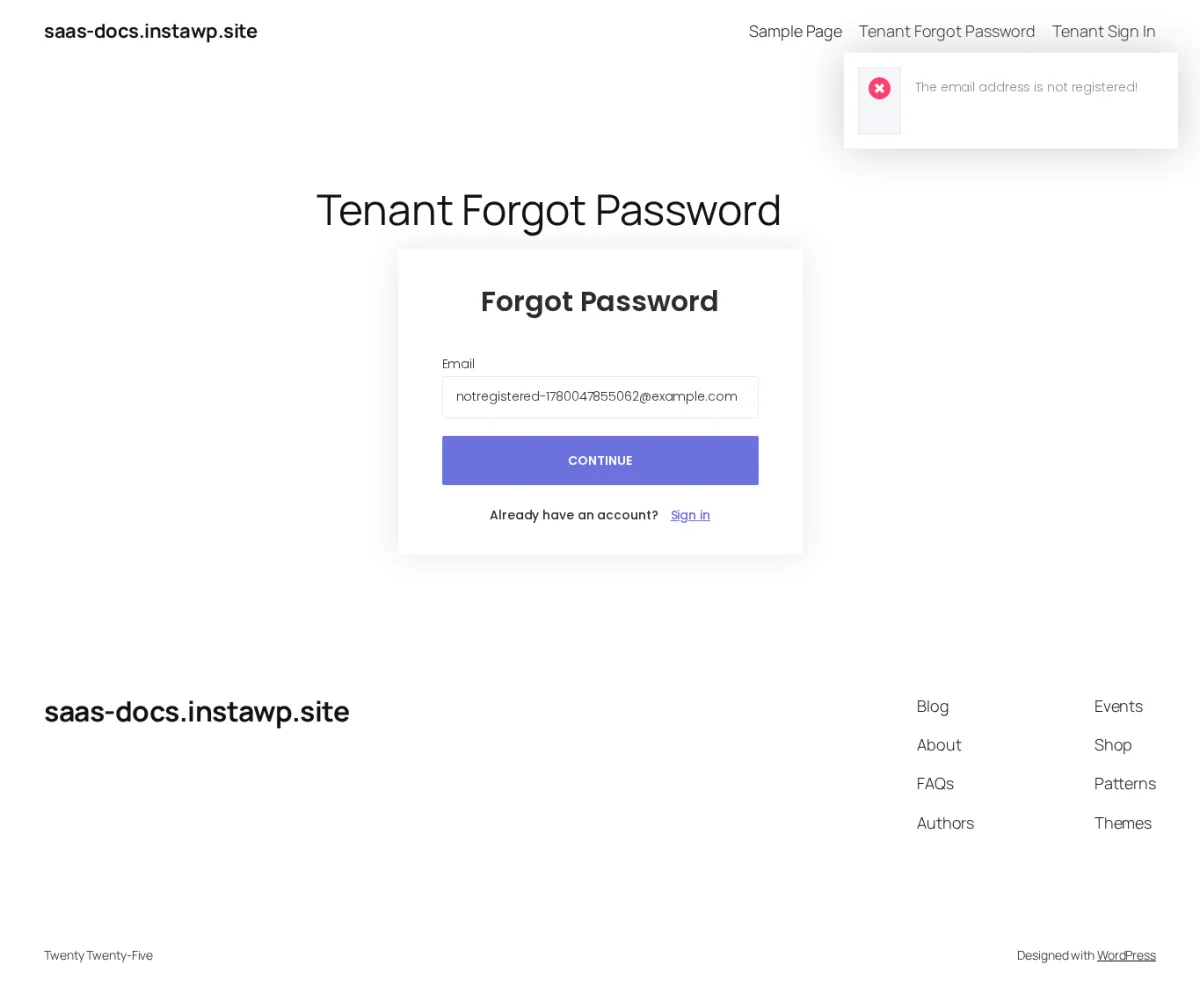
The email address is not registered!
If the email is accepted, the tenant sees a password reset message telling them to check their inbox.
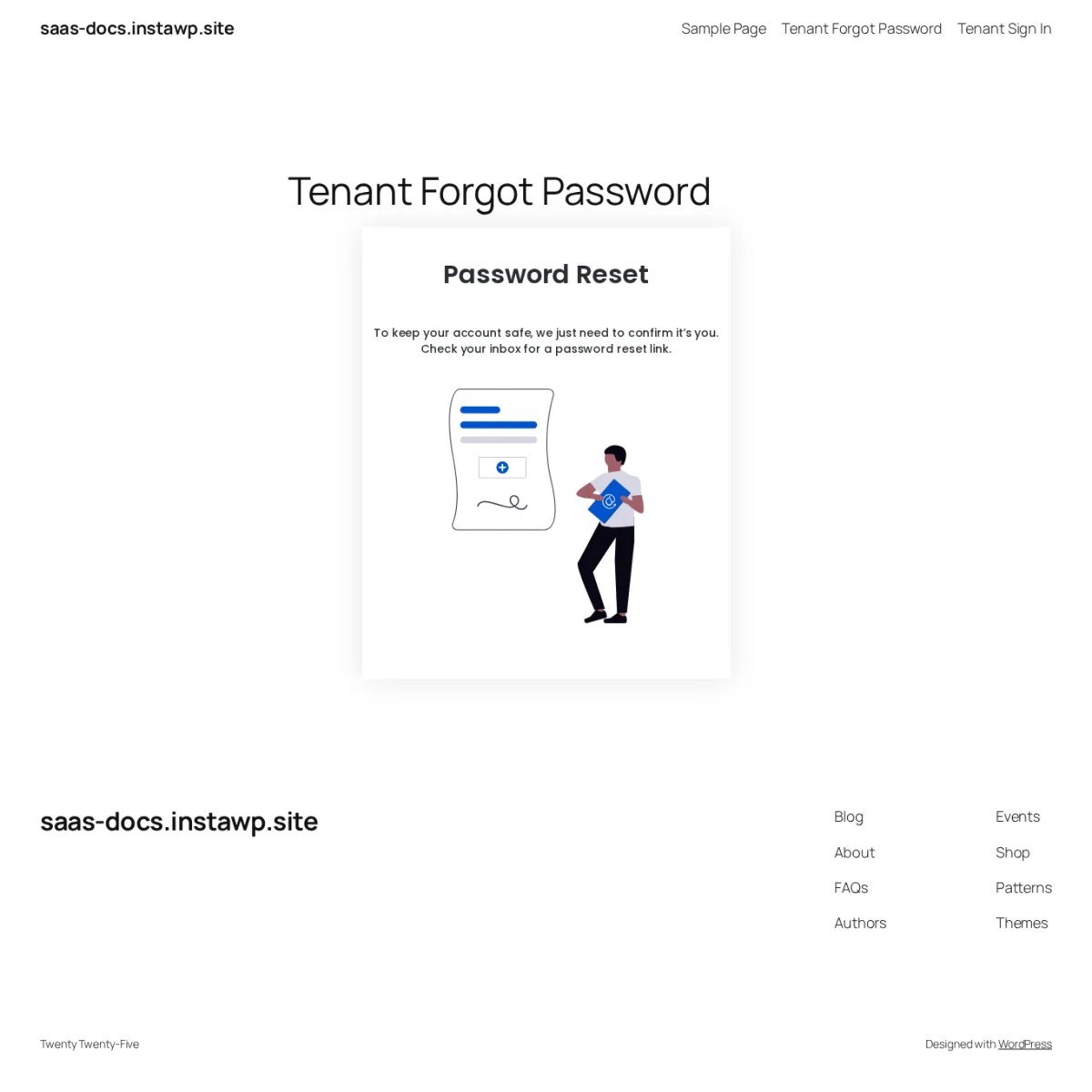
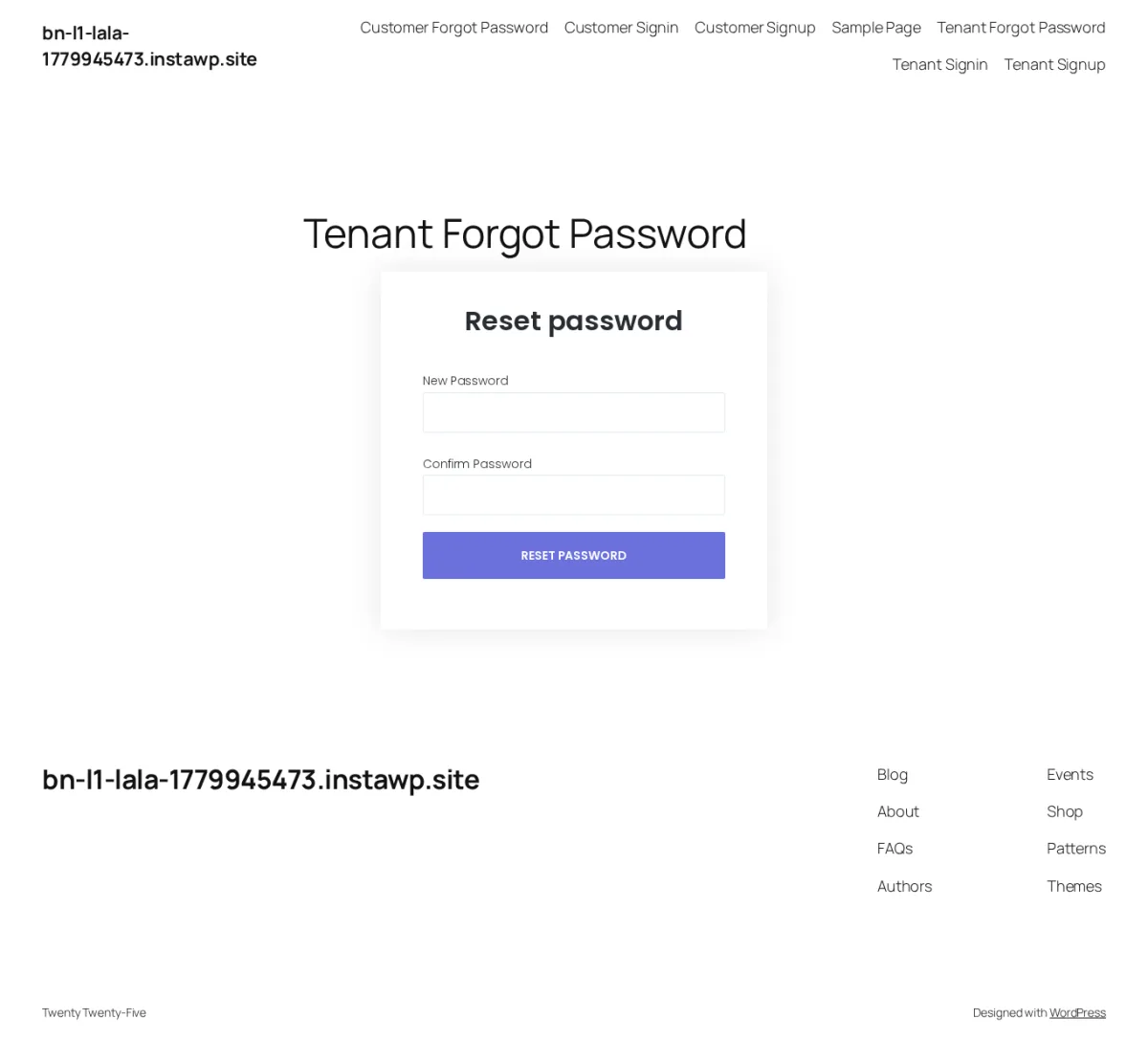
The reset email sends the tenant to your forgot-password page with a reset link. On that page, the tenant enters the new password twice and submits the form.
After the password is changed, the reset link cannot be used again. Ask the tenant to request a fresh link if the old link no longer works.
Security note: The reset link is single-use, but Booknetic SaaS does not enforce a time limit on the link in the reviewed flow. Do not tell tenants that reset links expire after a fixed time such as 15 minutes or 24 hours. If a tenant is worried that an old link was shared or exposed, ask them to request a new reset link; the new request replaces the previous link.
Booknetic SaaS has a 60-second cooldown for resending forgot-password links.
This means a tenant may need to wait about one minute before another reset email can be sent. This delay helps prevent repeated reset requests from being sent too quickly.
If a tenant clicks again immediately and nothing seems to happen, ask them to wait at least 60 seconds, then try again.
The reset link is sent through your Booknetic SaaS email and workflow setup. If tenants are not receiving reset emails, check these areas:
tenant_forgot_password workflow is enabled.{tenant_email}.Important: Booknetic SaaS may create the reset link successfully even when the email is not delivered. If email delivery or the workflow is misconfigured, the tenant may see a success message but never receive the message.
The signin and forgot-password pages must be public. If you put the shortcode on a page that requires WP-Admin login or is blocked for anonymous visitors, tenants may see a 403 page or may never reach the form.
Use a normal published WordPress page for each shortcode.
Creating the WordPress page is not enough. After publishing the page, map it in SaaS → Settings → Pages so Booknetic SaaS knows which URL to use.
Tenant signin uses the connected WordPress user account. If a tenant exists in SaaS but is not connected to a usable WordPress user, signin can fail even though the tenant record exists.
Check this when a tenant says: "I signed up, but I cannot log in."
The forgot-password page can accept the email request, but the reset email depends on the workflow email action. If the tenant_forgot_password workflow is disabled or has no email action, the tenant will not receive the reset email.
A SaaS platform can have more than one login page:
If someone says "I cannot log in," first confirm whether they are a tenant or an appointment customer.
These details help you operate the signin and reset flow safely.
Because of this, consider normal WordPress security practices too: strong hosting, HTTPS, reliable email delivery, and any WordPress security layer you already use for login protection.
The signin and forgot-password forms appear inside your WordPress pages. You can style the surrounding page with your WordPress theme or page builder.
For SaaS branding, also review your Booknetic SaaS appearance and whitelabel settings so the tenant journey feels consistent with your platform brand.
Where do tenants go to log in?Send tenants to the WordPress page where you placed [booknetic-saas-signin] and mapped it as the Sign-in page in SaaS → Settings → Pages.
Where do tenants reset their password?Send tenants to the WordPress page where you placed [booknetic-saas-forgot-password] and mapped it as the Forgot-password page.
My tenant says the reset link does not work. What should I check?Ask them to request a fresh reset link and use the newest email. Reset links are single-use. Also check that your WordPress email delivery and the tenant_forgot_password workflow are working.
My tenant never receives the reset email. What should I check first?Check the tenant email address, spam folder, SaaS → Settings → Email, and the tenant_forgot_password workflow. Most "reset email not arriving" cases are email-delivery or workflow-configuration issues.
Can a tenant log in through WP-Admin instead?Yes, if the tenant has a connected WordPress user account. The tenant signin shortcode is still the recommended branded entry point because it keeps the tenant flow clearer.
Can I customize the signin error messages?Booknetic SaaS does not show a native error-message editor in the reviewed source path. If you need custom wording, treat it as a customization request unless Product confirms a supported setting.
Does reCAPTCHA protect tenant signin and forgot password?Not in the reviewed signin and forgot-password source path. reCAPTCHA support is confirmed for SaaS signup, but signin and forgot password should not be described as reCAPTCHA-protected unless Product/Engineering confirms a newer implementation.
Before you share the tenant login URL, confirm:
[booknetic-saas-signin].[booknetic-saas-forgot-password].tenant_forgot_password workflow is enabled and sends an email to the tenant.