
Custom signup fields
Custom signup fields are useful when you need to collect information before giving a new tenant access to their dashboard. Common examples: | You want to know...

By using this site, you agree to our Cookie Policy
Custom signup fields are useful when you need to collect information before giving a new tenant access to their dashboard. Common examples: | You want to know...
Custom signup fields let you ask new SaaS tenants for extra information while they create their account.
For example, you can ask for:
These fields appear during the tenant signup flow, on the Company Details step. This is the step after the tenant creates an account, verifies their email, and chooses their booking page URL.
Use them when the default signup information is not enough for your onboarding, sales, compliance, or verification process.
Custom signup fields are useful when you need to collect information before giving a new tenant access to their dashboard.
Common examples:
| You want to know | Example field |
|---|---|
| What type of business is signing up | "Industry" dropdown |
| How large the tenant is | "How many bookings do you expect per month?" dropdown |
| Whether the tenant is a real registered business | "Upload business license" file field |
| Which onboarding path they need | "Which services do you offer?" checkbox list |
| Billing or tax details | "VAT / Tax ID" text field |
Keep the signup form short. Every required field adds friction before the tenant reaches the dashboard.
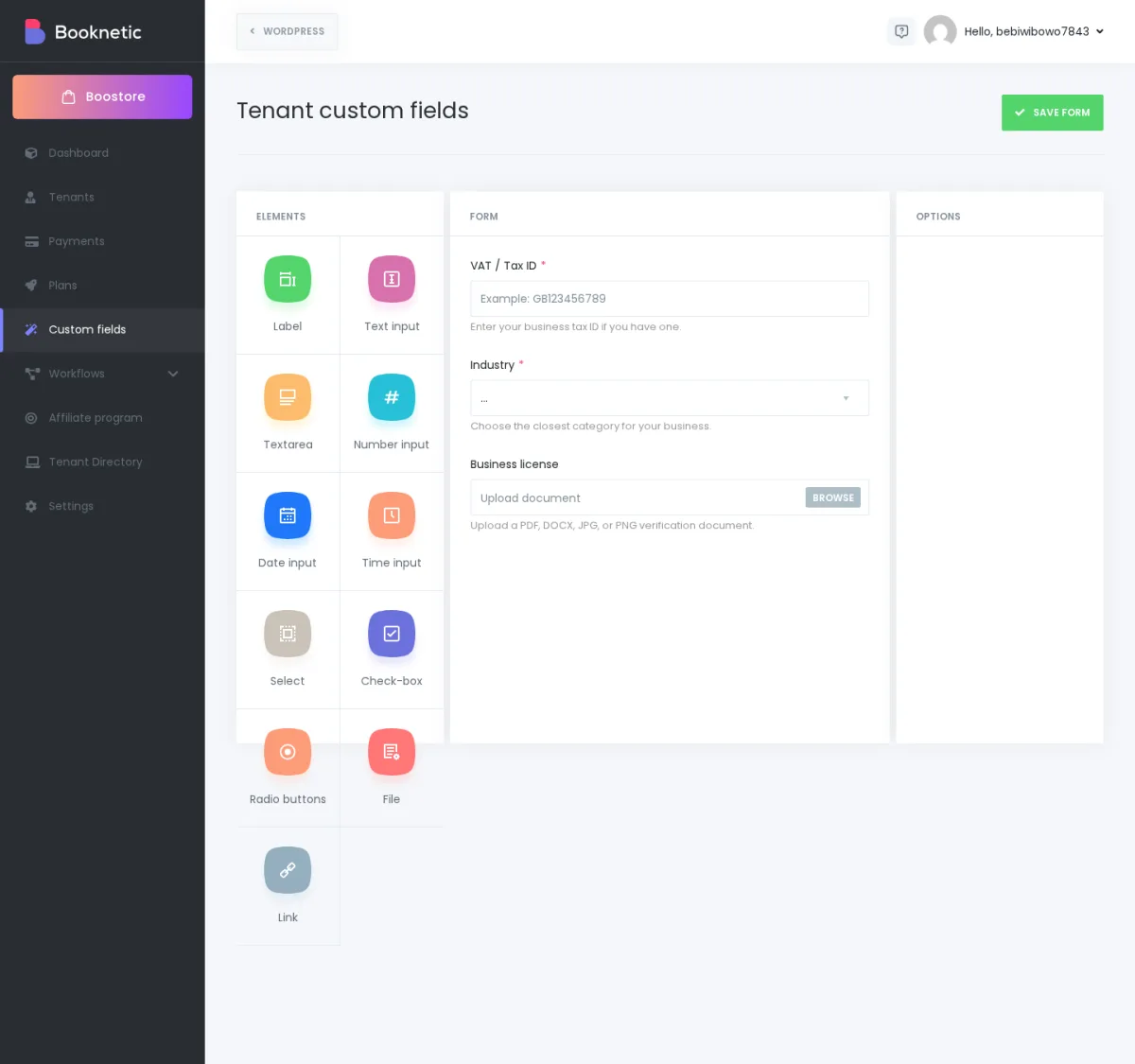
Booknetic SaaS supports 11 field types for tenant signup fields.
| Field type | Use it for |
|---|---|
| Label | Add a short instruction or section title. This is text only; the tenant does not type into it. |
| Text input | Short answers such as VAT ID, company registration number, or referral source. |
| Textarea | Longer answers such as onboarding notes or "Tell us about your business." |
| Number input | Numeric answers such as number of staff members or expected monthly bookings. |
| Date input | Dates such as business launch date or preferred onboarding date. |
| Time input | Time-based answers such as preferred contact time. |
| Select | A dropdown where the tenant chooses one option. |
| Checkbox | One or more selectable options. Useful for multiple service categories. |
| Radio buttons | A visible one-choice list. Useful when you want all options shown on the form. |
| File | Upload a document or image, such as a license or verification file. |
| Link | Show a clickable link, for example to your terms or onboarding guide. |
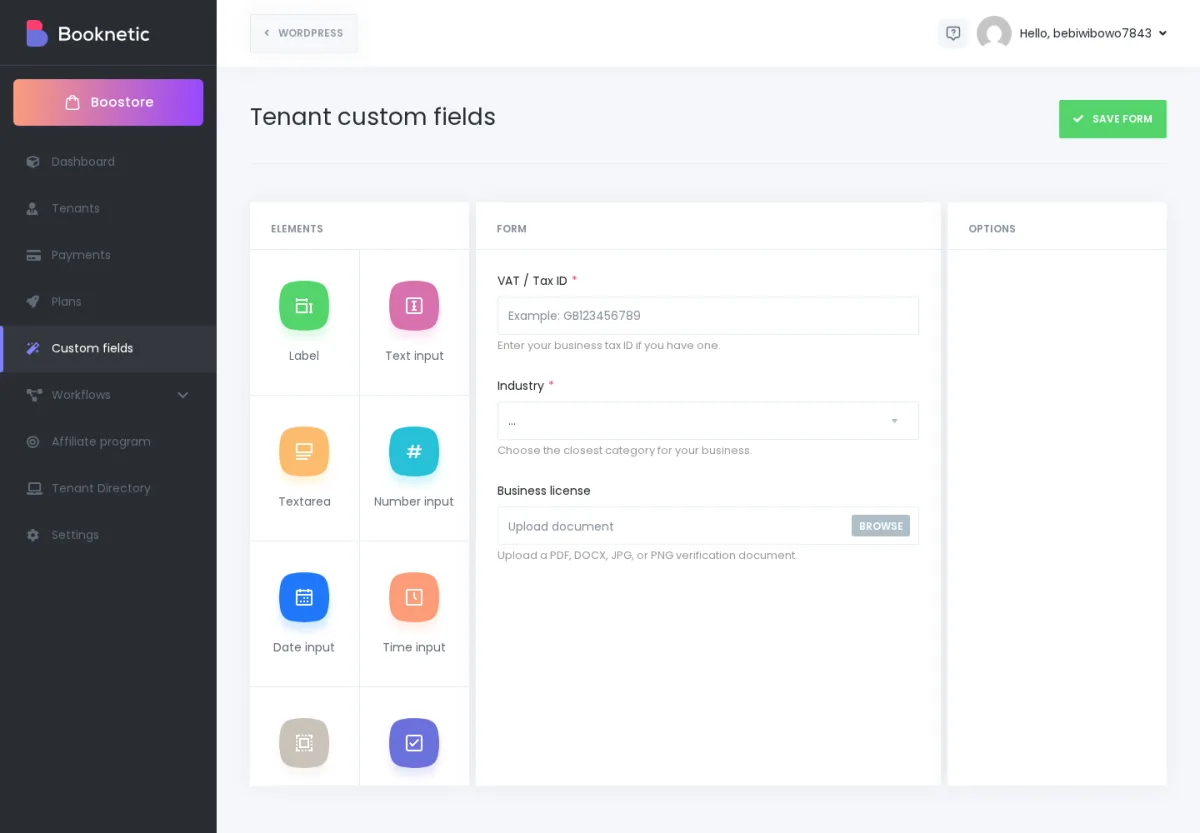
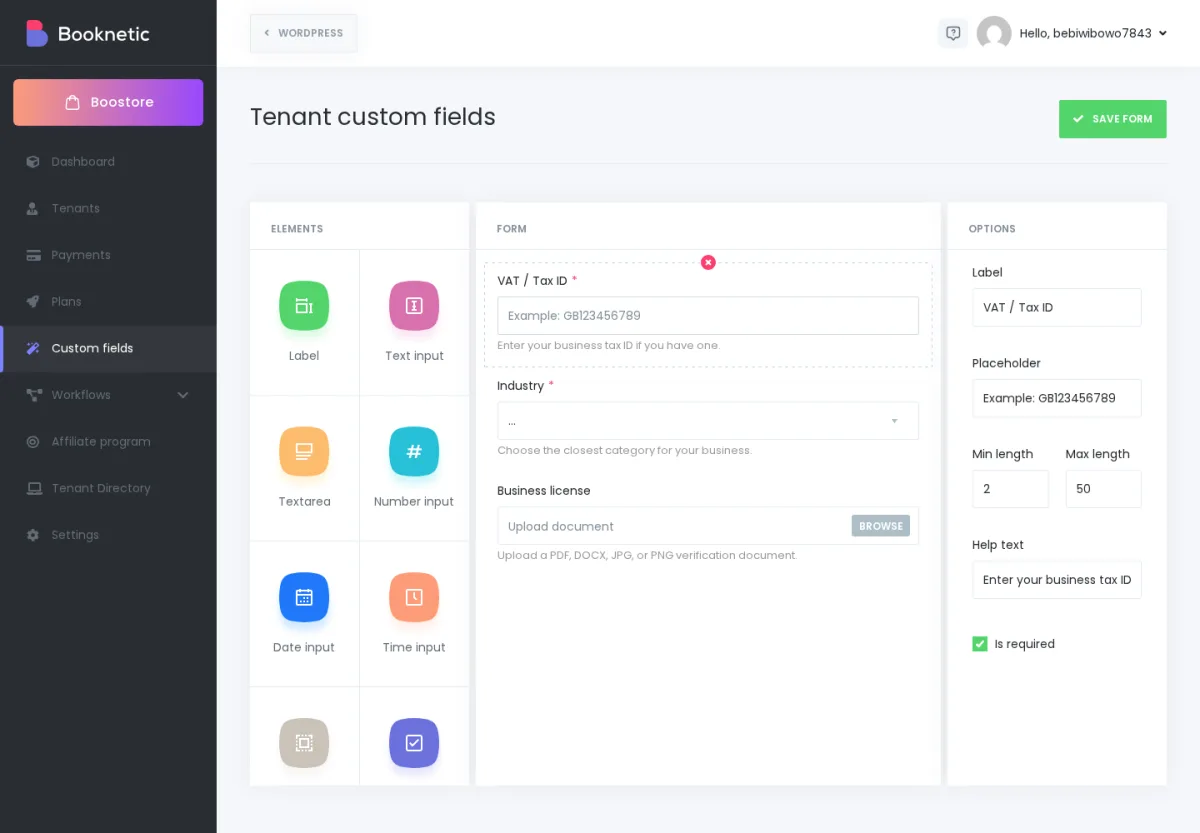
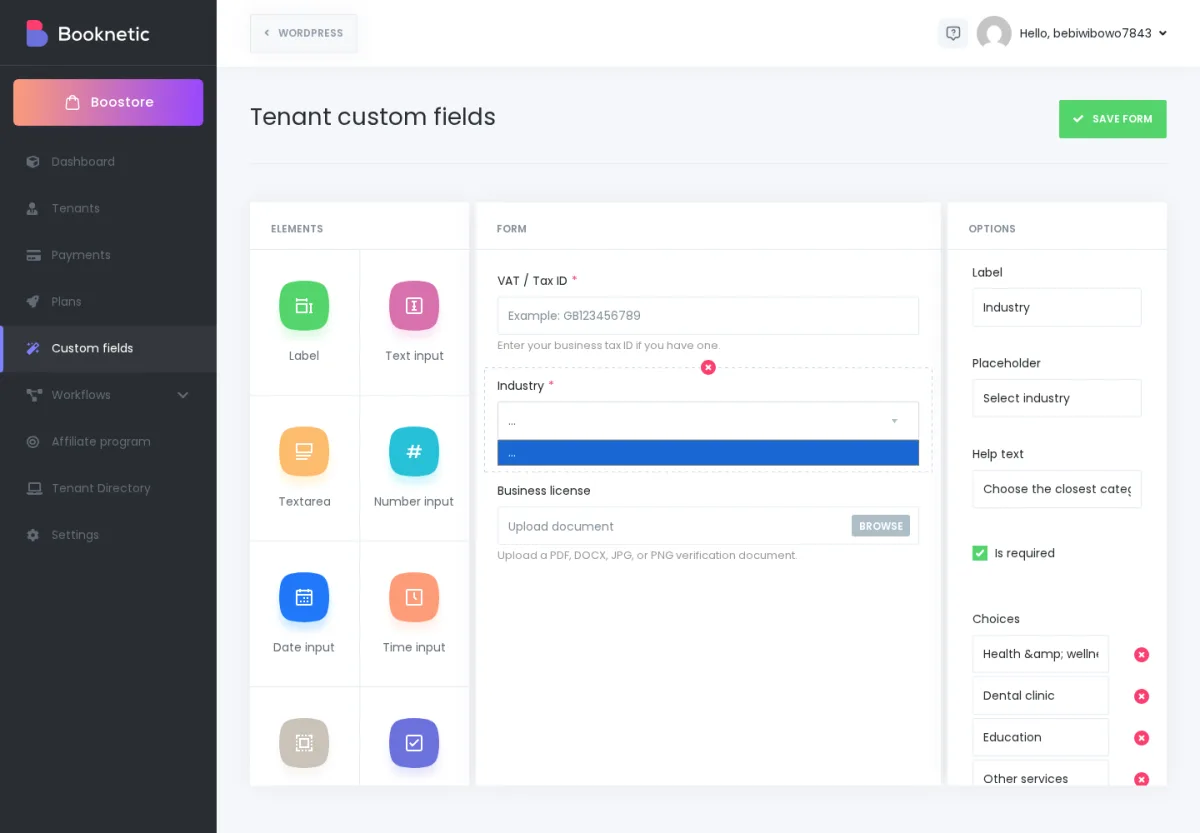 7. Drag fields into the order you want them to appear.
8. Click Save form.
7. Drag fields into the order you want them to appear.
8. Click Save form.
After saving, the fields are shown to new tenants on the Company Details step of signup.
Open Booknetic SaaS → Custom fields to update your signup form.
Be careful when deleting fields. Deleting a field removes the saved answer records for that field, but uploaded files connected to file fields may remain on your server. See the file upload note below before deleting fields that collect documents.
If you mark a field as Required, Booknetic checks that the tenant filled it before signup can be completed.
Booknetic also checks the submitted data when the form is sent, not only in the browser. This helps prevent tenants from bypassing required fields by editing the page in their browser.
Supported validation includes:
If a field does not pass validation, the tenant must correct it before they can finish the Company Details step.
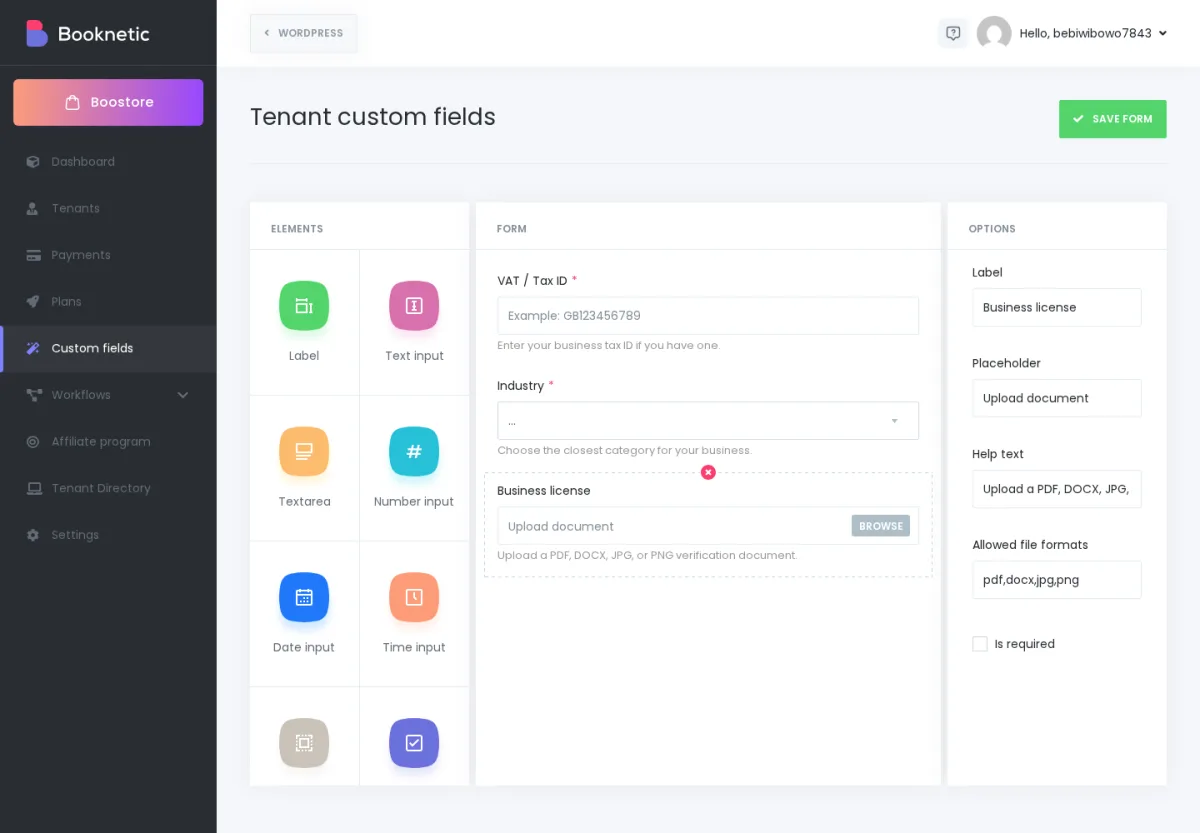
Use the File field when you need a tenant to upload a document, such as a business license, certificate, or verification file.
You can limit uploads by file format. If you do not set custom formats, Booknetic uses its default allowed formats list for common documents, images, spreadsheets, archives, and media files.
Important privacy note:
If you collect identity documents, licenses, or other sensitive files, include this in your own data-retention process. For GDPR or "right to erasure" requests, check and remove uploaded files manually if needed.
Conditional fields are not currently supported in the reviewed SaaS custom signup field behavior.
That means you cannot show one field only when another field has a specific answer. For example, you cannot show "VAT number" only when the tenant selects "European Union."
A practical workaround is to make the field optional and use help text, such as:
"If your business is registered in the EU, enter your VAT number."
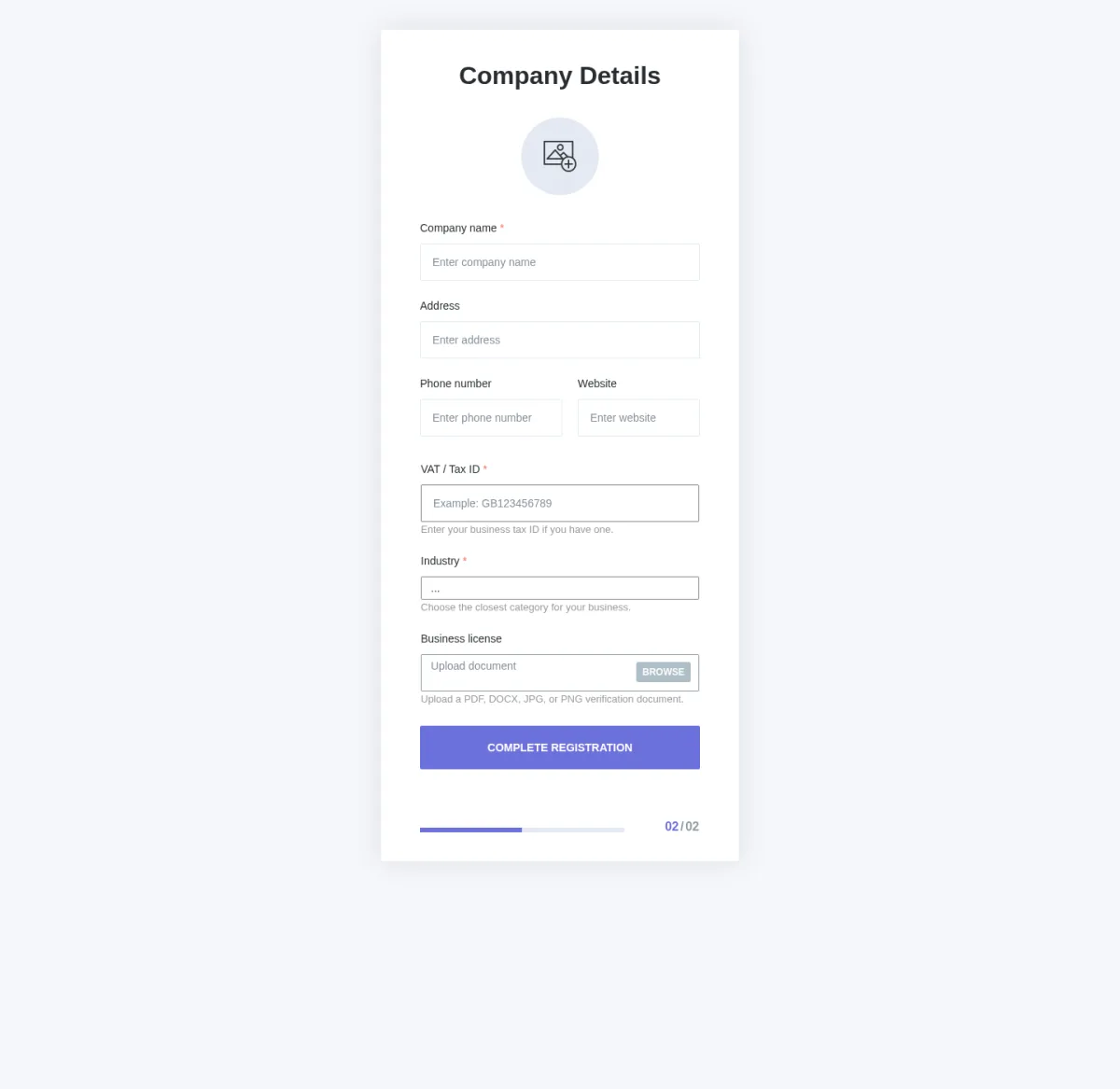
The order you set in Booknetic SaaS → Custom fields controls the order tenants see on the signup form.
Custom signup fields appear inside the Company Details step together with the standard company information fields. Use the order to keep the form easy to understand:
All configured signup fields are shown globally to new tenants. The reviewed behavior does not include per-plan field visibility.
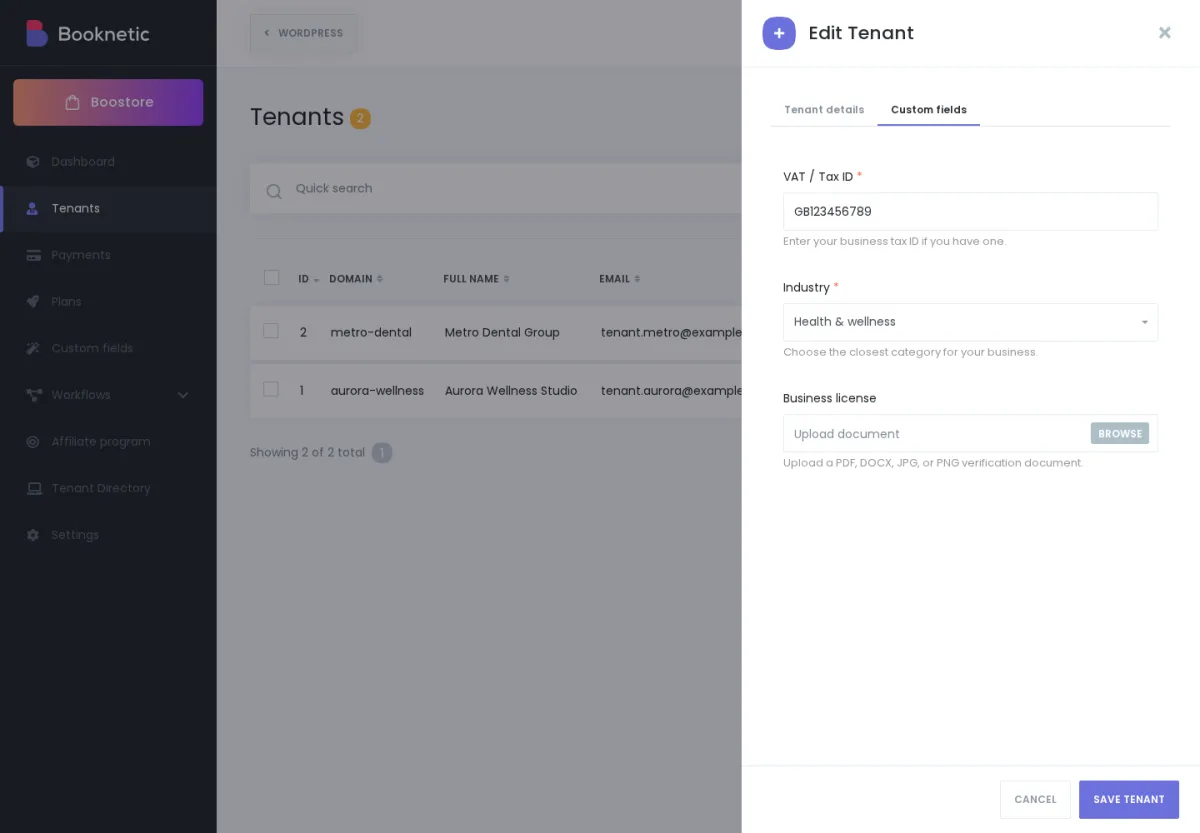
After a tenant completes signup, the platform owner can review the submitted answers from the SaaS admin area.
Go to Booknetic SaaS → Tenants, open the tenant, and check the Custom Fields tab.
This is the confirmed owner-side place to view and manage submitted custom field data.
Do not assume tenants can edit these answers from their own profile page unless your setup has been separately confirmed. If tenants need to change an answer after signup, the safest process is for them to contact the platform owner, who can review or update the tenant record from the admin area.
Custom signup field answers can also be used in SaaS workflow notifications.
For example, you can include a tenant's expected booking volume or industry in a welcome email so your onboarding message feels more relevant.
For normal text and choice fields, use the custom field shortcode shown in the workflow editor. For file upload fields, use the file-specific options from the shortcode list, such as the uploaded file name or file URL, instead of inserting the general custom field placeholder manually.
Can I ask every new tenant for their industry?
Yes. Use a Select, Radio buttons, or Checkbox field depending on how many answers they can choose.
Can I require a business license upload?
Yes. Use a File field and mark it as Required. Remember that Booknetic accepts the file when it matches the allowed format; any approval or verification process is handled by you outside the form.
Can I show different fields for different plans?
Not in the reviewed behavior. Custom signup fields are global, so all new tenants see the same configured fields.
Can I show a field only when another answer is selected?
No. Conditional signup fields are not currently supported.
Are uploaded files automatically deleted when a tenant is deleted?
No. Uploaded custom signup files may remain on the server and should be handled in your own privacy and data-deletion process.