
Notification channels for your tenants
Configure email, SMS, WhatsApp, and Telegram notification channels for your Booknetic SaaS tenants — owner setup, per-plan capabilities, and limits.

By using this site, you agree to our Cookie Policy
Configure email, SMS, WhatsApp, and Telegram notification channels for your Booknetic SaaS tenants — owner setup, per-plan capabilities, and limits.
Booknetic SaaS has three "notification"-shaped things that are easy to mix up. Quick map before we go deeper, so you know you're on the right page:
A workflow event triggers an action on a channel, and the result is recorded in a workflow log. This page is about the channel in the middle.
All workflow notifications — Email, SMS, WhatsApp, and Telegram — are dispatched through Booknetic's workflow processing queue, which runs on WordPress Cron. Configuring provider credentials (Twilio, Telegram bot token, SMTP) is required, but it is not sufficient on its own.
A real server cron job running every 1 minute is also required. Without it, no tenant workflow notification on any channel will be sent — regardless of how correctly the channel credentials are configured.
Set up cron on your WordPress server before onboarding tenants. See: Cron Job Configuration.
Out of the box, your tenants can reach their customers through four built-in channels:
You'll also see two extra notification options if you install their add-ons — Mailchimp Transactional Email and Amazon SNS SMS — plus a Webhook (HTTP request) action that's not really a channel but is often used the same way (sending notifications into Zapier, Make, or your own service). This page focuses on the four headline channels above; the others follow the same pattern.
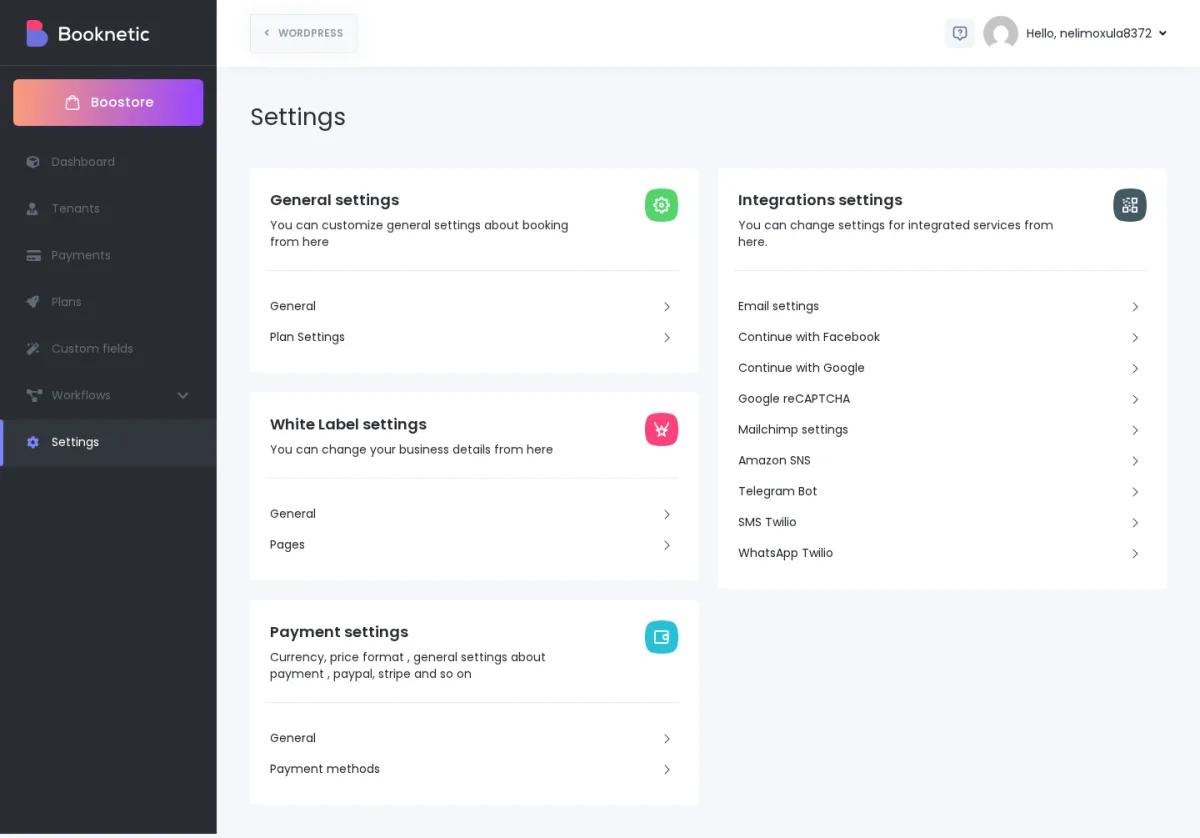
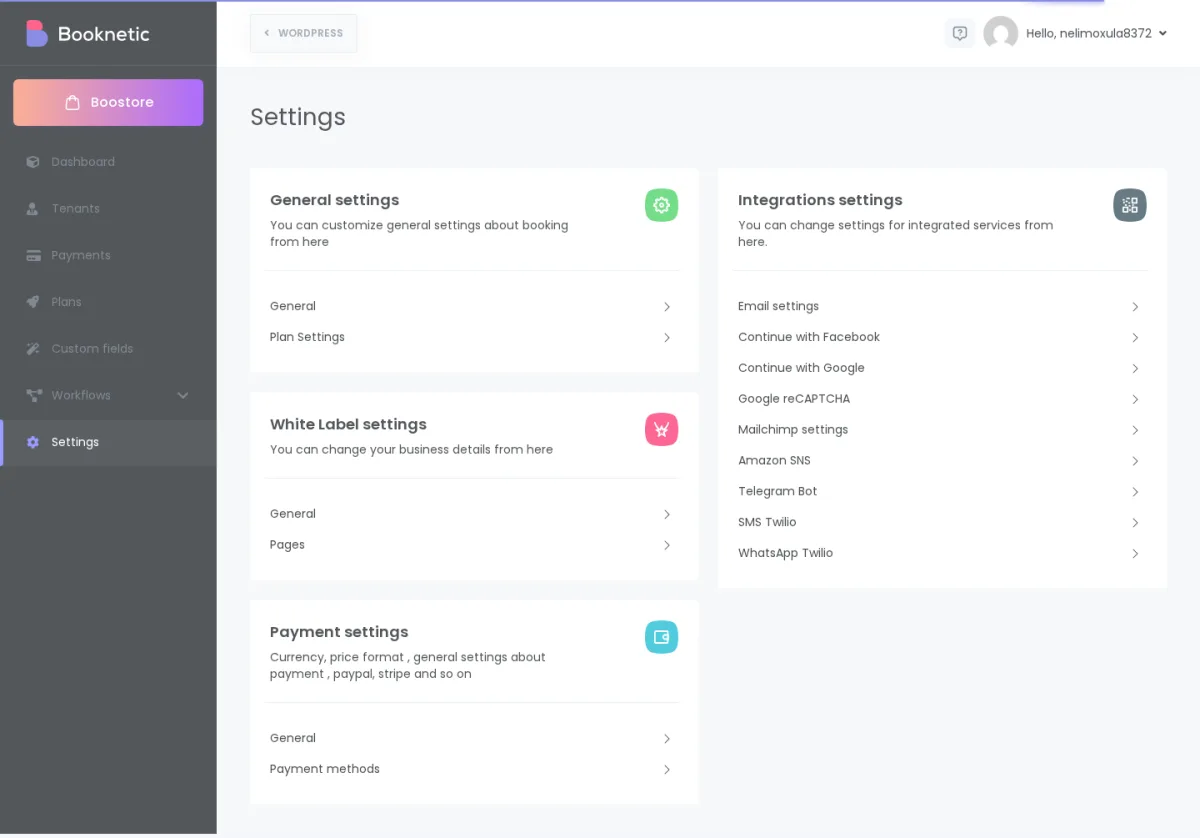
You'll find every channel listed under WP Admin → Booknetic SaaS → Settings → Integrations.
This is where most "why isn't my tenant's notification working?" tickets come from. Booknetic SaaS splits channel configuration in three places, not one. Read it once, share it with your tenants:
| What gets configured | Who does it | Where it lives |
|---|---|---|
| Provider credentials — your Twilio Account SID + Auth Token, your Telegram bot token, your email gateway. The technical bits the messaging providers give you. | You, the SaaS owner, one time, for the whole platform. | WP Admin → Booknetic SaaS → Settings → Integrations → (channel). |
| Which channels each tenant can use, and how many messages per channel — for example "the Pro plan includes SMS, the Starter plan doesn't" or "the Pro plan gets 500 SMS, the Starter plan gets 50". | You, the SaaS owner, per plan. | WP Admin → Booknetic SaaS → Plans → (plan) → Capabilities and Limits tabs. See Plans and plan capabilities for the full picture. |
| Per-channel message content + recipients — the actual workflow that sends "Booking confirmation" to a customer with a service name, a date, a price. | The tenant, inside their own Booknetic admin. | Tenant → Booknetic → Workflows → create / edit workflow. |
| Sender display name and Reply-To (Email only — see Email section) | The tenant, where you allow it. | Tenant → Booknetic → Settings → Email. |
Two consequences flow from that split:
Email is the only channel that's available to every tenant out of the box, with no provider account on your side. Booknetic uses WordPress's built-in mail to send.
What you set up once. WordPress's wp_mail works out of the box, but on a production SaaS install you'll almost always want an SMTP plugin (any reputable one — WP Mail SMTP, FluentSMTP, Post SMTP). Connect that to a transactional mail provider (Mailgun, SendGrid, Amazon SES, Brevo, Postmark — any of them) so your tenants' booking confirmations and reminders actually land in inboxes instead of spam folders. This is the single most important deliverability decision you make as a SaaS owner.
Open WP Admin → Booknetic SaaS → Settings → Integrations → Email to see your platform's email settings.
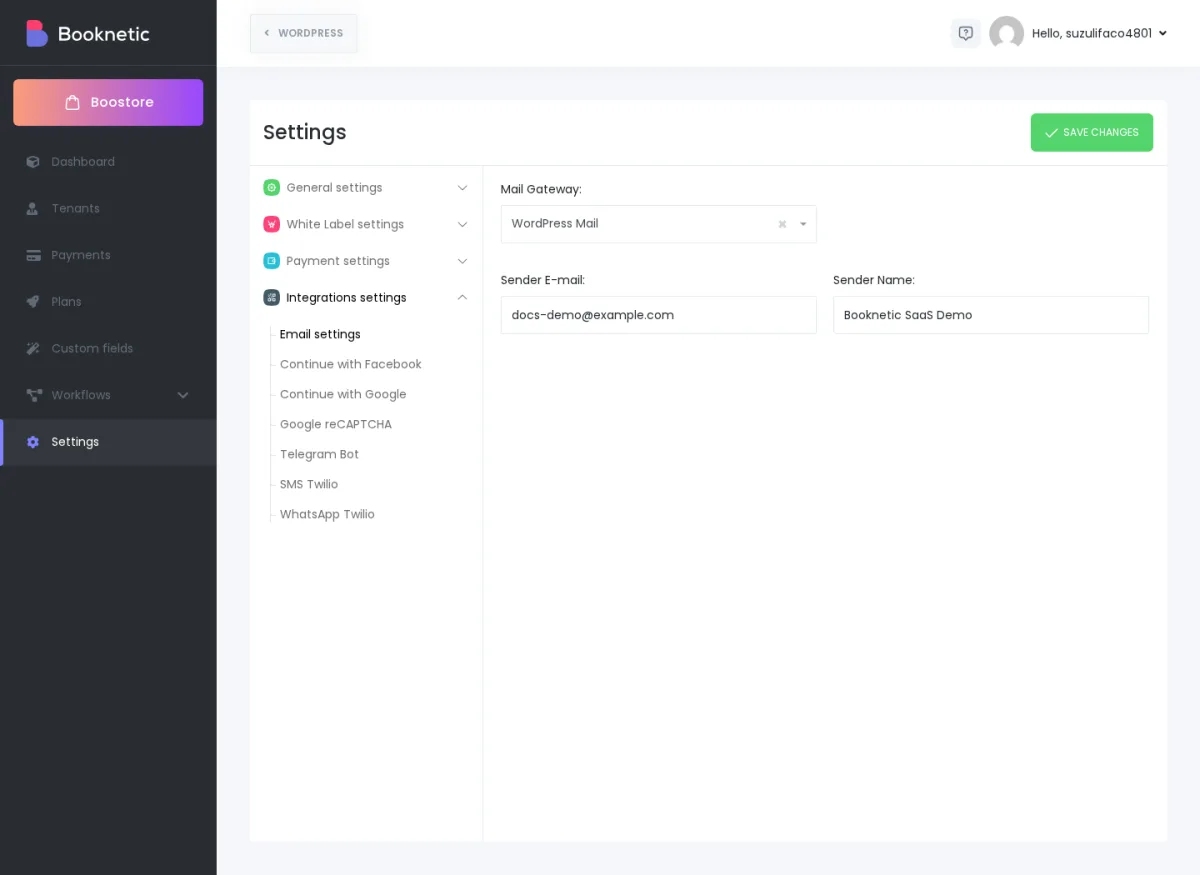
What the tenant can change. Each tenant can set their own sender name and Reply-To address so the booking emails their customers receive say "Aurora Wellness Studio" rather than your platform's name. The underlying mail gateway stays under your control.
Per-plan limit. Your plan capabilities let you cap how many emails a tenant can send. If you give the Starter plan 200 emails/month and the tenant hits 200, that tenant's email channel pauses for the rest of the period — see the "What happens when a tenant hits their channel limit" section below.
Common gotcha. If a tenant's reminder emails are landing in spam, the fix is at the SMTP/provider level, not in Booknetic — your transactional email provider's authentication (SPF, DKIM, DMARC on your sending domain) is what email clients look at.
The built-in SMS channel sends through Twilio. The SMS add-on registers a workflow action called Send SMS message via Twilio that your tenants can drop into any workflow.
What you set up once.
+14155551234).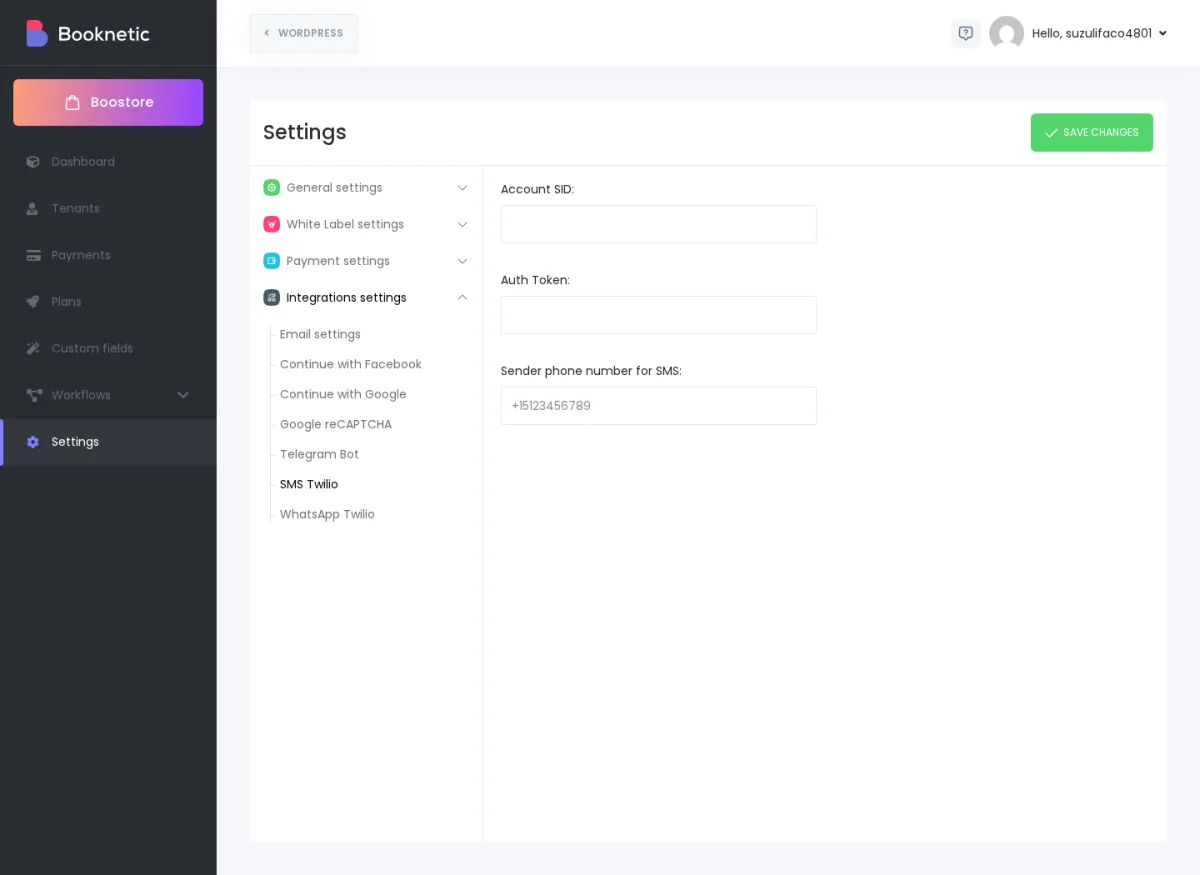
That one Twilio account powers SMS for every tenant on your platform. Your tenants don't have their own Twilio accounts — they all share yours.
What the tenant does. The tenant adds the Send SMS via Twilio action inside one of their workflows (for example, on "Appointment approved", send the customer their booking details). They write the message body, pick the recipient (usually {customer_phone}), and save. Your global Twilio credentials handle the actual send.
Per-plan limit and capability. Your plan capabilities control two things for SMS: whether a tenant can use the SMS channel at all (capability on/off per plan), and how many SMS that tenant can send before the channel pauses (numeric limit per plan).
Who pays. Twilio charges you for every SMS sent. The standard SaaS pricing pattern is to set a generous SMS allowance on each paid plan, fold the expected cost into your plan price, and rely on the per-plan limit to stop a tenant burning through your Twilio balance.
Heads-up: phone number formatting. Twilio is strict about E.164 format (international country code, no spaces, no dashes, leading +). If your tenants' customers are entering phone numbers in local formats, make sure their booking forms either validate to E.164 or store the country alongside the number.
Same provider as SMS, different product surface. WhatsApp uses Twilio's WhatsApp Business product, which has two distinct setup paths and the choice matters a lot:
What you set up once.
What the tenant does. Tenants add the Send WhatsApp message via Twilio action in a workflow, pick a recipient, and select which approved template to use. Booknetic substitutes the workflow shortcodes into the template's variables when the message fires.
Per-plan limit and capability. Same pattern as SMS — per-plan on/off and a per-plan message limit (shows up in the plan's Limits tab as "WhatsApp messages").
Heads-up: templates are non-negotiable in production. Meta requires WhatsApp Business API messages to use templates they've approved. Free-form WhatsApp messages only work inside an open 24-hour conversation window with the customer. For appointment confirmations, reminders, and the like — everything Booknetic is going to send — you'll be sending templated messages. Get your templates approved in Twilio before you turn the WhatsApp channel on for paid tenants.
Telegram is the cheapest channel to operate — there's no per-message cost — but it requires the tenant's customers to have a Telegram account and to start a chat with your bot first.
What you set up once.
@BotFather, run /newbot, follow the prompts, and copy the bot token BotFather hands you.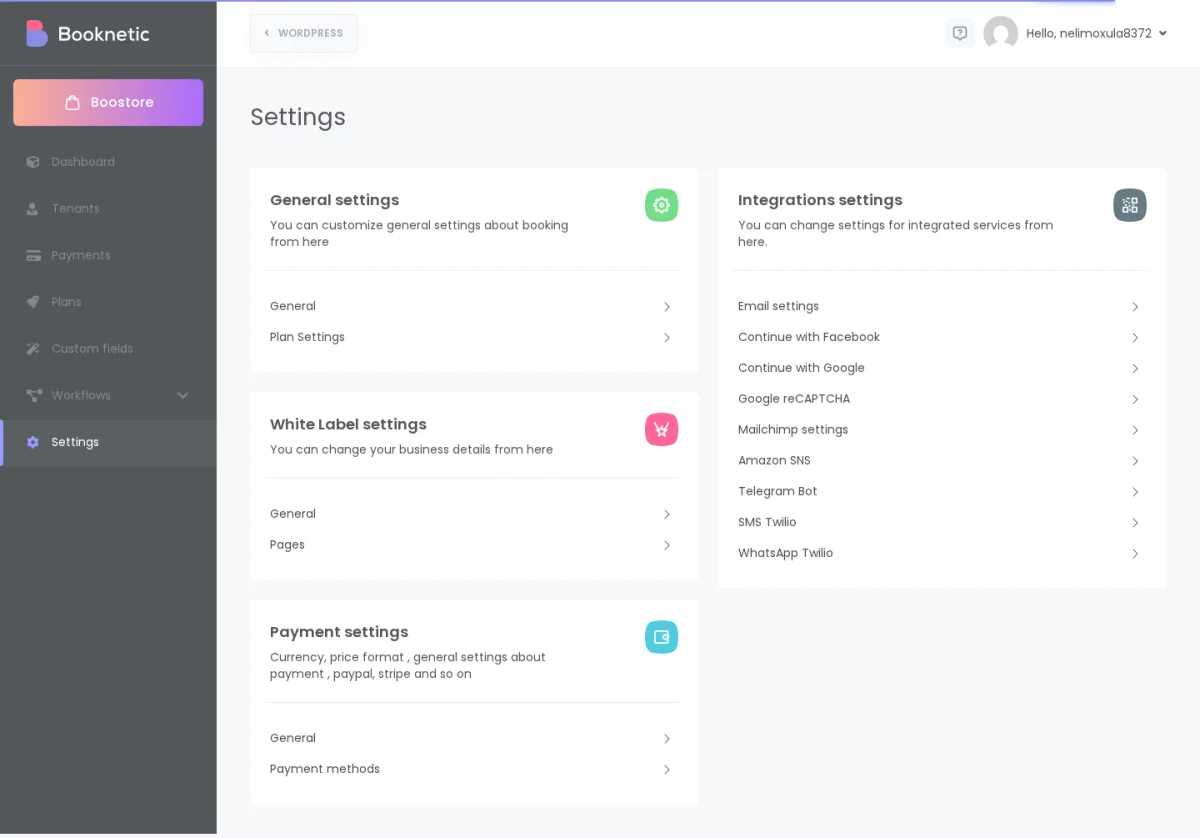
How tenants and their customers connect to the bot. A Telegram bot can only send a message to a chat that has already started a conversation with it. So the way Telegram notifications work in practice:
The tenant fills the recipient chat ID into the Send Telegram message workflow action. Your bot token does the rest.
Per-plan limit and capability. Per-plan on/off, plus a per-plan message limit (shown in the plan's Limits tab).
Heads-up: Telegram is opt-in. Unlike Email and SMS, the bot can't reach a customer who hasn't initiated the chat. Plan your tenant onboarding so they understand they need to drive customers to the bot first.
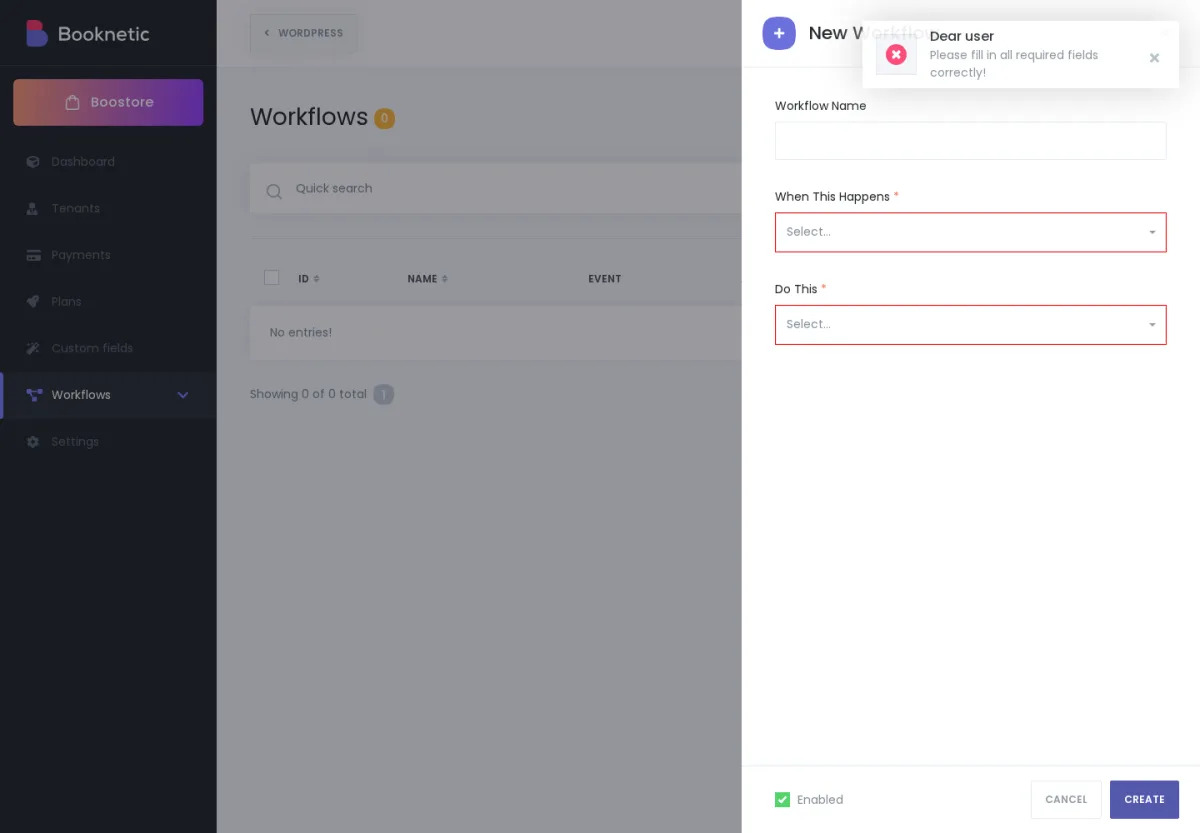
Every channel above is a workflow action. The tenant builds a workflow by picking a When this happens event (for example, Appointment approved) and a Do this action (for example, Send SMS via Twilio). The events available depend on what the tenant has installed and what their plan includes; the actions available depend on which channel add-ons you've enabled platform-wide and which channels their plan includes.
If a channel action isn't showing up for a tenant when you expect it to, the check order is:
This is the single most common "why did the email arrive but the SMS didn't?" pattern. Here's what's going on.
Each channel has a separate per-plan limit. When a tenant's usage of a specific channel reaches that plan's limit, Booknetic stops sending on that channel until the limit clears. Critically — other channels keep working. If your tenant's workflow says "on booking, send the customer an email AND an SMS", and they've hit the SMS limit but not the email limit, the customer will get the email and not the SMS. The workflow still fires; just the SMS step gets suppressed.
The clearest way to confirm a limit hit is to open the tenant's Workflow Logs — see Workflow Logs in Booknetic SaaS. The skipped SMS step will surface there with an error message that points at the limit. Once you raise the limit (or move the tenant to a higher plan, or wait for the next period if the limit resets per period), that channel resumes on the next workflow run.
The same suppression applies to every per-channel limit: Email, SMS, WhatsApp, Telegram, Mailchimp, AWS SNS, and Webhook all behave the same way.
You don't toggle channels per tenant directly. Instead, you control channel access at the plan level:
When a tenant's plan doesn't include a channel, the channel action stops being available in their workflow editor. Existing workflows that referenced the action will stop firing on that channel as soon as the plan change takes effect (other channels in the same workflow keep working).
Plans are how you express every tenant-specific channel decision in Booknetic SaaS. See Plans and plan capabilities for the full pattern.
"Can each of my tenants use their own Twilio account?"
Today, no — your Twilio account is shared across all your tenants. Whichever Account SID + Auth Token you paste into Settings → Integrations → SMS Twilio (and WhatsApp Twilio) is what every tenant sends through.
Two practical workarounds depending on what you're trying to solve:
"What happens if my Twilio credentials are wrong?"
The workflow will run, the SMS or WhatsApp step will fail, and a Failed row will appear in the tenant's Workflow Logs with the Twilio error (typically "authentication failed" or "invalid credentials"). Fix the Account SID / Auth Token in Settings → Integrations → SMS Twilio, then either wait for the next workflow trigger or use Retry on the failed log row.
"How does a tenant test a channel?"
Inside the tenant's workflow editor, the Save & Test button on any action sends a test message using the action's current settings. Two things to know:
{customer_name} or {service_name}) won't fill in — the test message goes out with the placeholders visible, or in some cases an empty string. That's expected — Save & Test confirms the channel and provider settings work, not the workflow event context. For a full end-to-end check, trigger the real event (book a real test appointment) once the test send succeeds."Do channel limits reset every month?"
The reset cadence depends on how your plan is configured and which release of Booknetic SaaS you're on. The safest path: check the plan's Limits tab against your tenant's current usage in their Workflow Logs to see where they stand, and contact support if the behaviour you're seeing doesn't match what you expected — we'll confirm the exact period for your setup.
"Can my tenants customise notification templates per channel?"
Yes. Each tenant builds their own workflows in their own Booknetic admin. Inside each workflow action, the tenant writes the message body for that specific channel (the subject + HTML body for an email, the SMS text, the WhatsApp template variables, the Telegram message text) and uses Booknetic shortcodes to pull in dynamic data like the customer's name, the service, the appointment date, and so on. One tenant's templates don't affect another tenant's templates — workflows are tenant-scoped.
"My tenant has been waiting for their reminder SMS for an hour and it hasn't arrived."
Walk through the diagnostic in this order:
"My WhatsApp template isn't sending — what's wrong?"
The two most common causes in production WhatsApp:
In Sandbox mode, the most common cause is the recipient hasn't sent the Twilio Sandbox join code yet — Sandbox is opt-in per recipient.