
Setting up Customer Categories
Learn how to create, manage, and use Customer Categories in Booknetic to organize customers, automate workflows, and build personalized booking experiences.

By using this site, you agree to our Cookie Policy

Learn how to create, manage, and use Customer Categories in Booknetic to organize customers, automate workflows, and build personalized booking experiences.
The Customer Category feature allows you to group customers into structured categories and use those categories across the system, including workflows and automations. This documentation explains where to find the feature, how to create and manage categories, and how they behave throughout Booknetic.
To manage customer categories:
Log in to your WordPress admin panel
Navigate to Booknetic → Customers
Open the Customer Categories sub-menu
This page is dedicated entirely to managing customer categories.
The Customer Categories page displays all existing categories in a table format with the following columns:
ID – Internal identifier
Name – Category name
Color – Visual color indicator
Icon – Assigned icon
Is default – Indicates whether the category is set as default
Customers count – Number of customers assigned to the category
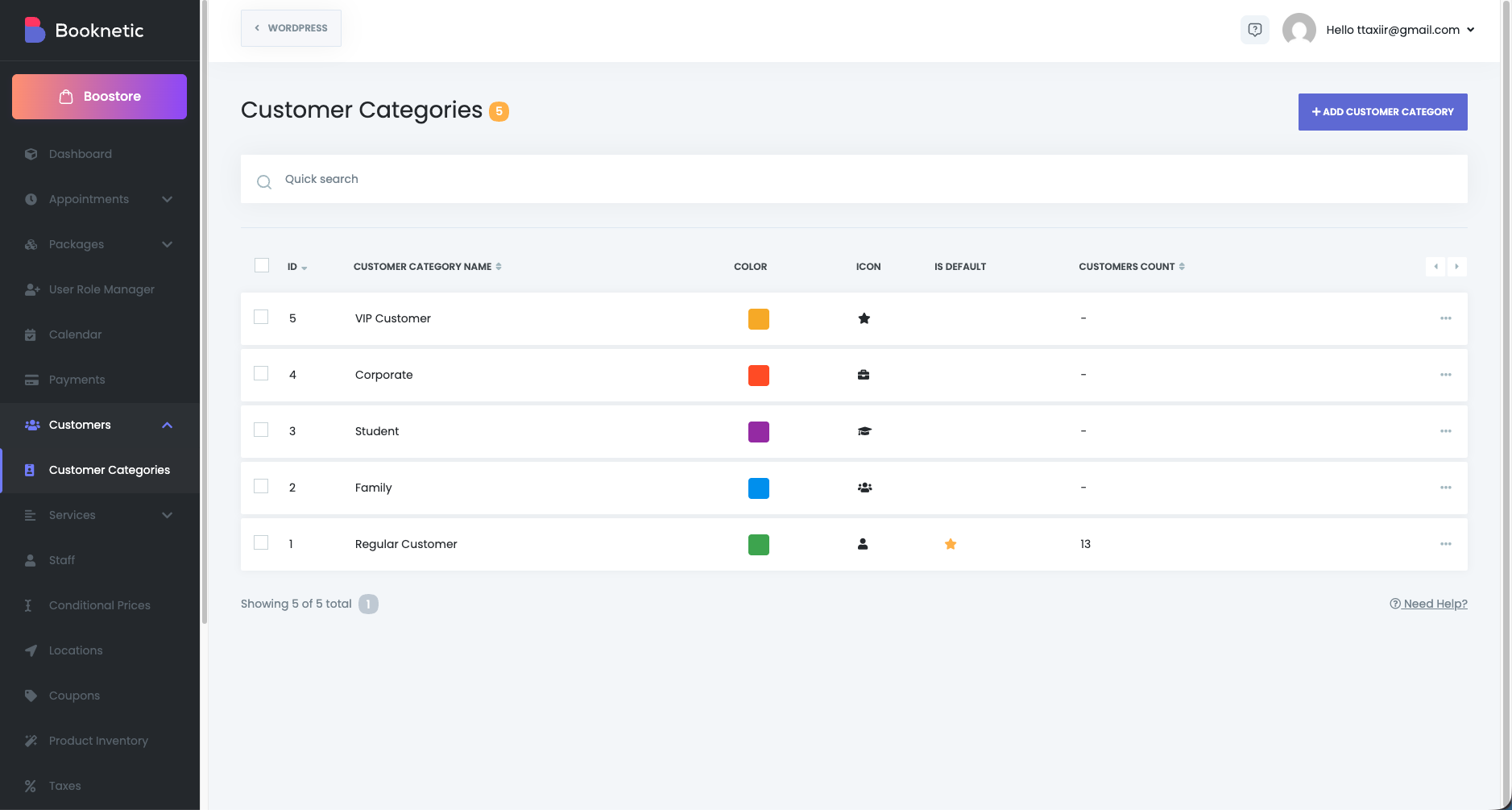
This table provides a quick overview of how your customers are distributed across categories.
To create a new category, click the Add new Customer Category button. A configuration modal will appear.
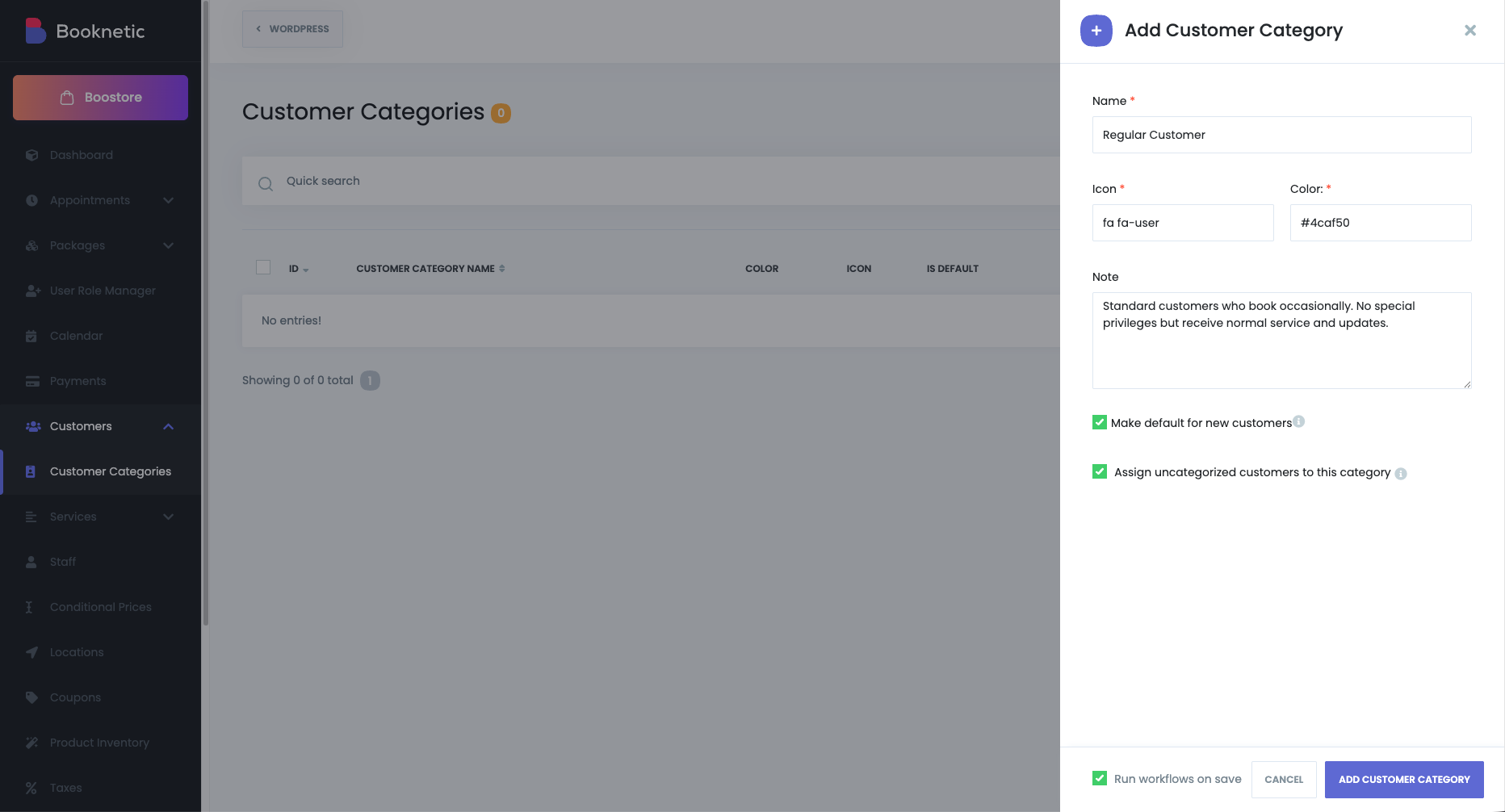
Name: Enter a clear and descriptive name for the category.
Color: Select a color to visually distinguish this category throughout the interface.
Icon: Enter an icon name to represent the category. Icon usage follows the same logic as Appointment Custom Status icons.
Make default for new customers: When enabled, every newly created customer will automatically be assigned to this category.Only one default category can exist at a time. Setting a new default replaces the previous one.
Assign uncategorized customers to this category: This option appears only if there are customers without a category. When enabled, all uncategorized customers are immediately assigned to the new category.
Once saved, the category becomes available system-wide.
You can edit any existing category from the Customer Categories list.
Editable fields include:
Name
Color
Icon
Default status
Changes are applied instantly and affect all customers assigned to that category.
Categories can be deleted at any time.
When a category is deleted, the following rules apply:
All customers assigned to that category are unassigned
If another default category exists, those customers are automatically reassigned to it
If no default category exists, customers remain uncategorized
Delete confirmation message shown in the system:
When you delete this category, all customers assigned to it will be automatically unassigned. If you have a default category, those customers will be reassigned to it; otherwise, their category will remain empty.
A Category column is added to the Customers list view, positioned after the customer name.
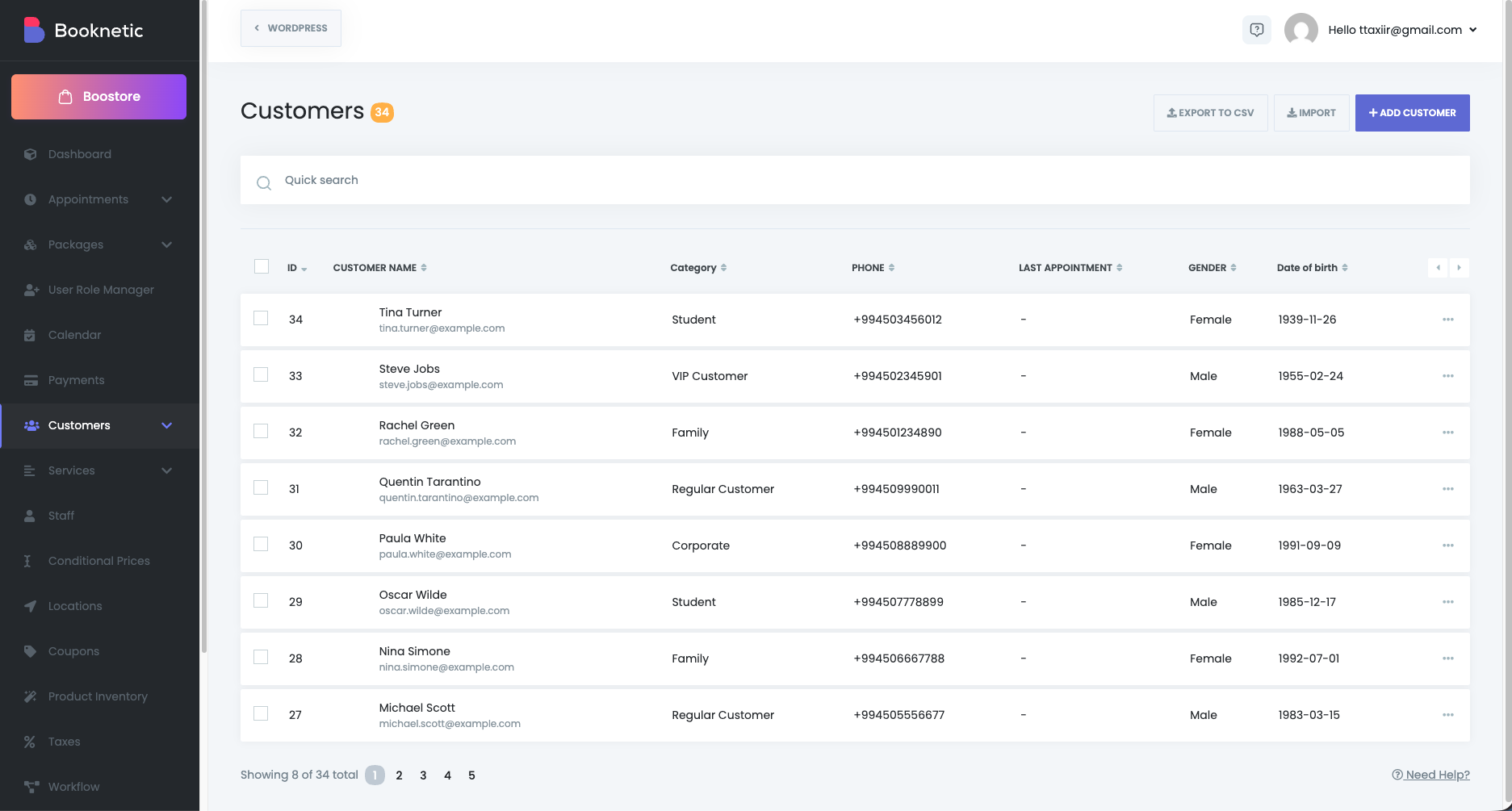
This allows you to instantly see each customer’s assigned category while browsing or managing customers.
The customer category selector is available in the Add Customer and Edit Customer modal.
The selector is placed above the profile image
You can assign or change the category at any time
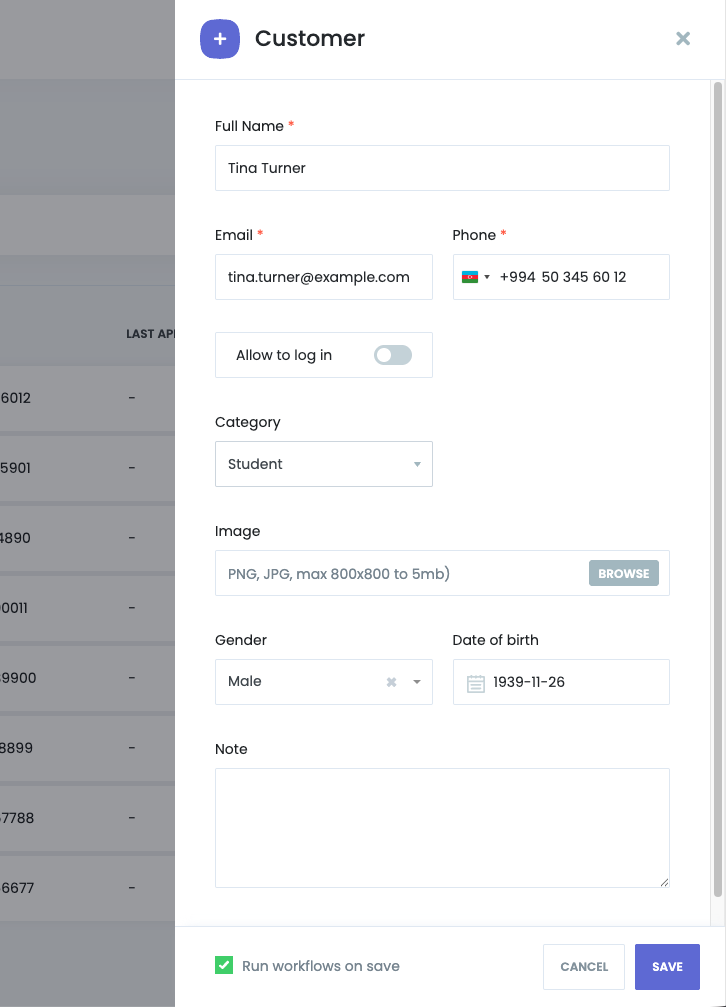
The Customer Info modal displays the assigned category at the bottom, providing quick reference without editing the customer.
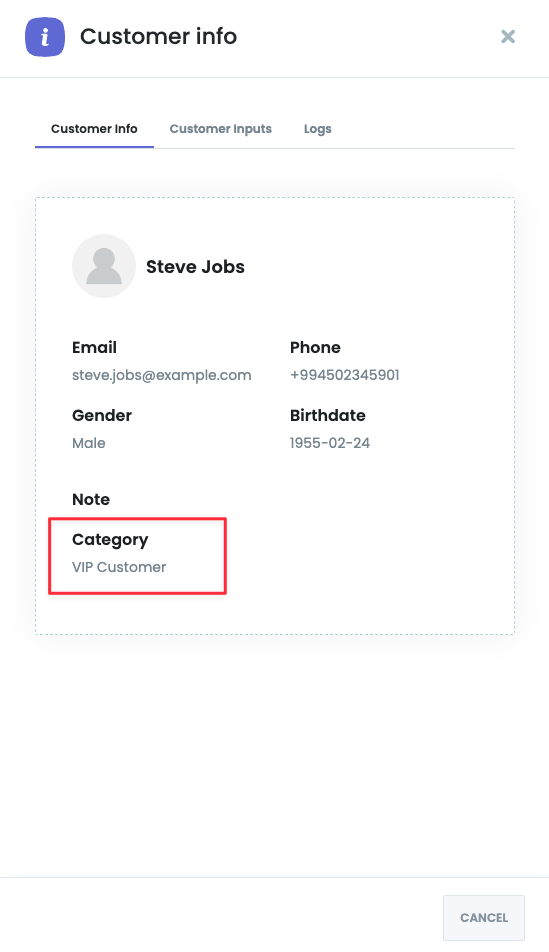
Customer Categories are fully integrated into Booknetic’s Workflow Automation system.
A new keyword is available:
{customer_category}
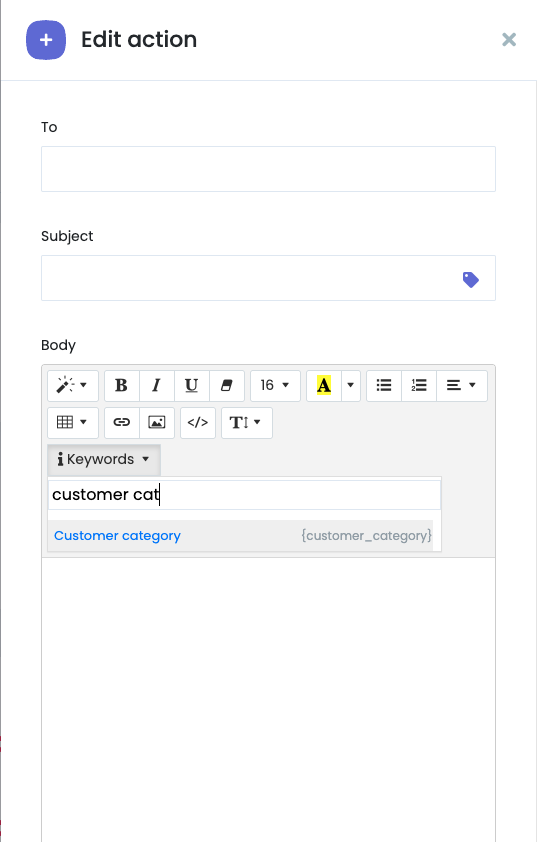
This keyword can be used in workflow conditions and logic.
All customer-related workflow events include a Customer Category filter.
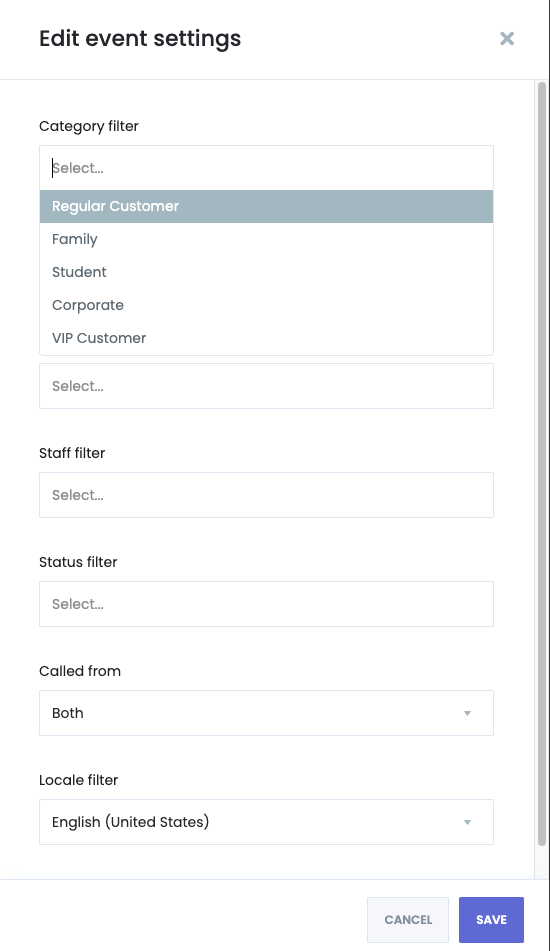
This allows workflows to run only for customers belonging to specific categories.
A new workflow action is available:
Set Customer Category
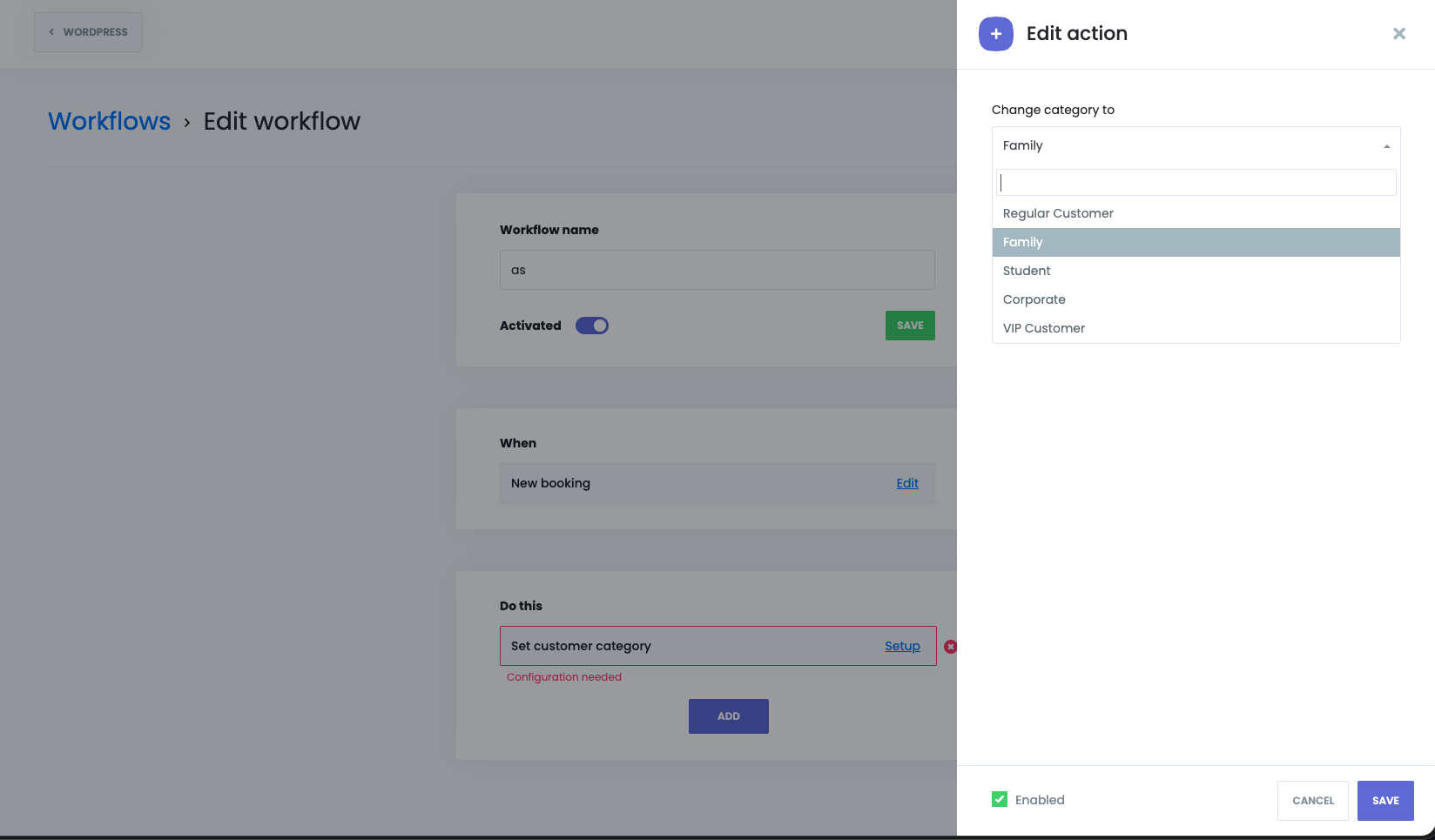
This action assigns a selected category to the customer automatically.
Field: Customer category (select the target category)
If the workflow event does not include a customer_id, the action is skipped silently without errors
Only one default category can exist at a time
Default categories are applied only to newly created customers
Existing customers are not affected unless explicitly reassigned
Category changes are reflected immediately across customers and workflows
Customer Categories are commonly used to:
Segment customers by type or priority
Build targeted workflows and automations
Apply different communication strategies
Keep large customer databases organized
Automatically classify new customers