
Booking Step Builder
Set up the Booknetic Booking Step Builder add-on: custom booking steps with Custom Forms forms, placement rules, step order and what customers see.

By using this site, you agree to our Cookie Policy

Set up the Booknetic Booking Step Builder add-on: custom booking steps with Custom Forms forms, placement rules, step order and what customers see.
The Booking Step Builder add-on lets you add your own steps to the booking panel. A step has a name, one Custom Forms form and a position among the other steps. The form is asked in that step instead of the Information step.
The add-on adds the Booking steps menu. Without Custom Forms 3.2 or later, WordPress shows a notice instead: "Booking Step Builder needs the Custom Forms add-on, version 3.2 or later. Install or update Custom Forms to use it."
Create the form in Custom forms as usual. Everything a form can do works in a step:
See the Custom forms documentation for building forms.
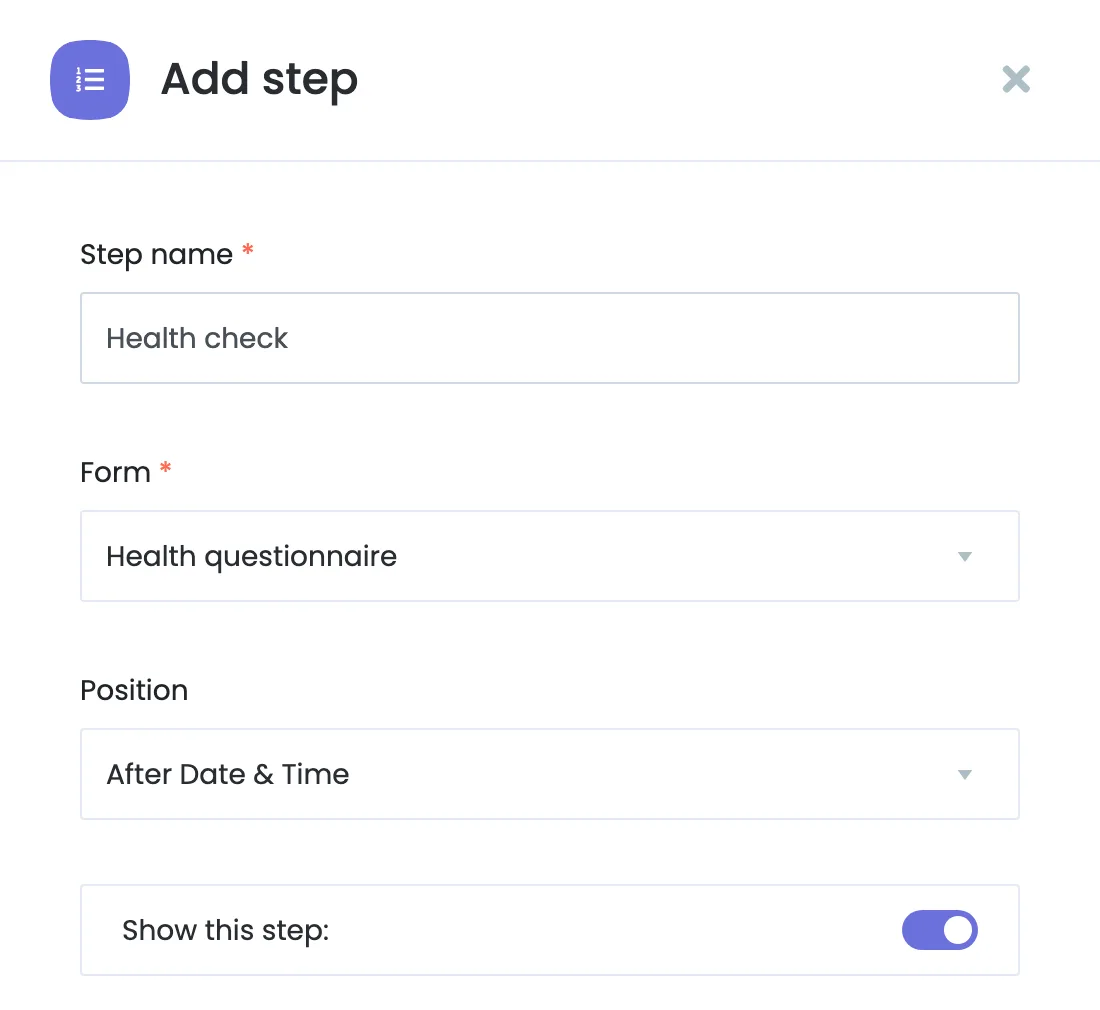
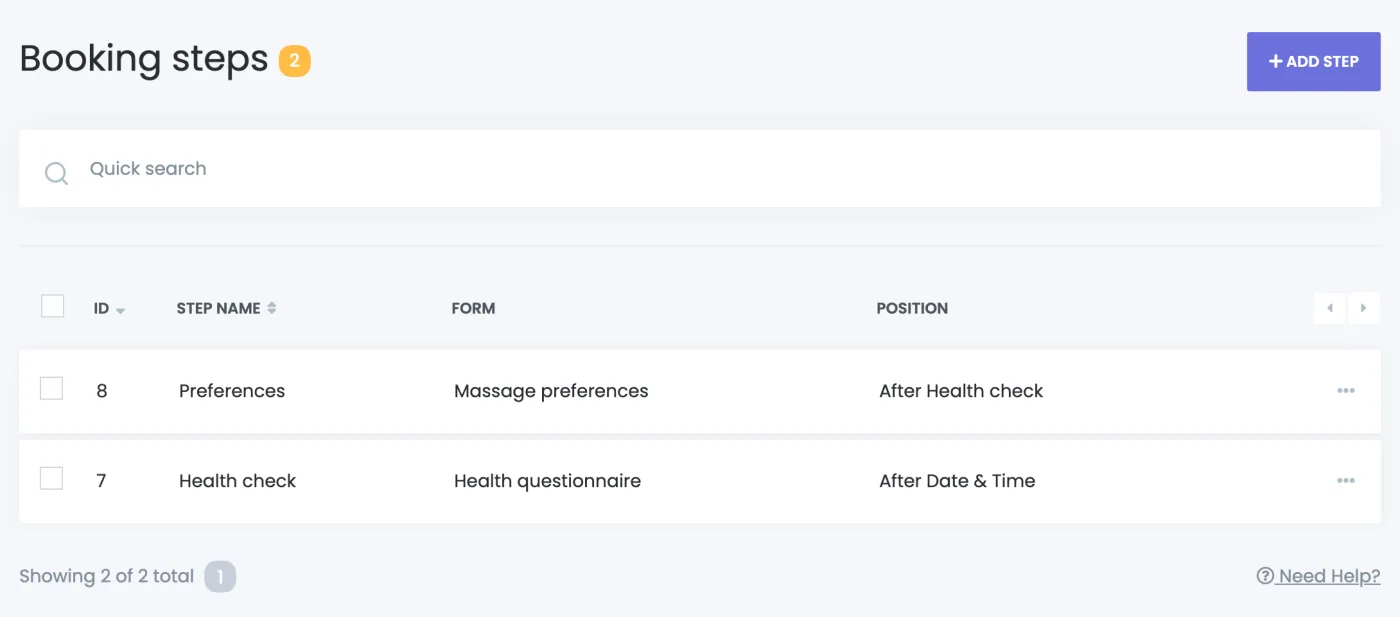
In the new admin interface, the page is Booking steps in the Booking Form group of the sidebar.
Booknetic keeps the steps in an order where every form can work:
| The form | Where the step must go |
|---|---|
| Is shown only for some services | After the Service step. |
| Has conditions on the service, staff or location | After those steps. |
| Reads an answer from a form in another step | After that step. The message says: "This form depends on the … step, so place the step after it." |
| Is read by a form in a later step | Before that step. The message says: "The … step uses an answer from this form, so place this step before it." |
Each form can be in one step only. Choosing a form that is already used shows: "This form is already shown in the "…" step."
Your steps also appear in Settings > Front-end panels > Booking Steps, and you can drag them there with the other steps. The placement rules apply there too.
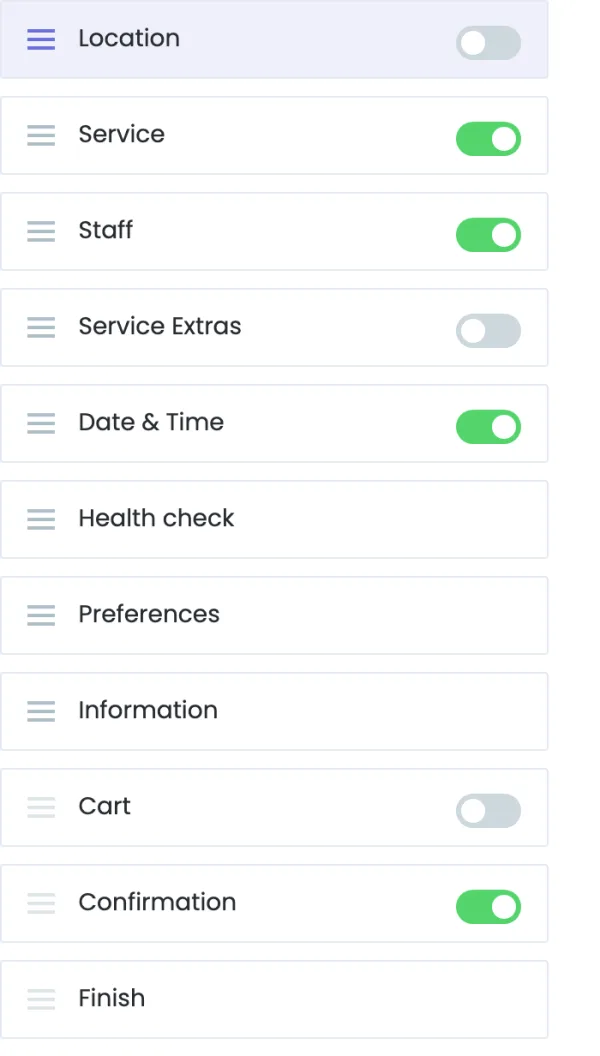
To hide a step for a while, edit it on the Booking steps page and turn off Show this step. Its form goes back to the Information step until you show the step again.
| Situation | What happens |
|---|---|
| The step's form applies to the booking | The step shows the form. Required fields must be filled to go on. |
| The form is meant for other services | The customer skips the step. |
| The form is switched off or deleted | The step is not shown. |
| Several bookings in the cart | The step is asked for each booking, like the Information step. |
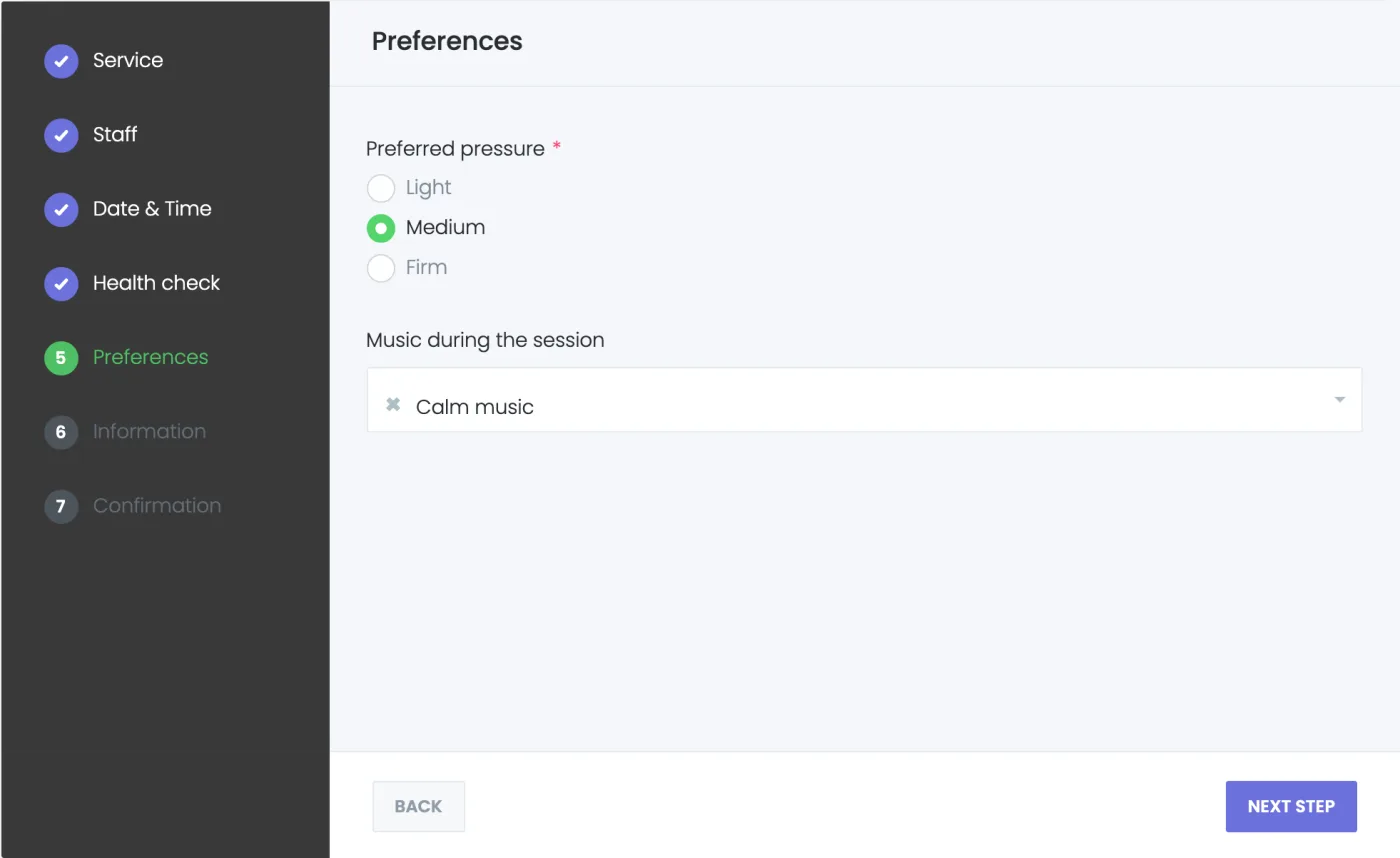
Answers are saved with the appointment like the fields of the Information step. You find them in the appointment details, and the Custom Forms shortcodes work in your workflows as before.
Deleting a step from the Booking steps page doesn't delete its form or any saved answers. The form goes back to the Information step.
A tenant's plan needs both Booking Step Builder and Custom Forms. Each tenant builds its own steps from its own forms.