Set up Booknetic SaaS Usage-Based Billing: prices per extra SMS, WhatsApp and email on each plan, balance charges, and the tenant and admin charge reports.
The Usage-Based Billing add-on lets a Booknetic SaaS plan charge for messages over its limits. You set a price per extra unit on each plan. When a tenant reaches a priced limit, messages keep going out, and each extra one is paid from the tenant's balance.
Requirements
Booknetic SaaS 4.1 or later, with an active licence.
Usage-Based Billing add-on, installed and activated from the Boostore.
The add-ons whose limits you price: Twilio SMS, Amazon SNS, Twilio WhatsApp, Email, Mailchimp or Telegram.
A way for tenants to add money to their balance: Stripe, PayPal or WooCommerce. See SaaS settings.
How Charging Works
Usage within the plan's limit is part of the plan and is never charged.
For a limit with a price, the tenant can go over the limit while the balance covers the next unit. For example, with a limit of 100 SMS, a price of $0.05 and a balance of $10, the tenant can send 300 SMS this period: 100 in the plan and 200 paid.
Each extra unit is charged right after the message is sent. Messages that fail with an error are not charged.
When the balance can't cover the next unit, sending stops at the limit, as it does without the add-on.
Workflow notifications, campaigns and "Send test" messages are all charged the same way.
A limit without a price stays a hard limit.
Step 1: Set the Prices
In the SaaS admin panel, go to Plans and open a plan.
Check its message limits on the Limits tab.
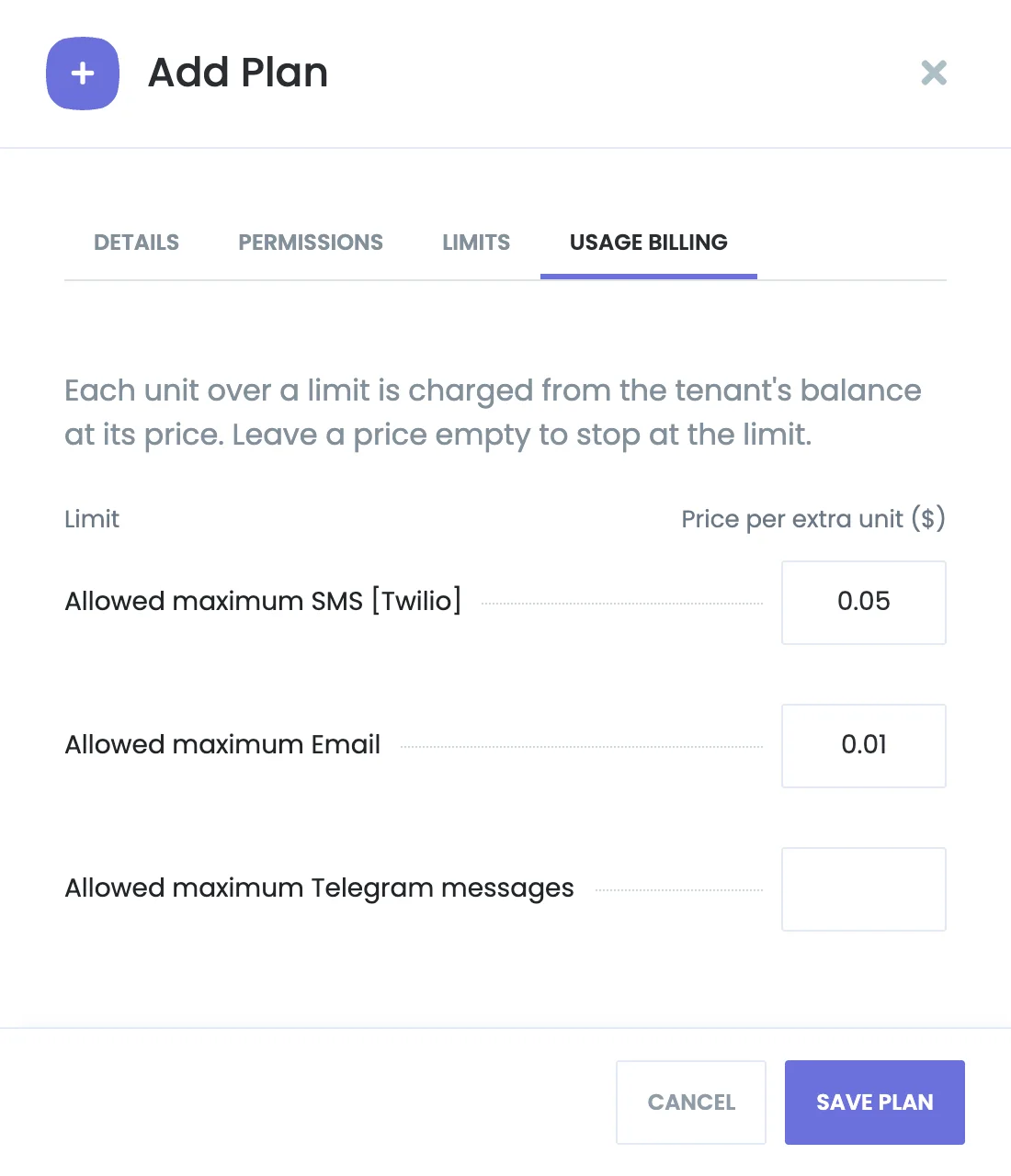
Open the Usage billing tab. It lists every limit that can be priced, from the active add-ons.
Enter a Price per extra unit for each limit you want to sell. Leave a price empty to stop at the limit.
Click Save plan.
A price for extra SMS and email; Telegram stays a hard limit.
A price must be greater than 0. If no limit can be priced yet, the tab asks you to activate a workflow add-on such as Twilio SMS, WhatsApp or Email first.
What Tenants See
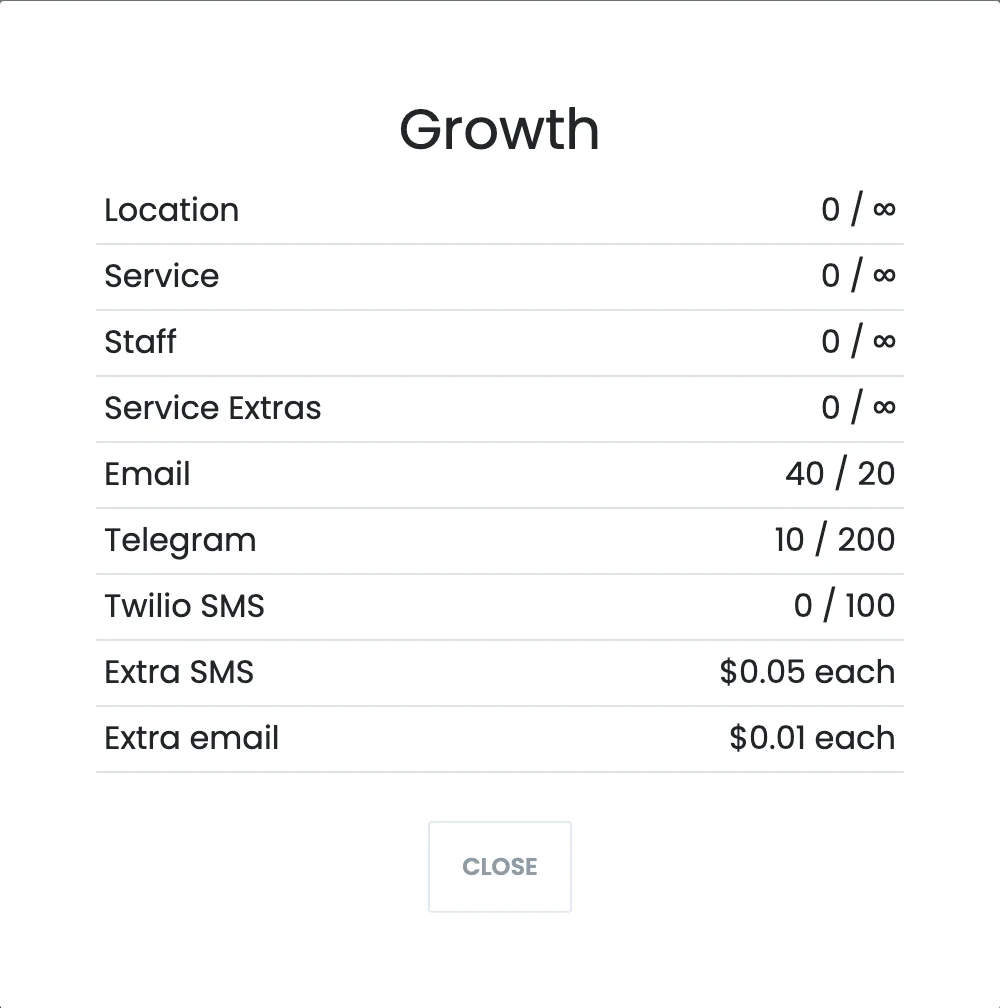
The prices appear on the plan cards when tenants choose or change a plan, as "Extra SMS: $0.05 each", and in View Plan Details on their Billing page, below their usage.
The tenant's plan details: usage against each limit, and the extra prices.
The Billing page shows the balance with two buttons: Usage charges and Add deposit.
The balance bar on the tenant's Billing page.
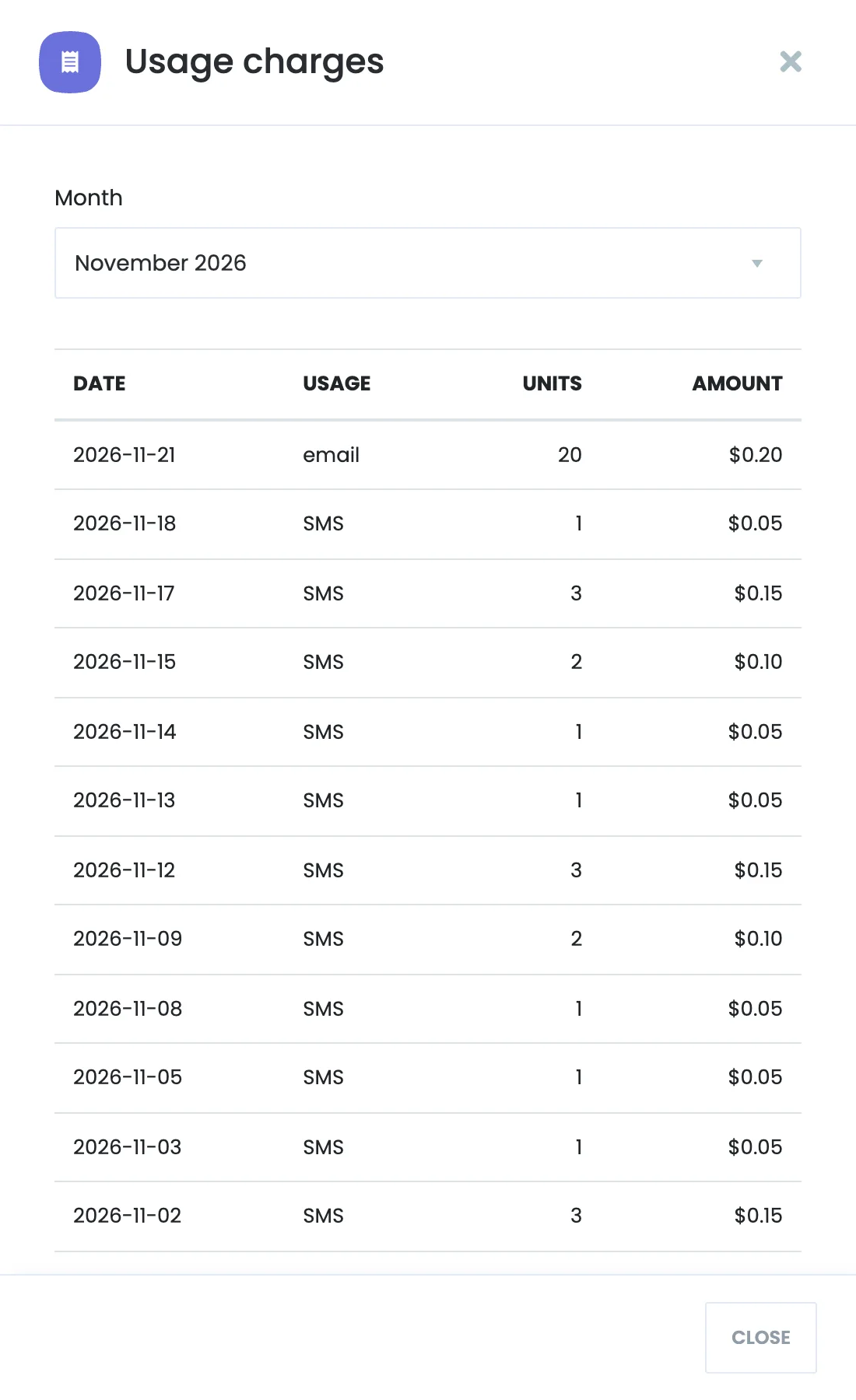
Usage charges opens the charges of a month, one row per day and usage, with the units and the amount, and the month's total.
Choose a month to see its charges.
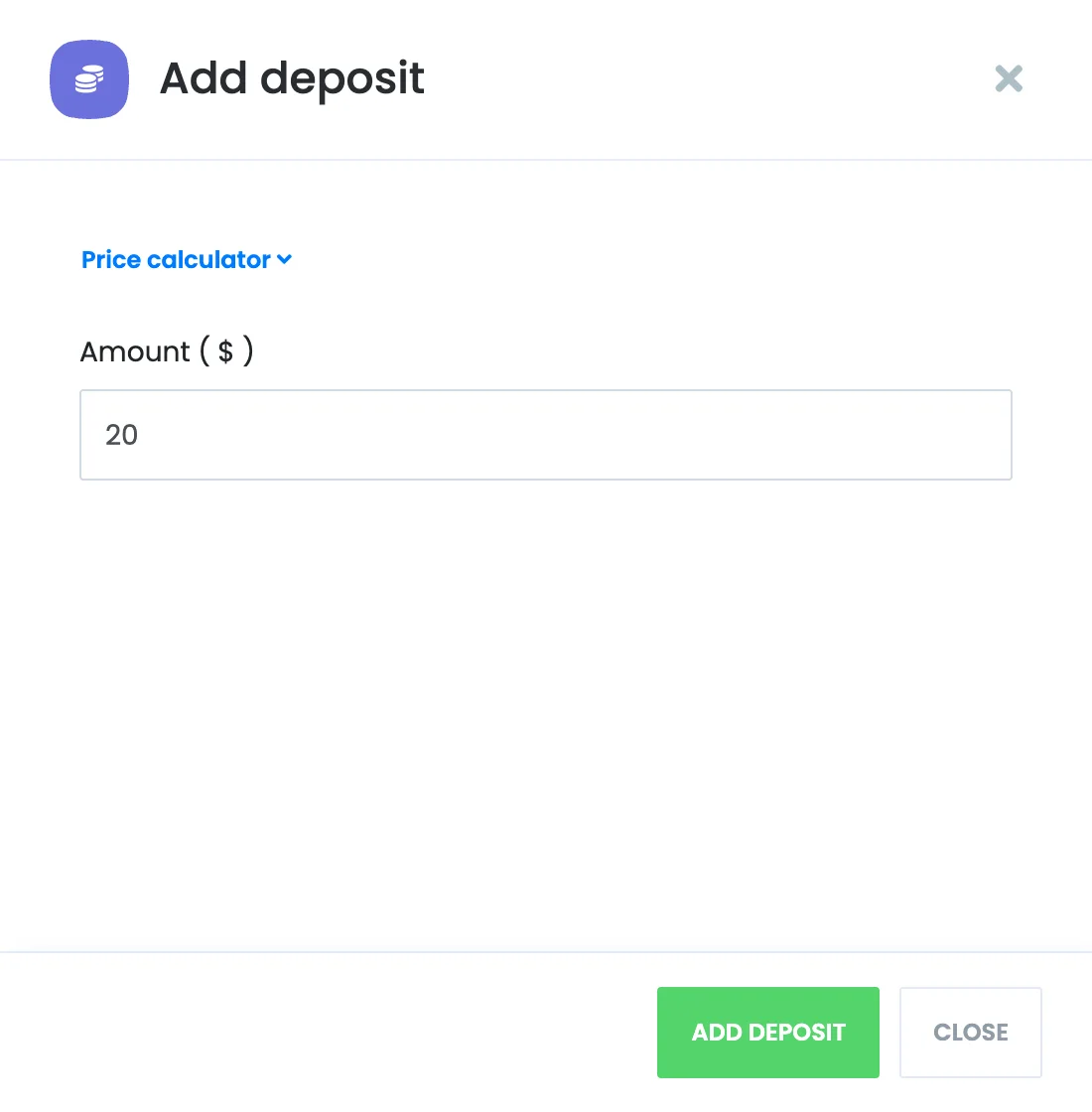
Add deposit adds money to the balance. With Stripe, the tenant pays with the card saved for the subscription or on Stripe Checkout; PayPal and WooCommerce work too.
The tenant enters an amount and pays.
Charges in the SaaS Admin Panel
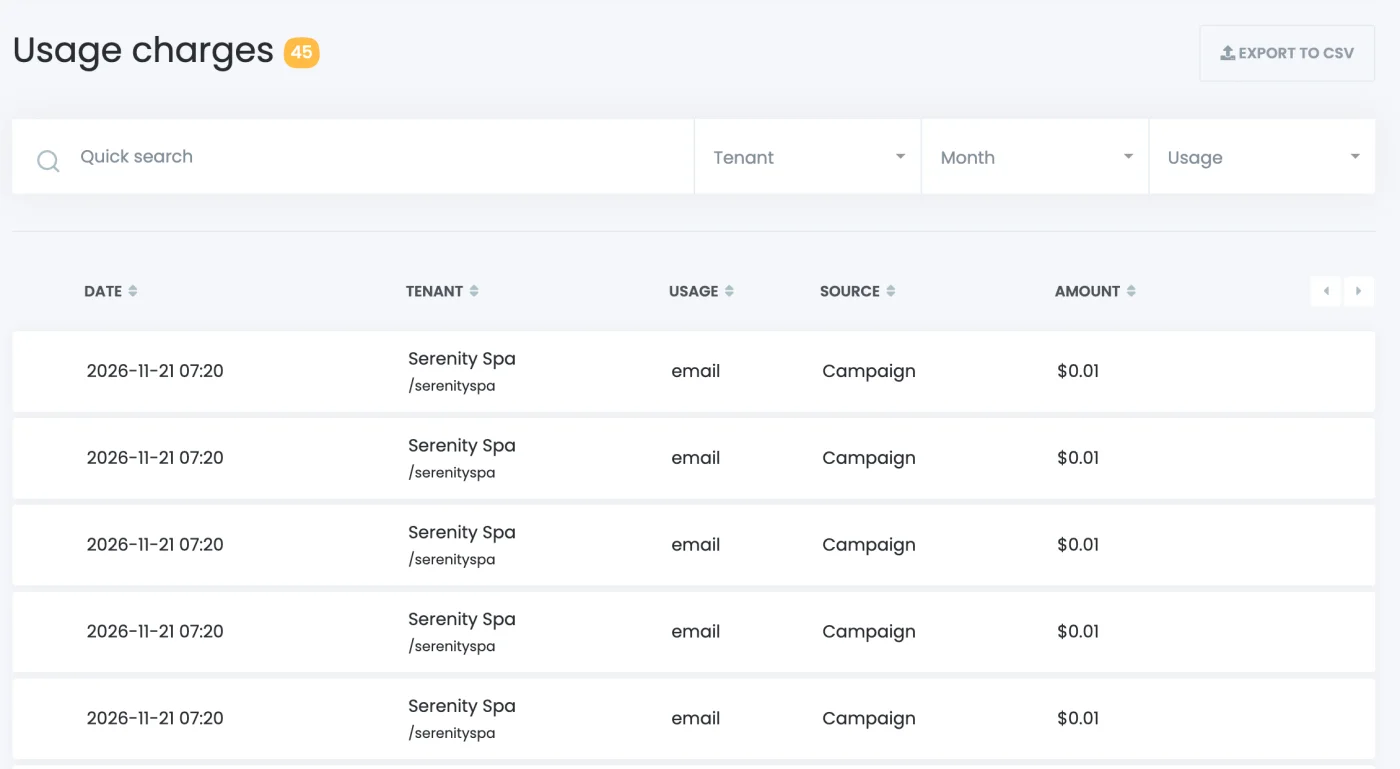
The Usage charges menu lists every charge: date, tenant, usage, source (Workflow, Campaign or Send test) and amount. Filter by Tenant, Month or Usage, search, and click Export to CSV to download the list.
Every charge across tenants.
In Tenants, the actions of a tenant include Usage charges, which opens that tenant's charges by month together with the current balance.
Good to Know
Prices belong to the plan. A tenant who changes plans pays the new plan's prices from then on.
Deleting a tenant deletes its charges.
Charges are taken from the balance only. The add-on never charges a card directly.
Troubleshooting
The Usage billing tab is empty: activate the add-on of the limit you want to price, such as Twilio SMS.
A tenant stopped at the limit: the balance couldn't cover the next unit, or the limit has no price on the tenant's plan.
A tenant can't add money: set up Stripe, PayPal or WooCommerce for deposits in the SaaS settings.
Enter your email
We will create a sandbox demo with special access and you will be able to test this sandbox demo as you wish within 3 days