


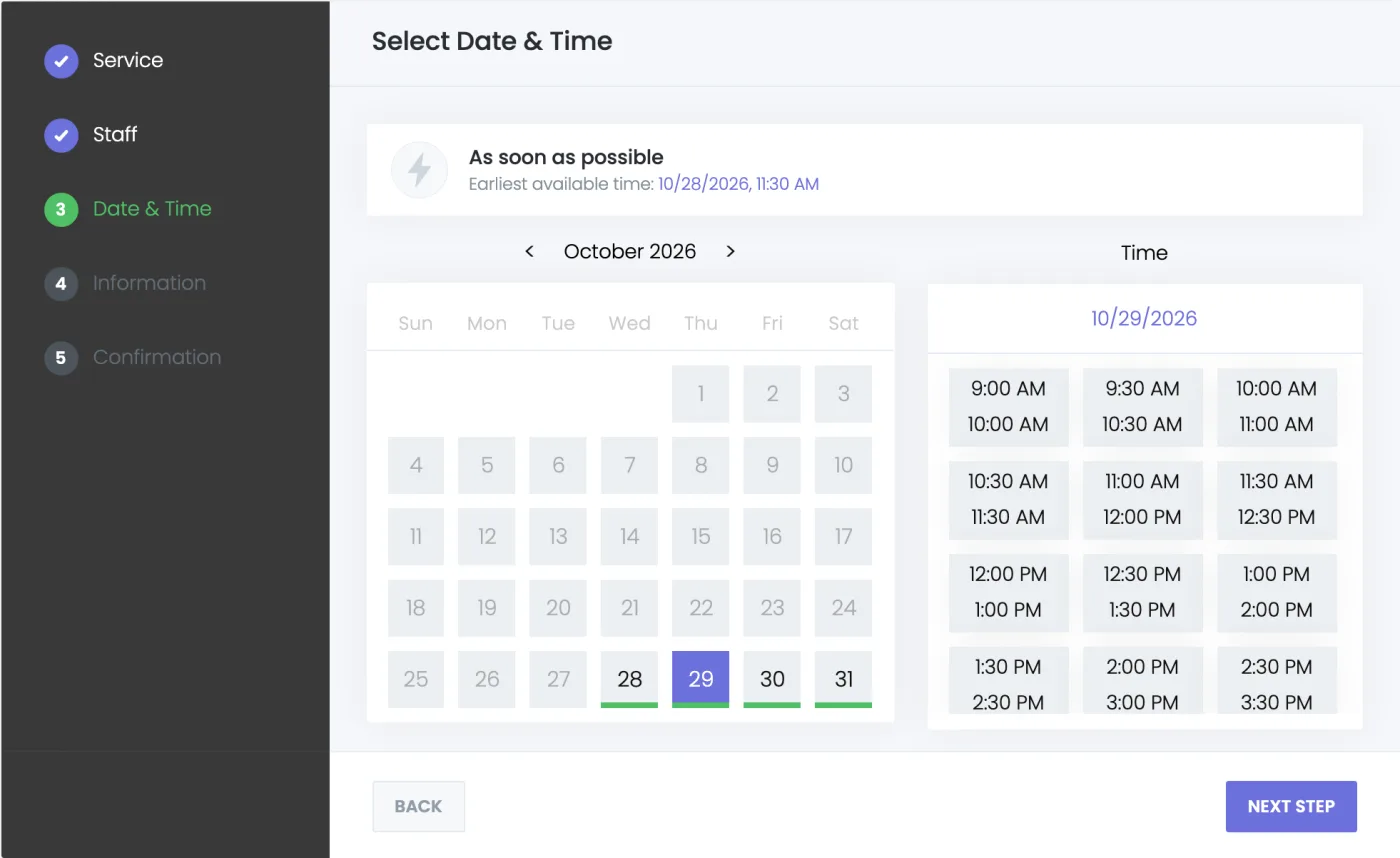
Many customers don't need a particular time. They want the first free one: a haircut today, a quick repair, a consultation as soon as someone is available. Paging through a calendar to find it costs them clicks, and some leave before they book. With the As soon as possible option, the Date & Time step offers the earliest free time on a card, and one click books it. You can also turn the Date & Time step off, and Booknetic books the earliest time without asking.
Key Capabilities
- The earliest time in one click: An "As soon as possible" card on top of the Date & Time step shows the earliest free time of the current month, or of the next month when this one is full. Clicking it books that time and moves on to the next step.
- Always a free time: Clicking the card loads the month again before booking, so a time someone else took a moment ago is never booked twice.
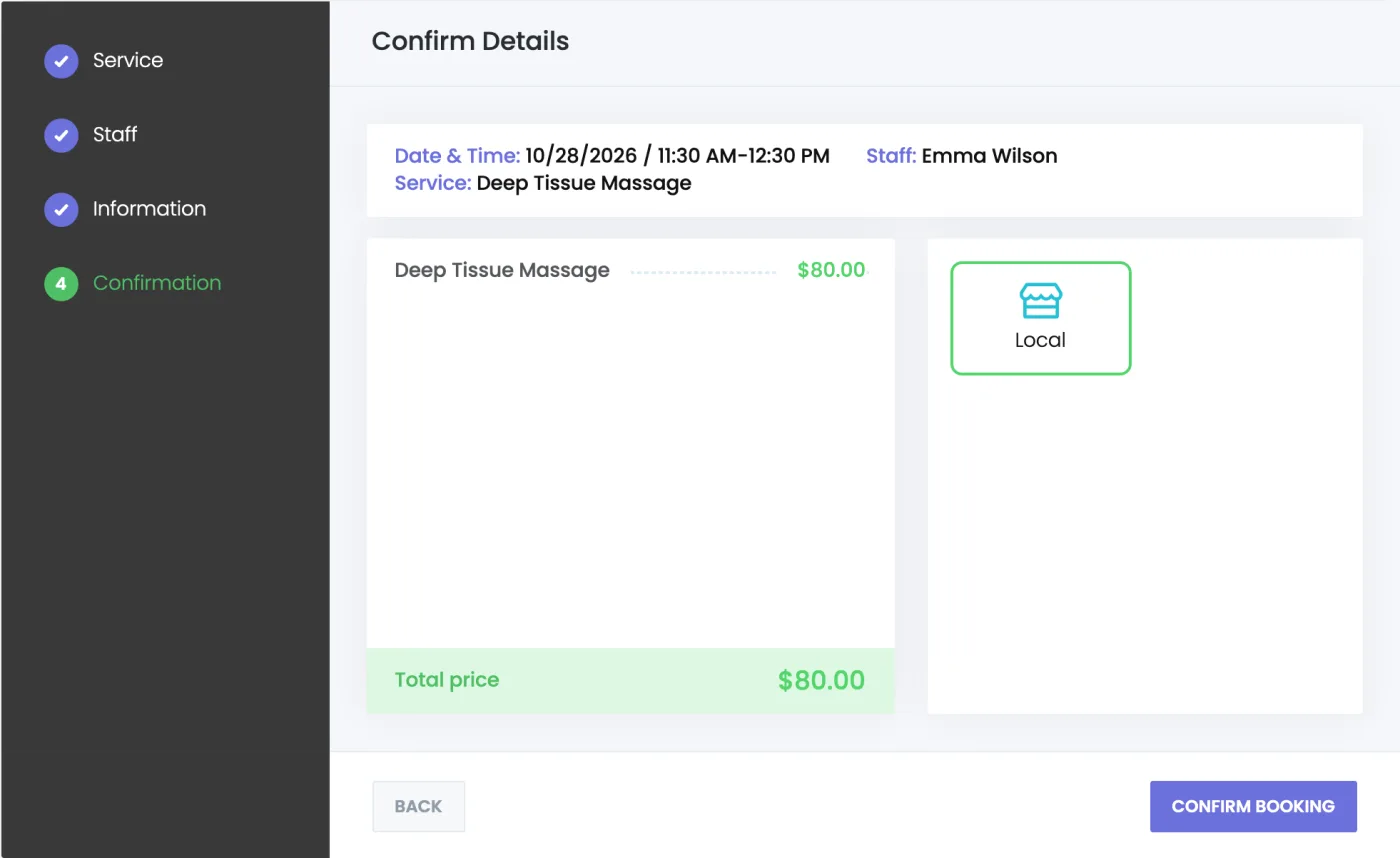
- Skip the step completely: Turn the Date & Time step off and customers never see it. Booknetic picks the earliest free time when they reach it, and the cart and confirmation show which time it is.
- Your availability rules stay in charge: Staff timesheets, breaks, days off, holidays, buffers and existing bookings all count. Times that are only open for the waiting list are never picked.
- Customers can still choose: With the step shown, the calendar stays under the card, and customers who want another time pick it as before.
How It Works
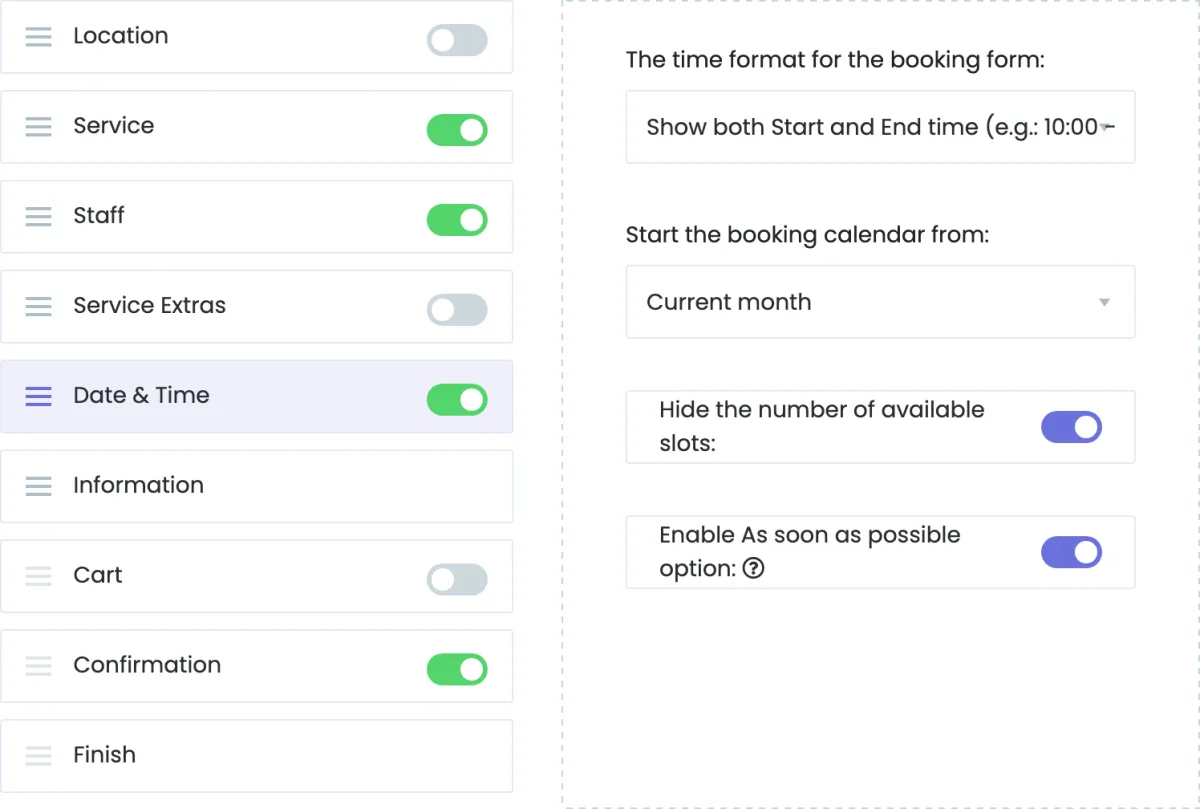
- Go to Settings > Front-end panels > Booking Steps and select Date & Time.
- Turn on Enable As soon as possible option and save.
- Customers see the As soon as possible card on the Date & Time step. One click books the earliest free time.
- To book the earliest time without asking, turn the Date & Time step off.
For the complete setup guide, see the As soon as possible documentation.
Who Benefits
Barbershops and salons that work like a walk-in, repair and maintenance services, clinics with same-day visits, car washes, support and consultation calls, and any business whose customers simply want the first free slot.
Good to Know
The earliest time is searched in the current and the next month. With the option on, the calendar always starts from the current month, so "Start the booking calendar from" no longer applies. A turned-off Date & Time step still appears when neither month has a free time, for recurring services, and when it would be the last step of the booking panel.
Availability
As soon as possible is part of Booknetic 6.1 and later. It needs no add-on: update Booknetic and turn it on in the booking steps settings.


