


Booknetic is a WordPress appointment booking plugin with a waiting list for the slots that are already taken. A customer who wants a busy time can join the waiting list in the same booking form, and a workflow tells them the moment that slot frees up.
Nothing is charged while they wait. The booking is stored with its own Waiting status, which does not block the calendar, so the slot stays open for a paying customer and the list stays ready in case of a cancellation.
- Type
- Add-on (Waiting List)
- Included in
- Elite plan; sold separately on Basic, Standard and Premium
- Where it shows
- Busy slots on the Date & Time step, in the customer panel and in the admin appointment form
- Status
- A separate Waiting status that does not occupy the slot
- Notification
- Workflow trigger "Timeslot is available", filtered by location, service or staff
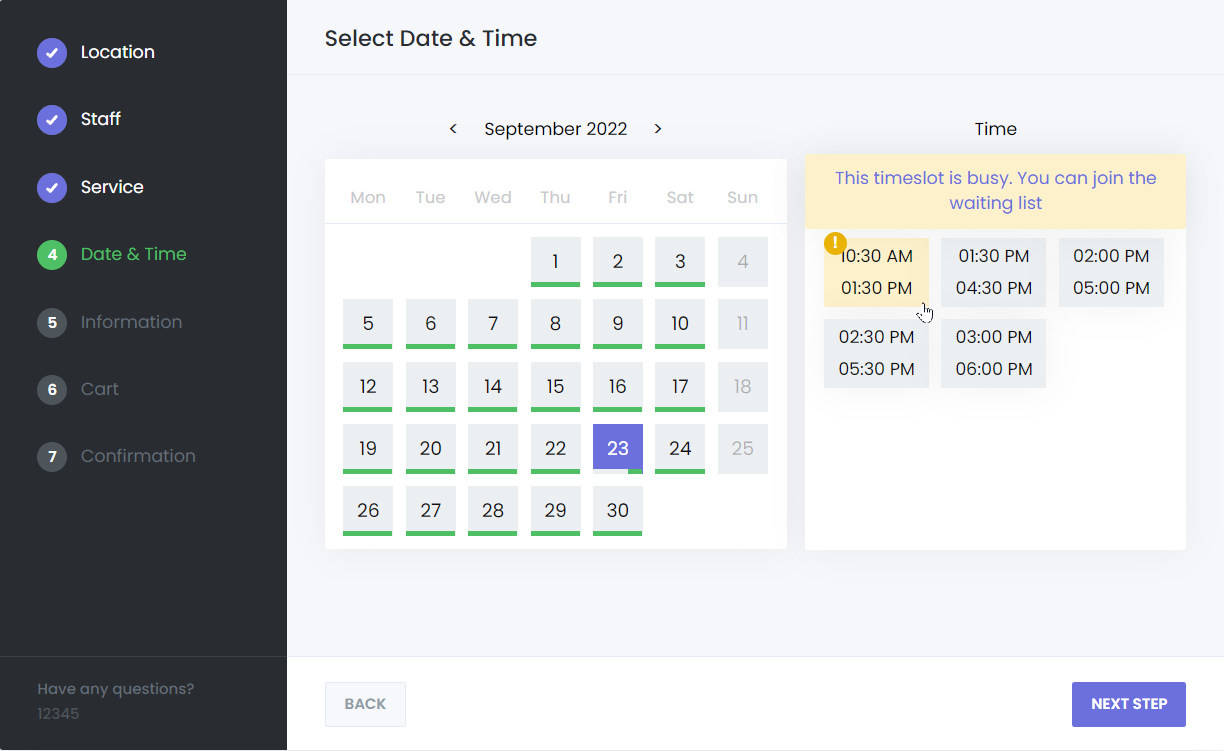
What the waiting list does
- Busy slots stay visible. Instead of hiding a taken time, the Date & Time step shows it with a yellow background and a "!" mark. Hovering explains that the slot is busy and can be joined as a waiting list request.
- One more step, no payment. The customer picks the busy slot, sees a notice on the Cart step and finishes the booking. Payment methods are hidden and local payment is applied automatically.
- A status of its own. The appointment is created with the Waiting status. It appears in the admin list and calendar in light blue, but it does not count as a busy slot, so other customers can still book the time.
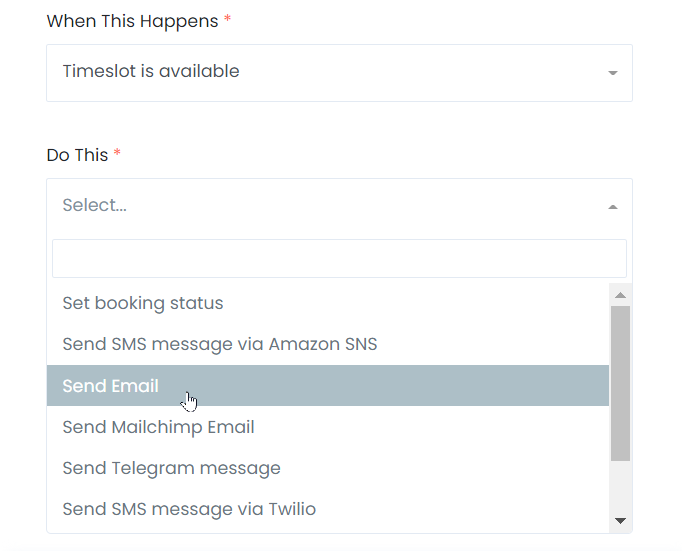
- Notified when it opens. When the original appointment is deleted or moved away, Booknetic checks whether the waiting request is now bookable and fires the "Timeslot is available" workflow trigger. Send an email, SMS or WhatsApp message from that trigger.
- Customer panel and admin. In the customer panel a busy slot asks "Would you like to be added to the waiting list?". In the admin appointment form a busy time is prefixed with "(!)" and switches the appointment to Waiting automatically.
- Google Calendar aware. A waiting request creates no calendar event. The event is created when the status changes to an active one and removed if it goes back to Waiting.
How it works
- Enable it under Settings > General Settings > Waiting List.
- Keep the Location, Service and Staff steps before the Date & Time step, keep the Staff step visible and turn the "Any staff" option off. The settings page warns you when one of these is missing.
- Create a workflow on the "Timeslot is available" trigger with an email or SMS action. Filter by location, service or staff if only some of them should use the list.
- When a slot frees up, open the waiting request in Appointments and change its status to approve it, or let the customer rebook from the link in your message.
One request at a time. A customer cannot put two waiting list requests, or a waiting request and a normal appointment, in the same cart. Each request is a separate booking.
The general settings documentation shows the option, and the workflows documentation lists the triggers and shortcodes you can use in the notification.
Who uses it
- Hair salons and barbershops with a few sought-after stylists whose Saturday slots fill a week ahead. See hairdressers.
- Clinics and therapists that want cancellations filled from a list rather than lost. See health and medical.
- Massage and spa studios where a popular therapist is booked out and customers would rather wait than switch. See massage therapists.
Related features
- Workflows power the "Timeslot is available" notification
- Customer panel where customers see and manage waiting requests
- Group appointments when a class can take several people in one slot
- Google Calendar sync creates the event only once a request is approved
Frequently asked questions
Does Booknetic have a waiting list for fully booked slots?
Yes. With the Waiting List add-on a busy slot stays visible on the booking form, and a customer can book it as a waiting list request without paying.
How does the customer know the slot is free?
A workflow on the "Timeslot is available" trigger runs when the original appointment is deleted or moved. Add an email, SMS or WhatsApp action to it with the appointment details.
Does a waiting request block the time slot?
No. The Waiting status is not a busy status, so the slot remains open for a normal booking and the calendar is not affected.
Is payment taken when joining the waiting list?
No. Online payment methods are hidden for a waiting request and local payment is applied, so nothing is charged until the appointment is approved.
Why does the waiting list not appear on my booking form?
Check the step order and options: Location, Service and Staff must come before Date & Time, the Staff step must be visible and "Any staff" must be off. The settings page shows a warning for each missing condition.
Which plans include the Waiting List add-on?
Elite. On Basic, Standard and Premium it is a separate purchase.


