


Booknetic is a WordPress booking plugin with a fully customizable booking widget. Pick or build a theme in the Appearance module, switch booking steps off or drag them into a new order, and edit any label in place. Add your own forms and steps, then place the form with a shortcode that preselects the service, staff or location.
All of it is done in the Booknetic settings, without touching plugin files, so your customizations survive every update.
- Type
- Core feature, every plan
- Themes
- 7 built-in themes plus your own: font, colors, panel height and custom CSS
- Steps
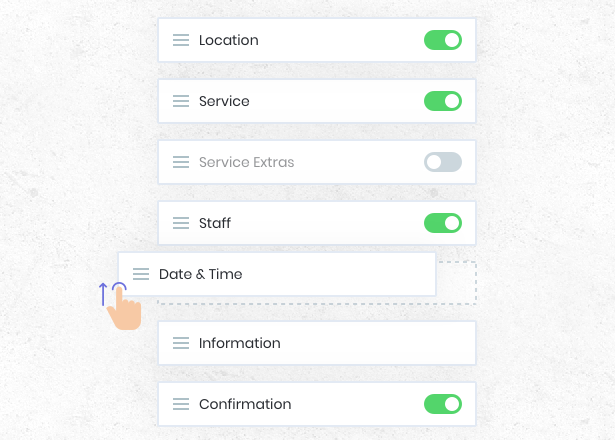
- Location, Staff, Service, Service Extras, Date & Time, Information, Cart, Confirmation and Finish; turn off any except Information and Finish, drag to reorder
- Labels
- Hover any label in Settings > Front-end panels > Labels and edit it
- Placement
- Shortcode with parameters, Gutenberg block, Elementor widget, Divi module or a popup button
- Extra fields and steps
- Custom Forms add-on for fields, Booking Step Builder add-on for your own steps
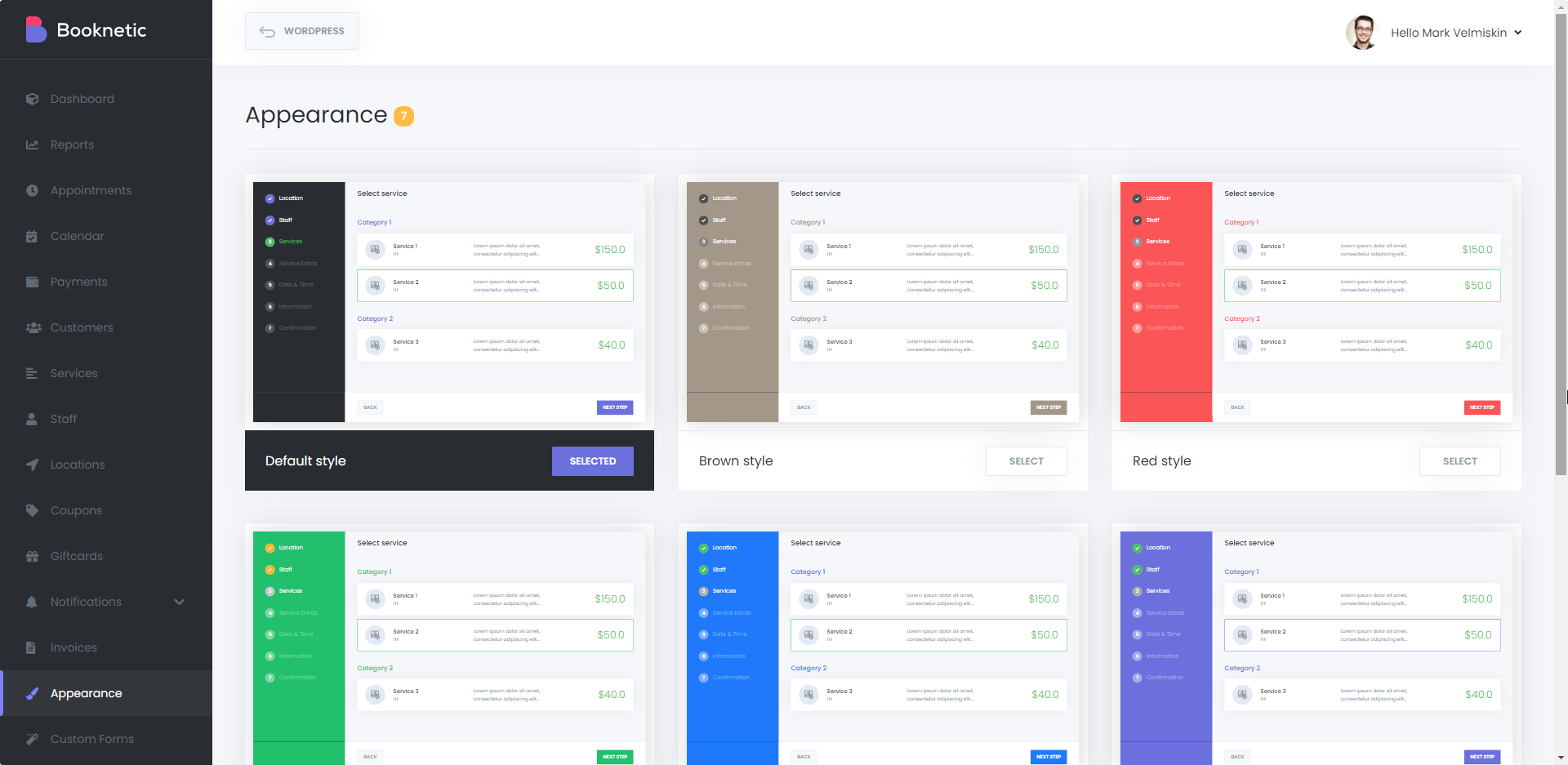
What you can customize
- Themes and colors. Choose one of seven themes or create your own: Google font, panel background, primary color, step colors for completed, active and other steps, title, border and price colors, and the panel height. The preview on the right updates as you change values.
- Custom CSS. A CSS box per theme for anything the color fields do not cover. It is stored in the database, so updates do not overwrite it.
- Steps on, off and reordered. Hide the Location step when you have one site, hide Staff when the customer should not choose, put Service before Staff or the other way round. Each step keeps its own options, such as "Any staff", search on the Service step or the As soon as possible card.
- Labels and languages. Open the labels editor, hover a label and rewrite it. The Visual Translator does the same per language, and the panel supports RTL.
- Your own fields and steps. The Information step has name, email and phone built in, with options for required fields and a single name field. Custom Forms adds thirteen field types per service, and the Booking Step Builder places a form in a step of its own.
- Preselected forms. [booknetic service="4"] or staff="2", location="1", category="3", theme="2" and steps_order="..." give each page its own version of the form. The Gutenberg block, Elementor widget and Divi module have the same selectors.
How it works
- Open Booknetic > Appearance, select a theme or click to create one, set the font, colors and height, add custom CSS if needed and save.
- Go to Settings > Front-end panels > Booking steps. Toggle steps off and drag them into order. Service must stay before Service Extras, and Finish stays last.
- Open Front-end panels > Labels, hover any text in the preview and edit it.
- Place the form: the [booknetic] shortcode with parameters, the Booking Panel block in Gutenberg, the Elementor widget or the Divi module. For a button that opens the form in a modal, use the Booking Popup button.

Keep changes in the settings, not in the files. Themes, custom CSS, steps and labels live in the database and survive updates. Edited plugin templates are replaced on the next update.
See the Appearance documentation, the booking steps documentation and the popup booking panel documentation for each setting.
Who uses it
- Salons and spas matching the form to the brand colors and hiding the Location step for a single shop. See spa and salons.
- Clinics putting Service first, then Staff, with a consent form in its own step. See health and medical.
- Coaches and consultants with a page per service and a form that starts at the calendar. See legal consultants.
Related features
- Custom forms for extra fields on the Information step
- Booking Step Builder to add your own steps to the panel
- As soon as possible booking to offer the earliest free time in one click
- Divi integration, multi-language and RTL support
Frequently asked questions
Can I change the colors and fonts of the Booknetic booking form?
Yes. The Appearance module has seven themes and lets you create your own with a Google font, colors for every part of the panel, the panel height and custom CSS.
Can I remove or reorder the booking steps?
Yes. Every step except Information and Finish can be turned off, and steps are reordered by dragging. Service must come before Service Extras and Finish stays last.
Can I rename the labels on the form?
Yes. Under Settings > Front-end panels > Labels, hover any label and edit it. The Visual Translator does the same for each language.
Can I show the form with a service or staff member already selected?
Yes. Use shortcode parameters such as [booknetic service="4" staff="2"], or the same filters in the Gutenberg block, Elementor widget or Divi module.
Can I add my own fields or steps?
Yes. The Custom Forms add-on adds fields per service, and the Booking Step Builder add-on turns a form into a step of its own at the position you choose.
Will my customizations survive plugin updates?
Yes. Themes, custom CSS, steps and labels are stored in the database. Only edits made directly in plugin files would be lost.


