


Booknetic is a WordPress appointment booking plugin with custom forms, so the booking form can ask for exactly what your business needs before the visit. Think of a consent checkbox, a file upload, an intake questionnaire or a referral code.
Forms are built by drag and drop, attached to the services that need them and shown on the Information step. The answers are saved with the appointment, exported to CSV and available as shortcodes in notifications.
- Type
- Add-on (Custom Forms)
- Included in
- Standard, Premium and Elite plans; sold separately on Basic
- Field types
- Text, textarea, number, date, time, select, checkbox, radio, file, link, email, phone and label
- Attach to
- All services or a chosen list
- Conditions
- Show, hide, disable, set a value or throw an error based on service, staff, location or another answer
- Data
- Saved per appointment, shown in the admin, exported to CSV, usable in workflows
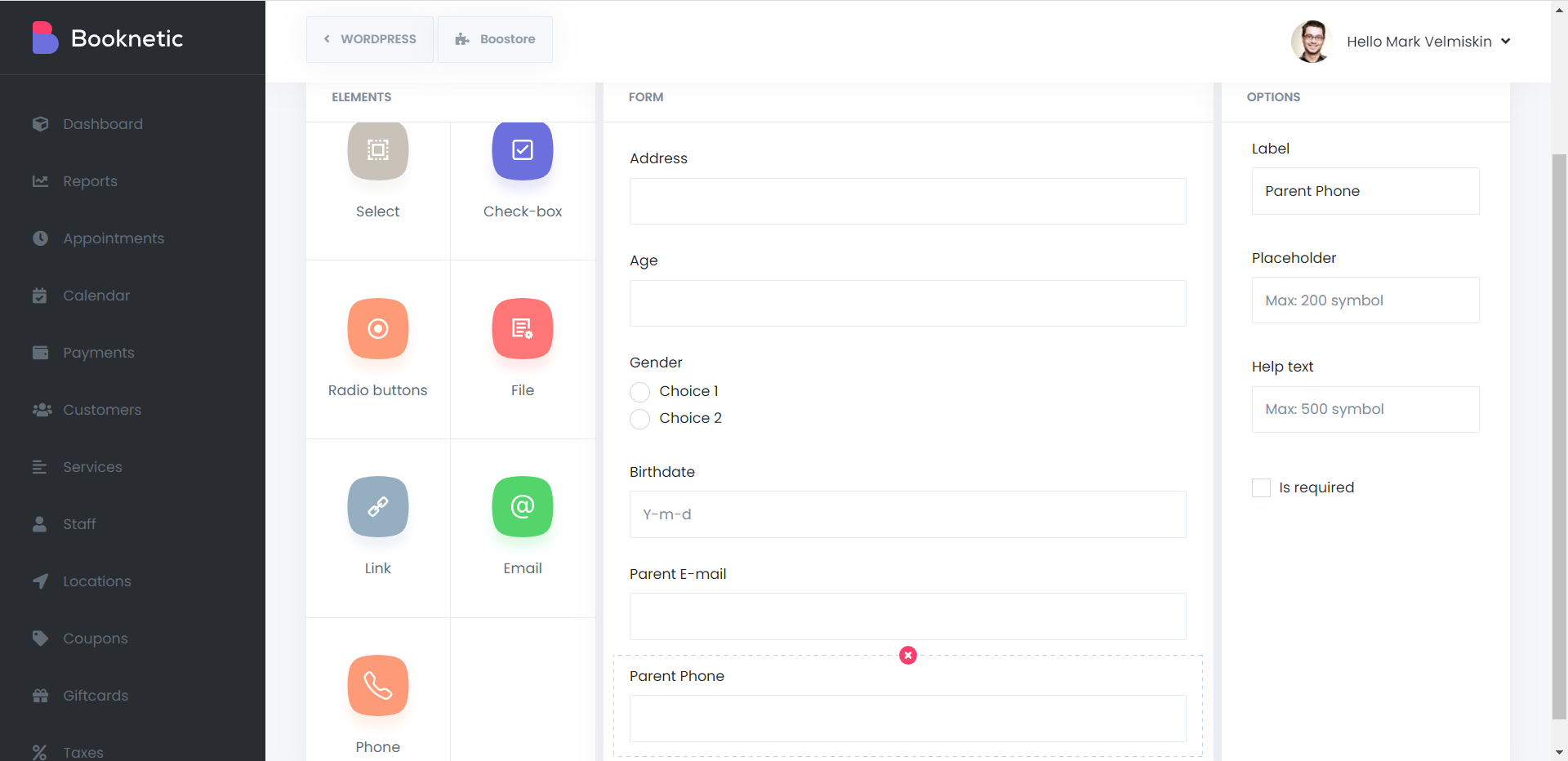
What the form builder does
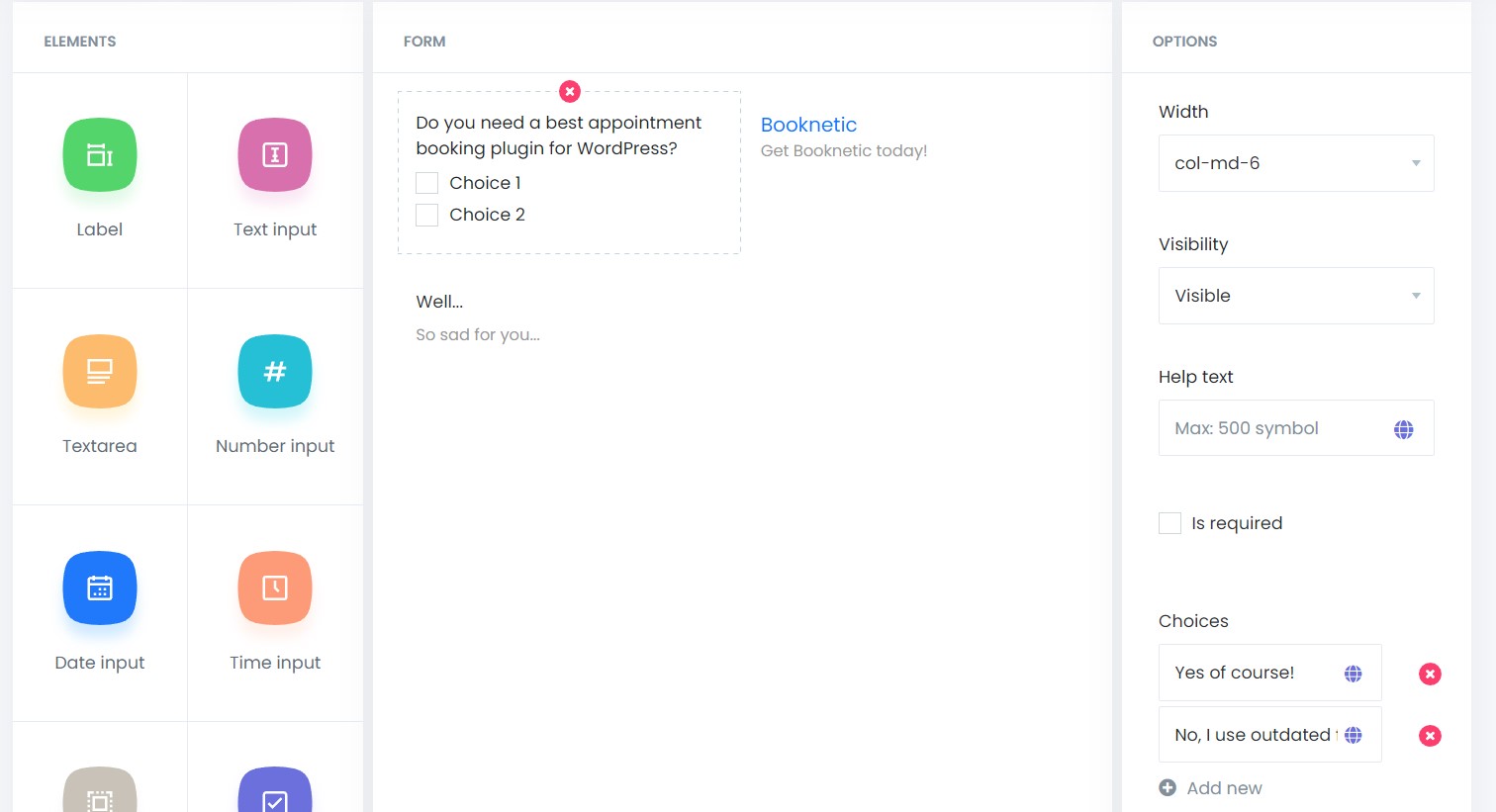
- Drag and drop fields. Thirteen element types, each with a label, placeholder, width, help text, min and max length and a required toggle. File fields take a list of allowed formats.
- Forms per service. A form can apply to every service or only to the services you select, so a dental intake form never shows for a haircut.
- Conditional logic. Rules follow a When and Do pattern. When the selected service, staff, location or another field matches a condition, show or hide a field, disable it, set its value or stop the booking with an error.
- Admin-only fields. Set a field to "Visible (only admin panel)" to hold internal notes that customers never see.
- Answers travel with the appointment. They appear in the Custom fields tab of the appointment, in the CSV export as separate columns, and in workflows as {appointment_custom_field_ID} with file URLs.
- Prices from answers. The Conditional Prices add-on can use a custom field as a condition, for example a surcharge when "Home visit" is selected.
How it works
- Open Custom Forms in the Booknetic menu, click Create New Form, name it and choose the services it belongs to.
- Drag elements into the form, set their options on the right and save. Use the Enable form checkbox to switch it on.
- Click Form Conditions to add rules. Combine conditions with AND or OR; operators include equals, contains, starts with, regex and is empty.
- The customer fills the form on the Information step. Required and format checks run in real time, and hidden fields are skipped.
File uploads are stored on your server. Allowed formats default to documents, images, video and archives. Keep the list short and add a consent note if you collect medical or identity documents.
The Custom Forms documentation lists every element option, condition operator and action.
Who uses it
- Clinics and therapists collecting intake forms, allergies and consent before the first visit. See health and medical.
- Lawyers and accountants asking for the matter type and documents ahead of a consultation. See legal consultants.
- Photographers and event planners gathering the brief, the venue and the guest count with the booking. See photographers.
Related features
- Customer custom fields for details that belong to the customer rather than to one appointment
- Conditional prices to change the price based on an answer
- Registration form builder for the customer sign-up form
- Workflows to send the answers to staff by email or webhook
Frequently asked questions
Can I add custom fields to the Booknetic booking form?
Yes. The Custom Forms add-on gives you a drag and drop form builder with thirteen field types. Forms show on the Information step for the services you attach them to.
Can customers upload files when booking?
Yes. Add a File element and set the allowed formats. The file is stored with the appointment and linked from the admin view and from workflow shortcodes.
Can fields show only for certain services or answers?
Yes. Attach a form to specific services, and use Form Conditions to show, hide, disable or set a field based on the service, staff, location or another field.
Can a form field change the price?
Yes, together with the Conditional Prices add-on, which accepts custom form fields as conditions.
Where do I see the answers?
In the Custom fields tab of each appointment, in the CSV export of the appointments list, and in workflow templates through the {appointment_custom_field_ID} shortcodes.
Which plans include the Custom Forms add-on?
Standard, Premium and Elite. On the Basic plan it is a separate purchase.


