


Booknetic is a WordPress appointment booking plugin with Outlook Calendar sync for teams that live in Microsoft 365. Every booking becomes an event in the staff member's Outlook calendar, and every meeting already in Outlook blocks the matching slot on your booking page.
The connection is made per staff member with a Microsoft sign-in, using Booknetic's own Microsoft app, so there is no Azure registration unless you want your own app.
- Type
- Add-on (Outlook Calendar)
- Included in
- Premium and Elite plans; sold separately on Basic and Standard
- Sync direction
- Two-way: Booknetic to Outlook and Outlook to Booknetic
- Per staff
- Each staff member signs in with Microsoft and picks one of their calendars
- Busy slots from Outlook
- Live sync on every booking, or background sync by cron, reading 1 to 3 months ahead
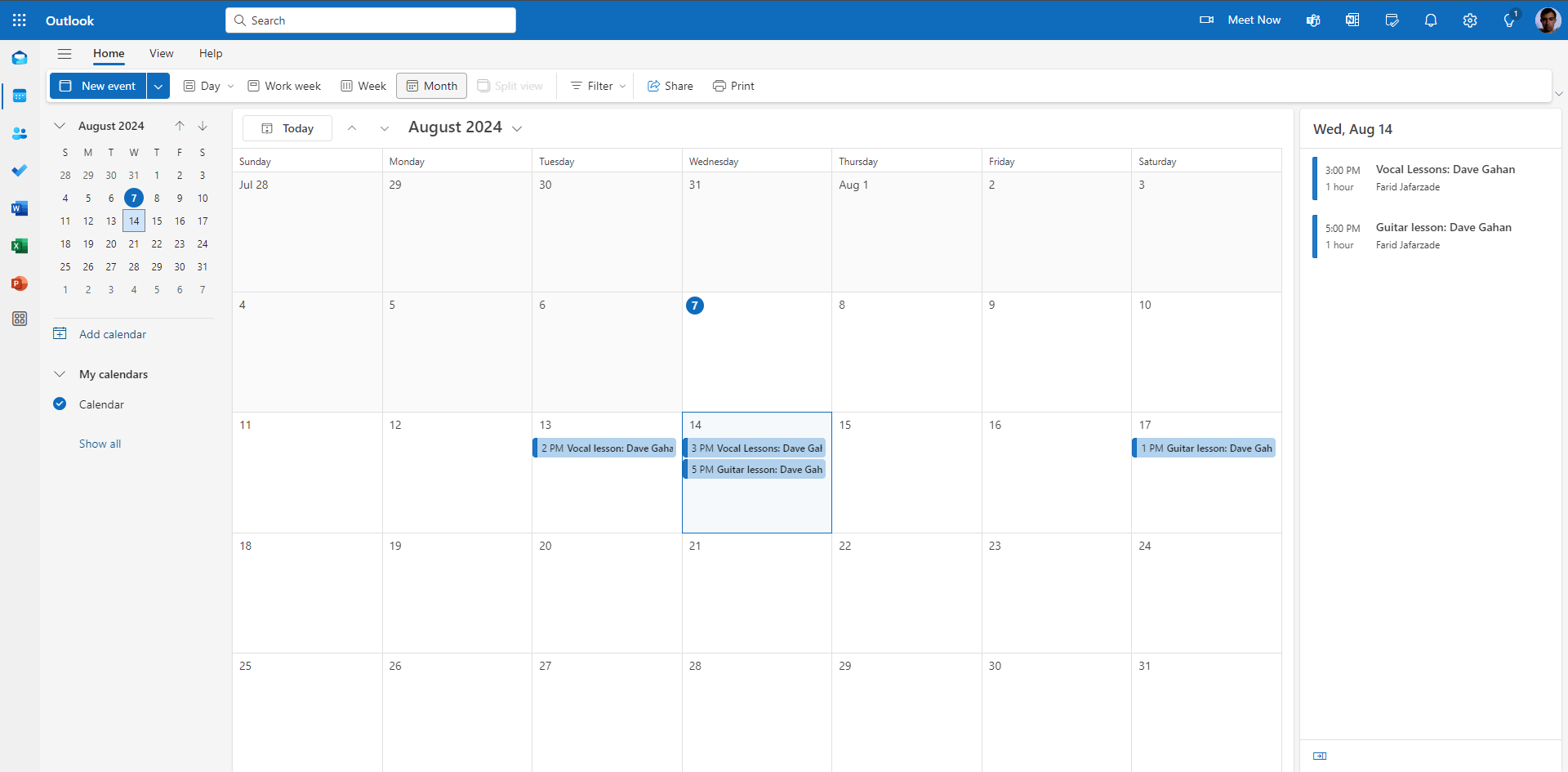
What the Outlook Calendar sync does
- New booking, new Outlook event. The event carries the title and description you define, with shortcodes such as {service_name}, {customer_name} and {staff_name}.
- Changes follow the appointment. Reschedule, cancel or reassign in Booknetic and the Outlook event is updated, deleted or moved to the other staff member's calendar.
- Outlook events block your slots. A meeting, a holiday or a private appointment in Outlook is read back as a busy slot on the booking page.
- Attendees and invitations. Optionally add customers as attendees so Outlook sends the invitation email, and decide whether they can see each other. Only customers who have paid, or chose local payment, are added.
- Status filter. Choose which appointment statuses create Outlook events, so pending requests can stay out until approved.
- Outlook events in the Booknetic calendar. Turn on the toggle under Settings > Calendar and Outlook events appear in blue next to Booknetic appointments, with staff name, location and time.
How the two-way sync works
| Mode | How it works | Best for |
|---|---|---|
| Live sync | Booknetic asks the Outlook API for the staff member's events while the customer picks a time | A small team that needs the latest calendar on every booking |
| Background sync | A cron job reads events from today up to 1, 2 or 3 months ahead and stores them as busy slots | Many staff members; the shorter the cron interval, the fresher the data |
| Don't sync | Appointments still go to Outlook, but Outlook events do not block slots | Teams that only want Outlook as a mirror |
Background sync needs a cron job. An event added in Outlook becomes a busy slot only after the next cron run. Live sync avoids the delay at the cost of an API call per booking.
Setting it up
- Enable the integration under Settings > Integrations > Outlook Calendar. Leave the method on Standard App to use Booknetic's Microsoft app, or switch to your own Azure app and enter its Client ID and Client Secret with the redirect URI shown.
- Set the event title and description, the sync method, how far ahead Outlook events are read, and the attendee options.
- Open each staff member, click Sign in with Microsoft, choose the Outlook calendar to use and save. Tick Sync previous appointments to push existing bookings.
- Turn on the Outlook Calendar toggle in the admin calendar if staff want to see their Outlook events there.
The Outlook Calendar documentation covers the optional Azure registration step by step. Microsoft sign out on the staff page removes the stored token and the calendar link.

Who uses it
- Law firms and accountants whose whole office runs on Microsoft 365 and Outlook. See legal consultants and accountants.
- Clinics with shared Exchange calendars, where each practitioner keeps one Outlook calendar for everything. See health and medical.
- Agencies and consultants who block internal meetings in Outlook and want client bookings to respect them. See event coordinators.
Related features
- Google Calendar sync for staff on Google accounts
- Microsoft Teams integration to attach a Teams meeting link to online appointments
- Busy Slots to block time by hand
- Email notifications for confirmations and reminders
Frequently asked questions
Is the Outlook Calendar sync two-way?
Yes. Booknetic appointments are created, updated and deleted in Outlook, and Outlook events are read back as busy slots that block the booking page.
Do I need to register an app in Azure?
No. The default Standard App method uses Booknetic's own Microsoft app, and staff just sign in with Microsoft. You can switch to your own Azure app if your organisation requires it.
Does it work with Microsoft 365 business accounts and personal Outlook.com accounts?
Both. Each staff member signs in with their own Microsoft account and selects the calendar to use.
Can each staff member use a different Outlook calendar?
Yes. The connection is made per staff member on the Staff edit page, and every person picks one of their own calendars.
Does the customer get an Outlook invitation?
Only if you enable "Add customers as attendees" and "Send email invitations". Attendees are added once their payment is completed or they chose local payment.
Which plans include the Outlook Calendar add-on?
Premium and Elite. On Basic and Standard it is a separate purchase.


