


Booknetic is a WordPress appointment booking plugin with multiple locations built in. Add every branch, room or city you serve, assign staff to the locations they work at, and let the customer pick the nearest one as the first step of the booking.
Locations are part of the core plugin on every plan, and a location can be preselected in the shortcode, so one page per branch shows only that branch's staff and services.
- Type
- Core feature, every plan
- Location record
- Name, image, address with map, phone and description, plus an optional category
- Staff
- Each staff member is assigned to one or more locations
- Booking form
- Location step first, or hidden with a preselected location in the shortcode
- Limits
- Unlimited locations in the plugin; the SaaS edition can cap locations per plan
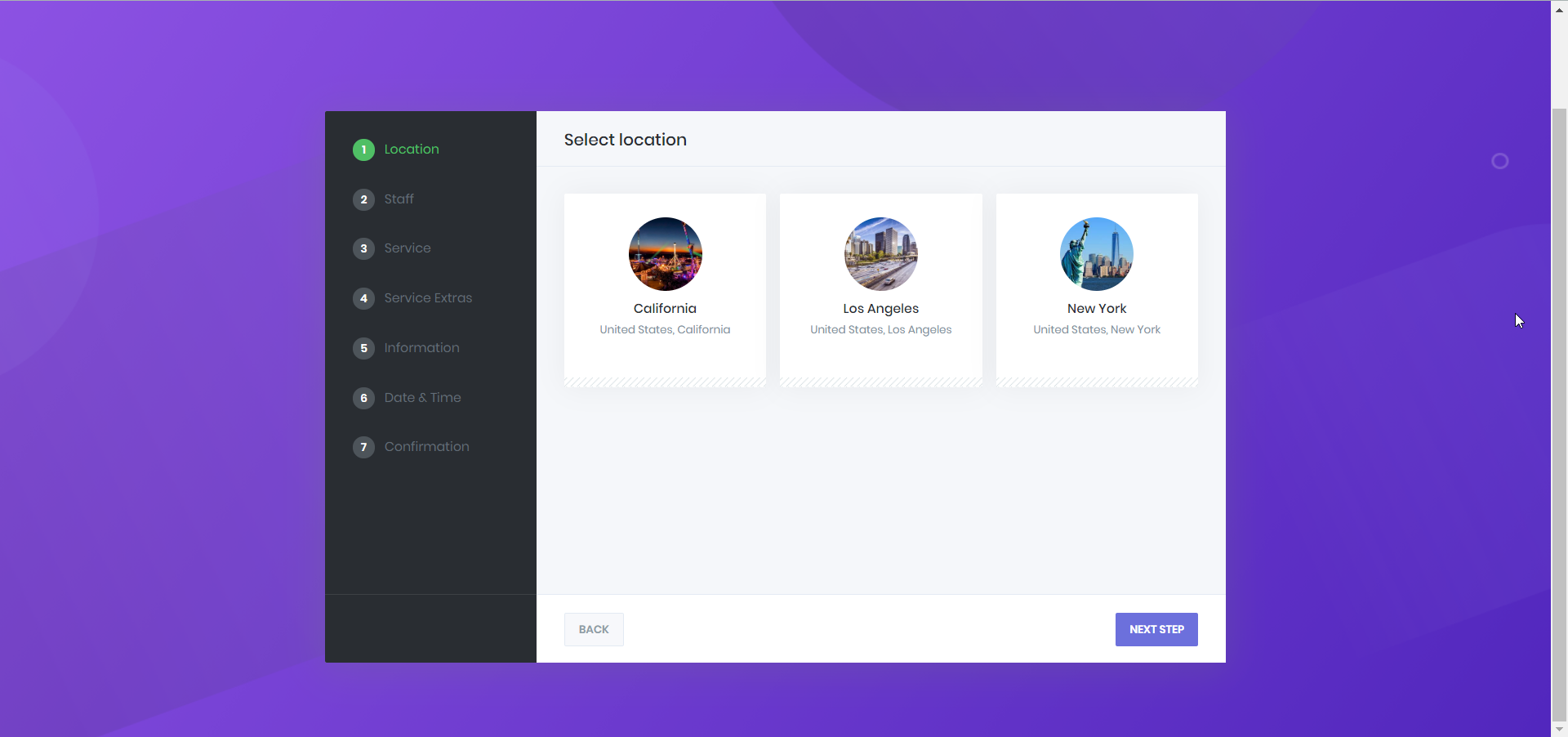
What multi-location booking does
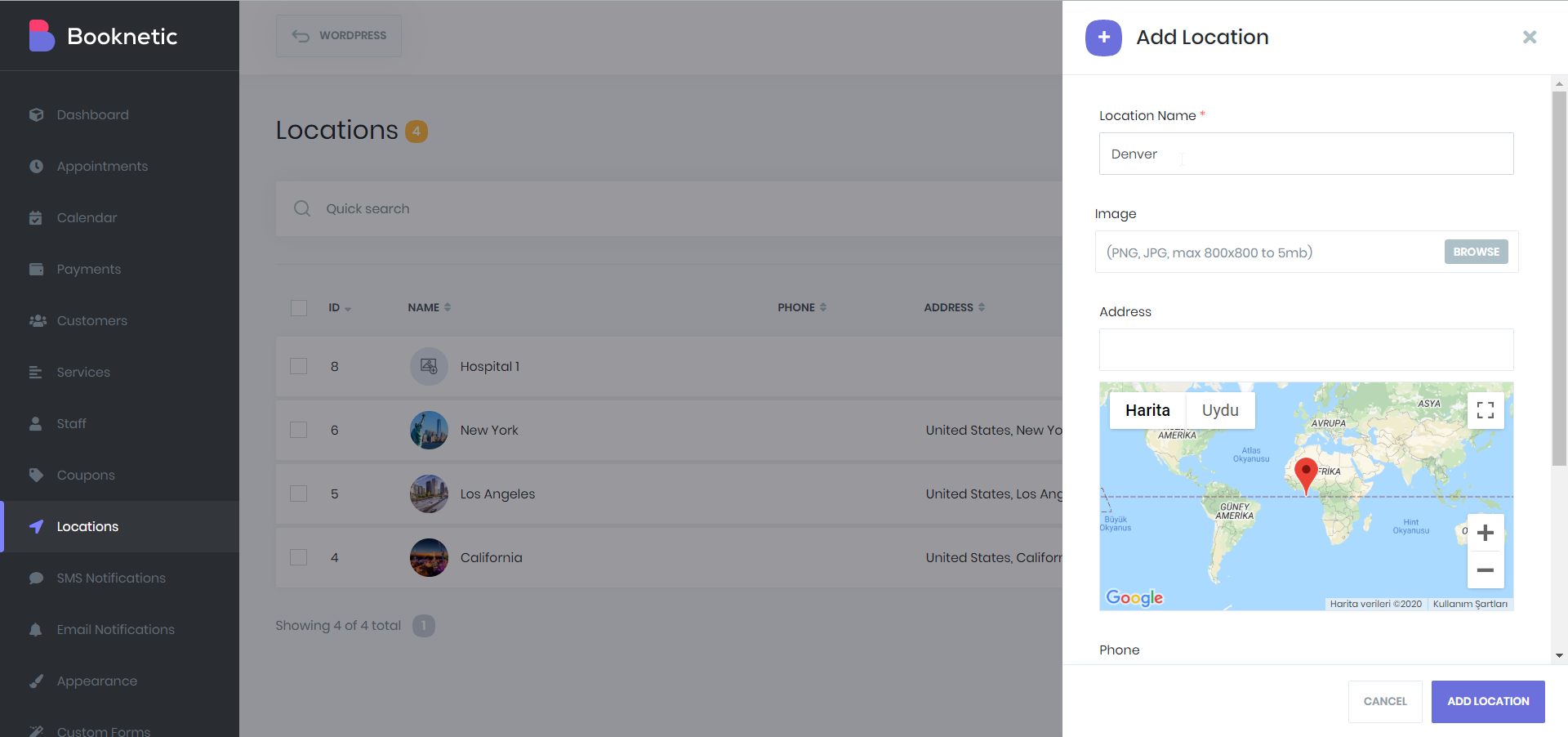
- A location record for each site. Give it a name, a photo, the address with a Google Maps pin, a phone number and a description. Shortcodes such as {location_name}, {location_address} and {location_google_maps_url} put those details into confirmations.
- Staff per location. Open a staff member and tick the locations they work at. The Staff step then shows only the people available at the chosen location, and their weekly schedules stay separate.
- Categories for many sites. Group locations under categories, for example by country or region, and collapse the Location step under those categories so a long list stays readable.
- A page per branch. Use the shortcode with a location ID to preselect that branch and hide the step, or pass a list of IDs to offer only some locations. The Gutenberg block has the same selector.
- Reports by location. Appointments, the calendar and the Reports add-on all filter by location.
- Duplicate and share. Duplicate a location with all its data, or share its own booking link from the Locations list.
How it works
- Open Locations in the Booknetic menu and click Add Location. Enter the name, address, phone and an image. Create categories on the Location Categories tab if you have many sites.
- Open each staff member and select the locations they serve. A staff member not assigned to a location is not offered there.
- Keep the Location step first in Settings > Booking Panel Steps, or reorder the steps if you prefer the service to be chosen first.
- For a landing page per branch, place
[booknetic location="3"]on that page. The step is skipped and only the staff and services of location 3 are offered.
Staff hours are per staff member, not per location. A staff member working at two branches has one weekly schedule. Give them a separate staff profile per branch if the hours differ, or use special days and breaks to block the time at one site.
The Locations documentation covers the fields, categories and the shortcode parameters.
Who uses it
- Salon and spa chains with several branches that share one booking page and one customer base. See spa and salons.
- Clinics with more than one practice where each doctor works at set sites on set days. See health and medical.
- Repair and service centres that book drop-off slots per workshop. See repair centres.
Related features
- Fully customizable booking widget with shortcode parameters per location, staff and service
- Multi-level categories for services, next to location categories
- Reporting filtered by location
- Embeddable iframe booking widget to put a branch's form on another site
Frequently asked questions
Does Booknetic support multiple locations?
Yes. Locations are part of the core plugin on every plan. Add as many as you need, assign staff to them and let customers choose a location as a booking step.
Can a staff member work at more than one location?
Yes. Tick several locations on the staff profile. The Staff step shows only the staff assigned to the location the customer picked.
Can I show a booking form for one branch only?
Yes. Put the location ID in the shortcode, for example [booknetic location="3"], and the Location step is skipped. A comma-separated list keeps the step but limits the choices.
Can locations have different opening hours?
Hours belong to staff members and services, not to locations. Use separate staff profiles, service timesheets or special days when a branch has different hours.
Does the confirmation email include the address?
Yes. Use {location_name}, {location_address}, {location_phone_number} and {location_google_maps_url} in your workflow templates.
Is there a limit on the number of locations?
No limit in the WordPress plugin. In Booknetic SaaS the super admin can cap locations per tenant plan.


