


Run your appointment schedule from one clear calendar workspace
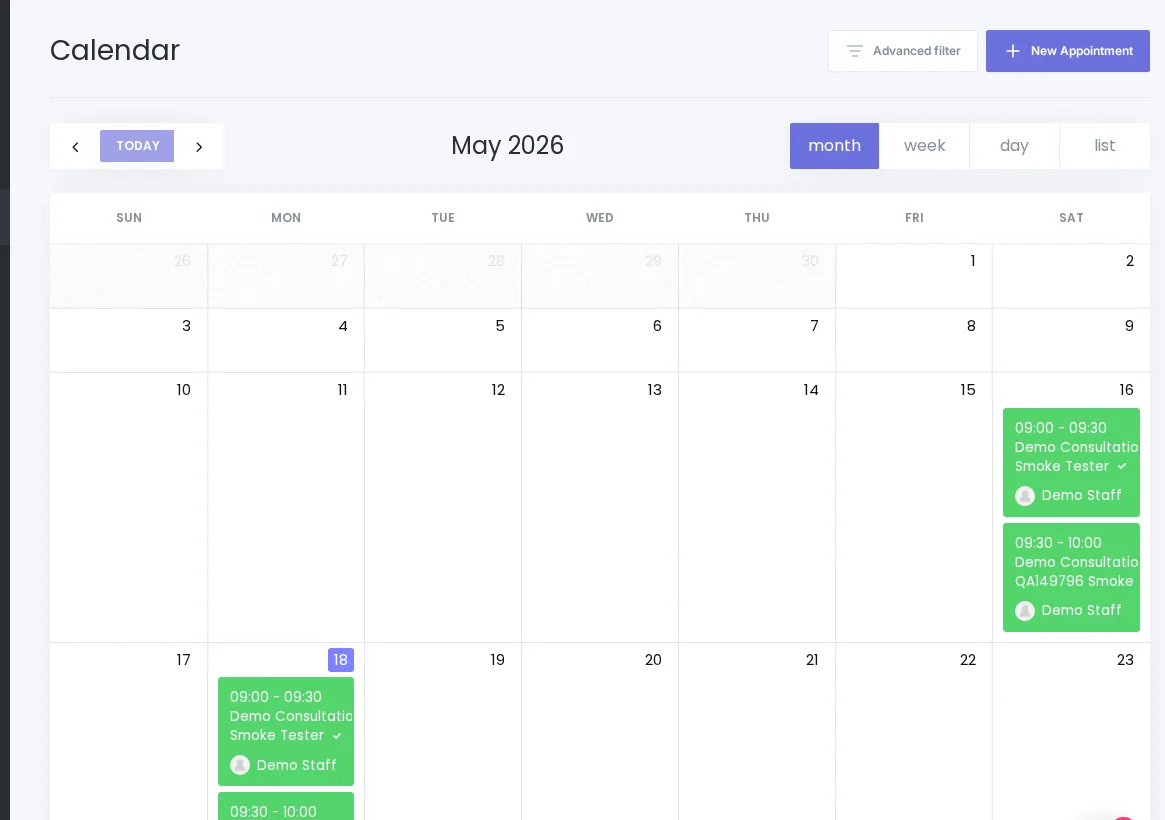
View, filter, create, and manage appointments from Booknetic’s built-in admin calendar, with external calendar sync handled separately through add-ons.
Feature explanation
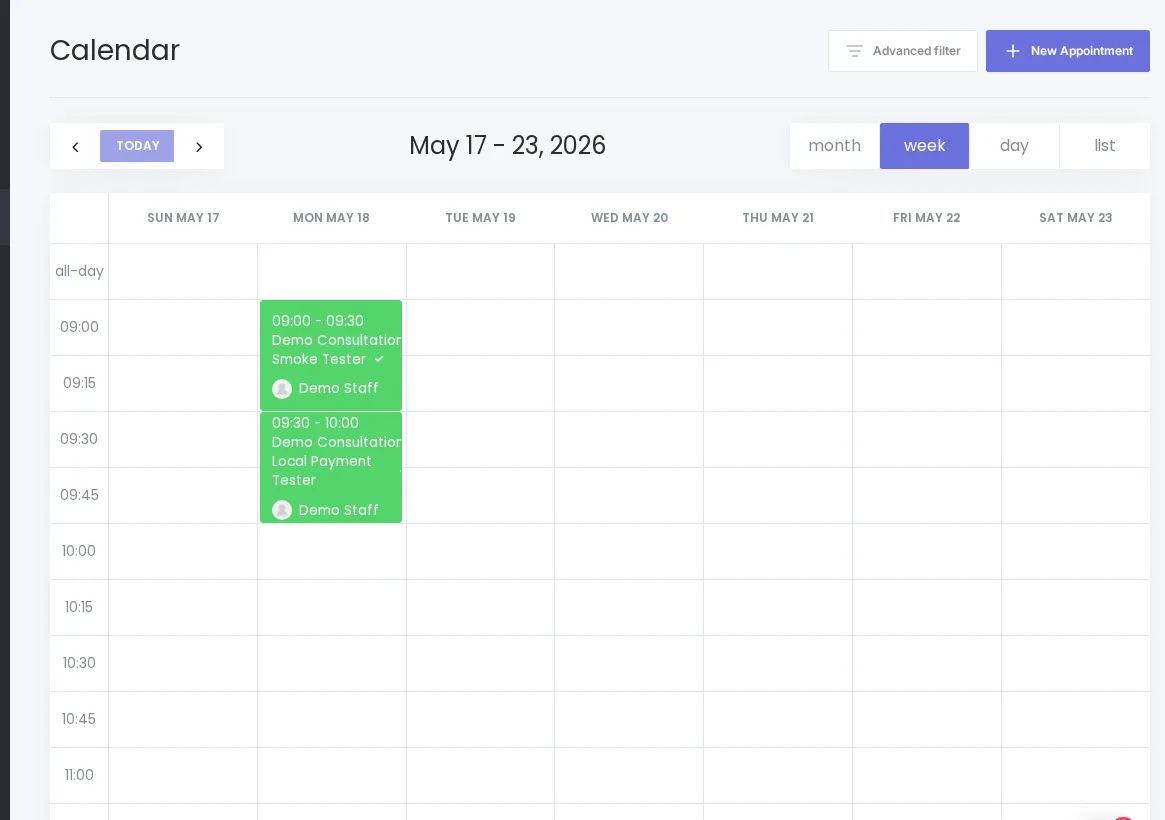
Booknetic’s Calendar module gives admins and staff a practical workspace for day-to-day scheduling. Use Month, Week, Day, and List views to understand appointment load, find bookings faster, and open appointment details directly from the calendar.
The built-in admin calendar is a core scheduling workspace. Google Calendar and Outlook Calendar sync are separate add-ons and should not be presented as part of the core calendar. If appointment edits are saved from the calendar, workflow notifications can run when Run workflows on save is enabled.
Key benefits
- See the schedule at a glance: Switch between Month, Week, Day, and List views.
- Filter busy calendars: Use available staff, location, service, appointment-status, and payment-status filters.
- Create appointments faster: Start appointment creation from the calendar workspace where supported by the current UI.
- Manage existing bookings: Open appointment records from calendar context and edit or delete them where supported.
- Keep sync expectations clear: Use separate Google Calendar or Outlook Calendar add-ons when external calendar sync is needed.
How it works
- Open the Calendar module from the Booknetic admin area.
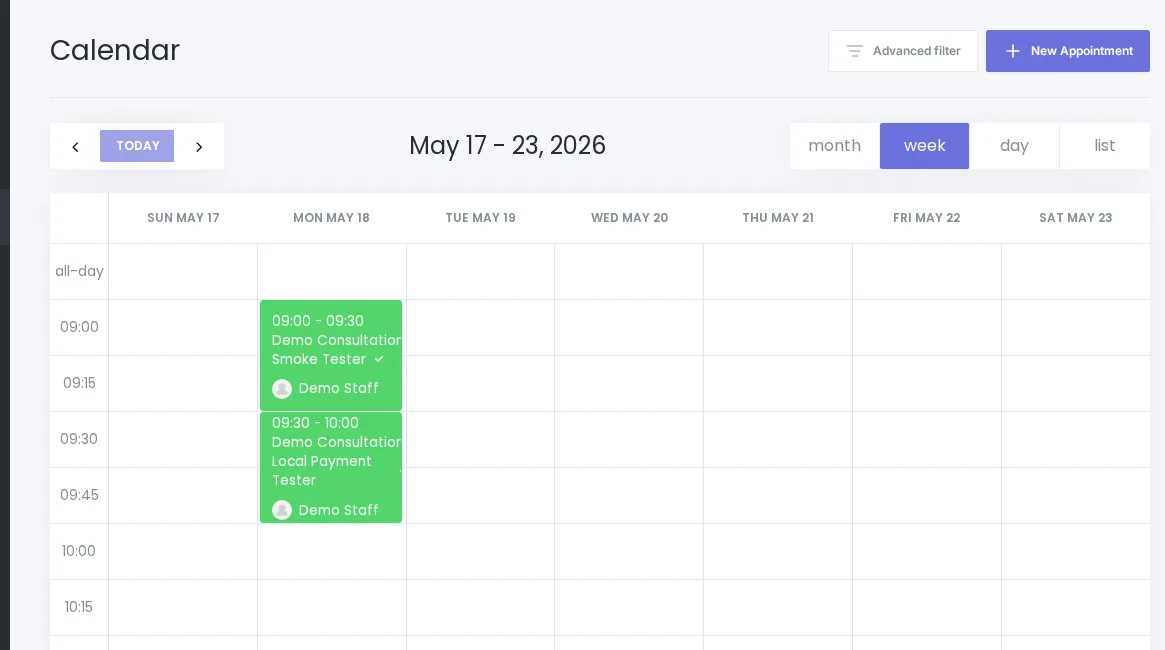
- Choose Month, Week, Day, or List view based on your scheduling task.
- Use the available calendar filters, such as staff, location, service, appointment status, and payment status.
- Open an appointment from the calendar to review details.
- Create or update appointments from calendar context where the current UI supports the flow.
- Configure Google/Outlook sync separately if your business uses those add-ons.
FAQ
Is this the same as Google Calendar sync?
No. This page describes Booknetic’s built-in admin calendar. Google Calendar and Outlook Calendar sync require separate add-ons and provider setup.
Can edits from the calendar trigger notifications?
Current sources say calendar appointment save can trigger workflows when Run workflows on save is enabled. Keep this qualifier in final copy.


